Shop: weekly offers in every branch
This tutorial follows Northgate Store in York, which has a portrait screen in the window and one at the till. By the end you’ll have:
- a display group that picks up every Northgate window screen by its tags, including ones added later
- the weekly offers layout on those screens during opening hours until the sale ends
- proof of play switched on, and a report showing how often the offers played
Before you start
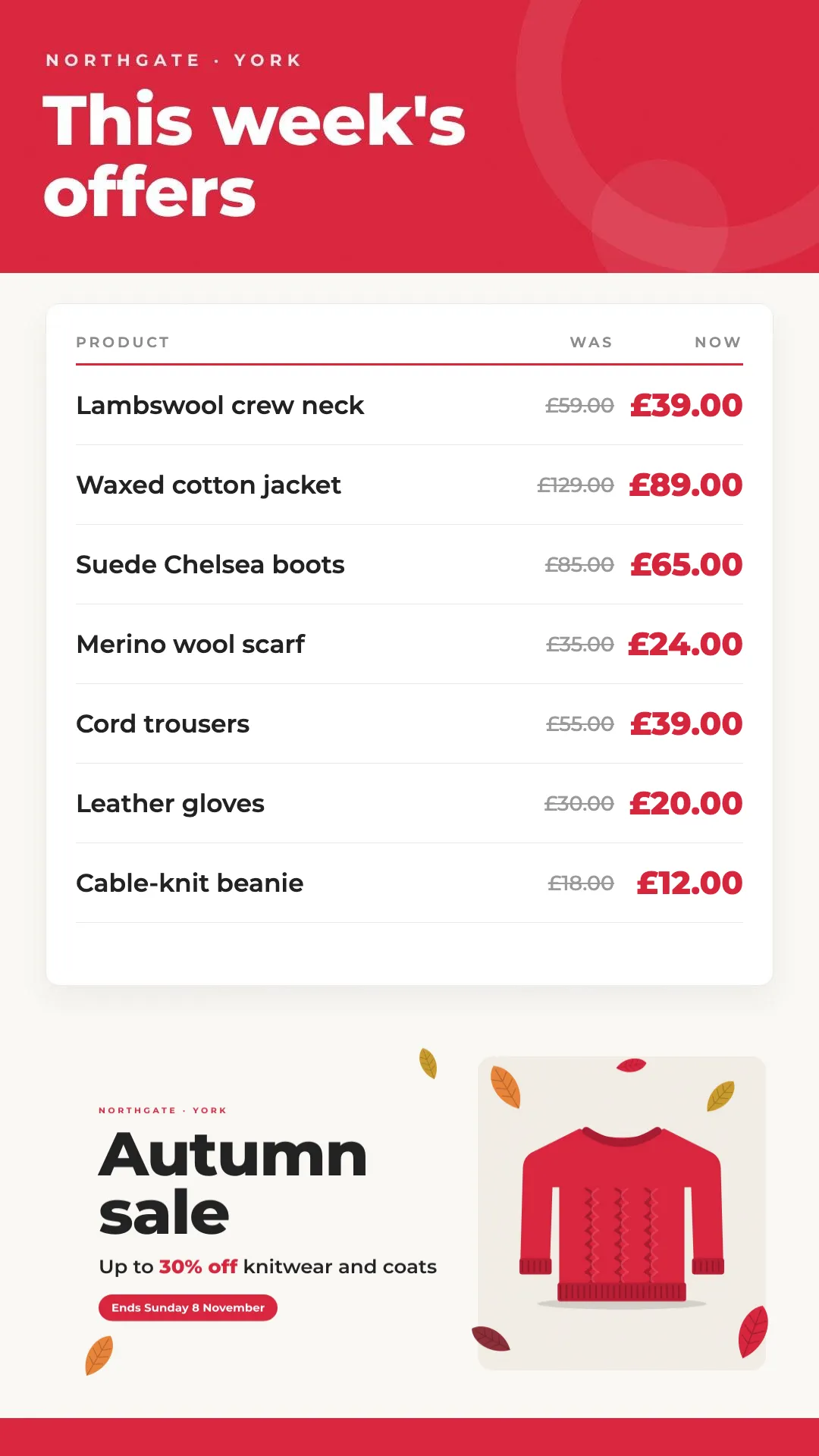
Section titled “Before you start”You need a portrait layout for the offers. Northgate’s is Northgate Weekly Offers, with its prices in a dataset so they’re quick to change. See Design a layout and Show a table of data on screen.
Each window screen needs the tags “northgate” and “window”. Tags are set on each display: see Change a screen’s settings.
1. Make a group for all the window screens
Section titled “1. Make a group for all the window screens”A dynamic display group adds screens by their tags. When you open a new branch and tag its window screen the same way, it joins the group and gets the offers with no change to the schedule.
-
Click Displays in the menu on the left, then Display Groups. Click Add Display Group.
-
Choose the folder in Select folder location, type a Name and, if you like, a Description.
-
Tick Dynamic Group. In Criteria Tags, type
northgate,windowand set the list next to it to AND, so a screen needs both tags to join. The Matching Displays table shows which screens the group will include. Click Save.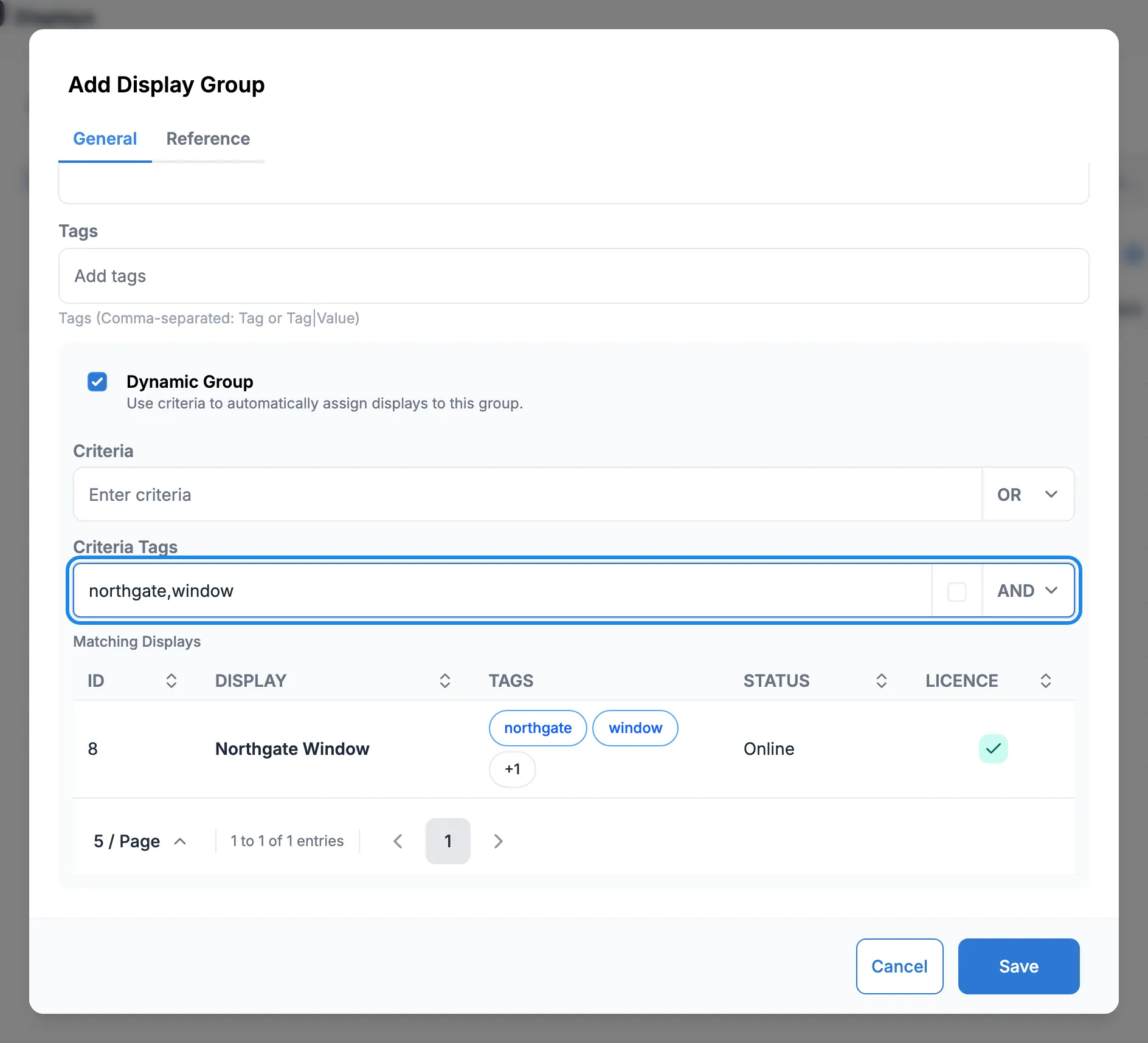
More about groups in Group your screens.
2. Turn on proof of play
Section titled “2. Turn on proof of play”Do this before the offers start, so every play is recorded.
-
Click Design, then Layouts, and click the edit icon on Northgate Weekly Offers.
-
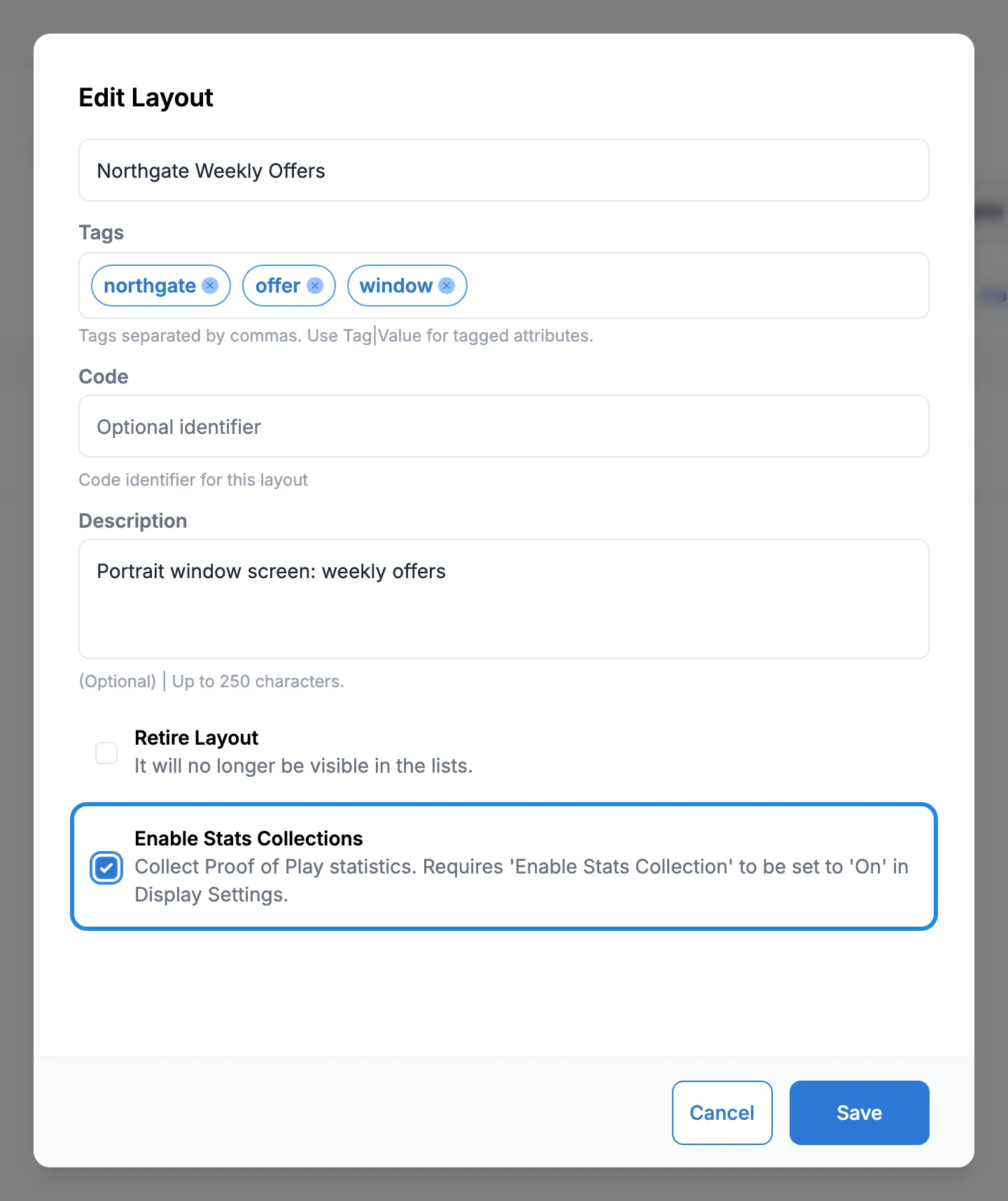
Tick Enable Stats Collections and click Save.
3. Schedule the offers until the sale ends
Section titled “3. Schedule the offers until the sale ends”-
Click Schedule, then Events, then Add Event. Leave Event Type on Layout, choose Northgate Weekly Offers and click Next.
-
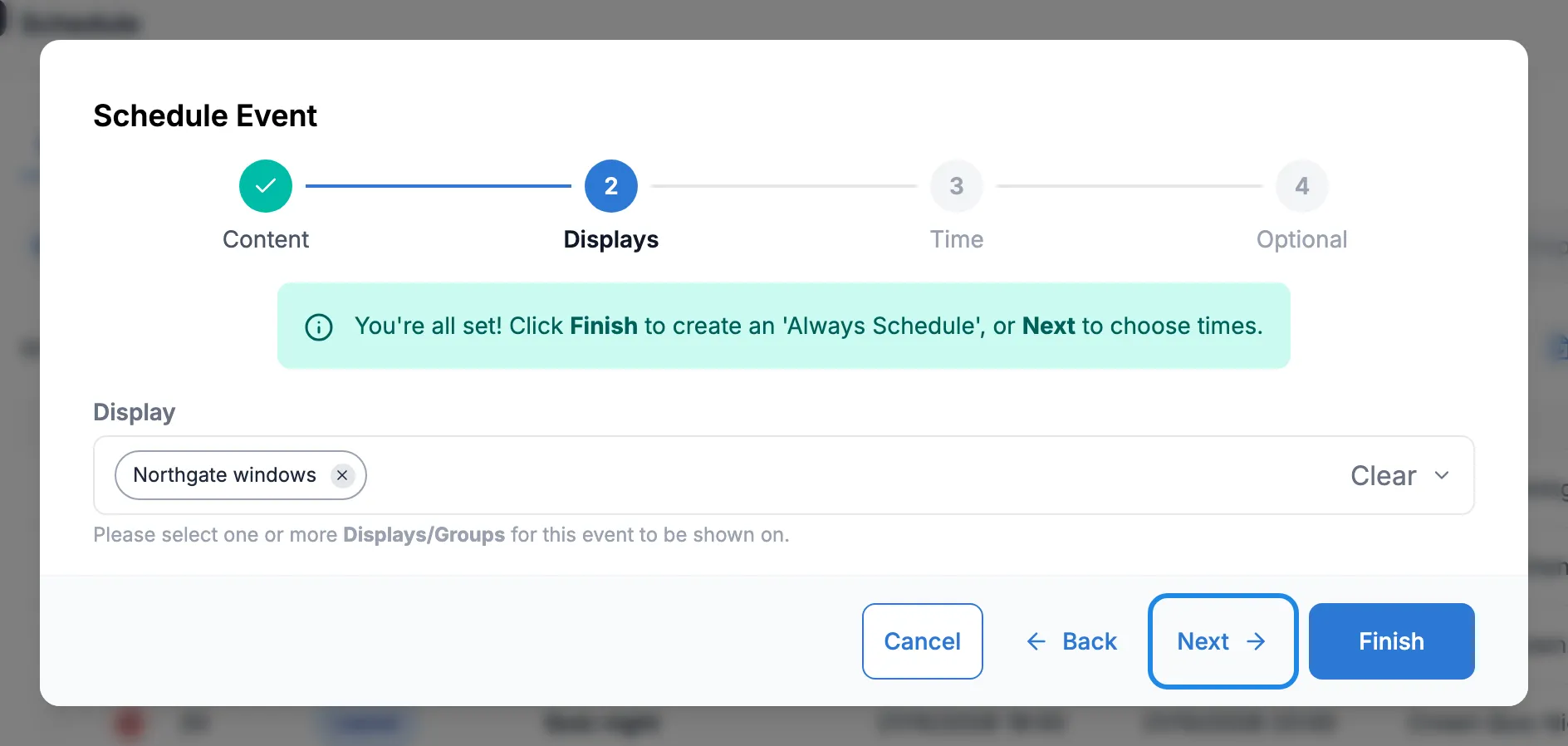
Tick the Northgate windows group and click Next.
-
Choose Custom in Dayparting and set the opening hours on the first day, 08:00 to 20:00. Click Next.
-
Name the event. On the Repeats tab, choose Day and set Until to closing time on the last day of the sale. Click Finish.
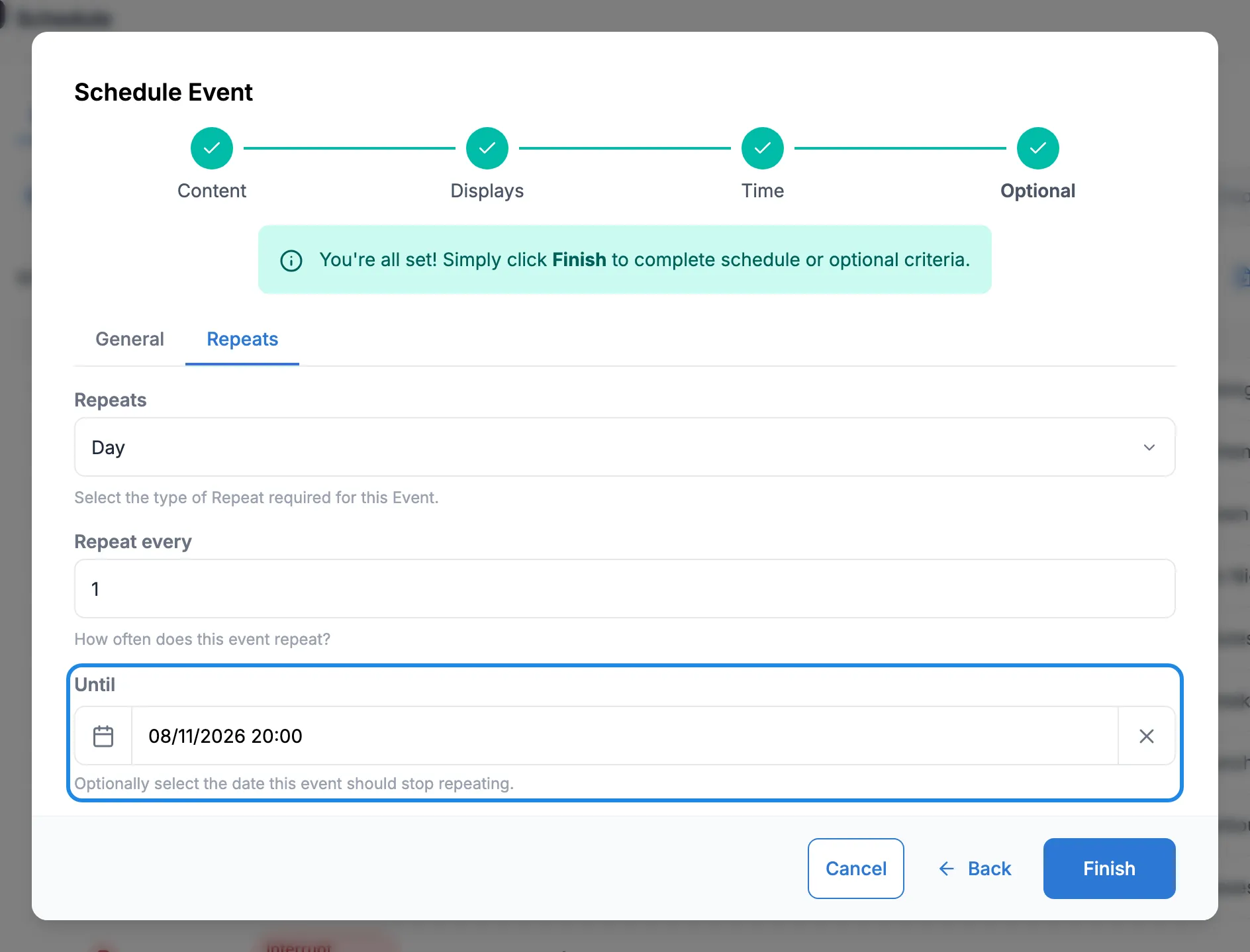
After the Until date the event stops and the windows go back to their other content, so there’s nothing to delete.
4. Check it played
Section titled “4. Check it played”Once the offers have been running, run a proof of play report.
-
Click Reporting, then All Reports, and click View Report on the Proof of Play card.
-
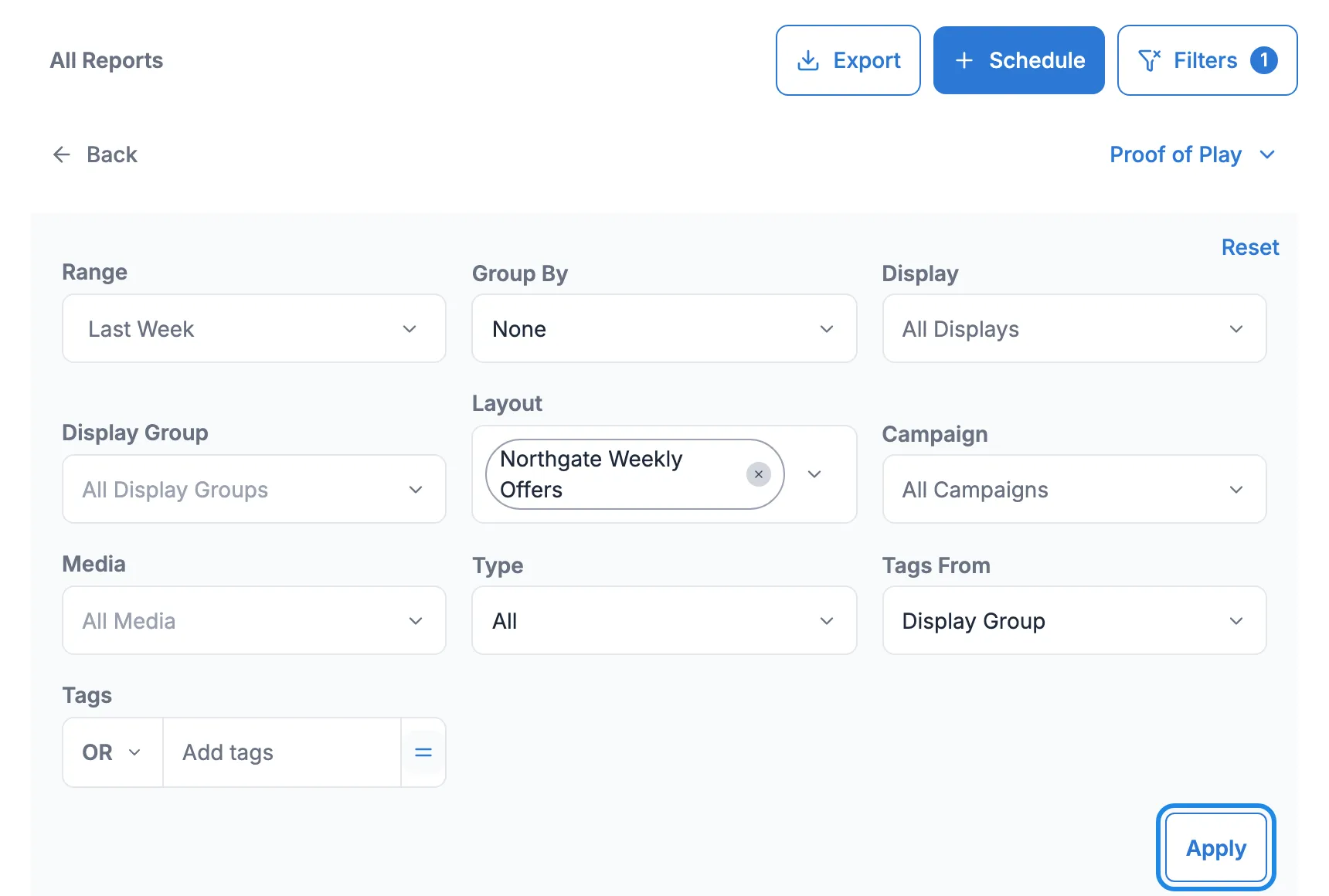
Choose a Range, pick Northgate Weekly Offers in Layout and click Apply.
-
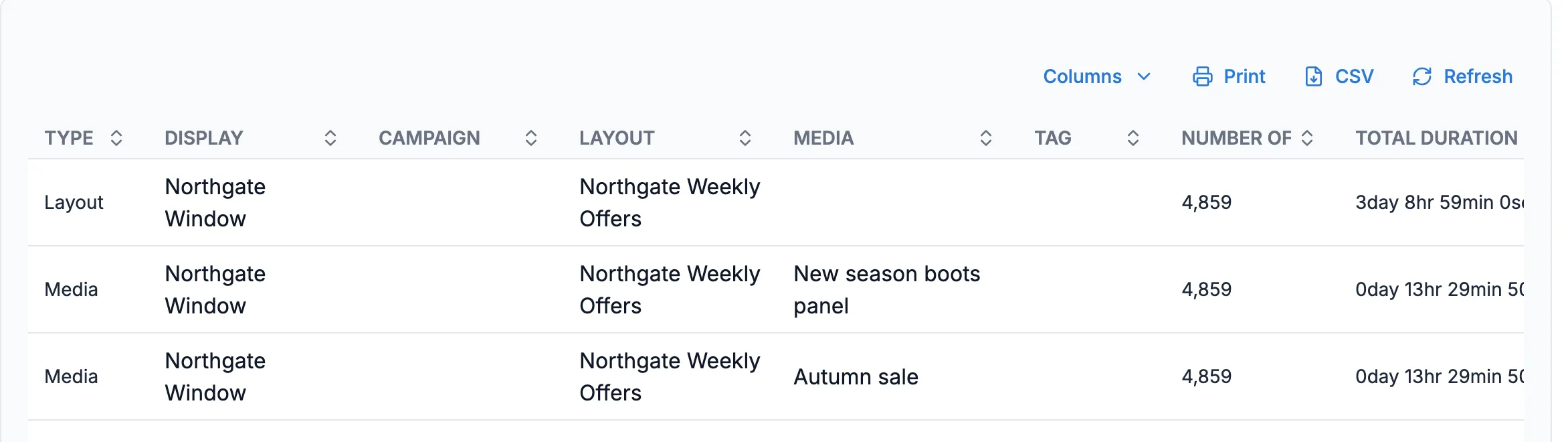
The report lists the layout on each window screen with the Number of Plays and Total Duration, plus a row for each image in it. Click CSV to download it, for example to send to a supplier.