Screen uptime and other reports
Besides proof of play, the Reporting menu has reports on your screens themselves. All of them start the same way: click Reporting in the menu on the left, then All Reports, and click View Report or View Chart on a card. Set the filters, then click Apply.
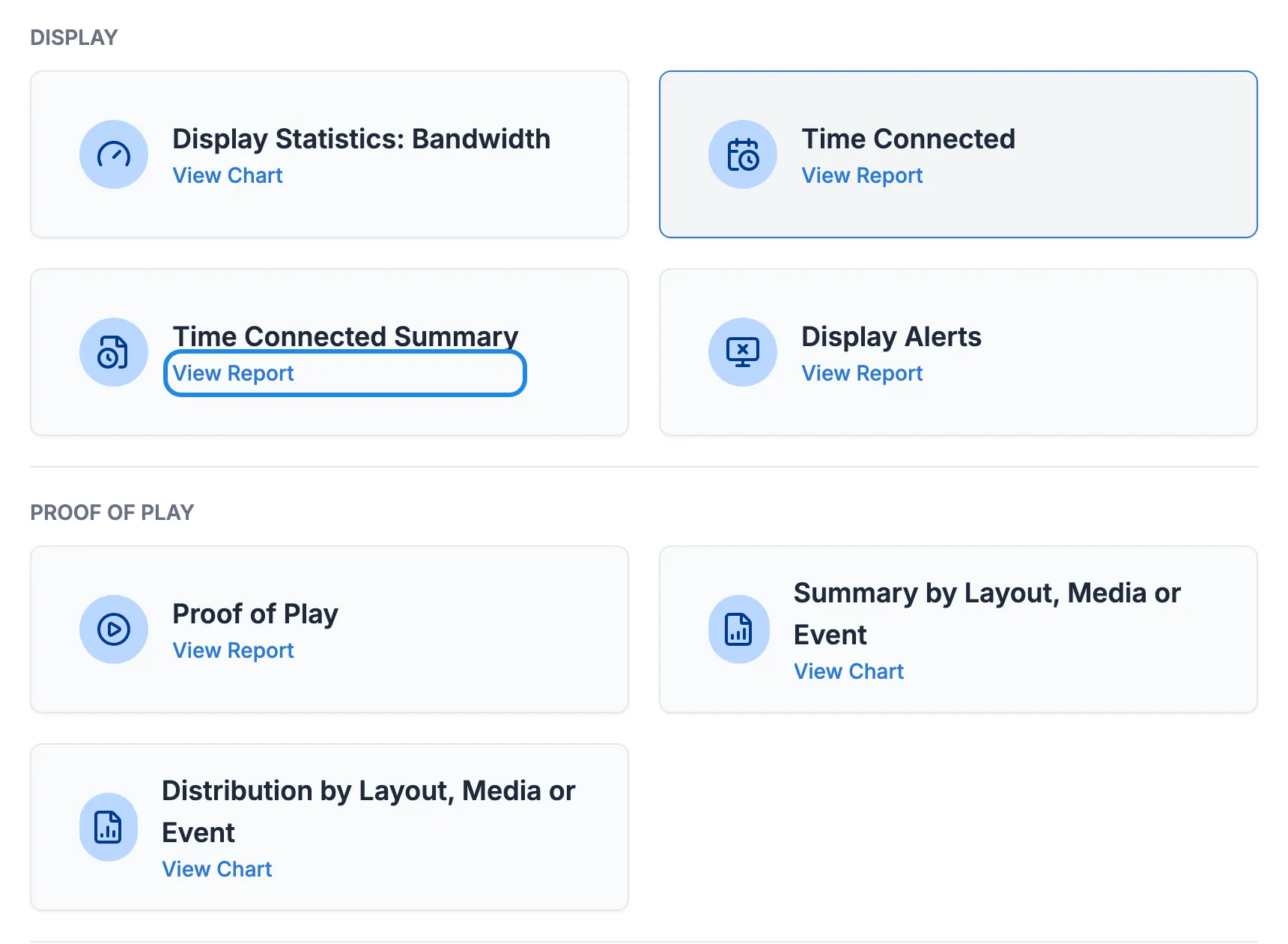
Time Connected
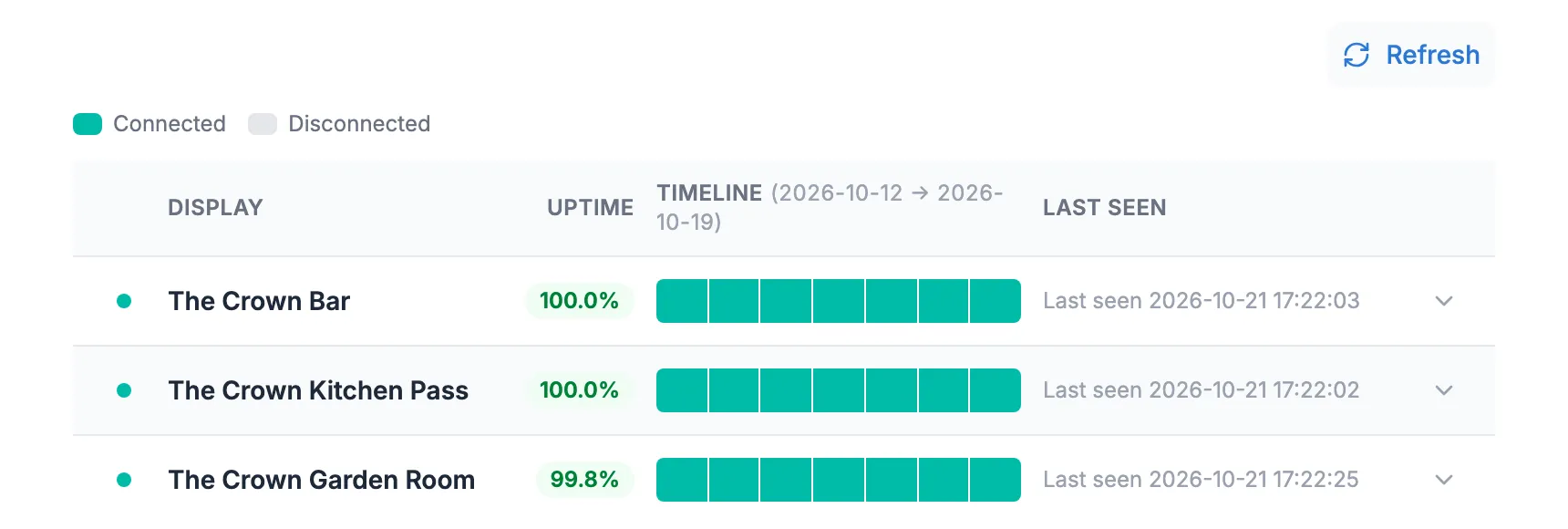
Section titled “Time Connected”Shows how much of the time each screen was connected to Casty, with a timeline for each day. Use it to spot a screen that keeps dropping off.
Pick a Range and choose screens or display groups in Display/Display Groups, then click Apply. Each row shows the screen’s Uptime as a percentage, a green bar for each day it was connected and when it was Last seen.
Time Connected Summary
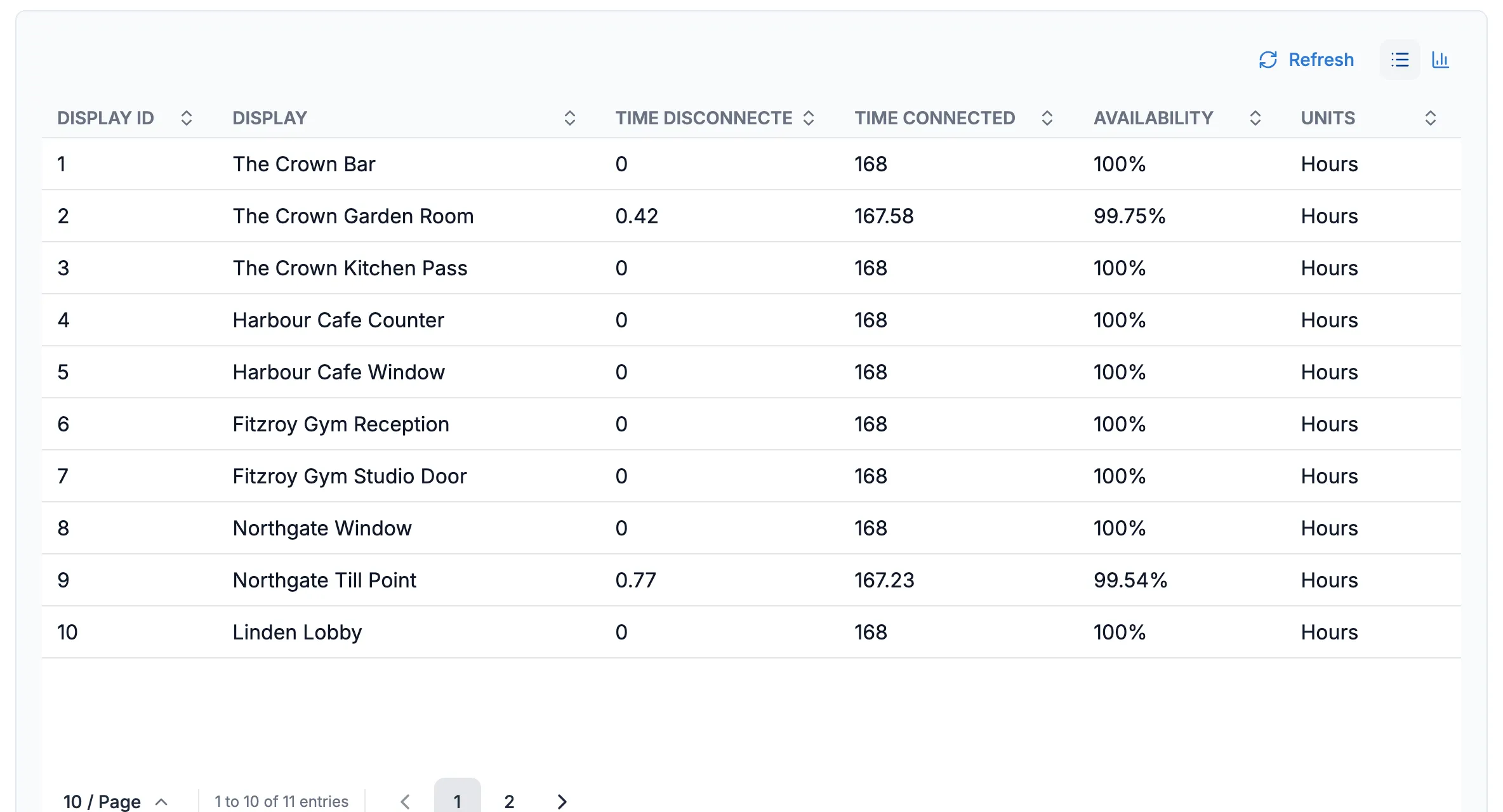
Section titled “Time Connected Summary”The same information as a table for all your screens at once: hours connected, hours disconnected and Availability as a percentage. Set Group By to Display Group to see totals and averages for each venue’s group.
Display Alerts
Section titled “Display Alerts”Lists the times a screen went offline and came back, with the start, end and how long it lasted. Event Type narrows the list, for example to Display Up/down. Only show currently logged in? limits the list to screens that are online now.
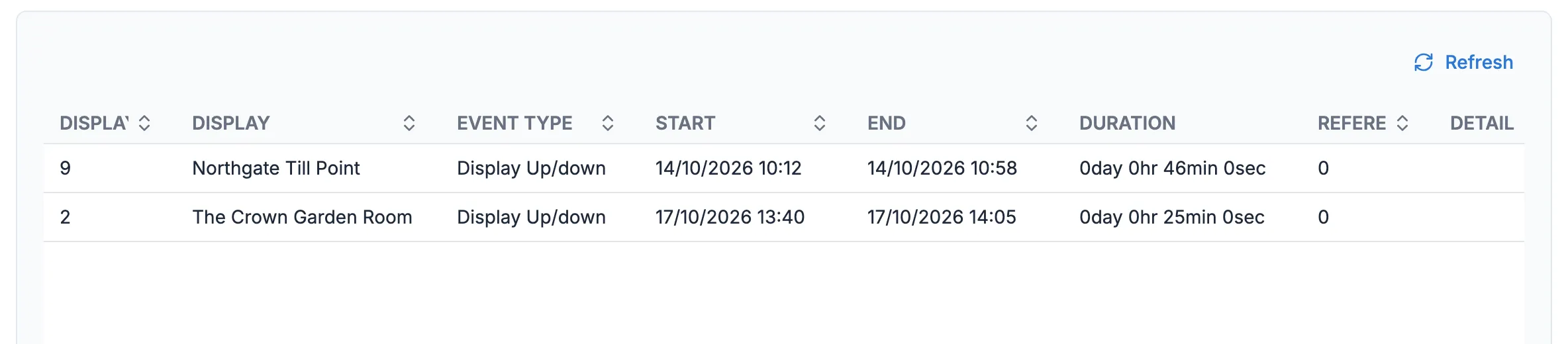
If a screen shows up here often, see A screen shows as offline.
Display Statistics: Bandwidth
Section titled “Display Statistics: Bandwidth”A bar chart of how much data each screen has downloaded, in gigabytes. Set From Date and To Date, and pick a Display if you only want one. It’s worth checking if a screen is on a mobile or metered connection.
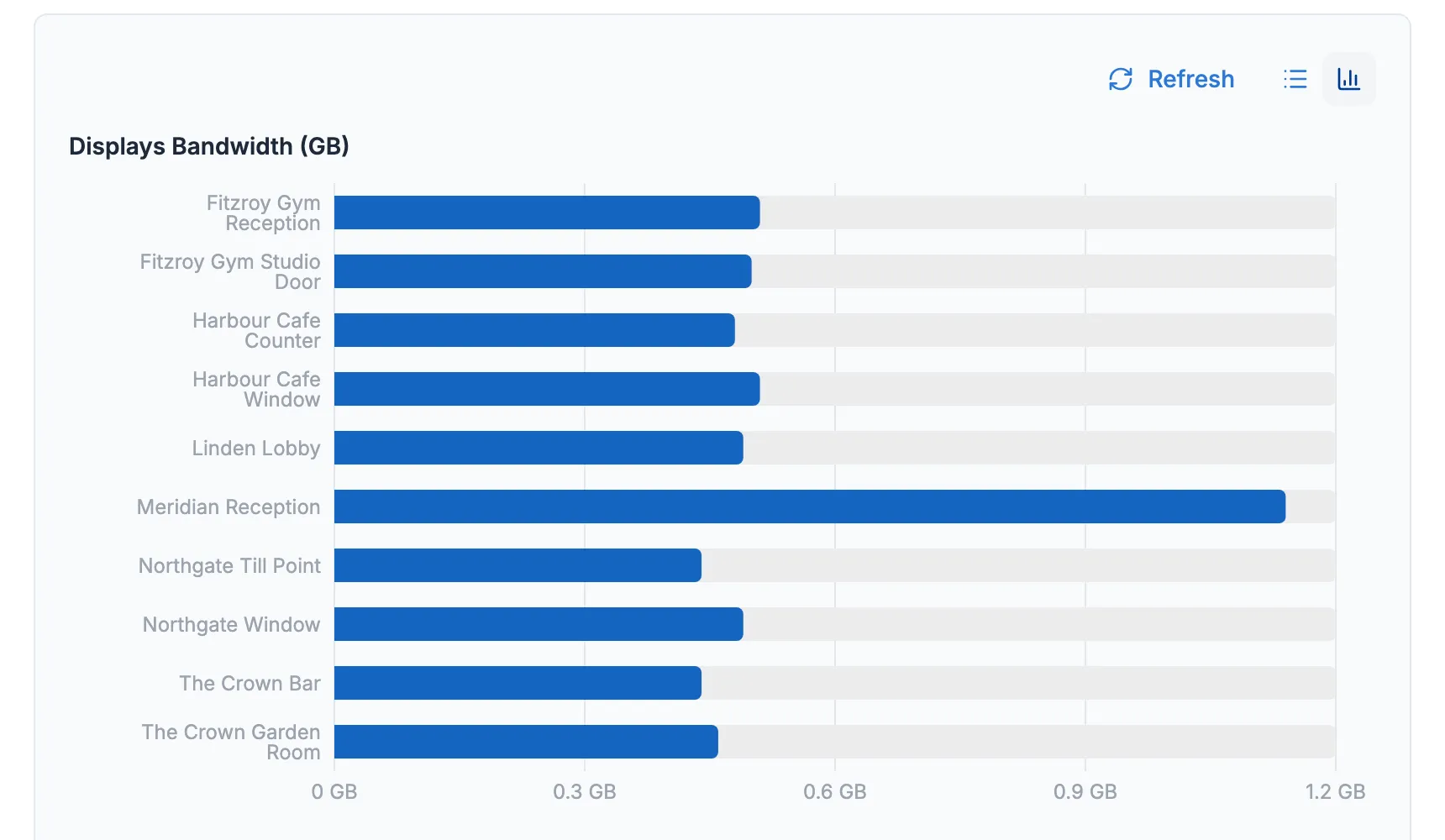
Distribution by Layout, Media or Event
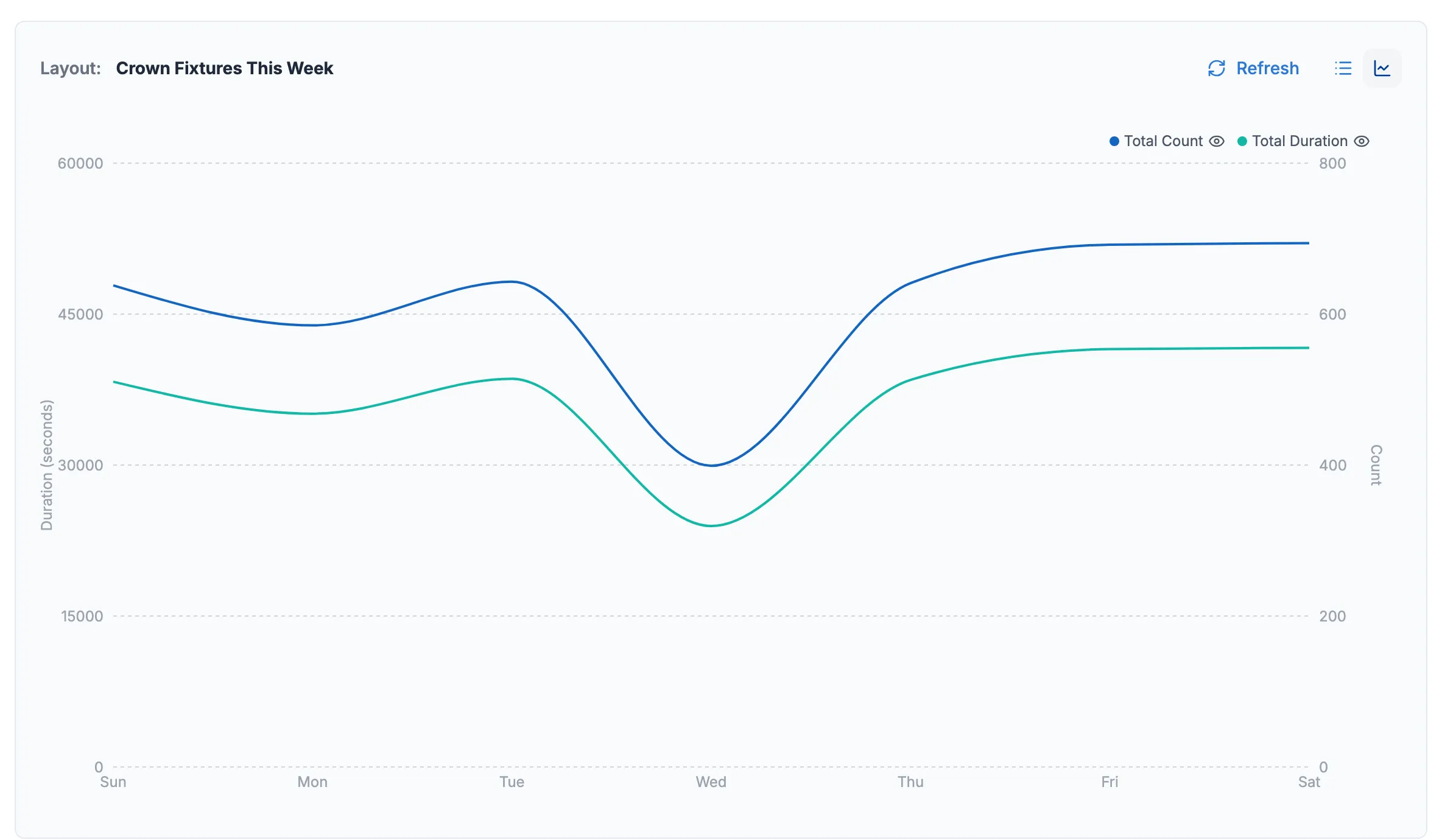
Section titled “Distribution by Layout, Media or Event”Shows when in the day or week a layout plays. Choose the Range, set Group By to Hour, Day of the week or Day of the month, pick the layout and click Apply. Click the chart icon to see a chart. This report uses proof of play, so the layout must be recording (see Run a proof of play report).