

How Casty works
Casty has two parts. The CMS is the website where you build and schedule your content. The player is the app on each screen that downloads that content and plays it. This page explains how the pieces fit together, so the rest of the docs make sense.
The CMS, in your browser
Section titled “The CMS, in your browser”You log in to the CMS at app.casty.co.uk. There’s nothing to install on your computer. Everything you do in Casty happens here: uploading pictures and videos, designing what each screen shows, deciding when it shows, and checking that your screens are working.
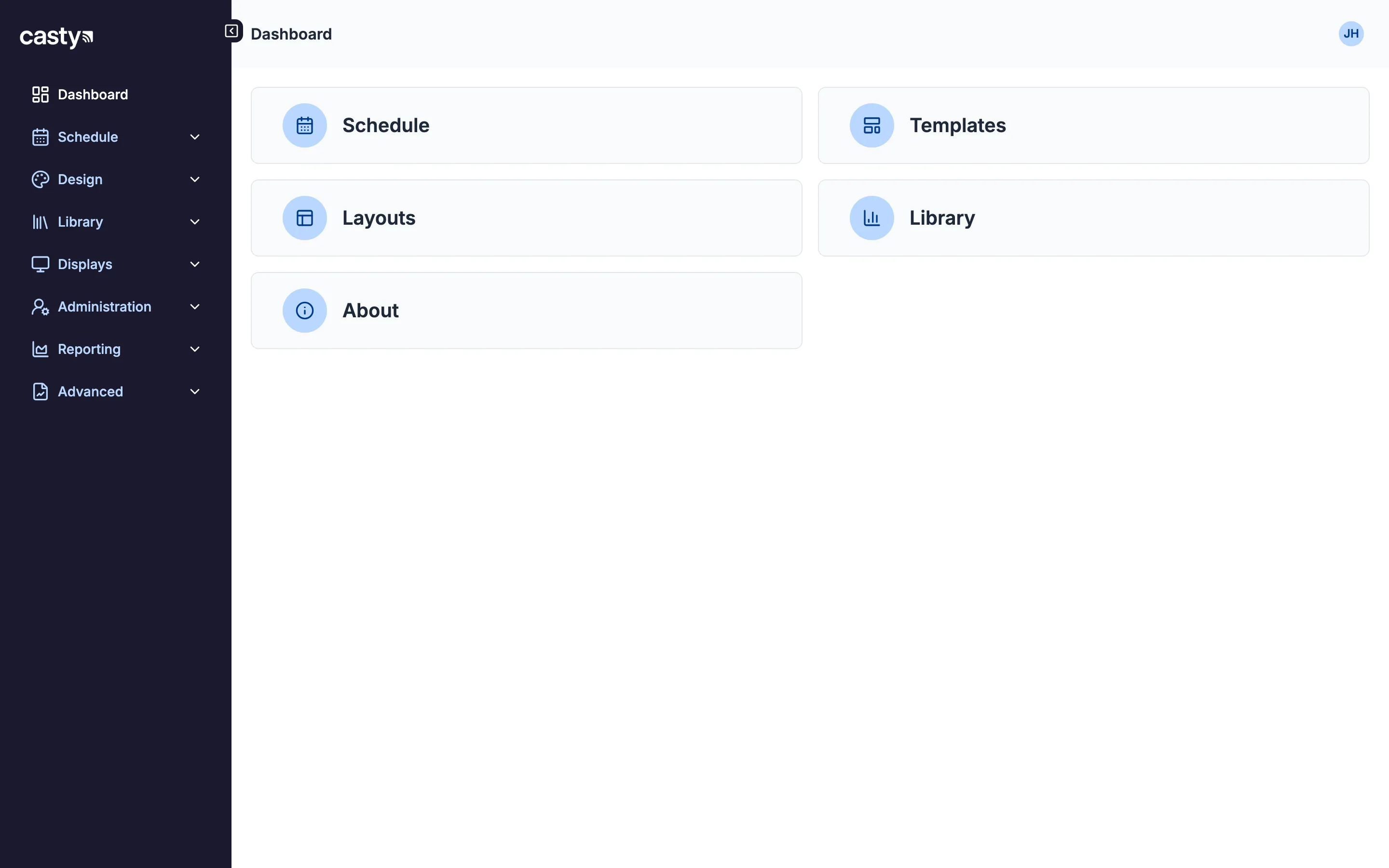
When you log in you land on the dashboard. The menu on the left takes you to every part of the CMS.
The player, on each screen
Section titled “The player, on each screen”Every screen needs a player. That can be a small stick or box behind a TV, a PC, or a commercial display with the player built in (see Choosing a player). In the CMS, each player appears as a display.
The player checks in with the CMS regularly. Each time, it picks up any changes to its schedule, downloads the files it needs and reports back: what it’s playing, whether it has everything, and a screenshot if you asked for one. Players keep a copy of their content, so a screen carries on playing if the internet drops. Anything that needs a live connection, such as a web page, waits until the connection comes back.
From a picture to a screen
Section titled “From a picture to a screen”Most content follows the same path through the CMS.
- You upload images, videos and other files to the media library. Each file becomes a media item you can reuse as often as you like.
- You design a layout. A layout is a screen design: you place media, text and widgets (a clock, a menu board, a table of data and so on) on a canvas the size of your screen, then publish it.
- If you want several things to take turns, you can use a playlist, which plays media items one after another like a slideshow, or a campaign, which plays layouts in turn.
- You add an event to the schedule. It says what plays, on which screens and when. You can schedule a layout, a campaign, a playlist or a single media item.
- You pick the screens: a single display, or a display group such as every screen in one venue.
At its next check-in, the player sees the new event, downloads what it needs and starts playing at the right time.
A few more things you’ll meet
Section titled “A few more things you’ll meet”- Dayparts are named time slots, such as breakfast from 07:00 to 11:30, that you can reuse in many events.
- The default layout is what a screen shows when nothing is scheduled for it.
- Datasets and menu boards hold information, like prices or class times, that layouts show. You update the information and the screens follow, with no redesign.
- Folders and tags keep things organised when you have several venues.
- Proof of play reports show what each screen played and when.
Words used in these docs
Section titled “Words used in these docs”| Term | What it means |
|---|---|
| Display | One screen with a player, as it appears in the CMS |
| Display group | A set of displays you can schedule to in one go |
| Layout | A screen design made of media, text and widgets |
| Widget | One piece of content in a layout that does a job, such as a clock, a video or a menu board |
| Playlist | Media items that play in turn |
| Campaign | Layouts that play in turn |
| Event | An entry in the schedule: what plays, where and when |
The glossary has the full list.