

Show a table of data on screen
A dataset is a simple table you keep in Casty, like a small spreadsheet: this week’s fixtures, today’s classes, upcoming events or a price list. Show it on a layout once, and from then on you only update the rows. This page builds an events list for Harbour Cafe.
Create the dataset
Section titled “Create the dataset”-
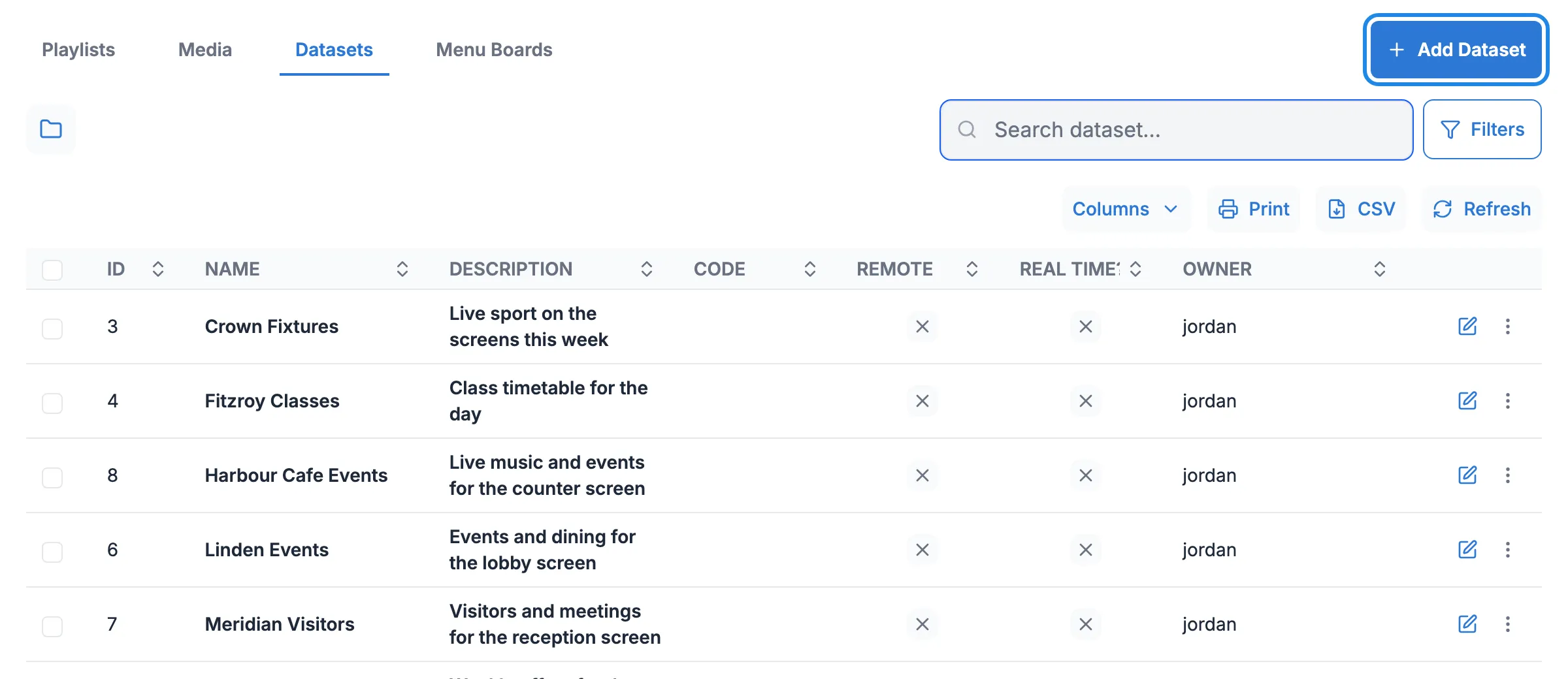
In the menu on the left, open Library and click Datasets. Then click Add Dataset.
-
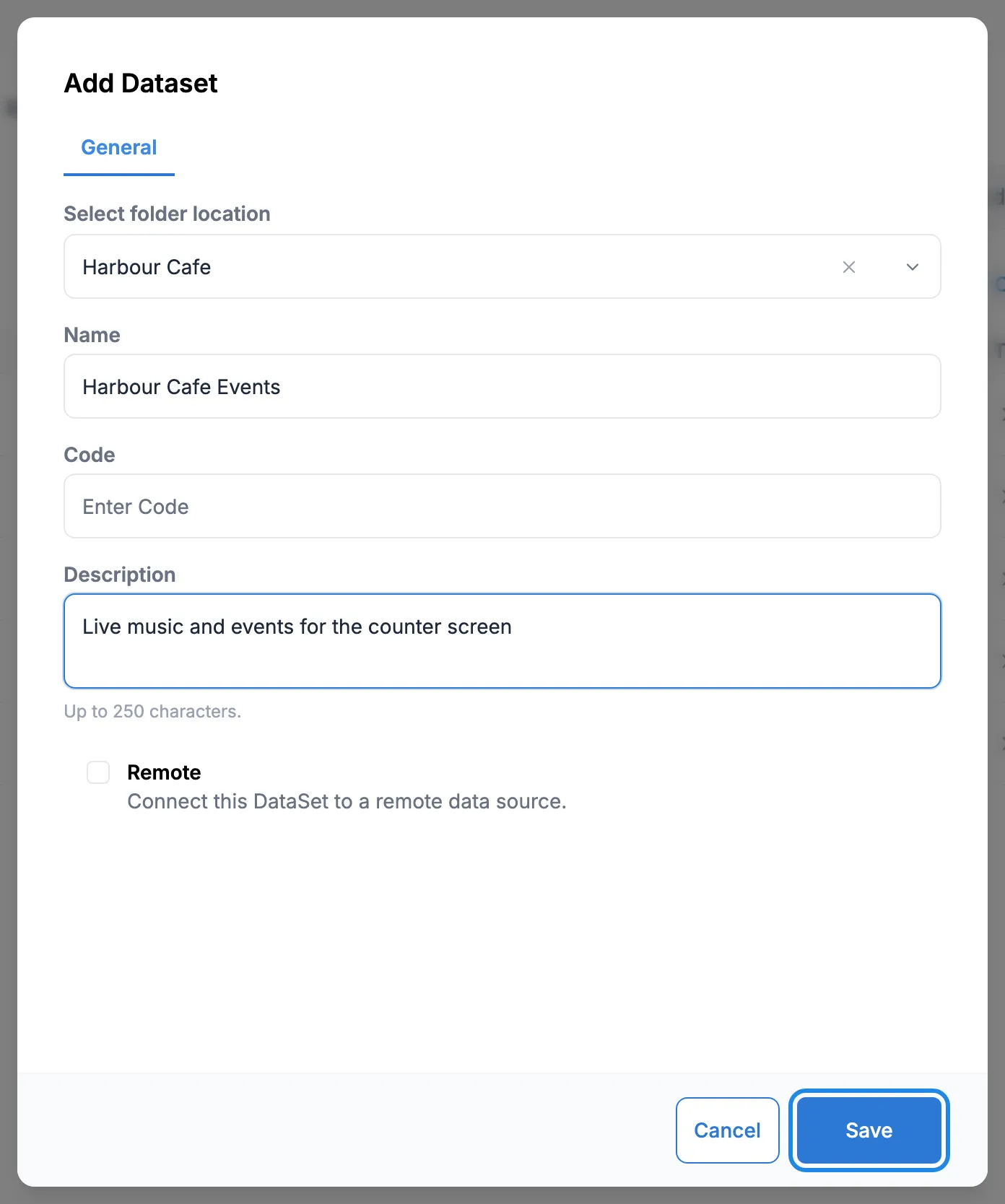
Choose your venue’s folder, type a Name and, if you like, a Description. Leave Remote unticked. Click Save.
Set up the columns
Section titled “Set up the columns”A new dataset starts with one column, called Col1. Rename it and add the others you need.
-
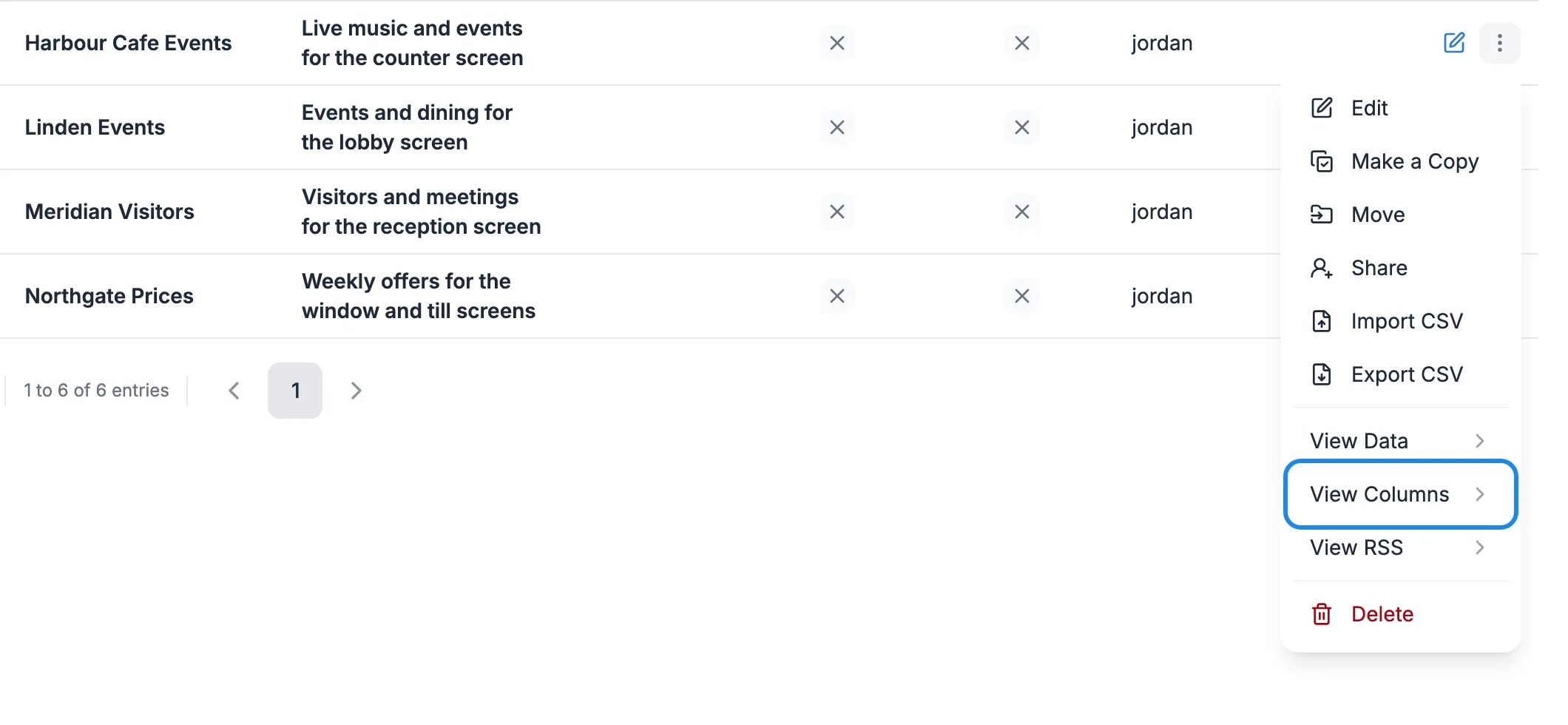
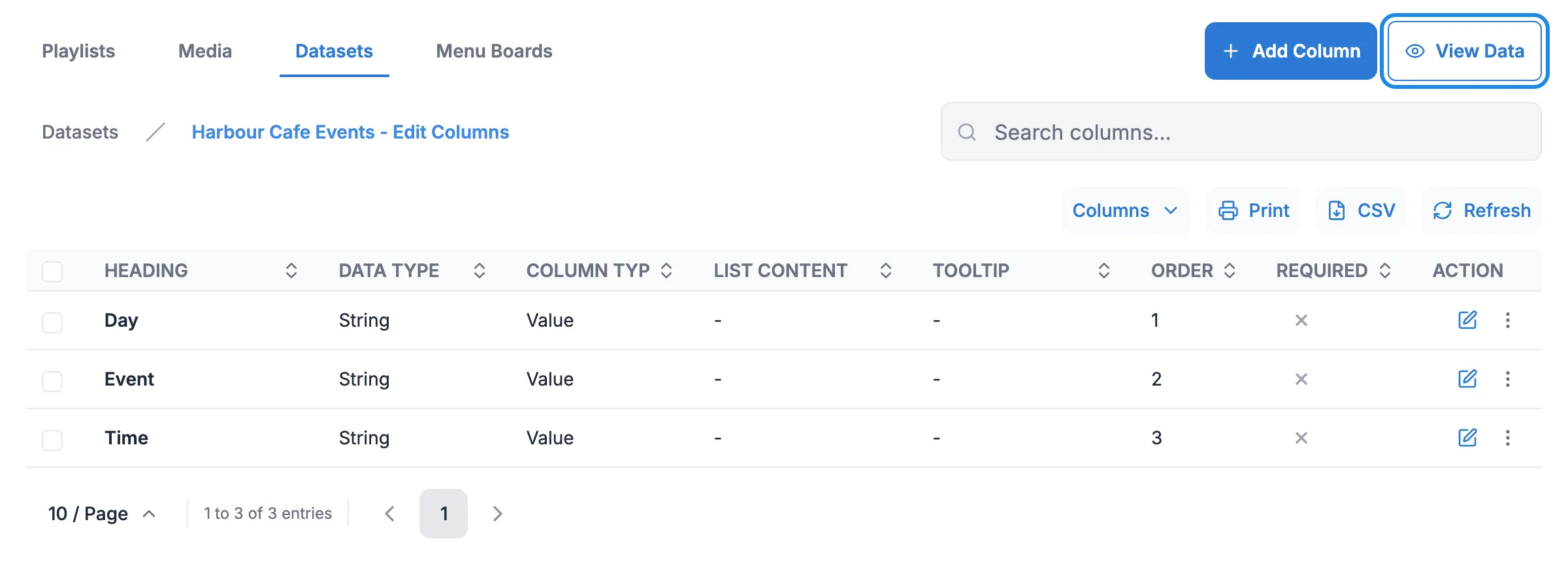
Click More actions on the dataset’s row and choose View Columns.
-
Click the pencil icon (Edit) on Col1. Type a new Heading and click Save.
Headings can’t contain spaces, and hyphens don’t work either. Use one word, such as
DayorStartTime.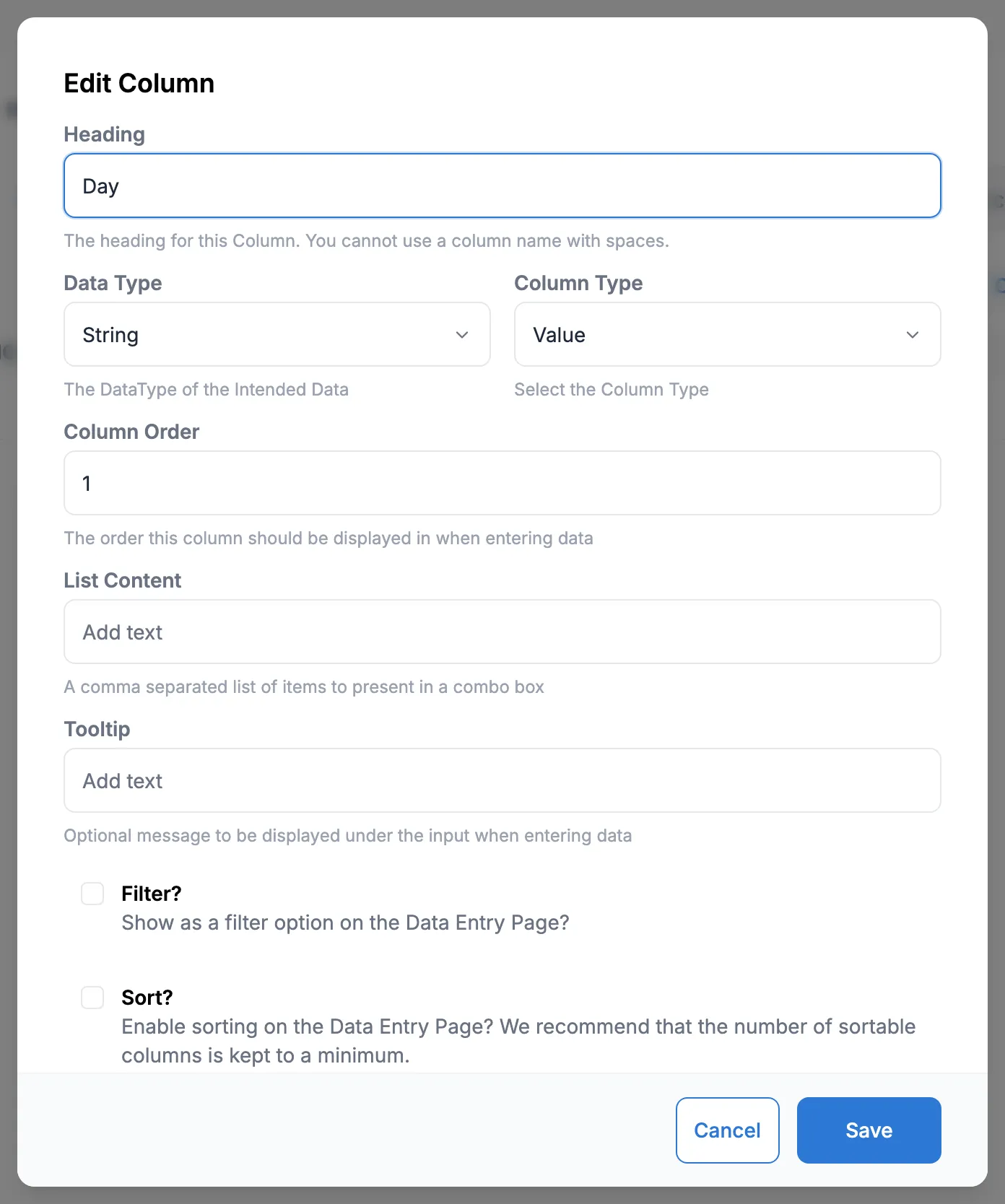
-
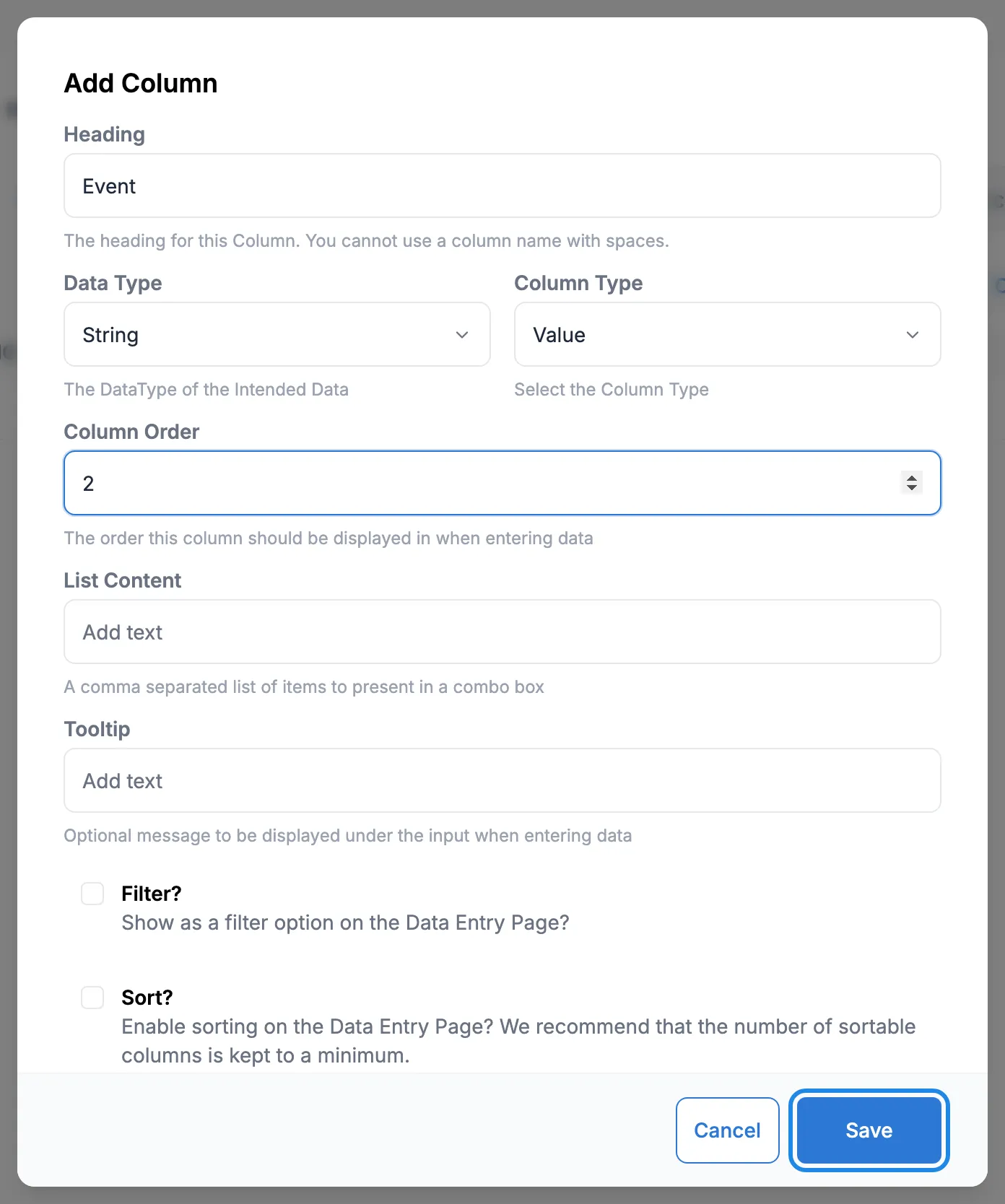
Click Add Column for each extra column. Type the Heading and set Column Order to its position (2 for the second column, and so on). Data Type can stay as String for words and times. The other types are Number, Date, External Image, Library Image and HTML. Click Save.
-
When the columns are right, click View Data.
Add rows
Section titled “Add rows”-
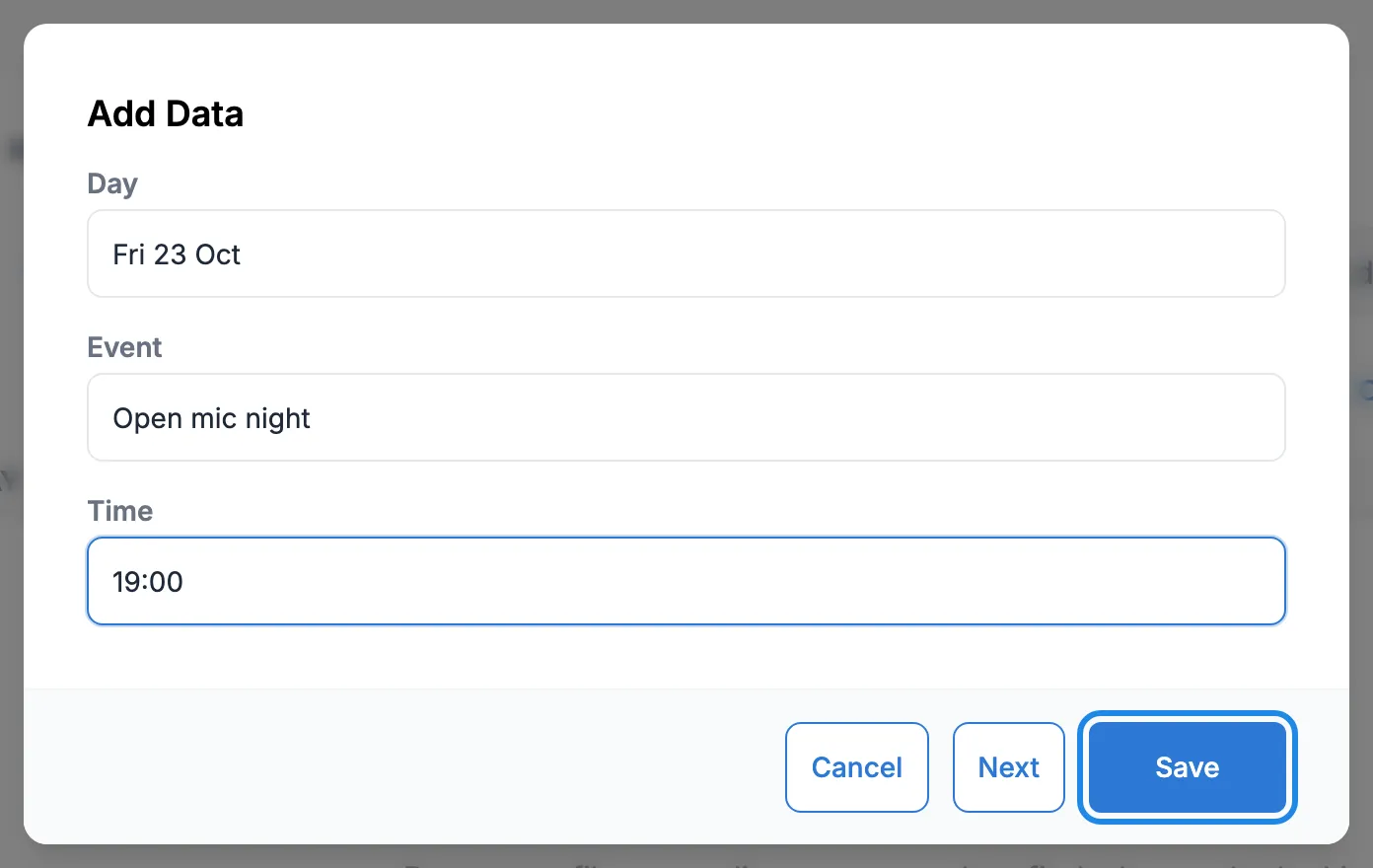
Click Add Row, fill in a value for each column and click Save. To add several rows, click Next instead. It saves the row and keeps the window open for the next one.
-
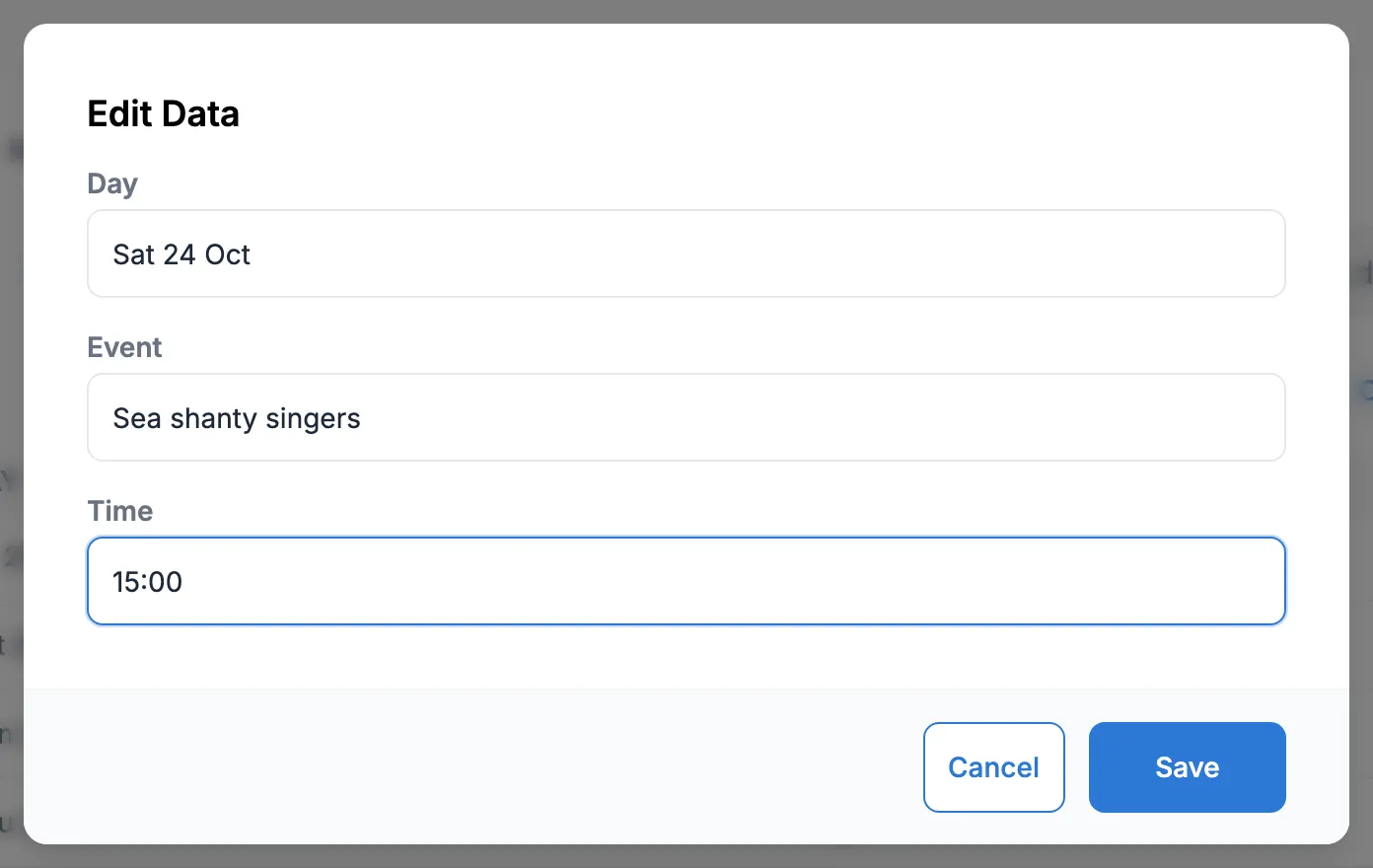
To change a row later, click the pencil icon (Edit) on it, change the value and click Save.
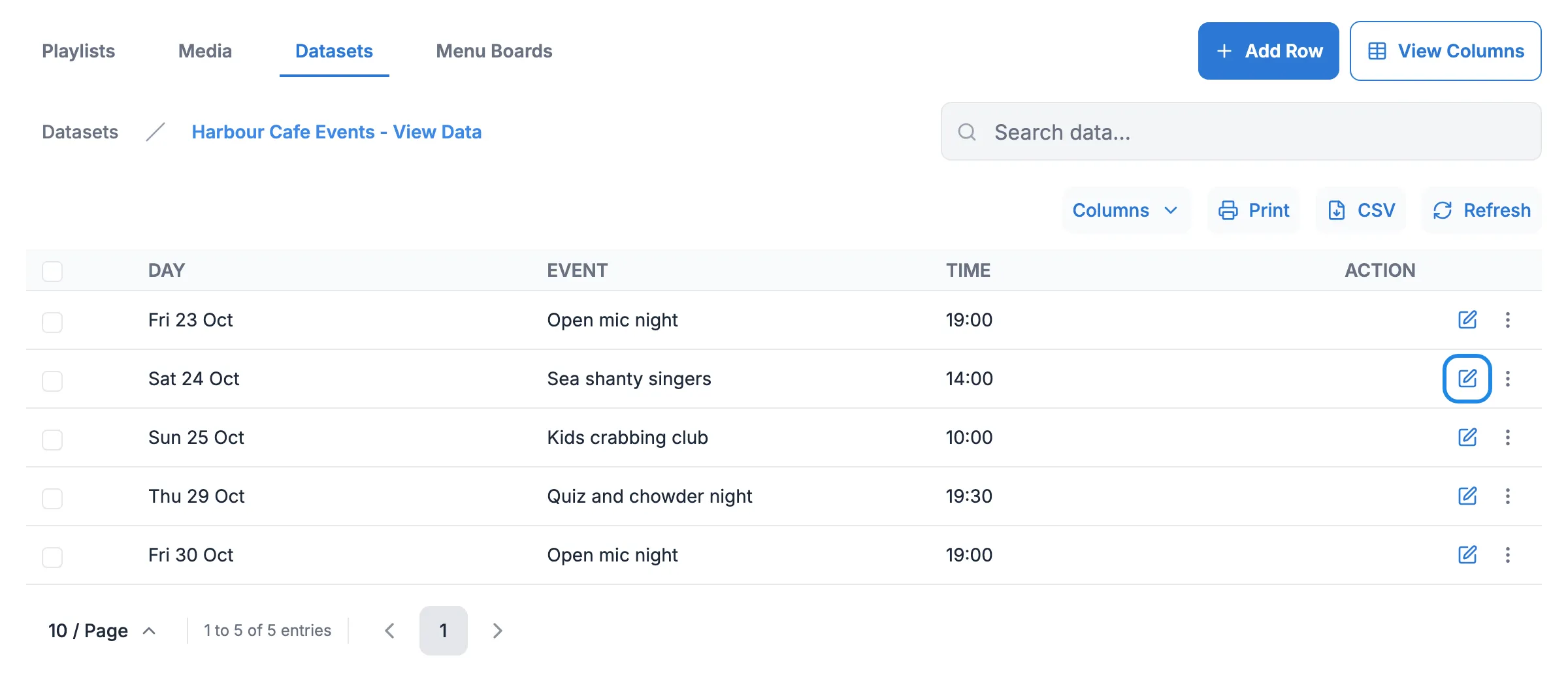
Import rows from a CSV file
Section titled “Import rows from a CSV file”If your list is already in a spreadsheet, save it as a CSV file and import it.
-
On the Datasets page, click More actions on the dataset’s row and choose Import CSV.
-
Click Add CSV File and choose your file.
-
Tick Overwrite existing data? to replace everything in the dataset, or leave it unticked to add the rows to what’s there. Leave Ignore first row? ticked if the first row of your file is headings.
-
Under each column heading, type the number of the matching column in your CSV file (1 for the first column). Click Done.
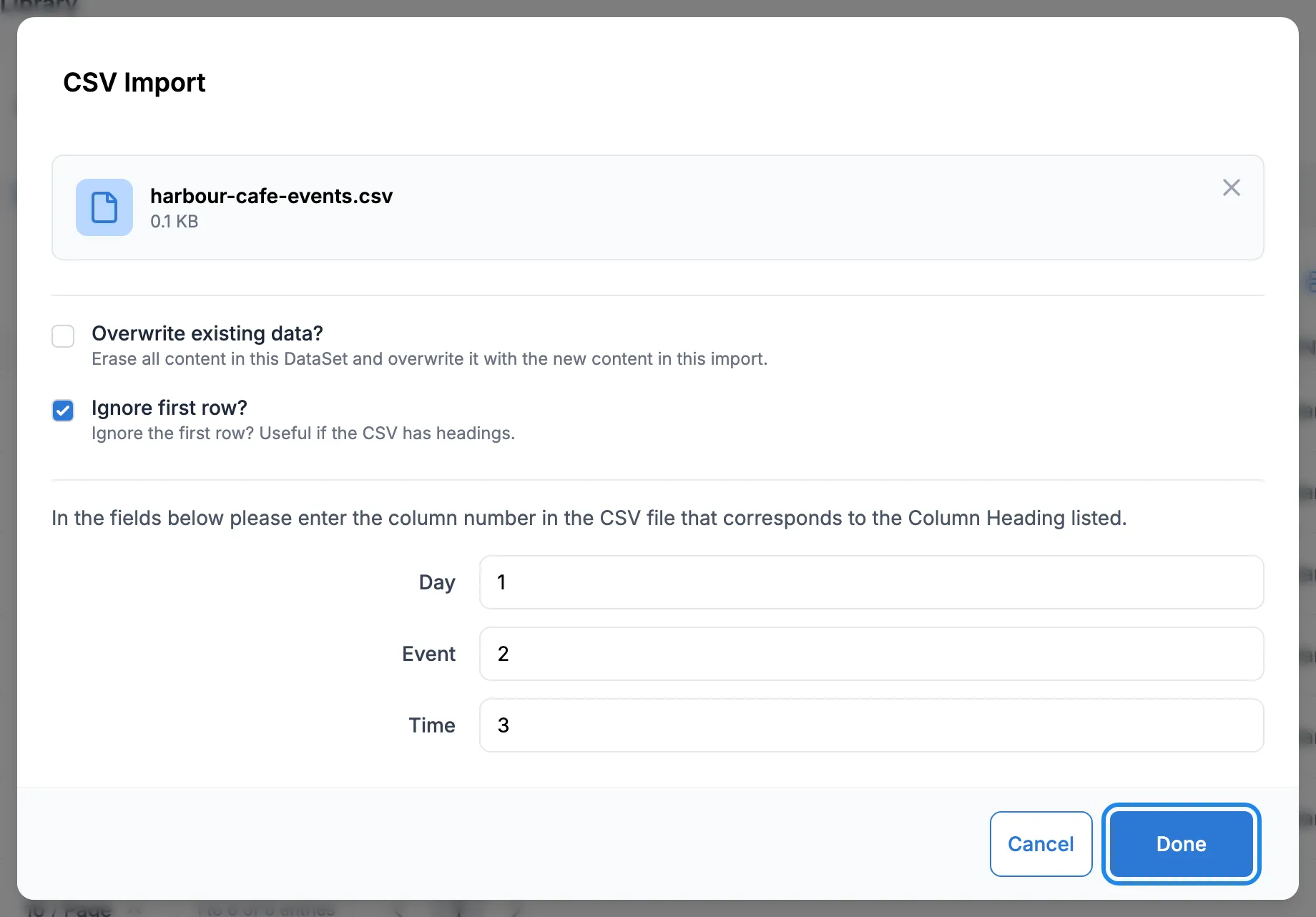
Show the dataset on a layout
Section titled “Show the dataset on a layout”-
Create a layout as in Design a layout. Click Add widgets in the toolbox, then DataSet.
-
Under Static templates, pick a table style and drag it onto the canvas.
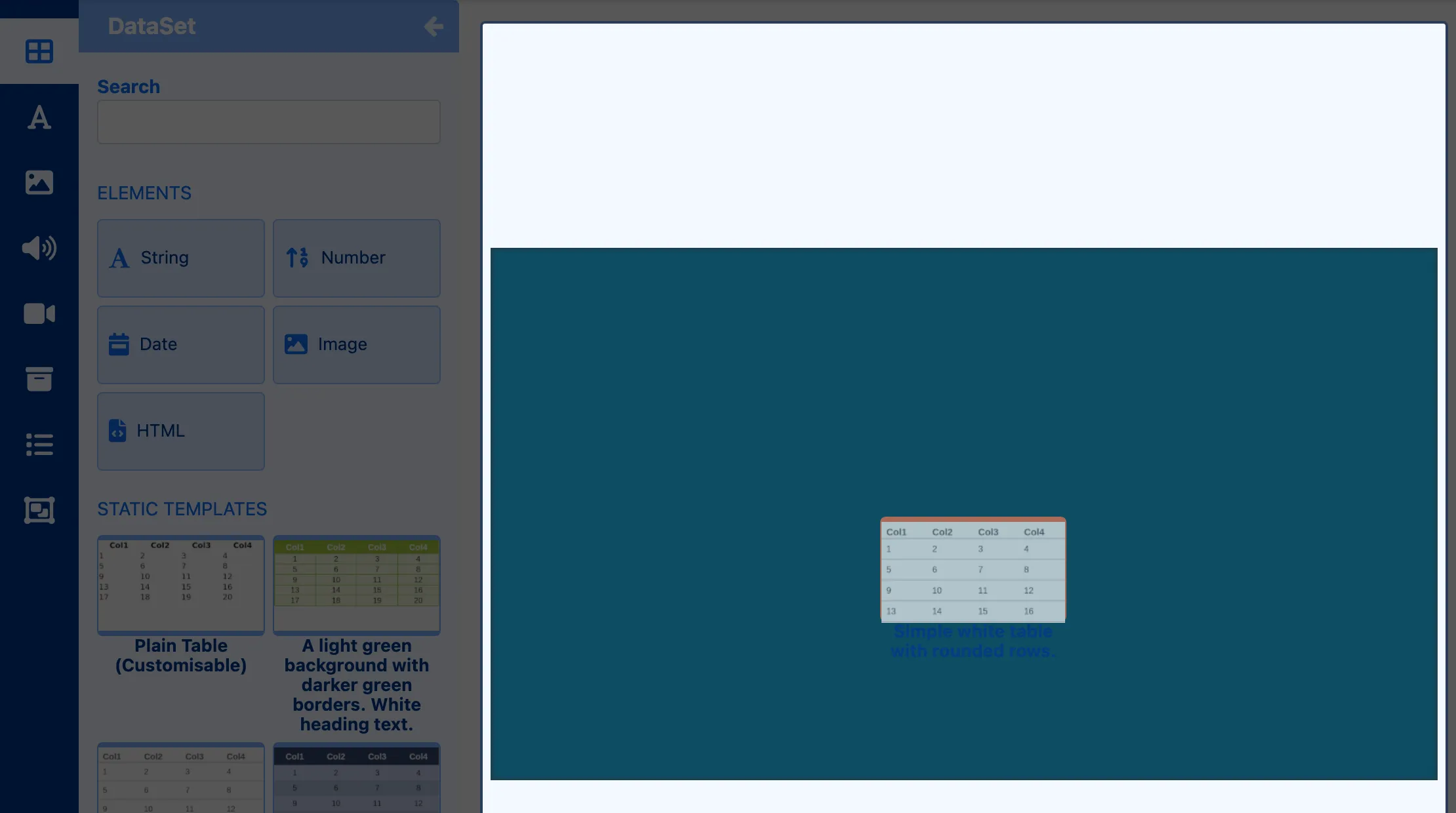
-
On the Configure tab, choose your dataset under DataSet.
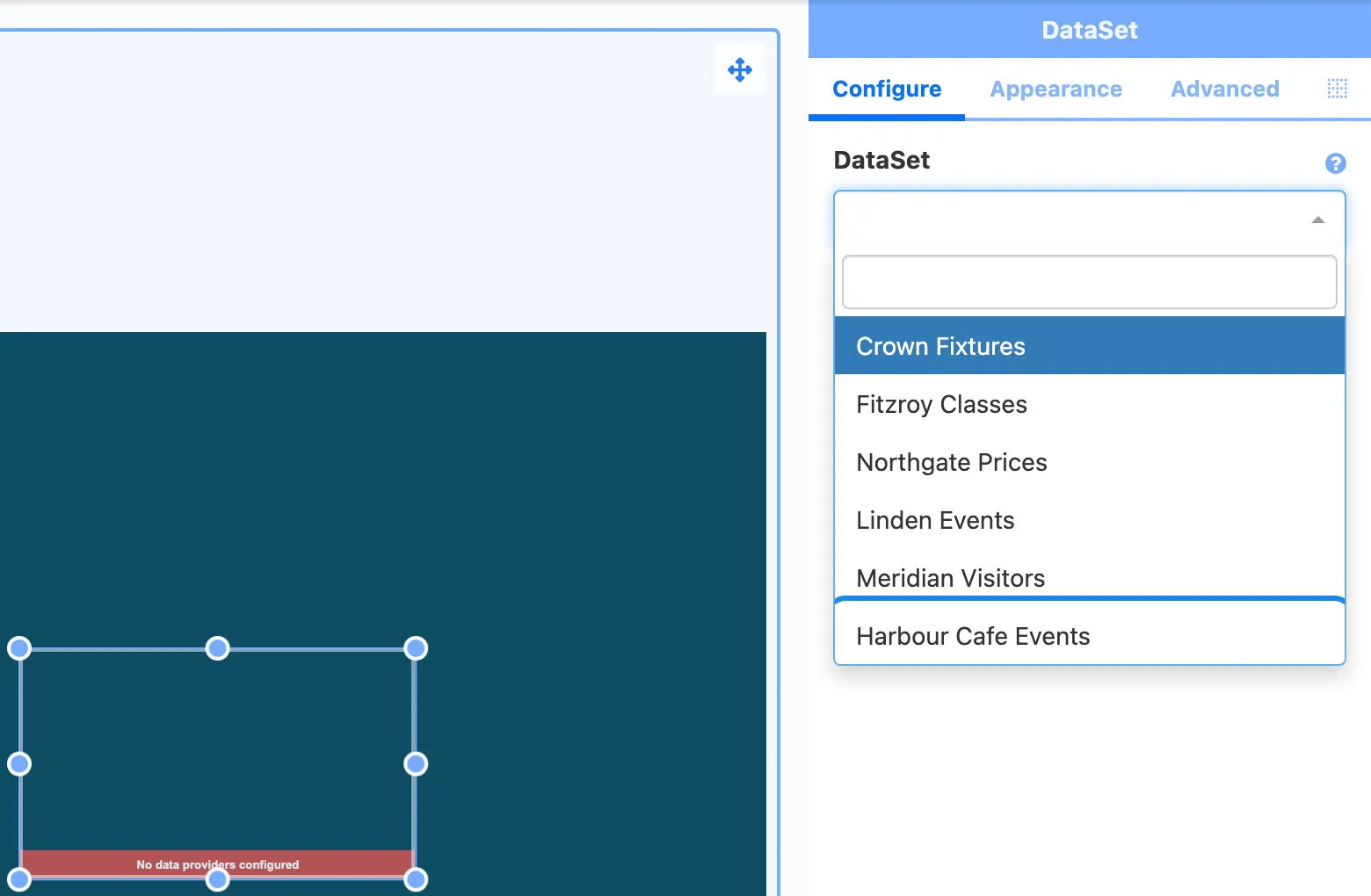
-
On the Appearance tab, drag the columns you want from Columns Available to Columns Selected, in the order you want them. Set the Font and Font Size, and leave Show the table headings? ticked to show the column names.
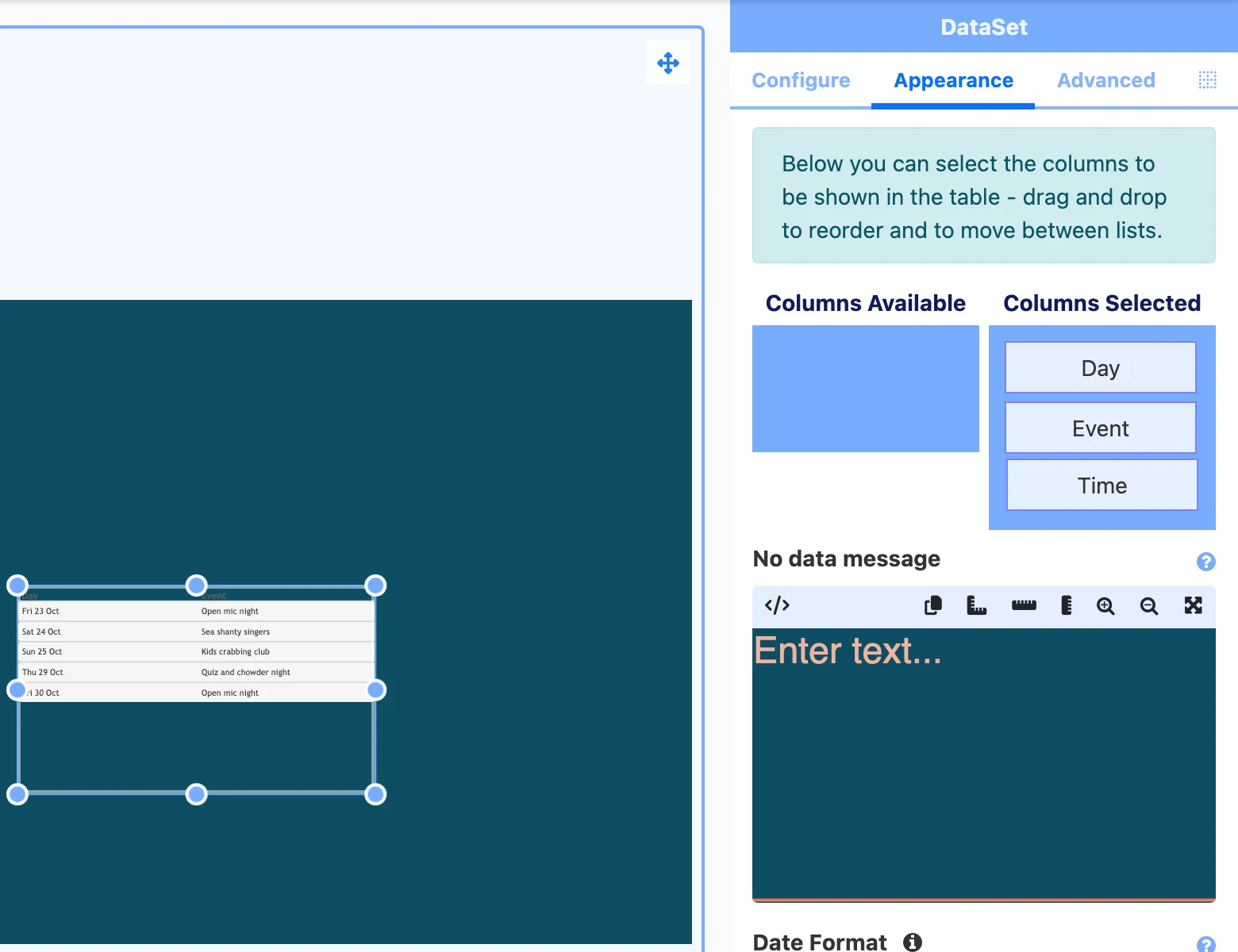
-
Size and position the table, add a heading with a Text element, then preview and publish the layout.
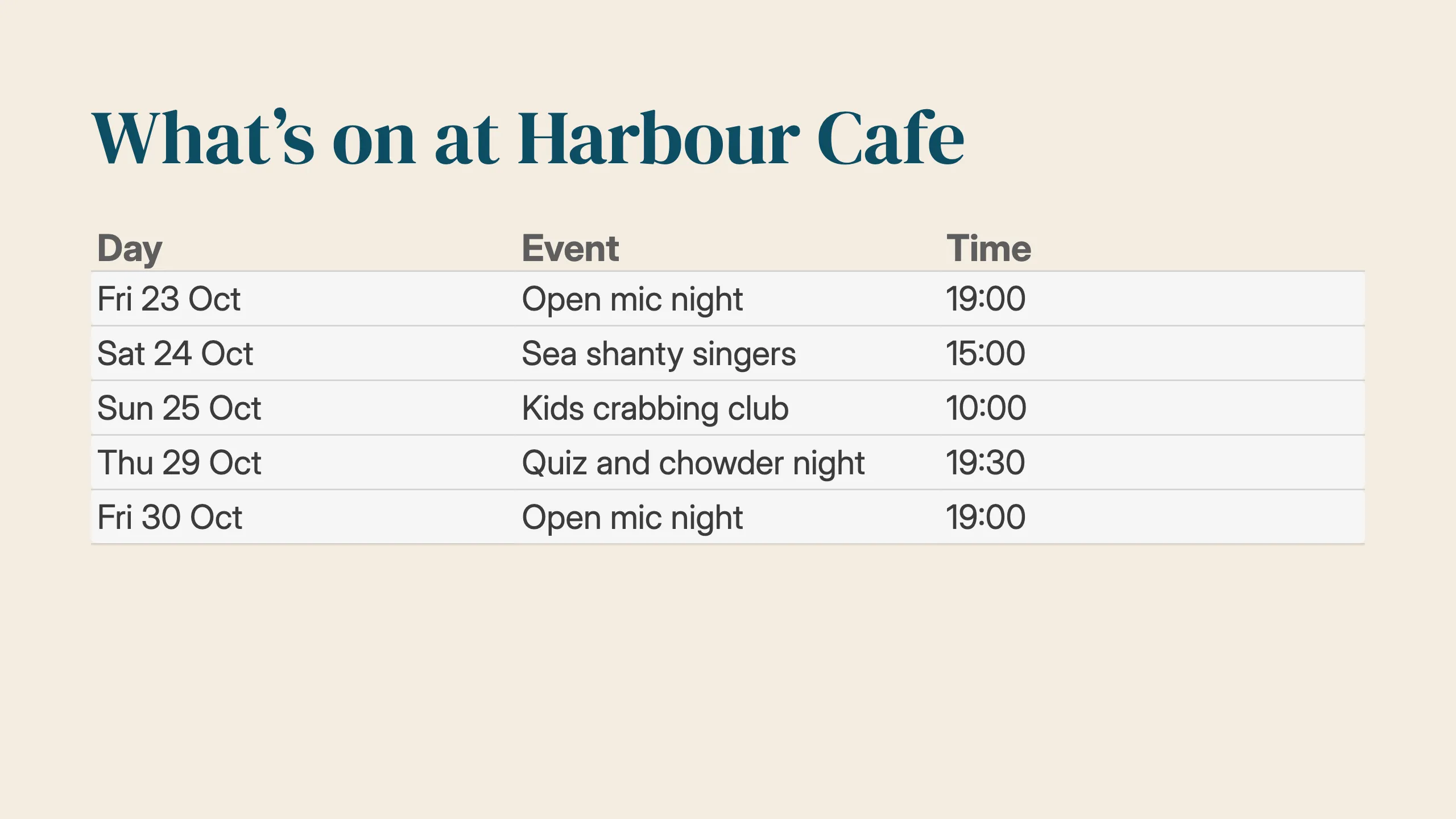
The Configure tab has more options: Order to sort the rows by a column, Filter to show only some rows, and row limits to show part of the list.
Update it later
Section titled “Update it later”Edit, add or import rows whenever your list changes. You don’t need to edit or publish the layout again: the table on the layout shows the new rows. How often a playing screen fetches new data is set by Update Interval (mins) on the widget’s Configure tab.
Fetch data from a web address
Section titled “Fetch data from a web address”A dataset can also fetch its rows from another system, such as a booking system or a sports data service. Tick Remote when you add the dataset, and new tabs appear for the web address (URI), Authentication, how to read the Data, and how often to refresh it (Advanced).
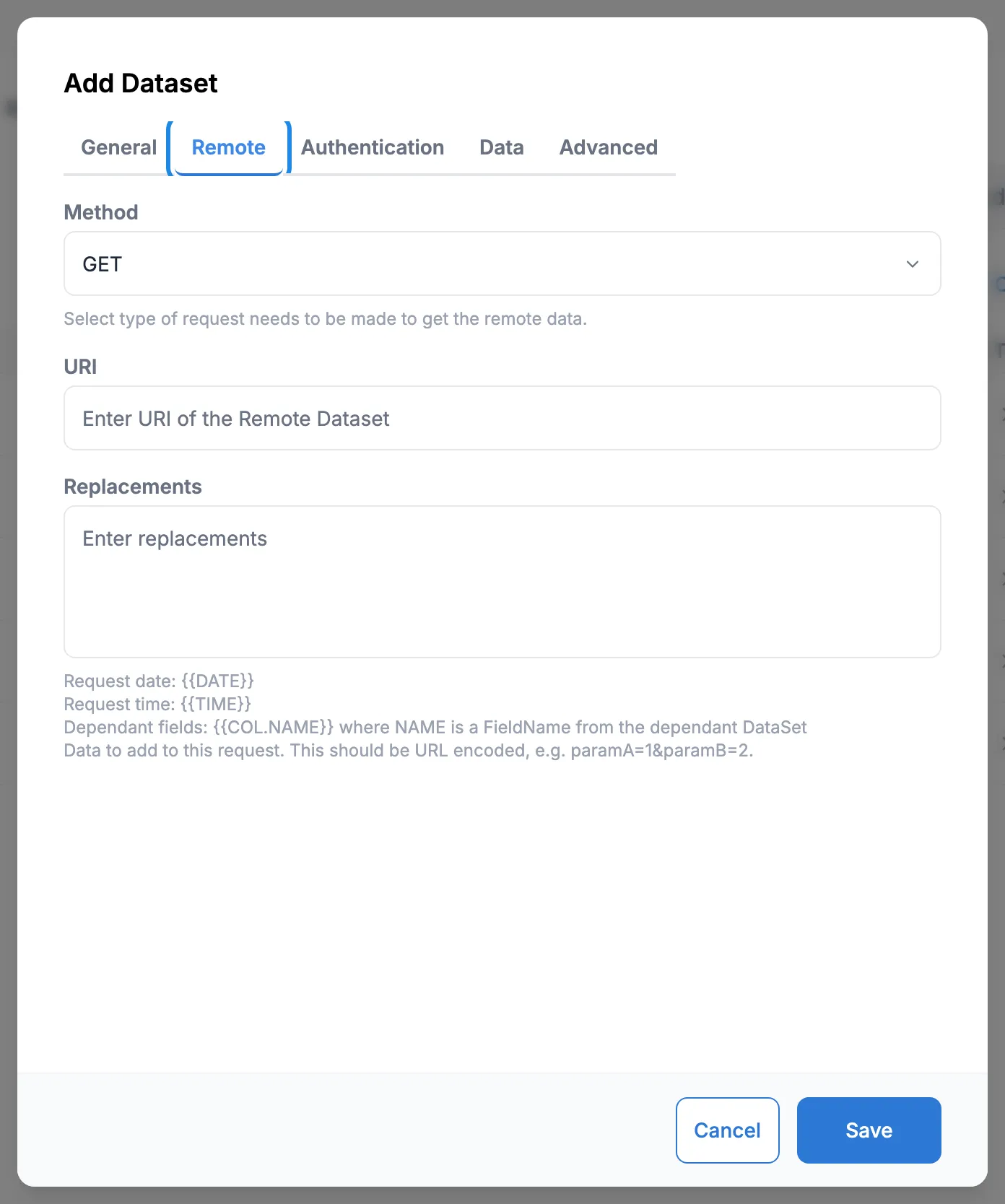
This needs details from whoever runs the other system. Email hello@casty.co.uk and we’ll help you set it up.