

The default layout
Every screen has a default layout. It plays whenever nothing is scheduled for that screen: before your first event of the day, after the last one, and in any gap in between. Setting a good default means a screen never sits on something you didn’t choose.
Set a screen’s default layout
Section titled “Set a screen’s default layout”-
Click Displays in the menu on the left, then Displays. Find the screen (type part of its name in Search displays if you have a lot) and click the edit icon at the end of its row.
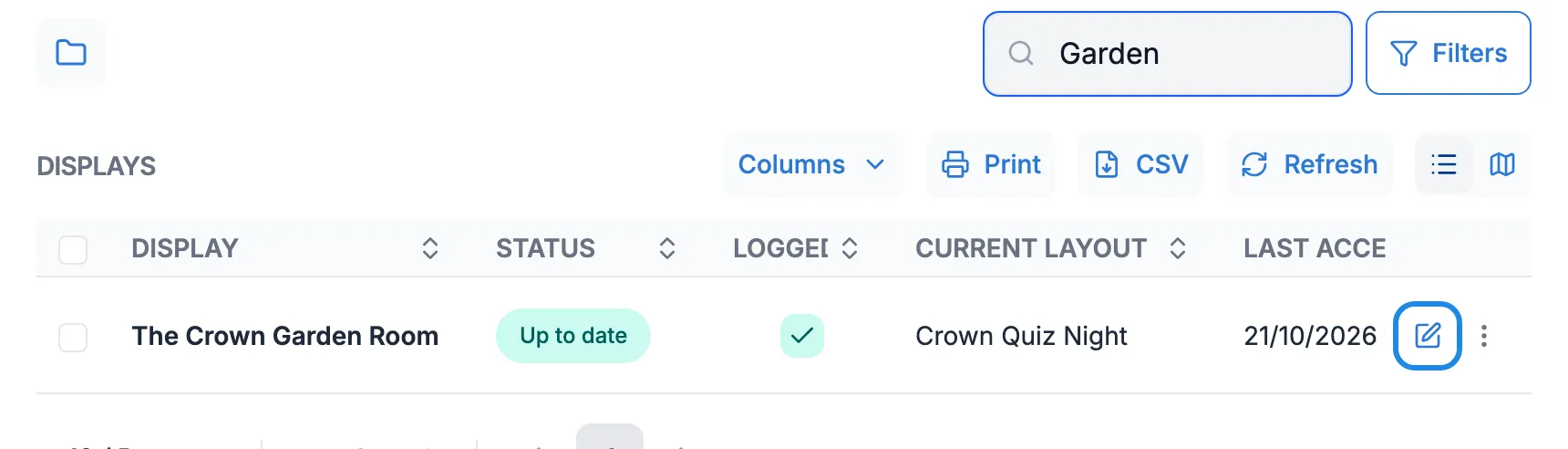
-
On the General tab, click Default Layout. Type part of a layout’s name and pick it from the list.
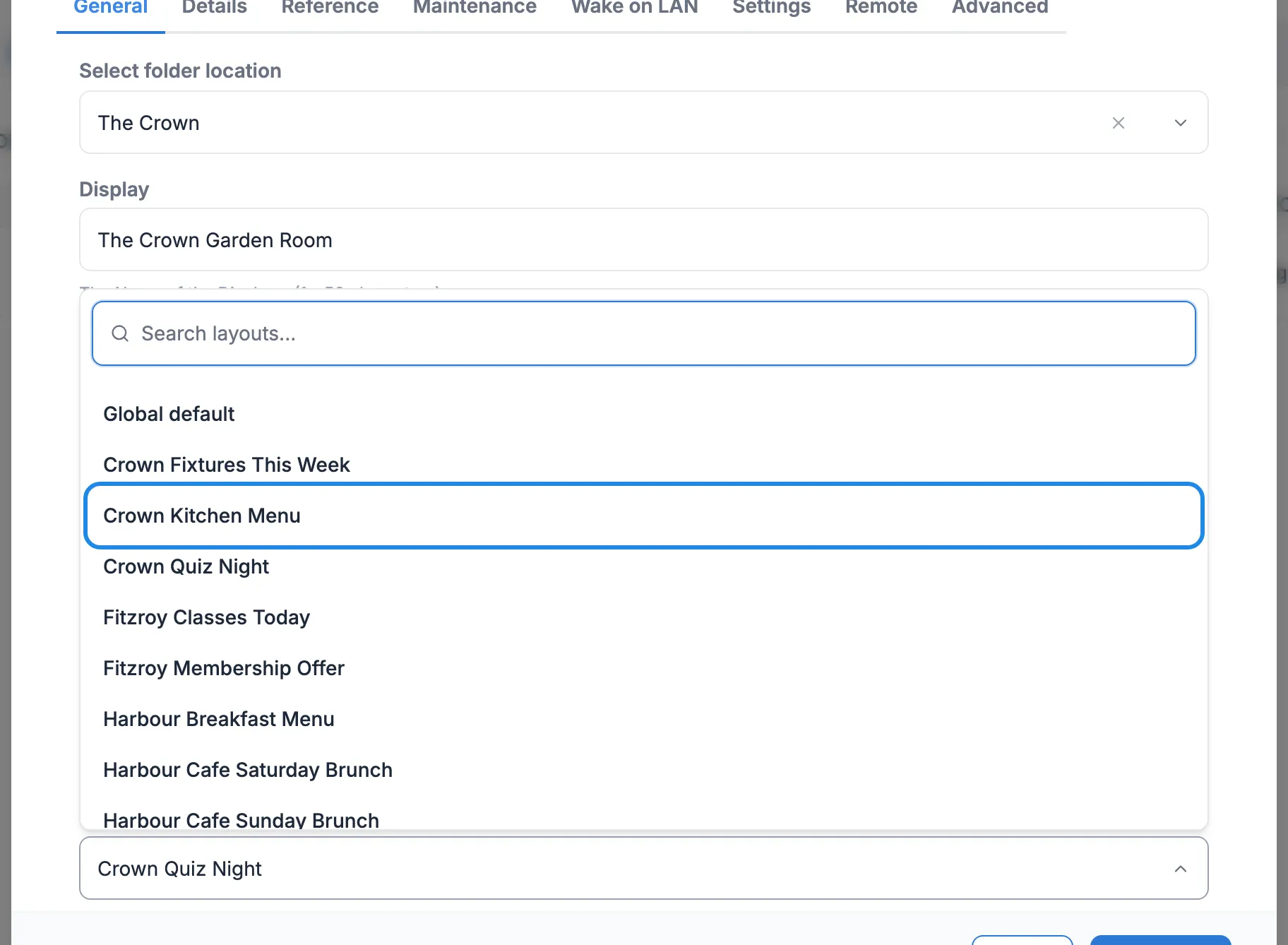
-
Click Save.
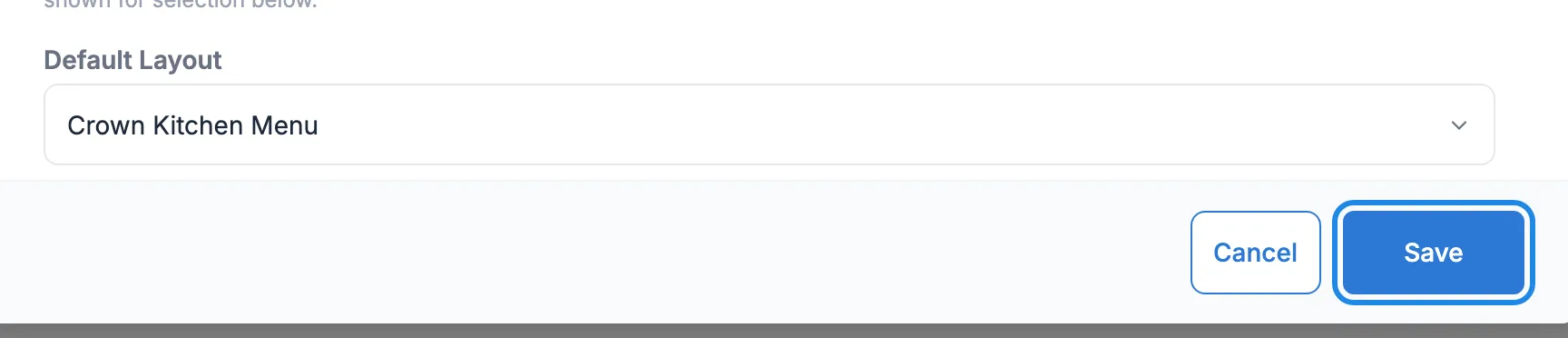
The screen’s Status shows Out of date until the screen has downloaded the new layout, then it changes back to Up to date.

Global default, at the top of the list, hands the choice back to Casty: the screen uses the default layout set for the whole system. Pick one of your own layouts so you know what the screen shows.
Choosing a good default
Section titled “Choosing a good default”- Pick a layout that makes sense at any time of day. A welcome screen with your logo and opening hours works for most venues.
- Avoid a layout with offers that end, or a menu for one part of the day.
- Use a layout with the right shape for the screen. A portrait screen needs a portrait layout.