

Change a screen's settings
Each screen has its own settings in the CMS: its name, the folder it lives in, its tags, what it shows when nothing is scheduled, where it is and which time zone it runs in. This page shows you where to change each one.
Open a screen’s settings
Section titled “Open a screen’s settings”-
Click Displays in the menu on the left, then Displays.
-
Click the pencil icon at the end of the screen’s row. Or click the three dots and then Edit.
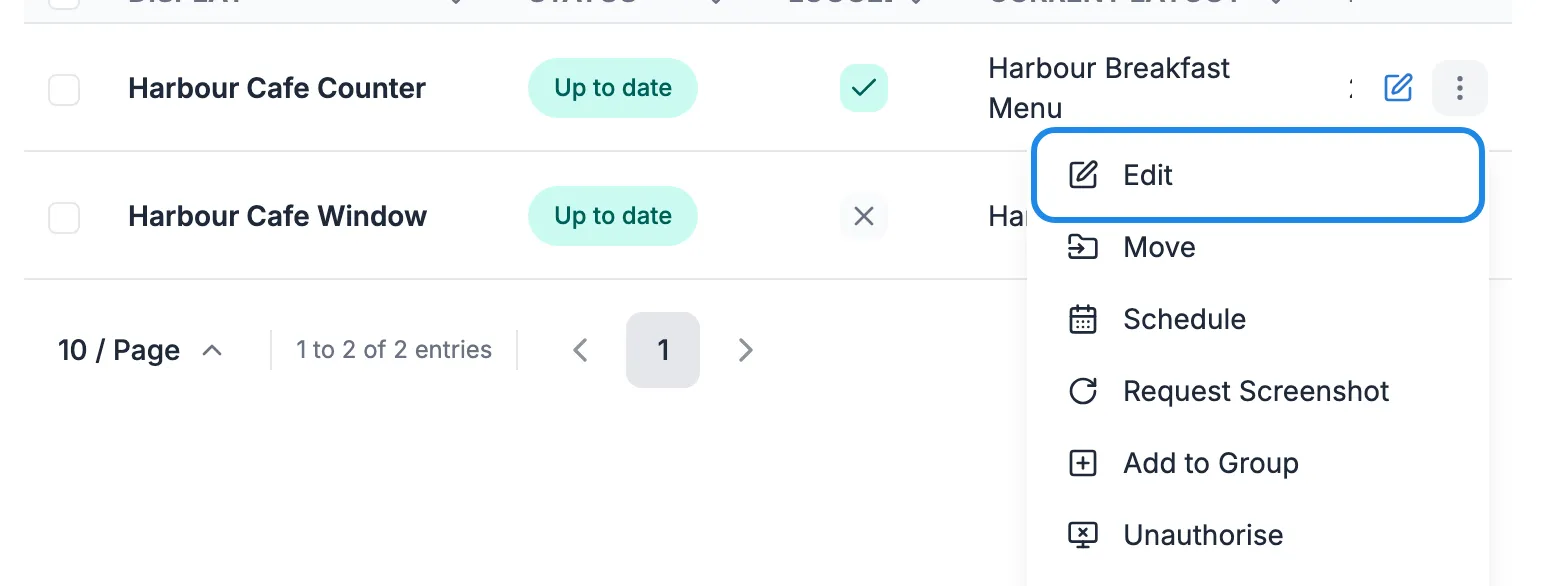
-
The edit window opens on the General tab. Make your changes on any of the tabs, then click Save.
The General tab
Section titled “The General tab”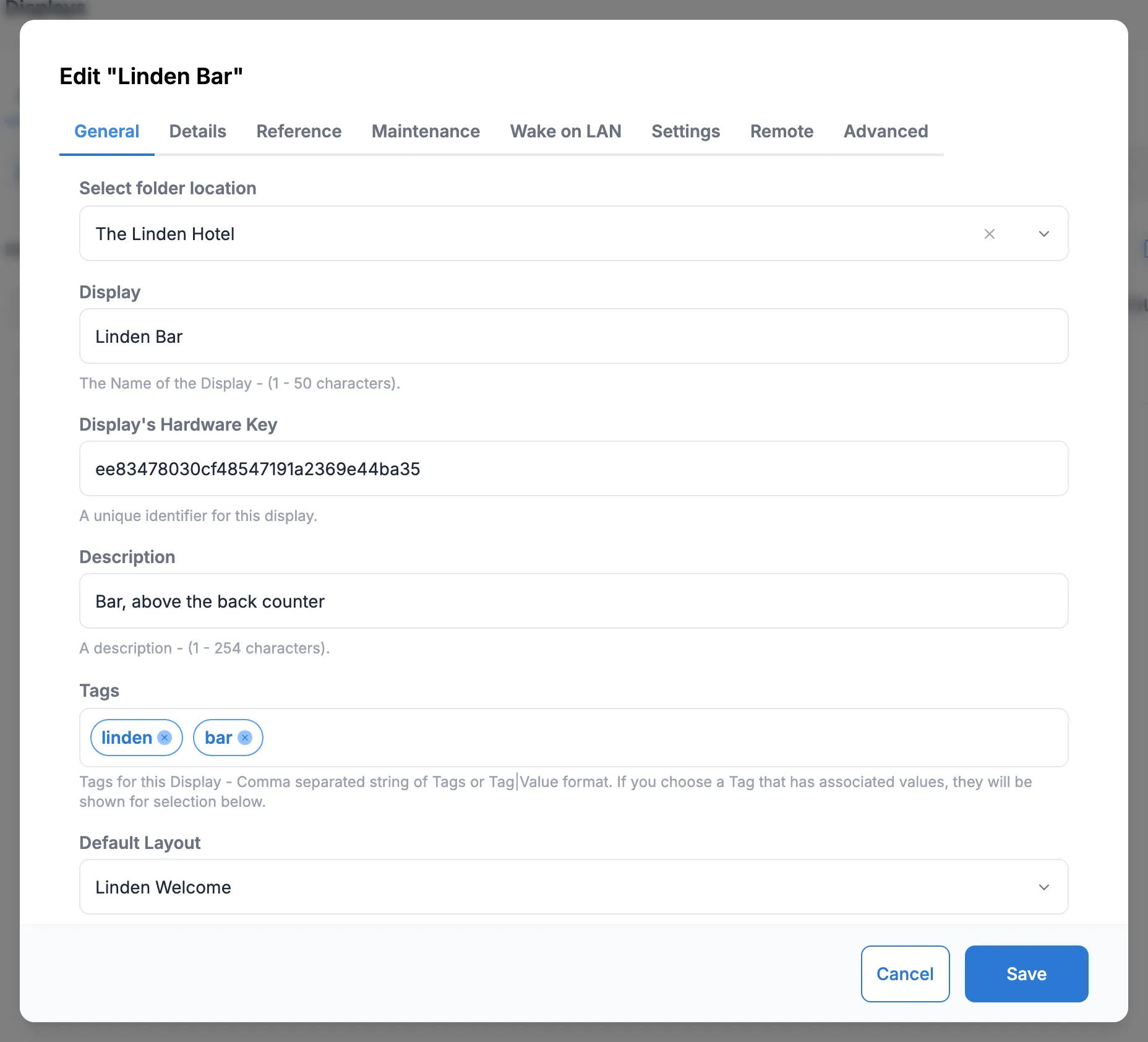
- Select folder location is the folder the screen lives in. Keep each screen in its venue’s folder so it’s easy to find and share.
- Display is the screen’s name, up to 50 characters. Use a name that says where it is, such as Linden Bar or Harbour Cafe Window. It’s the name you’ll see in the schedule and in reports.
- Display’s Hardware Key identifies the player. Don’t change it.
- Description is for your own notes, such as where the screen is mounted.
- Tags are words that describe the screen, such as the venue or window. Type a word and press Enter twice to add it. Click the cross on a tag to remove it. Dynamic display groups use tags to pick their screens (see Group your screens).
- Default Layout is what the screen shows when nothing else is scheduled for it. See The default layout.
- Authorise display?, at the bottom of the tab, should stay on On.
The Details tab: location and time zone
Section titled “The Details tab: location and time zone”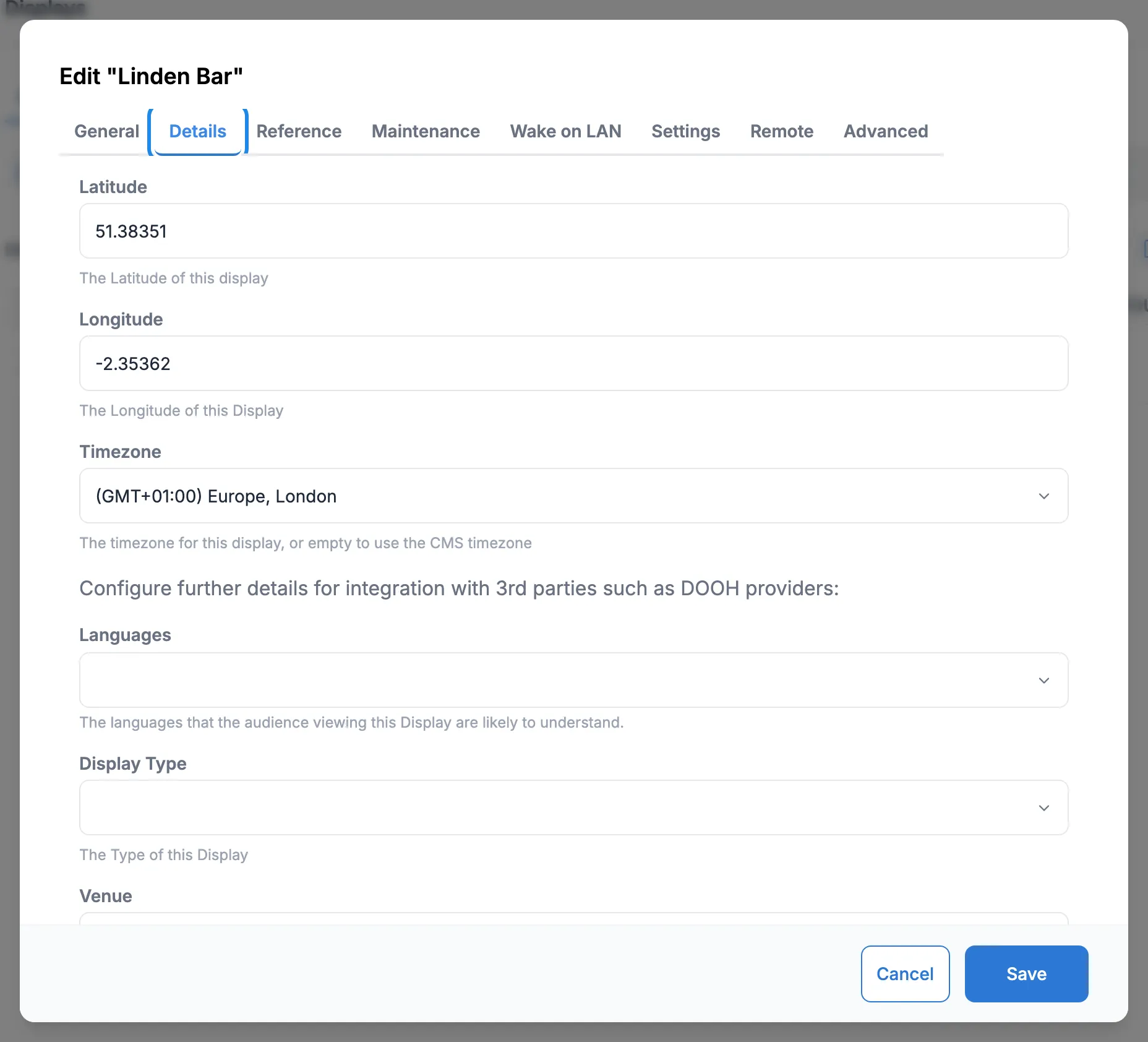
- Latitude and Longitude place the screen on the map view of the Displays page (see Check on your screens). You can copy them from a map app by dropping a pin on the venue.
- Timezone is the time zone the screen runs in. Leave it empty to use the time zone of the CMS. All UK venues use Europe, London.
The rest of the tab (Languages, Display Type, Venue, Address, Screen size and so on) is for advertising networks. You can leave it empty.
The Reference tab
Section titled “The Reference tab”Reference 1 to Reference 5 and Custom ID are spare boxes for your own information, such as an asset number. You can add them to the Displays list from the Columns menu.
Settings we look after
Section titled “Settings we look after”The Maintenance, Wake on LAN, Settings, Remote and Advanced tabs hold player settings, such as how often the screen checks in. We set these up for you, along with the player settings under Display Settings. Leave them as they are. If you think a screen needs a change here, email hello@casty.co.uk.
Orientation and resolution
Section titled “Orientation and resolution”The player reports the screen’s orientation and resolution to the CMS. To see them, click Columns above the list on the Displays page and tick Orientation and Resolution. If a screen is the wrong way round, email us and we’ll change the player’s setting.
Move a screen to another folder
Section titled “Move a screen to another folder”You can change the folder on the General tab, as above. Or click the three dots on the screen’s row and click Move. Pick the new folder under Select a location and click Move.