

Gym: class timetable from a dataset
This tutorial follows Fitzroy Gym in Leeds, which has a screen at reception and one on the studio door. By the end you’ll have:
- a class timetable that reads from a dataset, so the front desk can mark a class as full in a few clicks
- the timetable on both screens during opening hours
- a membership offer on the studio door that stops by itself at the end of the month
Before you start
Section titled “Before you start”You need a dataset of classes and a layout that shows it as a table. Fitzroy Gym’s are Fitzroy Classes (the dataset, with the columns Time, Class, Studio, Coach and Places) and Fitzroy Classes Today (the layout). To build your own, see Show a table of data on screen and Design a layout.
1. Schedule the timetable
Section titled “1. Schedule the timetable”Fitzroy Gym’s timetable plays on the Fitzroy Gym display group, which has both screens in it, from 06:00 to 22:00 every day. Set this up as a Layout event with Custom times from 06:00 to 22:00 and Repeats set to Day. The steps are in Schedule content on your screens.
2. Update the timetable during the day
Section titled “2. Update the timetable during the day”When a class fills up or a coach changes, update the dataset. The screens show the change without anyone touching the layout.
-
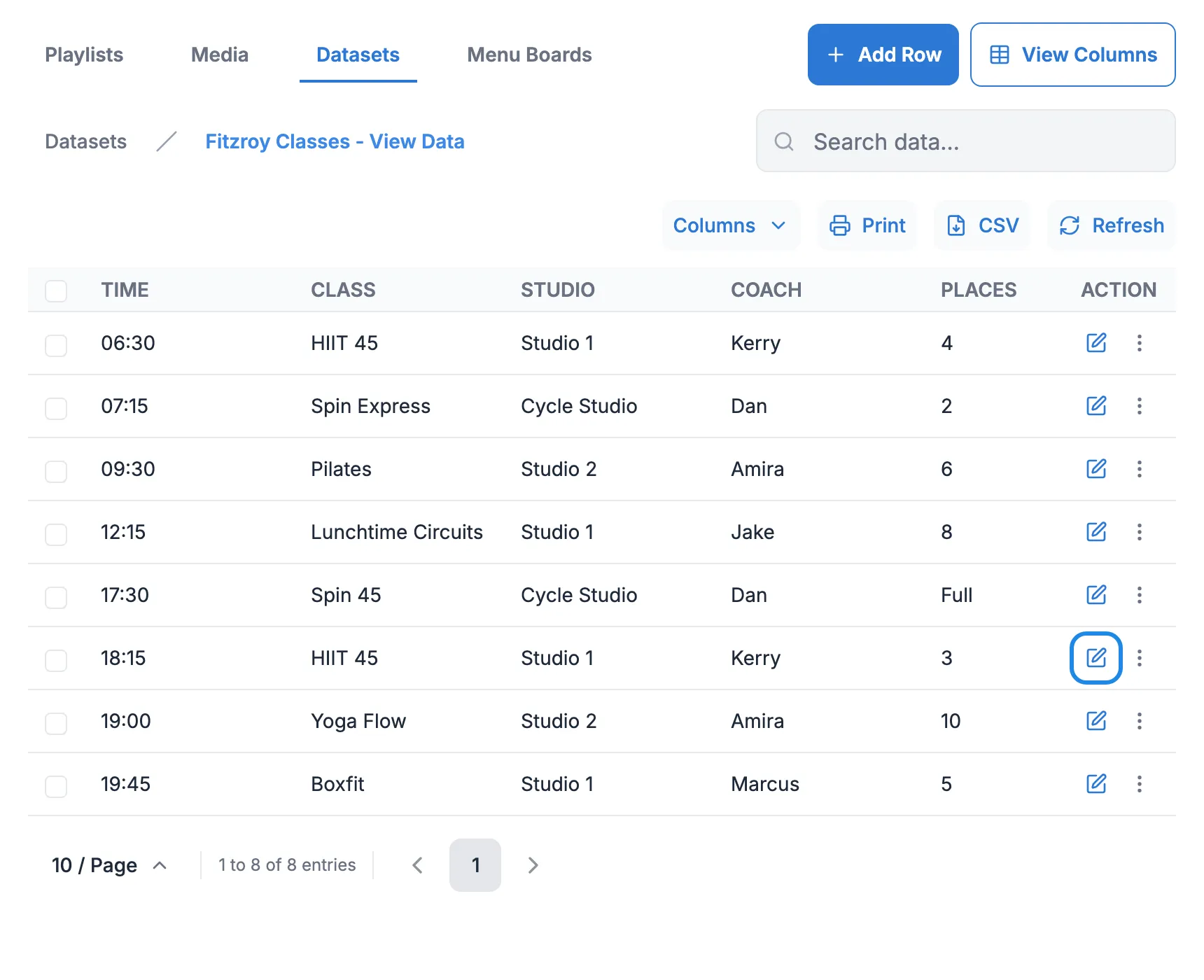
Click Library in the menu on the left, then Datasets. Open the dataset’s menu (the three dots at the end of its row) and click View Data.
-
Click the edit icon on the class’s row.
-
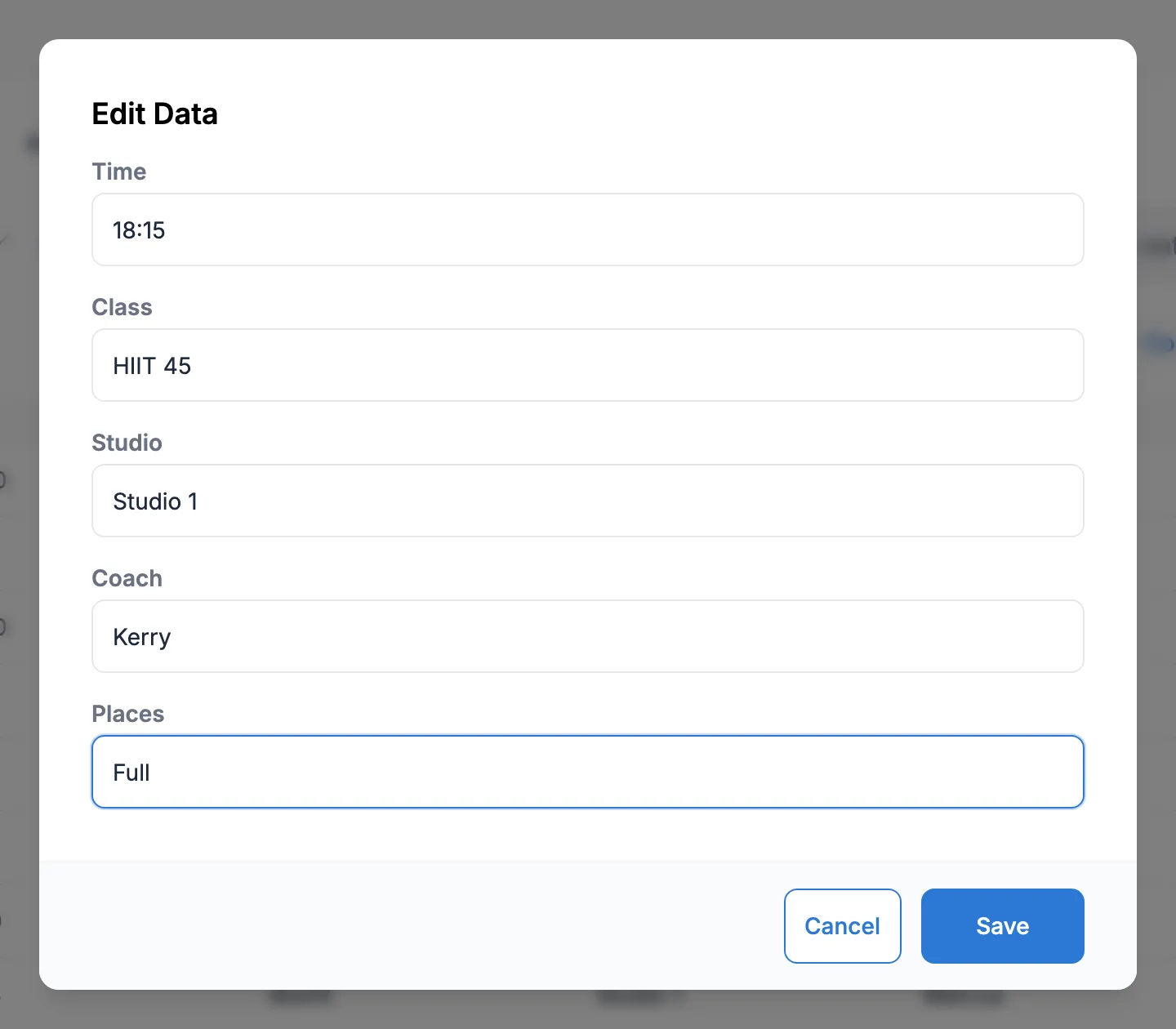
Change the value and click Save. Here the 18:15 HIIT class is now full, so Places changes from 3 to “Full”.
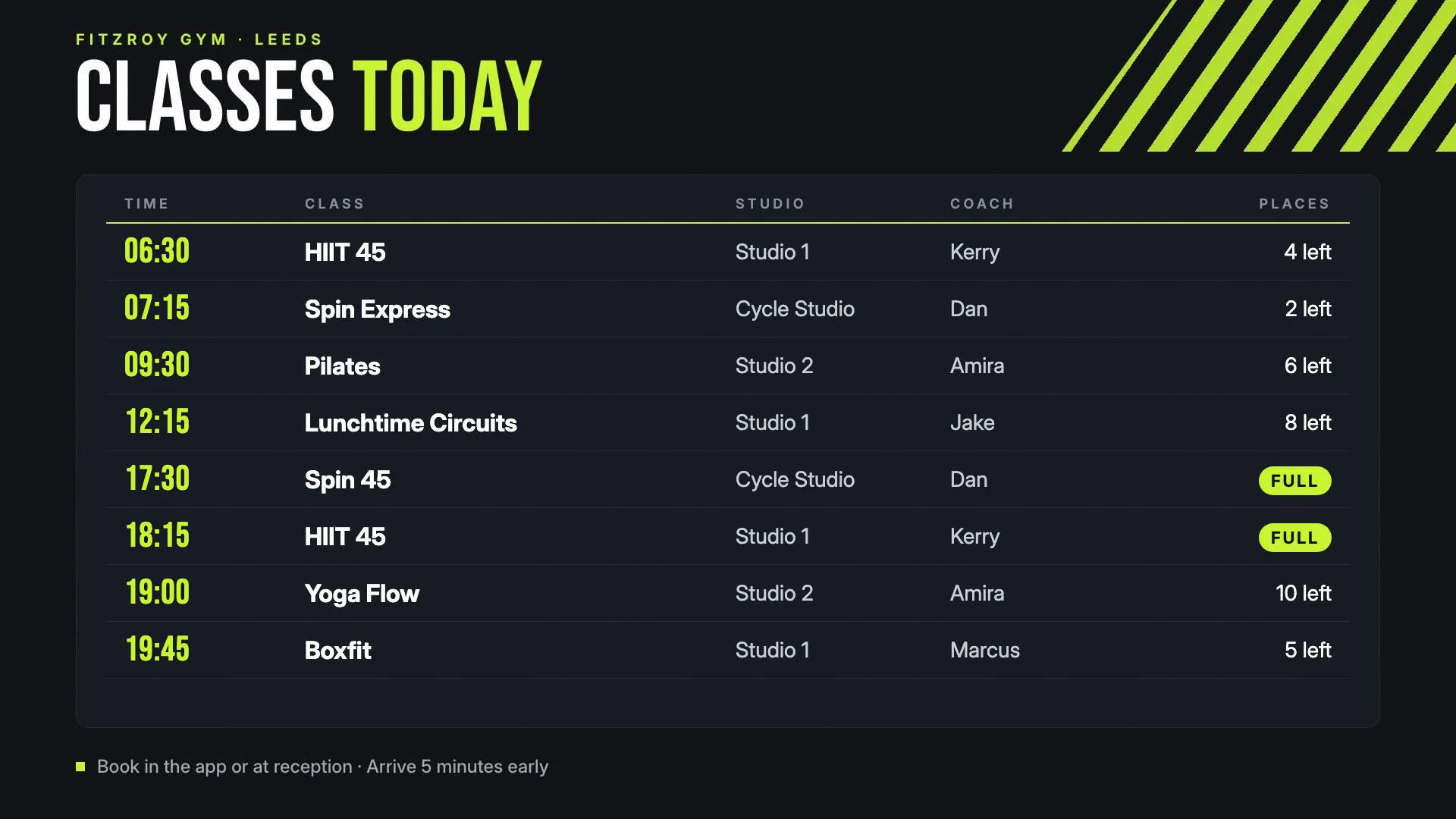
The layout shows a number in Places as “3 left” and the word “Full” as a coloured label, as in the picture at the top of this page.
3. Run a membership offer with an end date
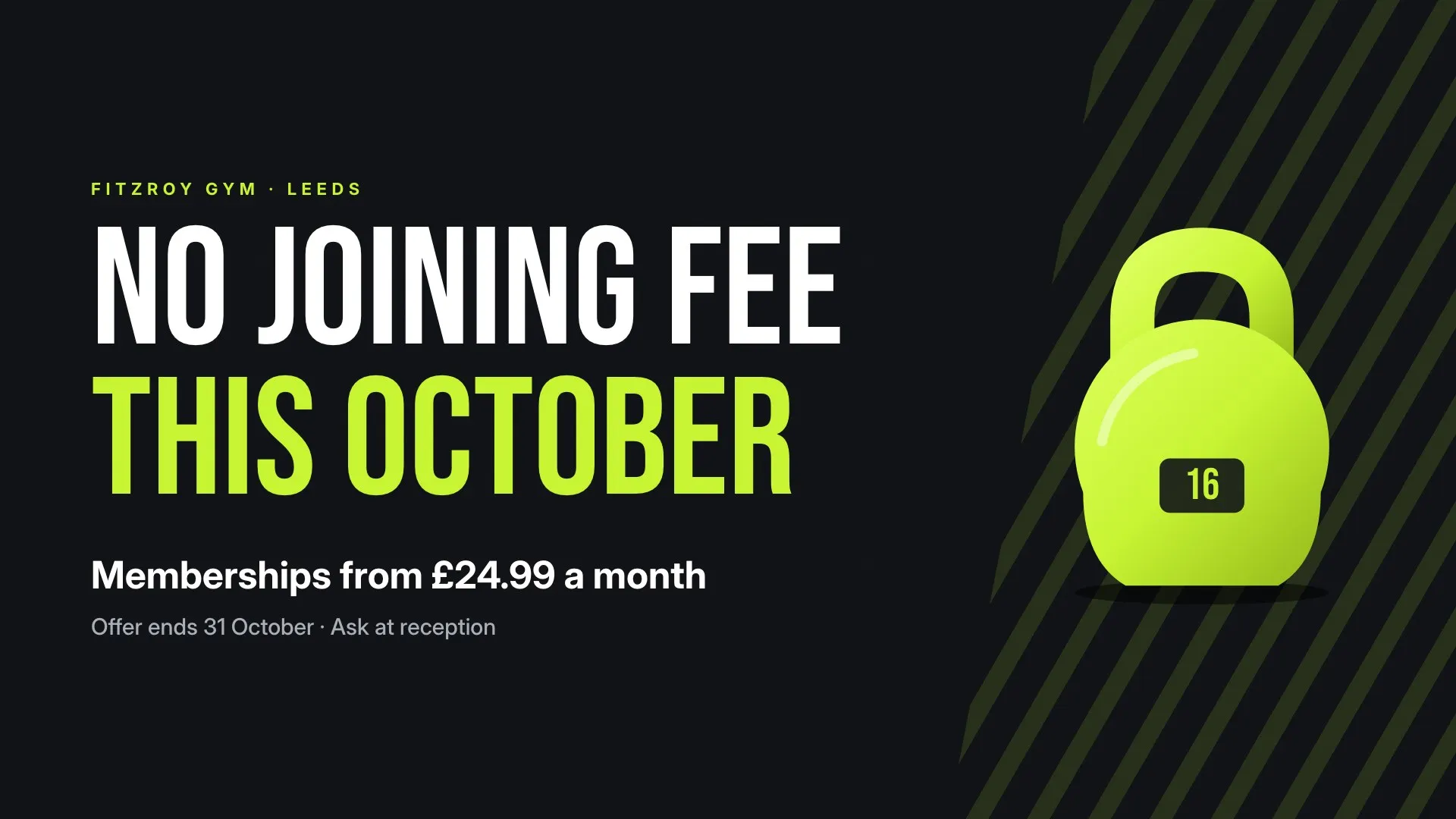
Section titled “3. Run a membership offer with an end date”The offer layout tells members there’s no joining fee this October. It should run on the studio door alongside the timetable until 31 October, then stop.
-
Click Schedule, then Events, then Add Event. Leave Event Type on Layout, choose Fitzroy Membership Offer and click Next.
-
Tick Fitzroy Gym Studio Door and click Next.
-
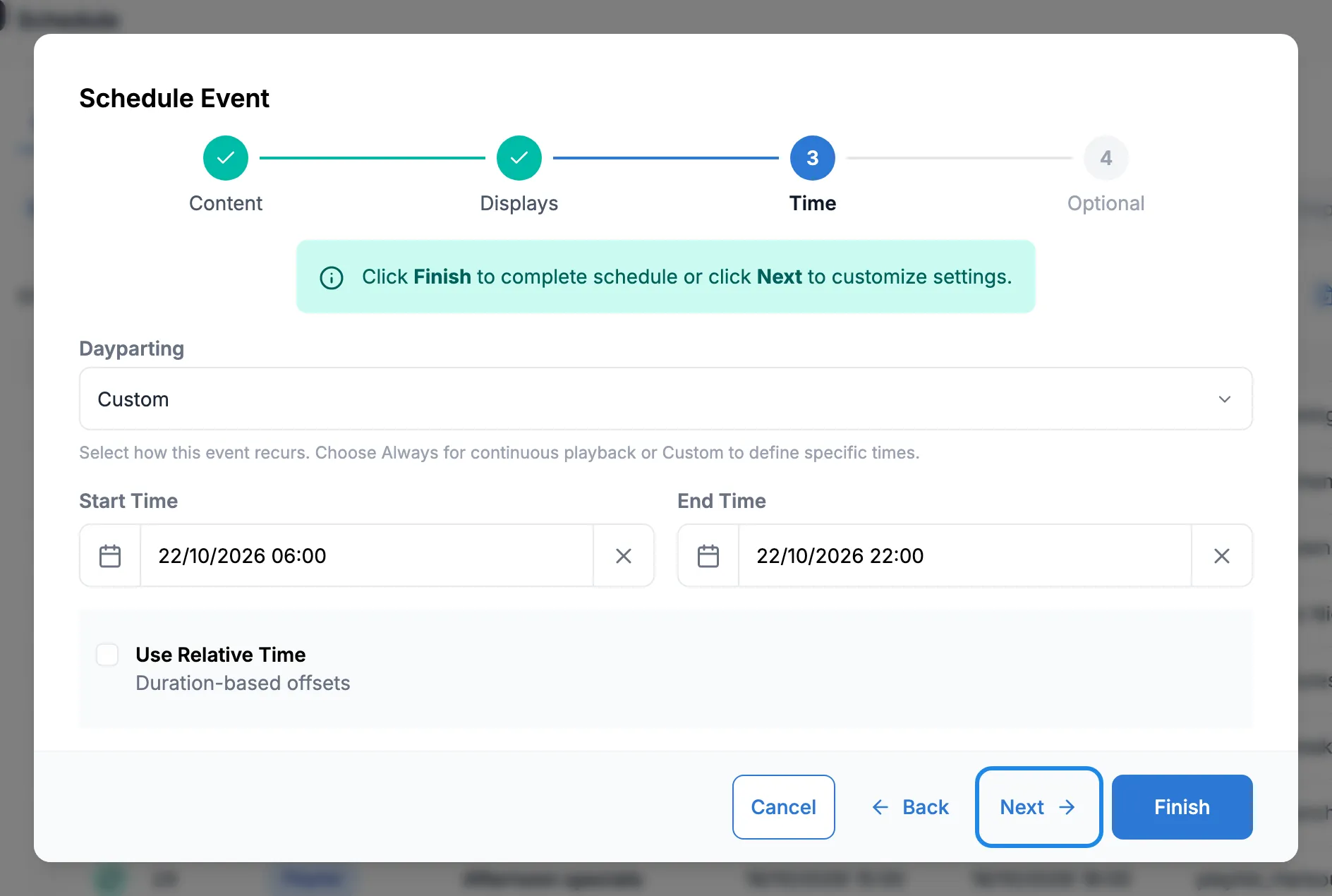
Choose Custom in Dayparting and set the opening hours on the first day: 06:00 to 22:00. Click Next.
-
Name the event. On the Repeats tab, choose Day and set Until to the last day of the offer, 31 October at 22:00. Click Finish.
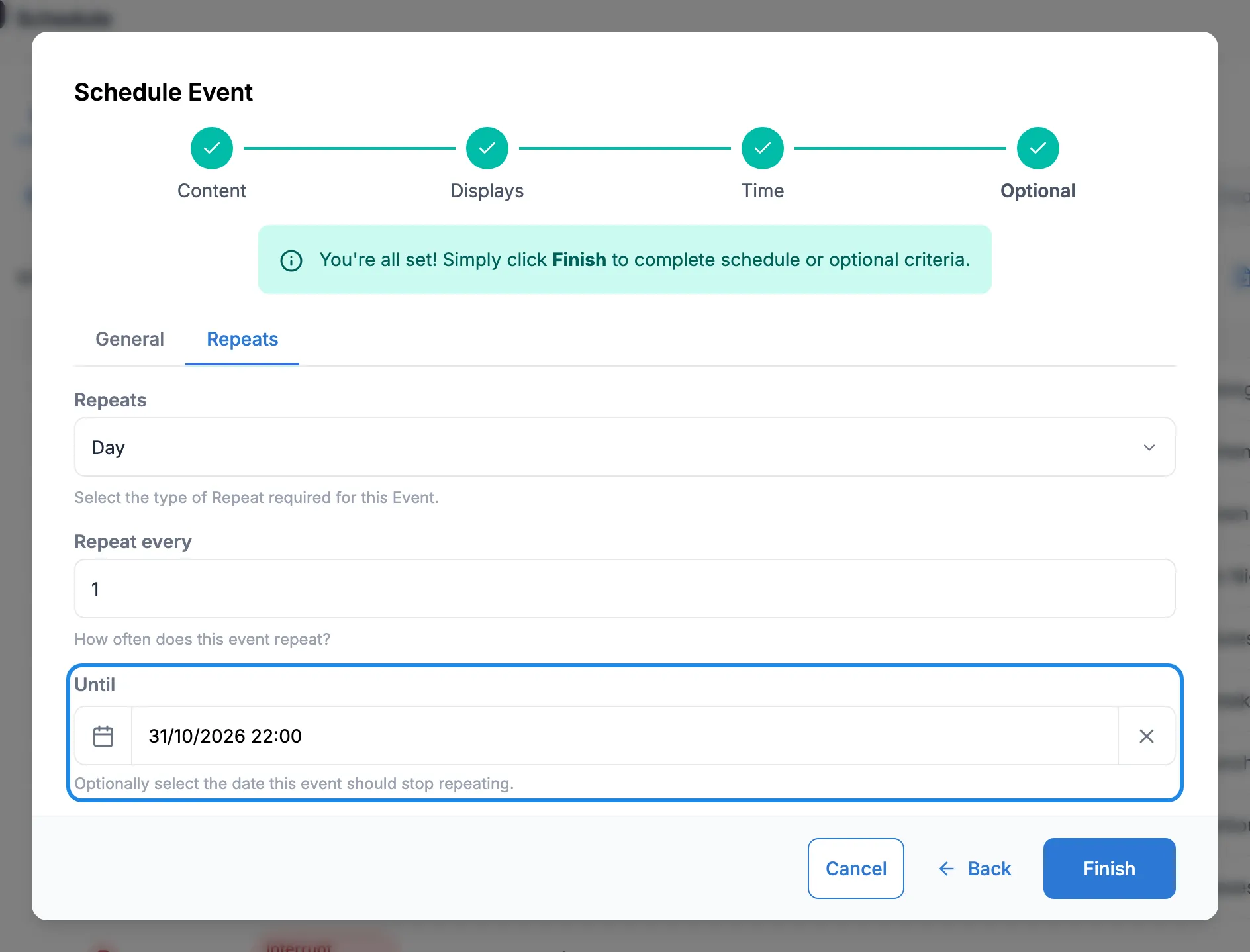
Until the end date, the studio door plays the timetable and the offer in turn, as both events run at the same time with the same priority. From 1 November the event has ended and the door goes back to the timetable alone, with no need to delete anything.