

Widgets and what they do
Widgets put live content into a layout: clocks, countdowns, web pages, tables of data, menus and feeds. This page lists the ones in your toolbox and what each is for. To learn the editor itself, start with Design a layout.
Add a widget to a layout
Section titled “Add a widget to a layout”-
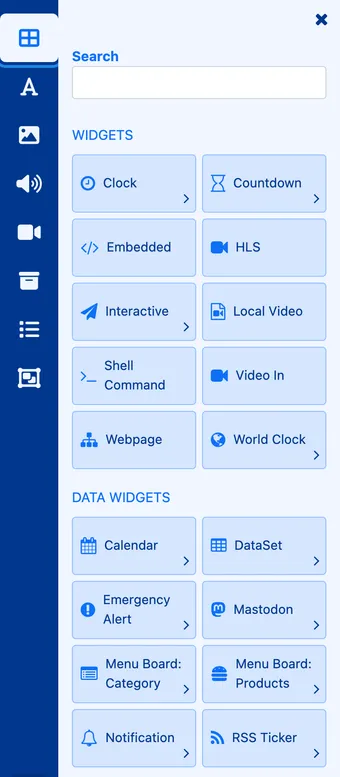
In the layout editor, click Add widgets, the top icon in the toolbox. The panel lists Widgets and Data widgets.
-
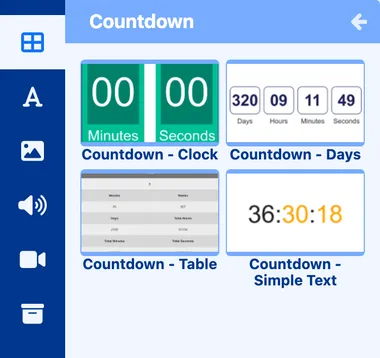
Click a widget. Many come in several styles, so the panel then shows a preview of each one.
-
Drag the style you want onto the canvas, then resize and move it like any other item.
-
Fill in its settings in the properties panel on the right. Most widgets have Configure, Appearance and Advanced tabs. The duration is on the Advanced tab.
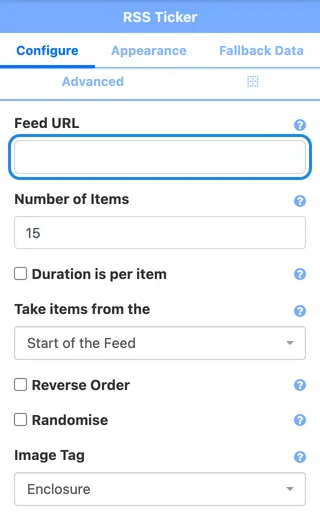
A data widget shows a red message on the canvas until it has what it needs, for example “Please enter the URL to a valid RSS feed.” Fill in its settings and the message goes away.
Widgets
Section titled “Widgets”| Widget | What it’s for | Settings you’ll use |
|---|---|---|
| Clock | The time on screen. Styles: Clock - Analogue, Clock - Digital and Clock - Flip. | The time format for the digital clock (such as [HH:mm]). The theme and Show Seconds? for the flip clock. |
| Countdown | A countdown to an event or the end of an offer. Styles: Clock, Days, Table and Simple Text. | Countdown Type (count down the widget’s duration, a custom duration, or to a date), Warning Duration, colours and fonts. |
| World Clock | Times in other cities. Styles: Analogue, Time and Date and Text. | Clocks, with a Timezone for each. |
| Webpage | A web page shown inside the layout, such as a booking page or a live score page. | Link (the web address), Background transparent?, Preload? |
| Embedded | Your own HTML code. | HTML, Style Sheet, JavaScript |
| HLS | A live video stream. | Video Path (the stream address), Mute?, Enable Subtitles? |
Data widgets
Section titled “Data widgets”| Widget | What it’s for | Settings you’ll use |
|---|---|---|
| DataSet | A table or list from one of your datasets, such as fixtures or class times. | See Show a table of data on screen. |
| Menu Board: Products | Products and prices from a menu board. | See Set up a menu board. |
| Menu Board: Category | A menu category’s name, description and photo. | Menu, then the category. |
| RSS Ticker | Headlines from a news or blog feed. Templates include Title Only and Articles shown in a marquee for a scrolling ticker. | Feed URL, Number of Items, Take items from the start or end of the feed. |
| Calendar | Events from an online calendar. Templates include daily, weekly and monthly calendars in light and dark. | Feed URL (the calendar’s iCal address), which events to show, Exclude past events? |
| Mastodon | Recent posts from Mastodon. | Hashtag, Search on, Server, Username, Count, Only posts with attached media? |
| Emergency Alert | Alerts from an emergency alert feed. | CAP URL, and filters for the kinds of alert to show. |
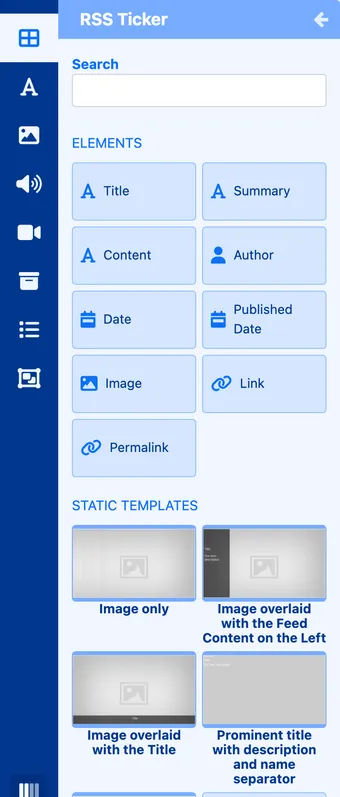
Most data widgets offer two ways in. Static templates give you a finished design to drop on the canvas. Elements let you place each piece of the data yourself, such as a headline, a date or an image, and style it like text.
Global Elements
Section titled “Global Elements”Click Global Elements in the toolbox (the letter A) for the building blocks you’ll use on most layouts.
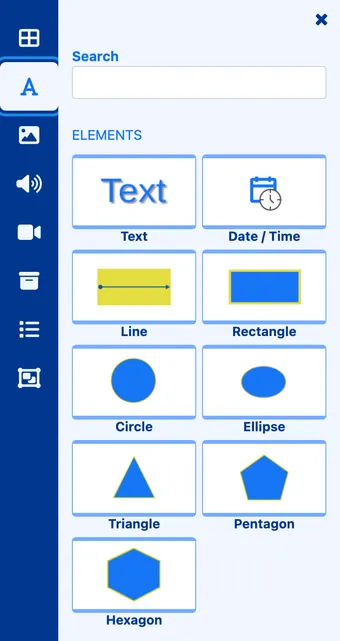
- Text is for headings, prices and any other words. Set the font, colour, size and alignment in the properties panel.
- Date / Time shows today’s date or the current time as text.
- Line, Rectangle, Circle, Ellipse, Triangle, Pentagon and Hexagon are shapes for panels, dividers and highlights behind text.
Pictures, video and playlists
Section titled “Pictures, video and playlists”The other toolbox icons search your library: Library image search, Library audio search, Library video search and Library other media search. Drag an item onto the canvas to add it. Add Playlists lets you drop in a whole playlist, and Search for Layout Templates opens your templates.
Ask us before using these
Section titled “Ask us before using these”Some widgets need hardware or set-up on the player, so check with us first at hello@casty.co.uk:
- Local Video plays a video stored on the player itself. The editor says it works on Android, webOS and Linux players only.
- Video In shows the screen’s HDMI or other video input. The editor says it works with webOS, Tizen and Philips SoC players only.
- Shell Command runs a command on the player.
- Interactive adds buttons and touch zones for touch screens.
- Notification shows notifications sent from the CMS.