

Connect a screen
This page covers a new screen from the moment its player is switched on to the moment it shows your content. There are two parts: connecting the player to your Casty account, then setting the screen up in the CMS.
If we install the screen for you
Section titled “If we install the screen for you”When we install a screen, we connect the player to your account for you. It then appears in your Displays list. Go straight to Set up the new screen.
Connect a player yourself
Section titled “Connect a player yourself”Before you start
Section titled “Before you start”- A player and a screen. See Choosing a player.
- The player set up and connected to the internet, following the instructions we send you with it.
- A note of where the screen is, so you can give it a sensible name.
-
Switch the player on. The first time it starts, it shows a short code on the screen. Write the code down.
-
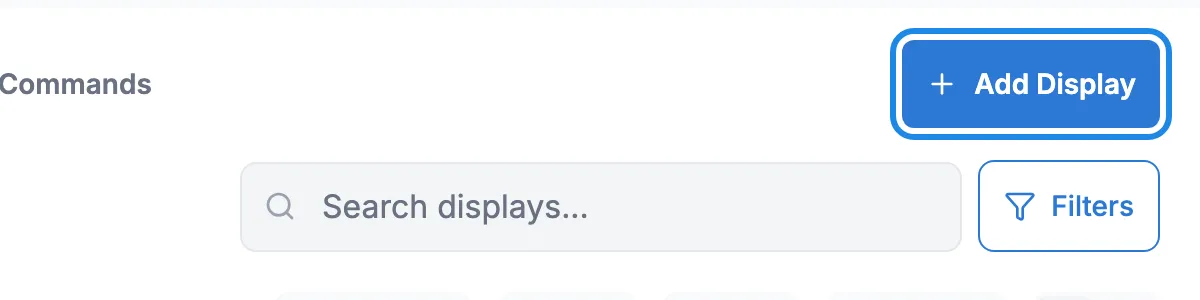
In Casty, click Displays in the menu on the left, then Displays. Click Add Display.
-
In Add Display via Code, type the code from the screen into Code and click Save. The player picks up the details it needs and connects to Casty.
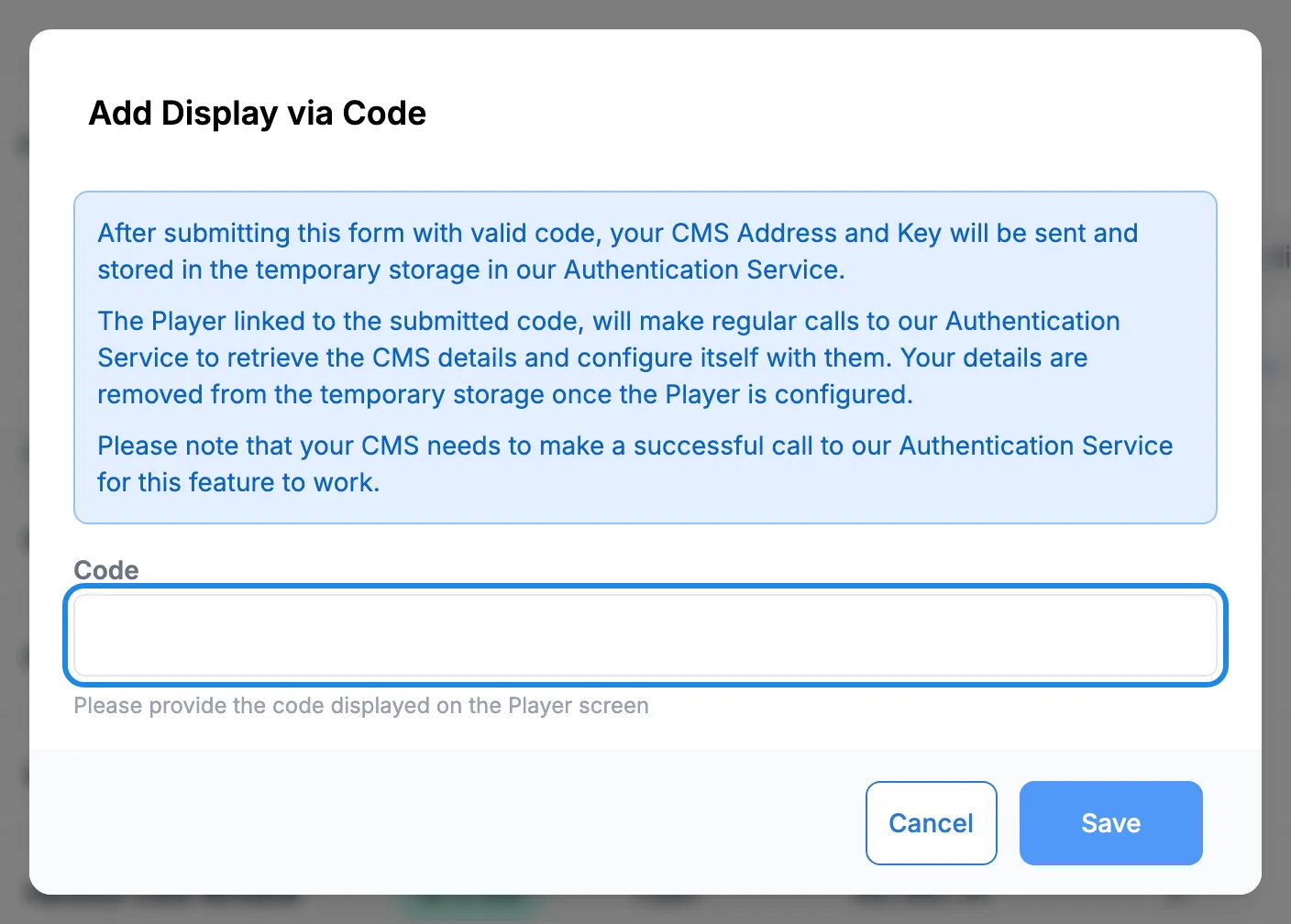
If you see The code provided does not match, check the code on the screen and type it again.
-
Email hello@casty.co.uk to tell us the screen is connected. Say which venue it’s in and where it hangs. We approve the new screen and add it to your account. Until we do, it won’t appear in your Displays list.
Set up the new screen
Section titled “Set up the new screen”Once we’ve added the screen, it appears in Displays under the name the player gave itself. These steps give it a proper name and something to show.
-
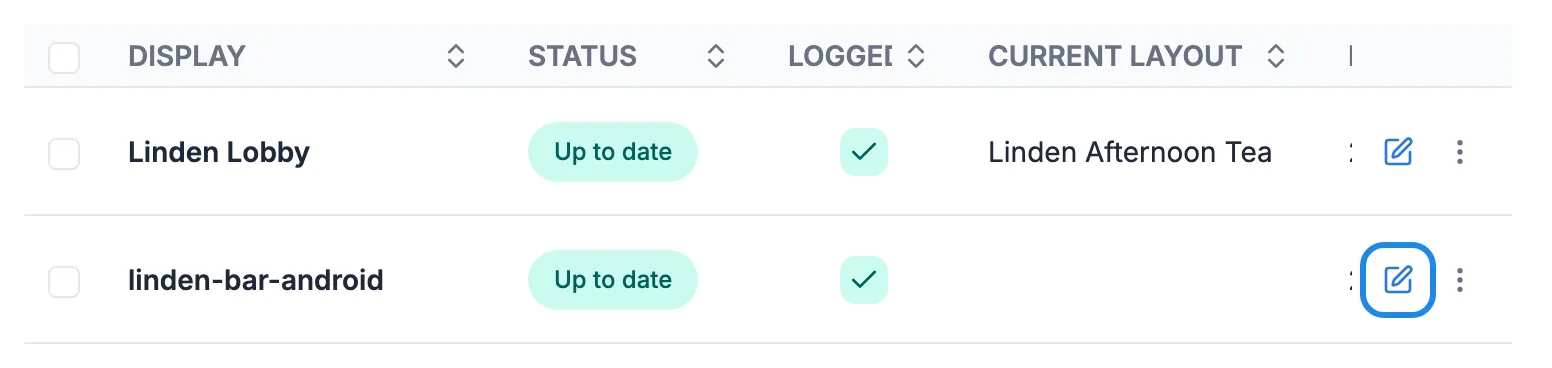
Click Displays in the menu, then Displays. Find the new screen in the list, or type part of its name in Search displays. Click the pencil icon at the end of its row.
-
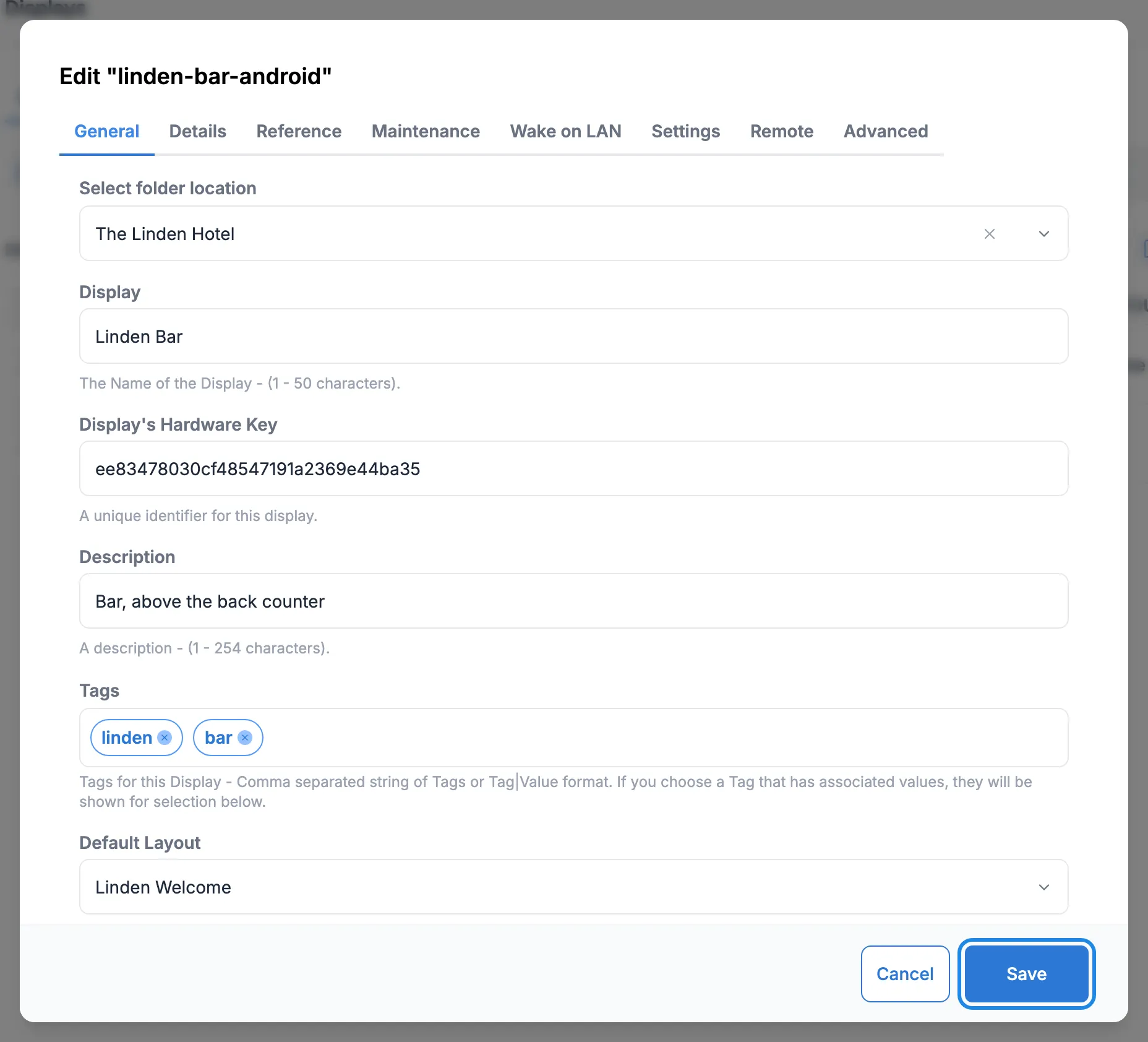
On the General tab of the edit window:
- In Select folder location, pick the venue’s folder.
- Replace Display with a name that says where the screen is, such as Linden Bar. Names can be up to 50 characters.
- Add a Description if it helps, such as where the screen is mounted.
- In Tags, type a word and press Enter twice to add it. Tags let you group screens automatically (see Group your screens).
- In Default Layout, pick what the screen should show when nothing else is scheduled.
Leave Display’s Hardware Key as it is. Click Save.
-
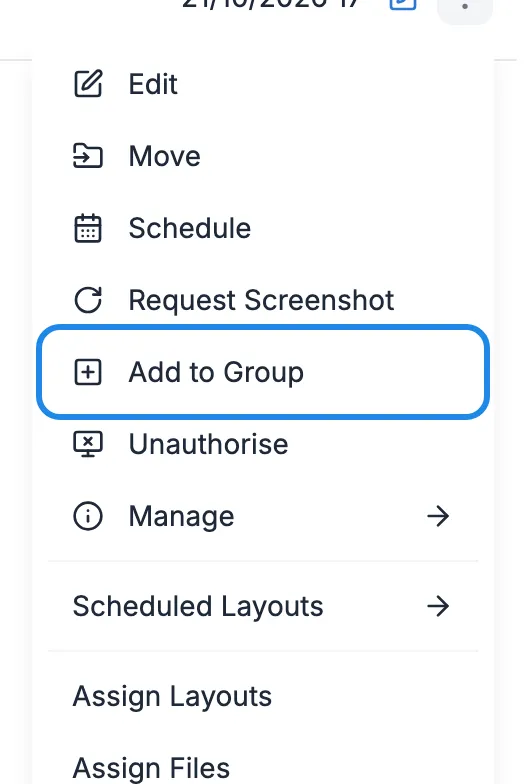
Click the three dots at the end of the screen’s row and click Add to Group.
-
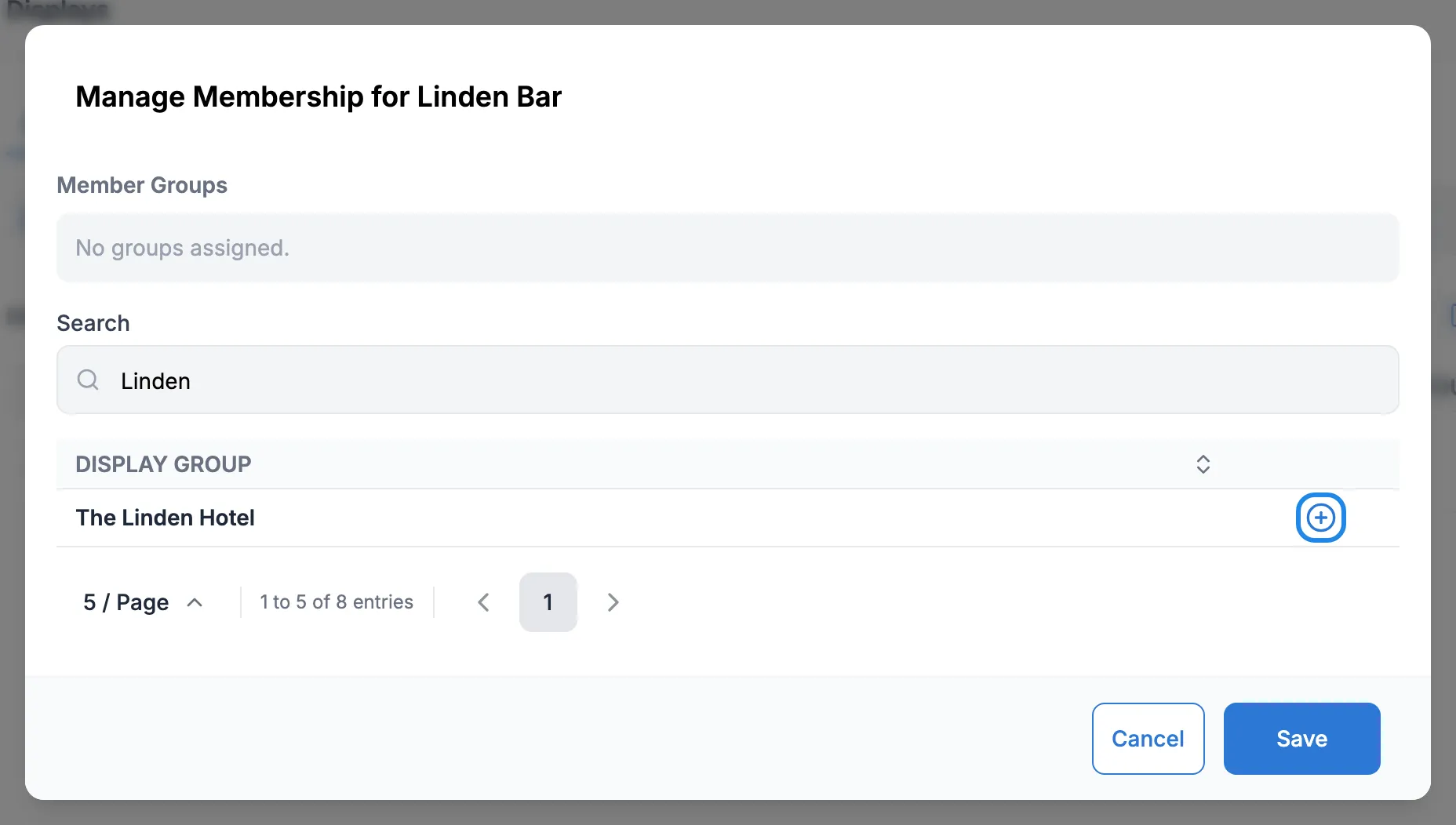
Type the venue’s name in Search. Click the plus icon next to the group the screen belongs in. It moves up to Member Groups. Click Save.
The screen now plays its default layout, and anything you schedule to its group plays on it too. To schedule something for this screen alone, see Schedule content on your screens.
Check it’s working
Section titled “Check it’s working”In the Displays list, a tick in Logged In means the player is checking in. Current Layout shows what it’s playing. See Check on your screens for the rest of the columns.