Schedule content on your screens
Everything your screens play comes from the schedule. Each entry in it is an event: a piece of content, the screens it plays on and the times it runs. This page shows you how to add an event, check what a screen will play, and copy, change or delete events later.
The schedule page
Section titled “The schedule page”Click Schedule in the menu on the left, then Events. The list shows the events for the period at the top of the page. Use the view menu (it shows the current view, for example Month) to switch between Day, Week, Month, Year and the other views, and the arrows to move backwards and forwards. To see the events for one screen, pick it in Search Display and Display Groups.
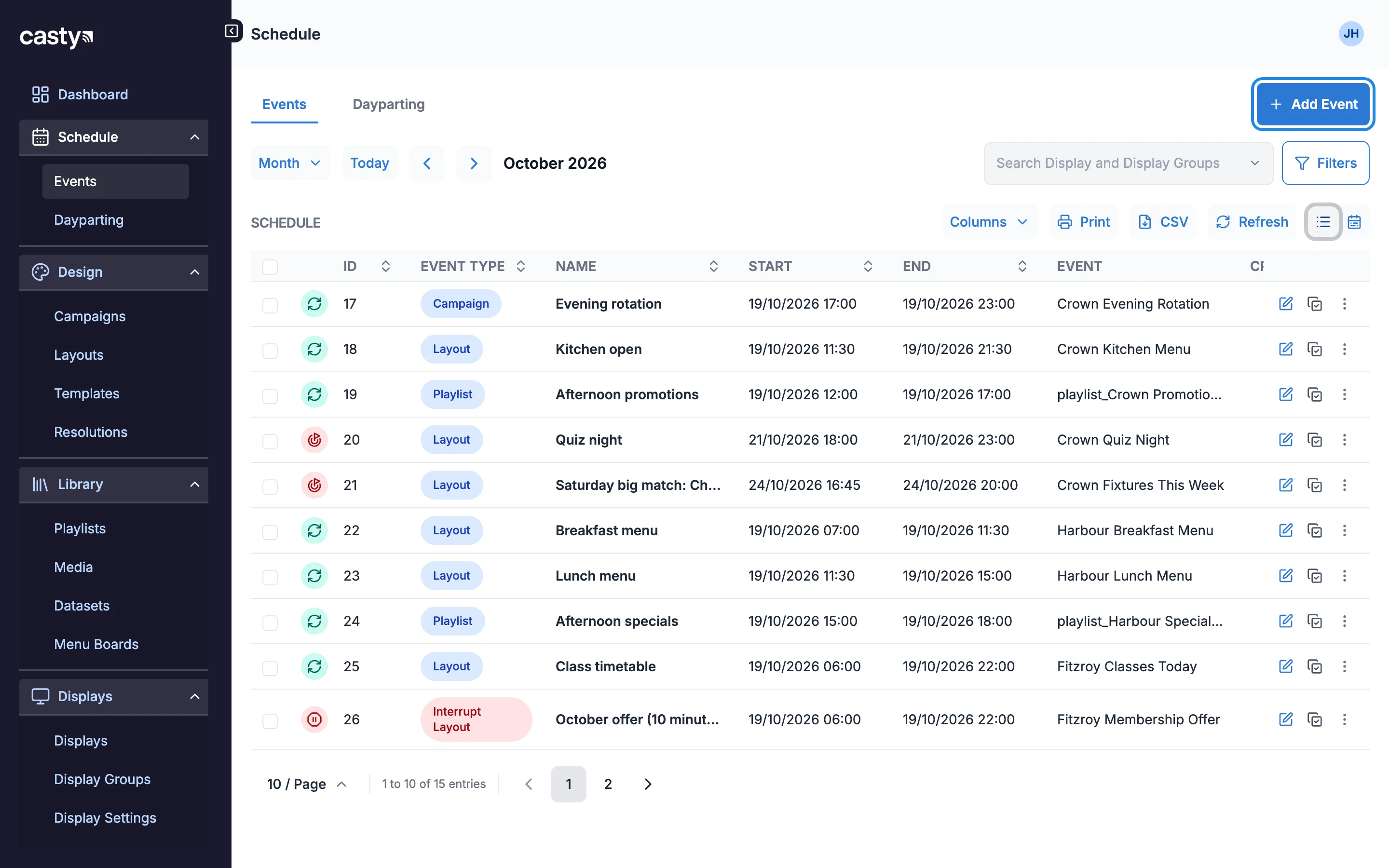
The two small icons above the list switch between the list (Table View) and a month calendar (Calendar View).
What you can schedule
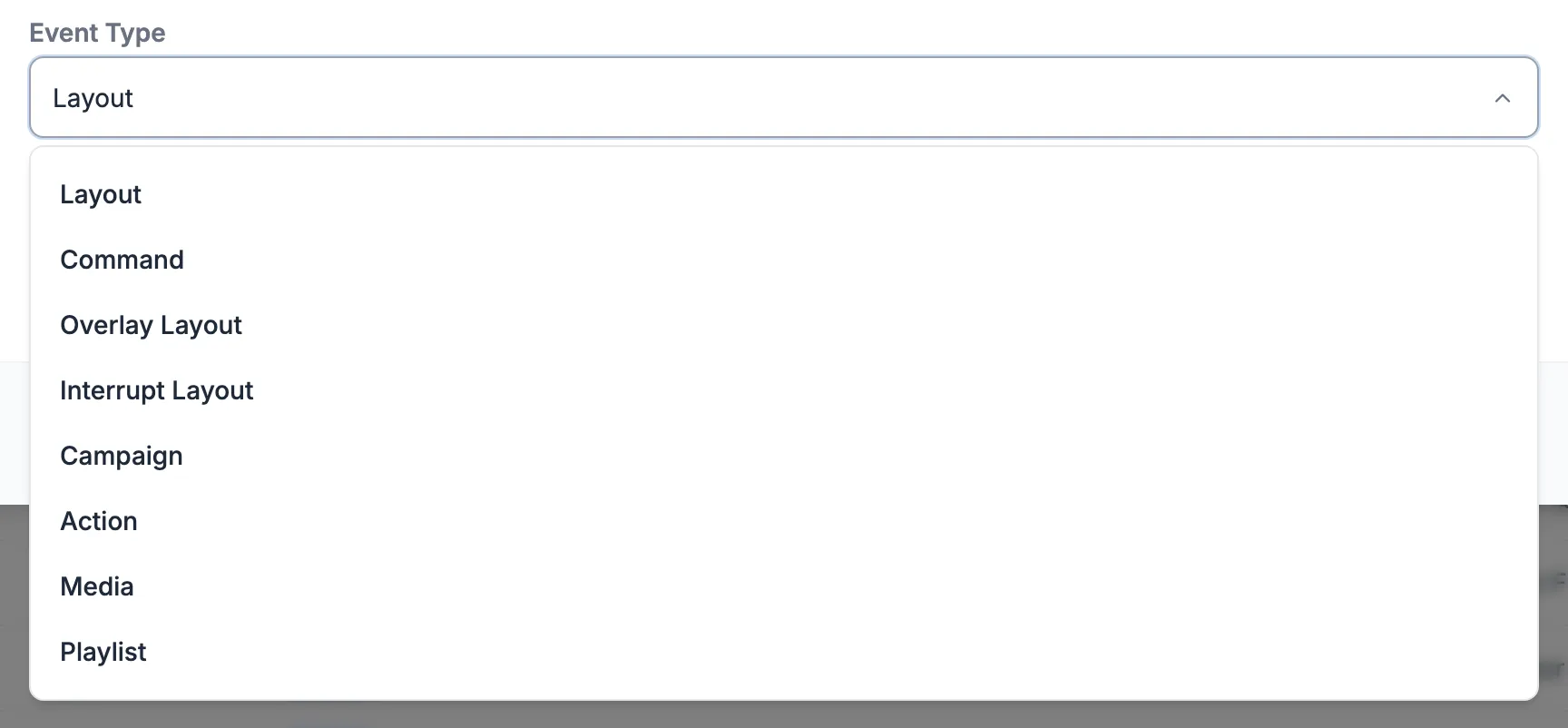
Section titled “What you can schedule”The first thing the event form asks for is the Event Type. Most events are a Layout, one of the layouts you’ve designed. The other types you’ll use are:
- Campaign, for several layouts that play in turn (see Play several layouts in turn with a campaign)
- Playlist, to show a playlist full screen
- Media, to show one image or video from your library full screen
- Interrupt Layout and Overlay Layout (see Priority, interrupts and overlays)
The list also has Command and Action. These are for special set-ups. Email hello@casty.co.uk if you think you need one.
Add an event
Section titled “Add an event”In this example the Crown Kitchen Menu layout plays on the garden room screen at The Crown from 12:00 to 15:00 every Saturday and Sunday.
-
On the Events page, click Add Event. The form has four steps: Content, Displays, Time and Optional.
-
Leave Event Type set to Layout. Click the Layout box, type part of the layout’s name and pick it from the list. Click Next.
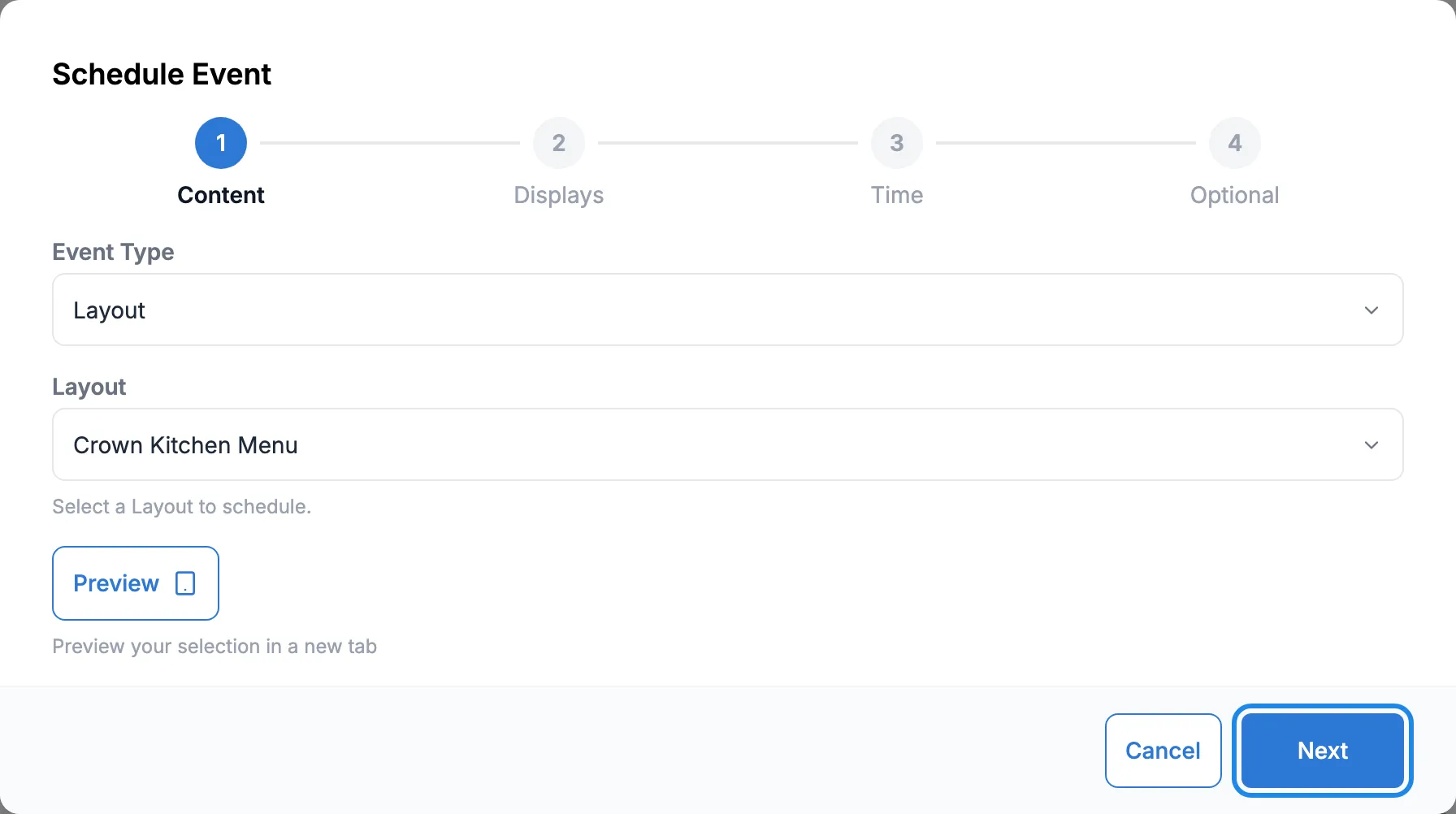
The Preview button opens the layout in a new tab if you want to check it first.
-
Click Search Display and Display Groups and tick the screens the event should play on. Type part of a name to shorten the list. Tick a display group to cover every screen in it, for example a whole venue. Press Esc to close the list, then click Next.
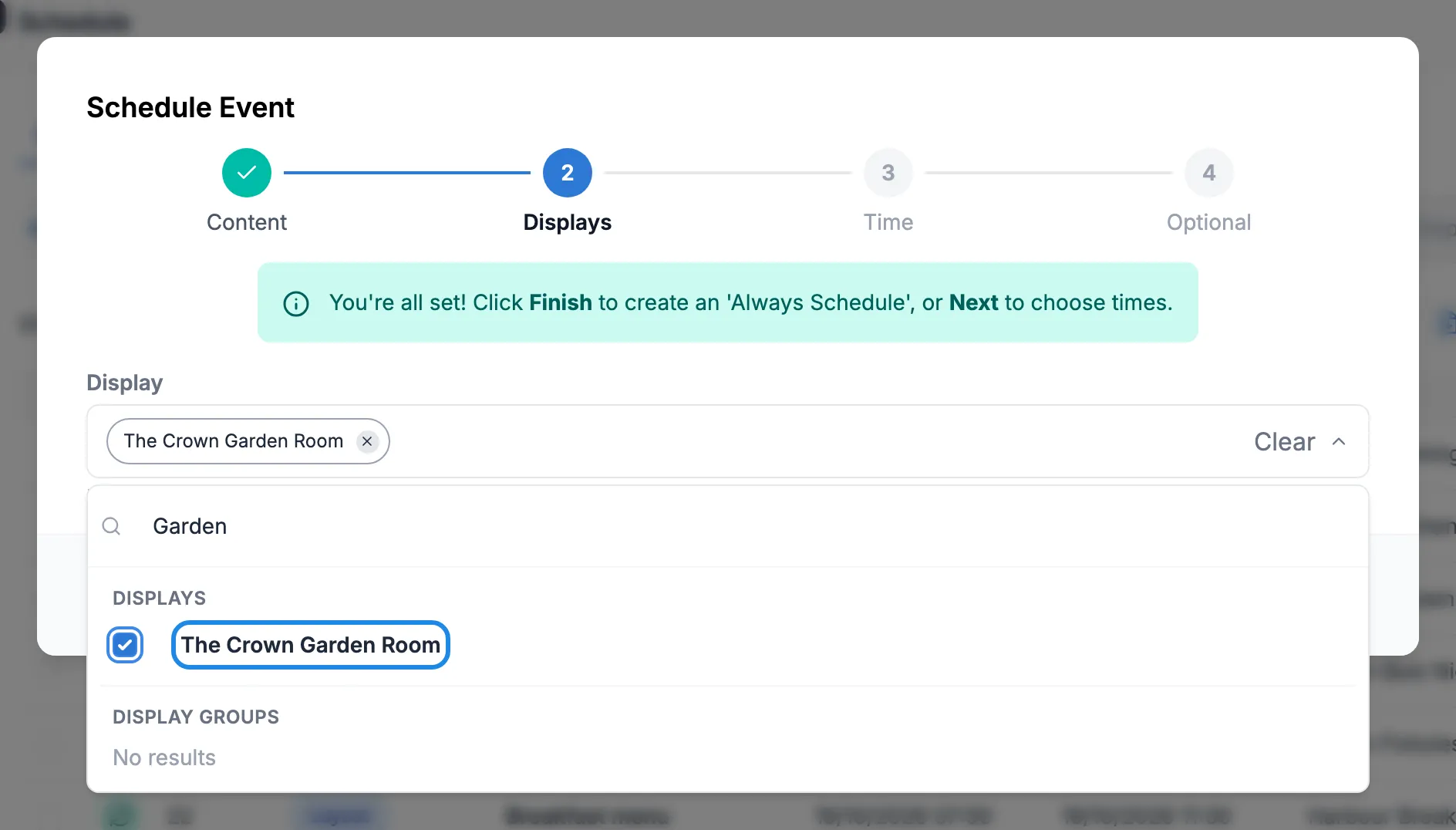
If you click Finish at this point, the event plays all the time.
-
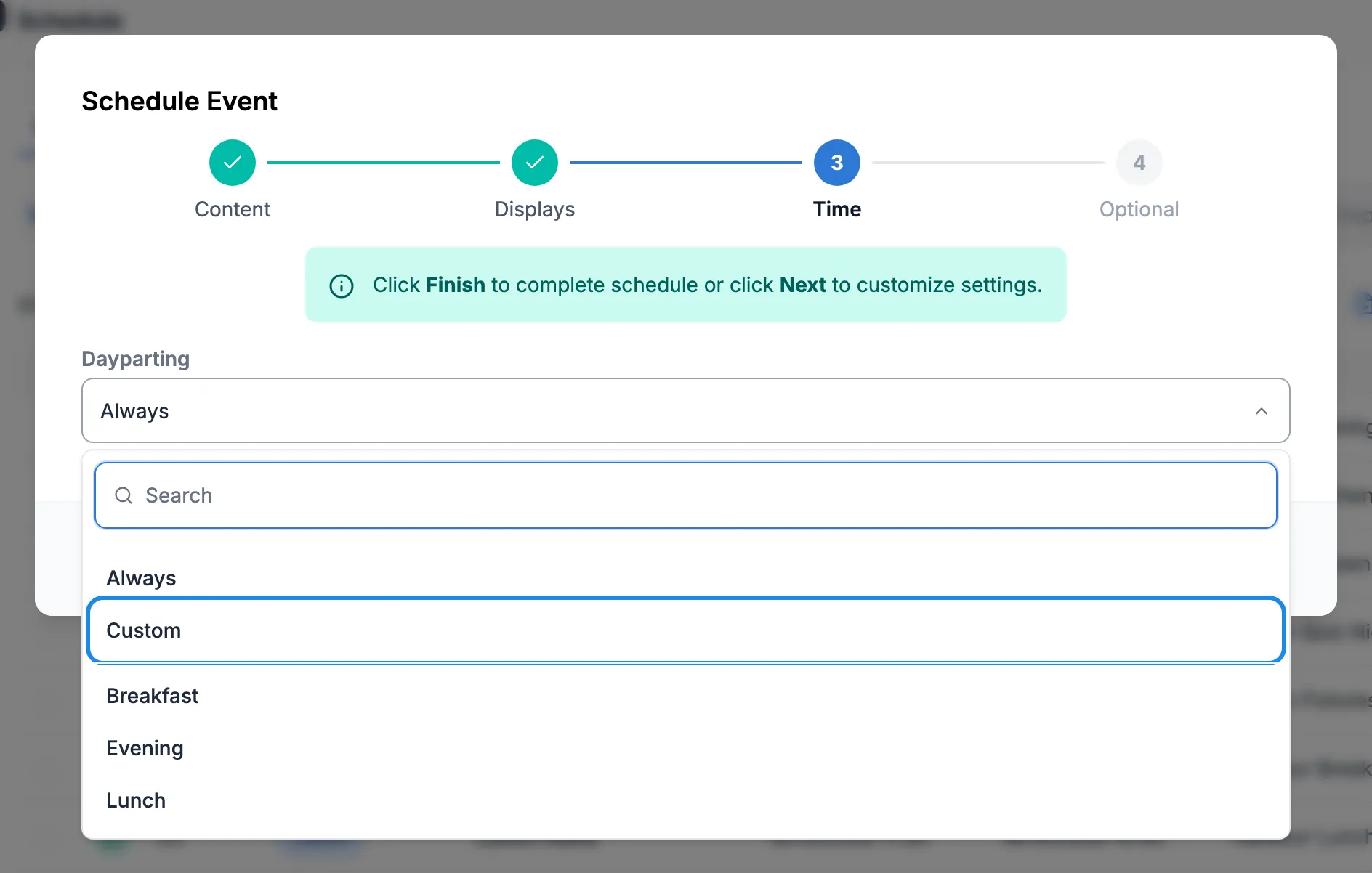
In Dayparting, choose Custom to set your own times. The list also has Always and any dayparts you’ve set up (see Use dayparts).
-
Click the Start Time box. Pick the day in the calendar, set the hour, the minutes and AM or PM underneath, then click Apply. Do the same for End Time.
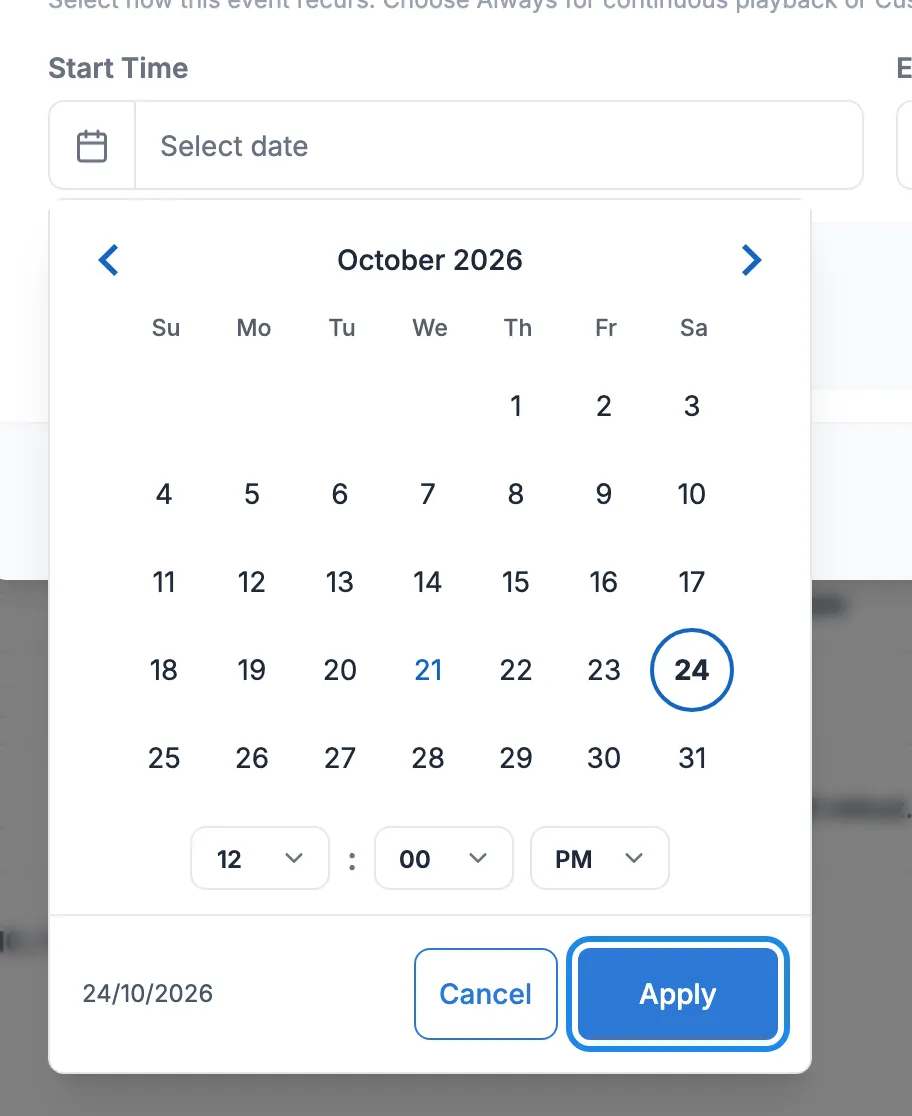
For an event that repeats, set the start and end on the first day it runs. The repeat settings in step 8 carry it forward.
-
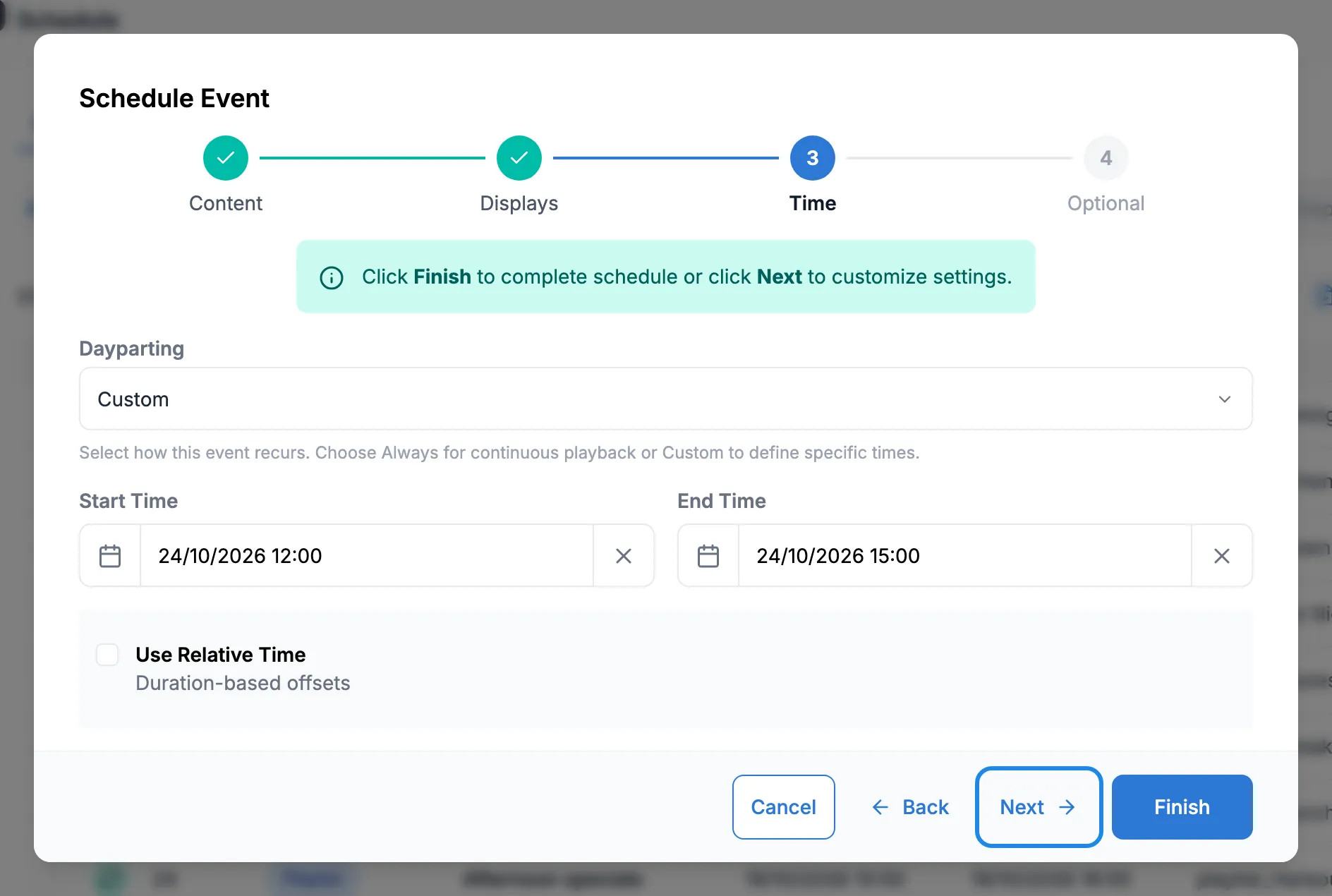
Check the times and click Next.
-
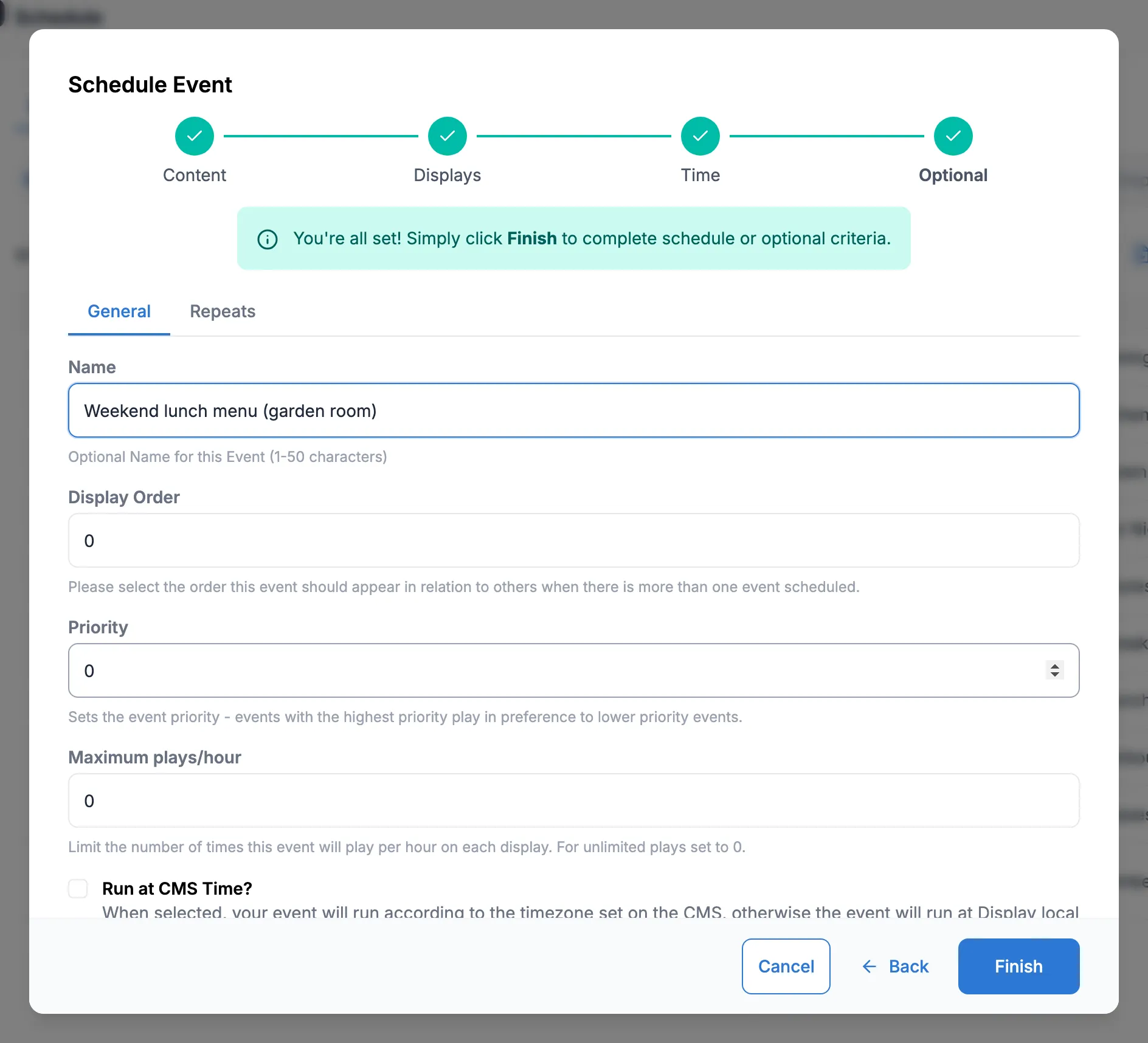
On the General tab, type a Name so you can find the event later. Leave Display Order and Priority at 0 for an everyday event. Maximum plays/hour limits how often the event plays in an hour on each screen; 0 means no limit.
-
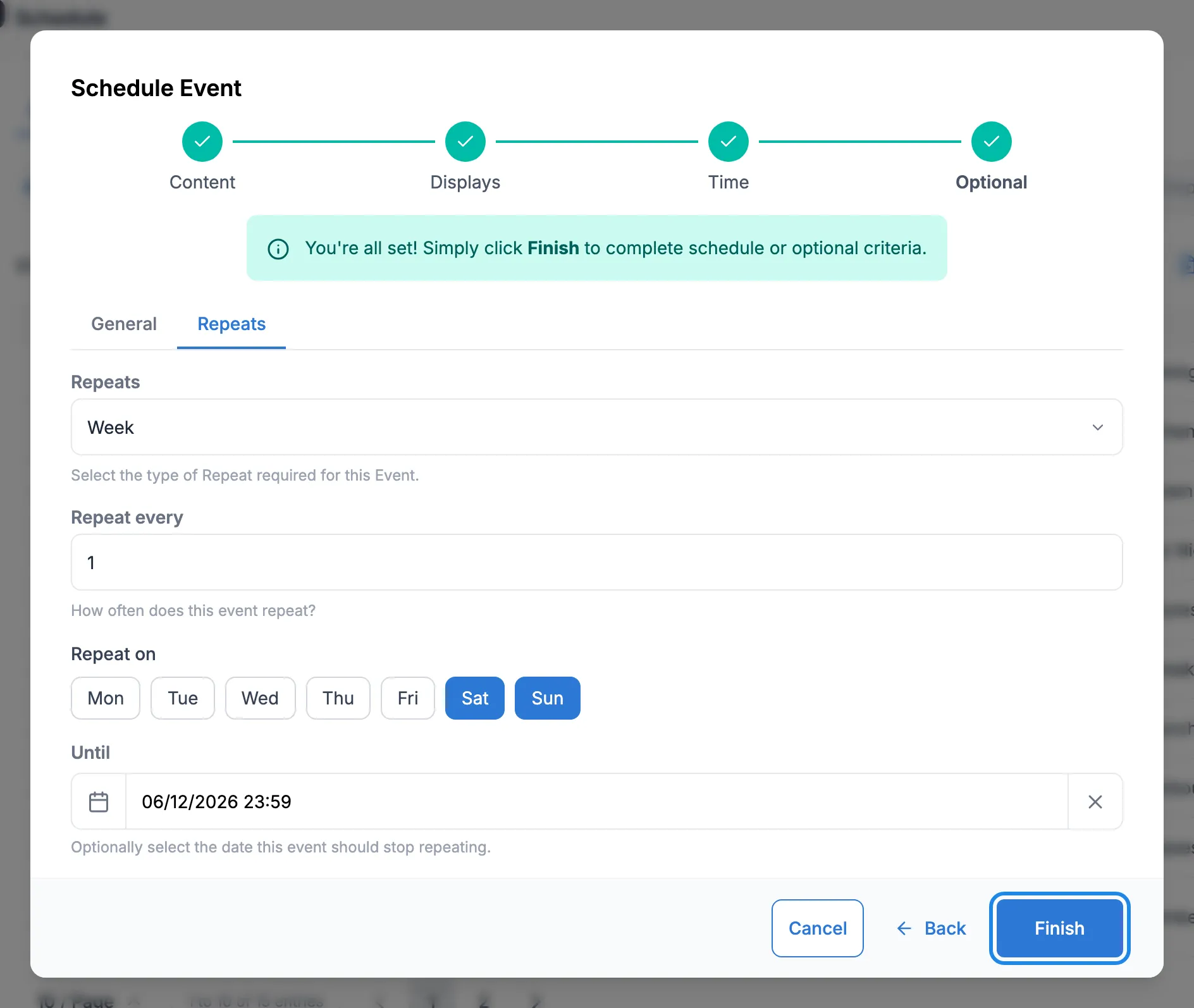
Click the Repeats tab. Choose how often the event repeats in Repeats (here, Week), leave Repeat every at 1, click the days it runs on and set the last date in Until. Click Finish.
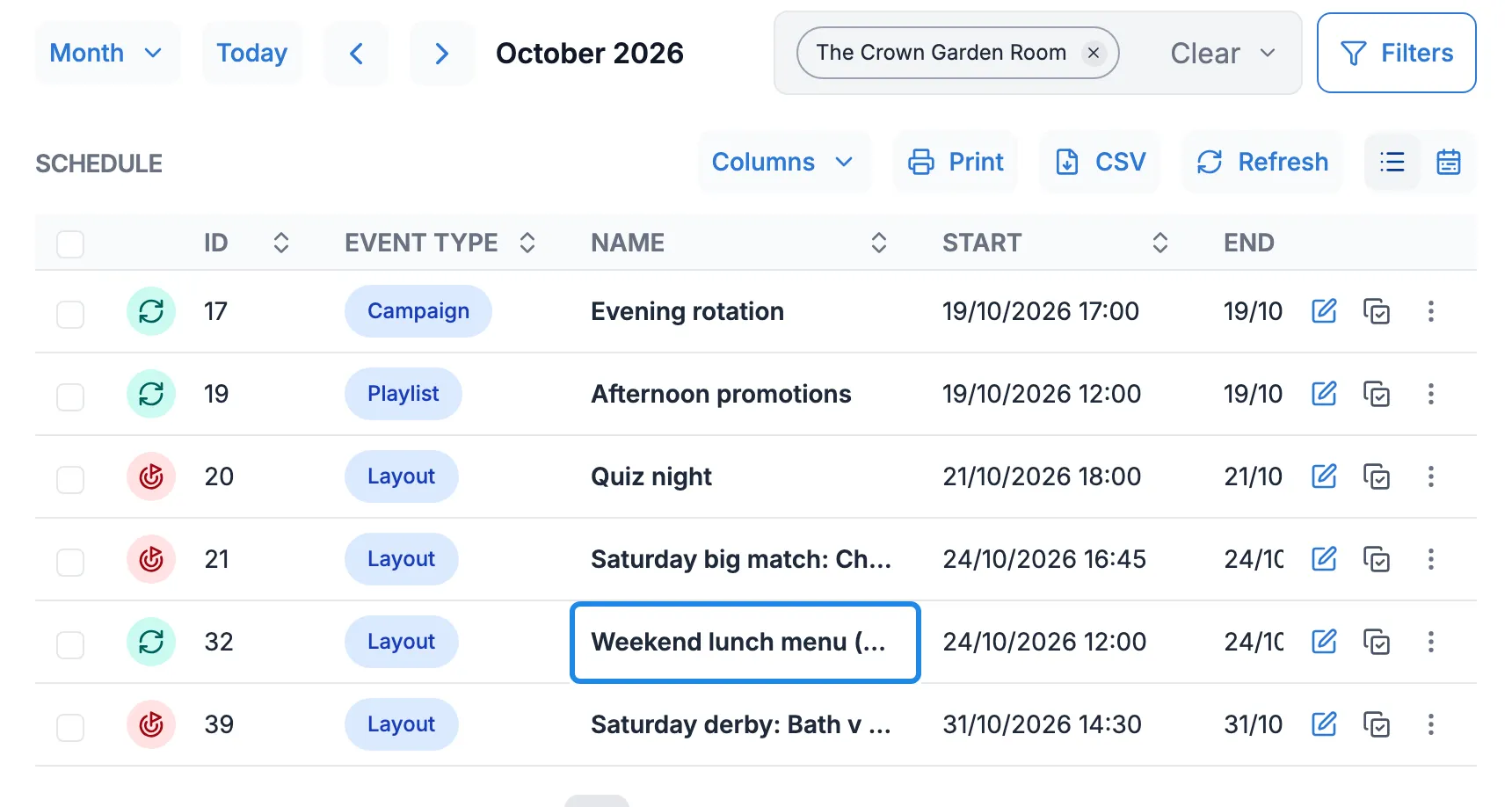
The new event appears in the list. A green icon at the start of a row means the event repeats. A red icon marks a priority or interrupt event.
Copy, change or delete an event
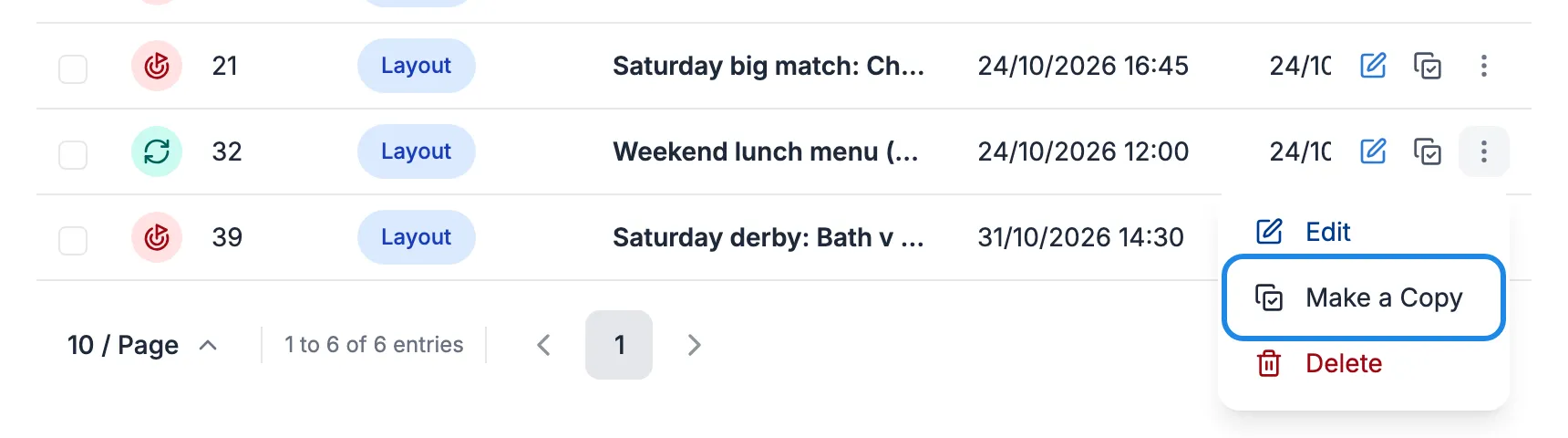
Section titled “Copy, change or delete an event”Each row has an edit icon, a copy icon and a menu with Edit, Make a Copy and Delete. Copying is the quickest way to put the same event on another screen.
-
Open the row’s menu and click Make a Copy.
-
Type a New name and click Save. The copy has the same content, screens and times as the original.
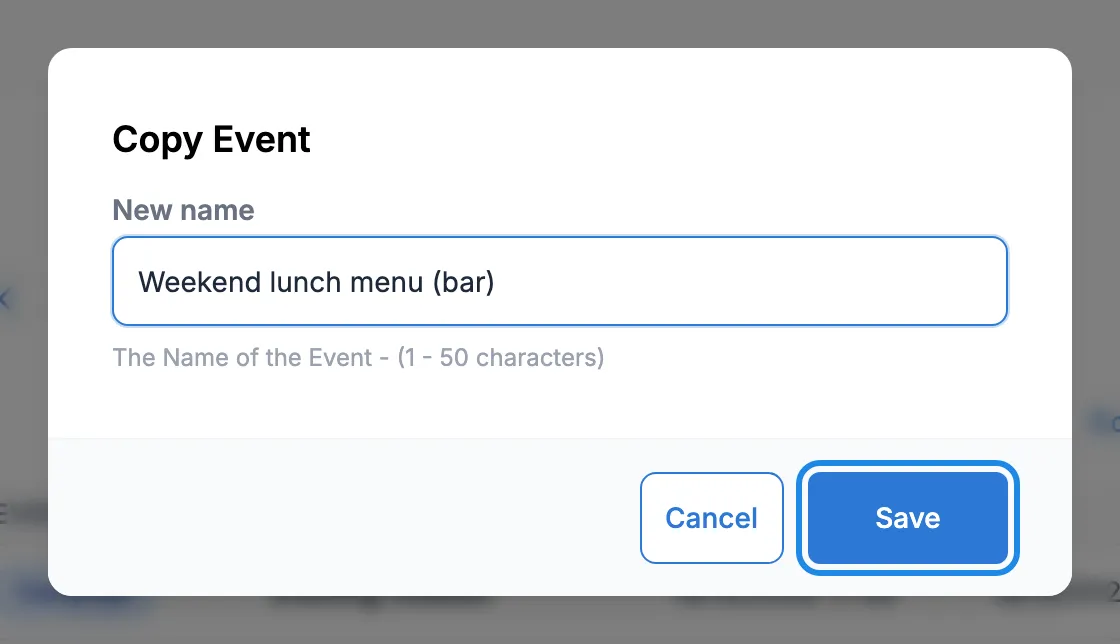
-
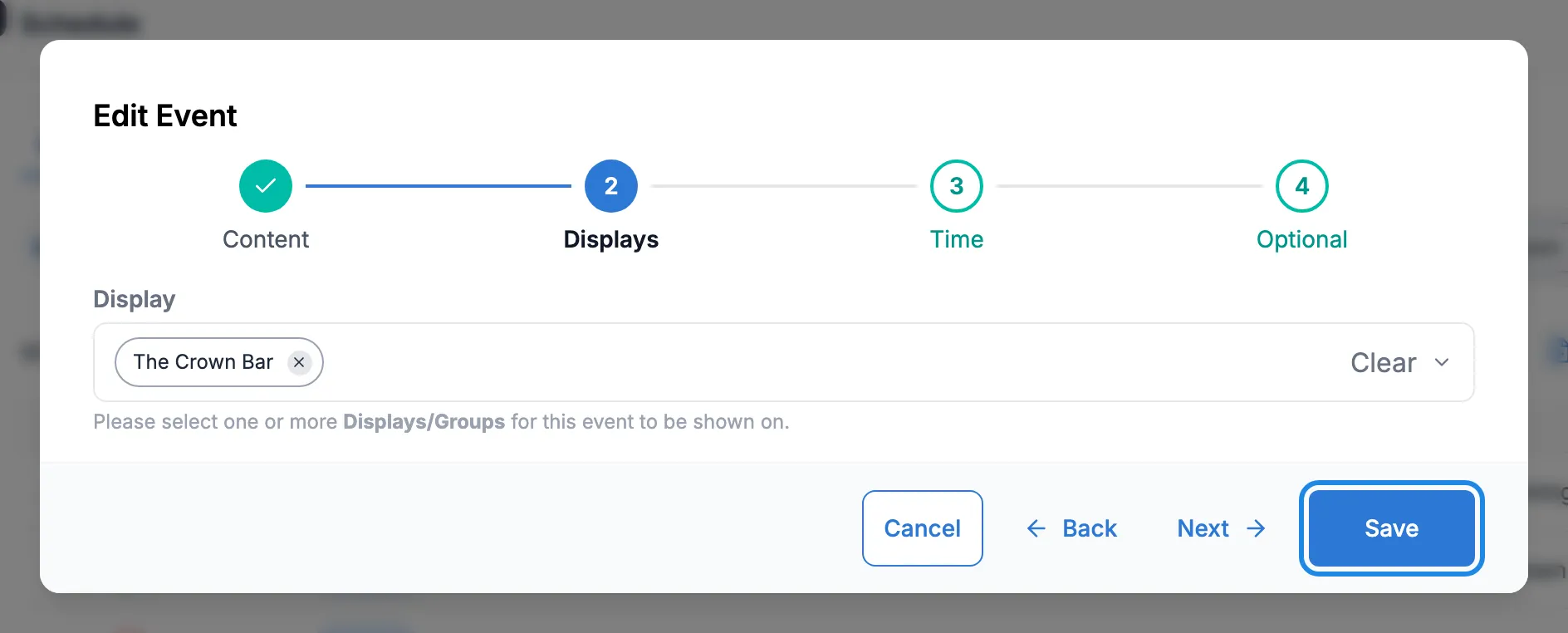
Click the edit icon on the copy. The form opens at the Content step. Click Next to reach the step you want to change, make the change and click Save. Here the copy moves to the bar screen.
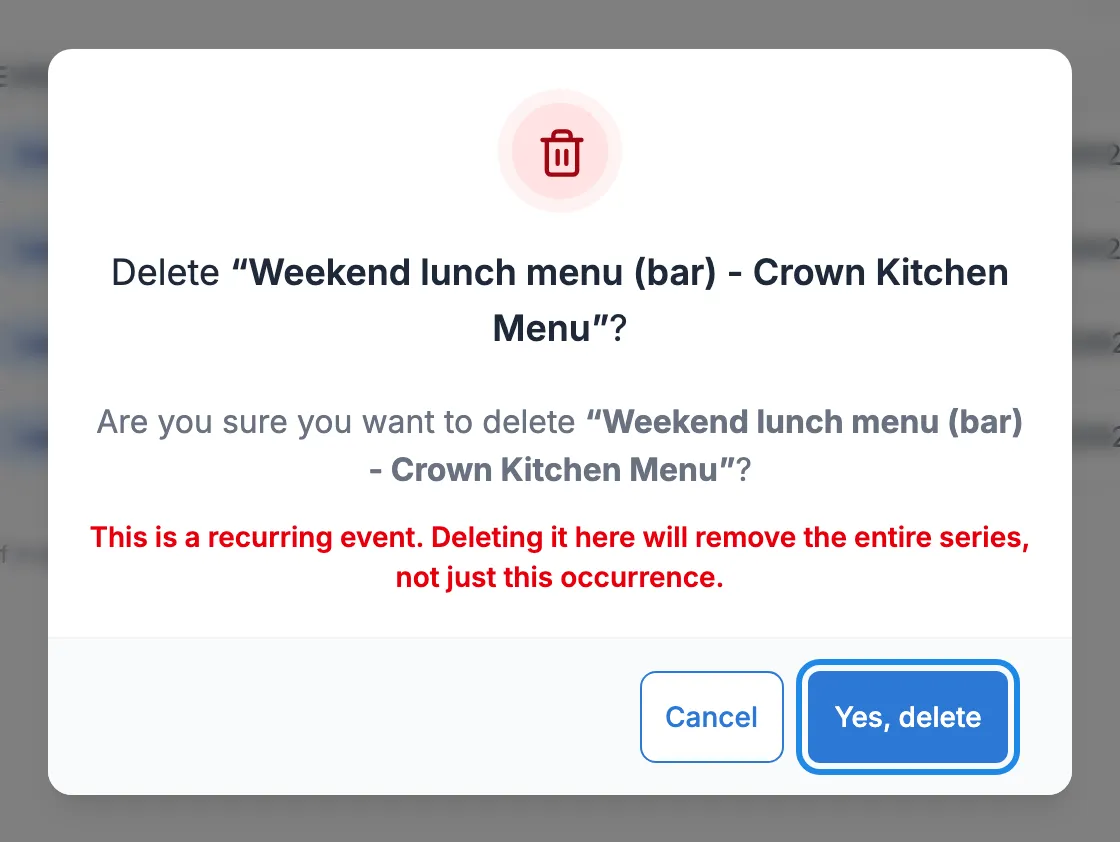
To delete an event, open the row’s menu, click Delete, then Yes, delete. For a repeating event this removes every day in the series.
Check what’s playing
Section titled “Check what’s playing”Click Calendar View. Each day shows an icon for every event that runs on it.
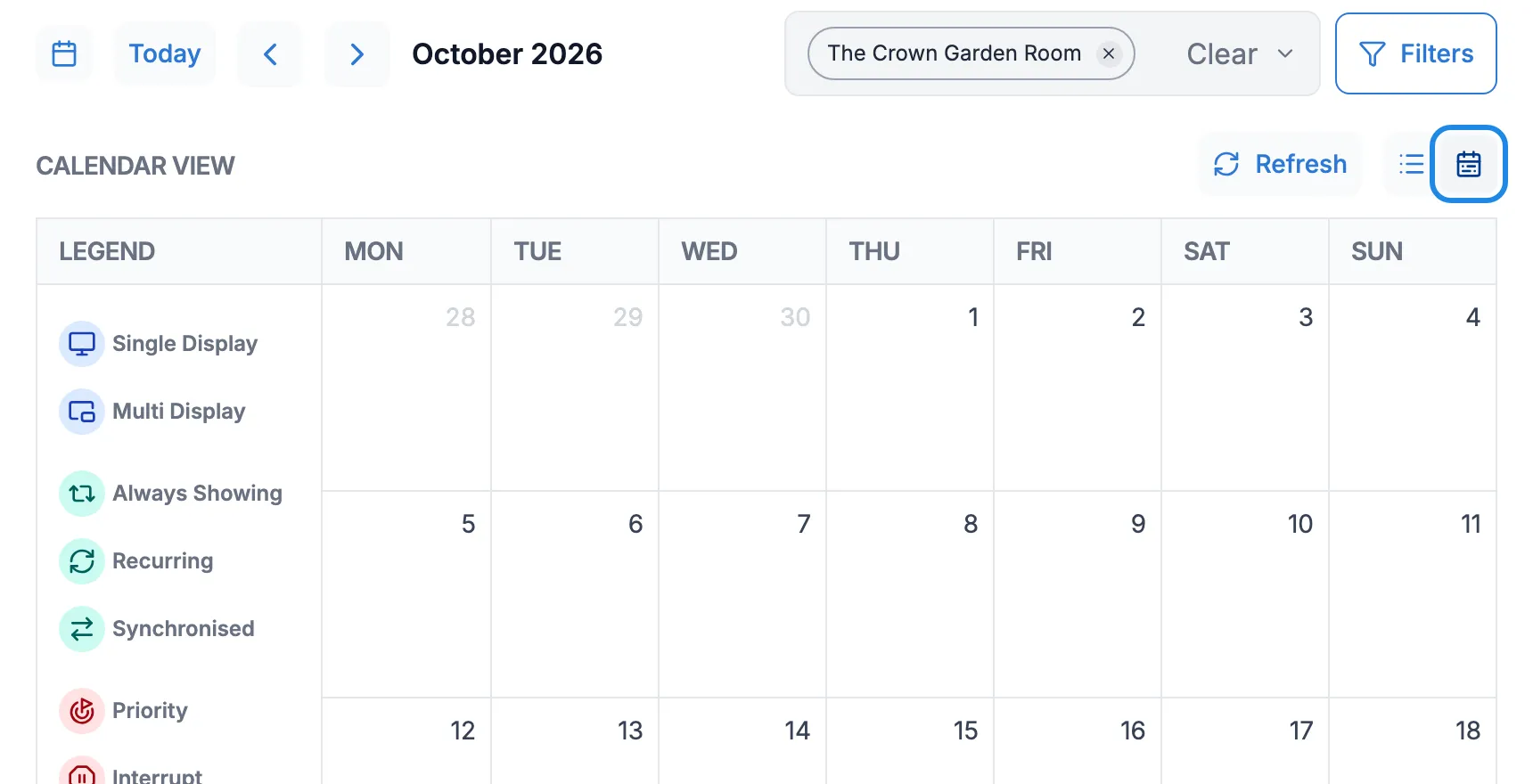
Click a day to list its events with their times. Clicking an event’s icon in the calendar opens it for editing.
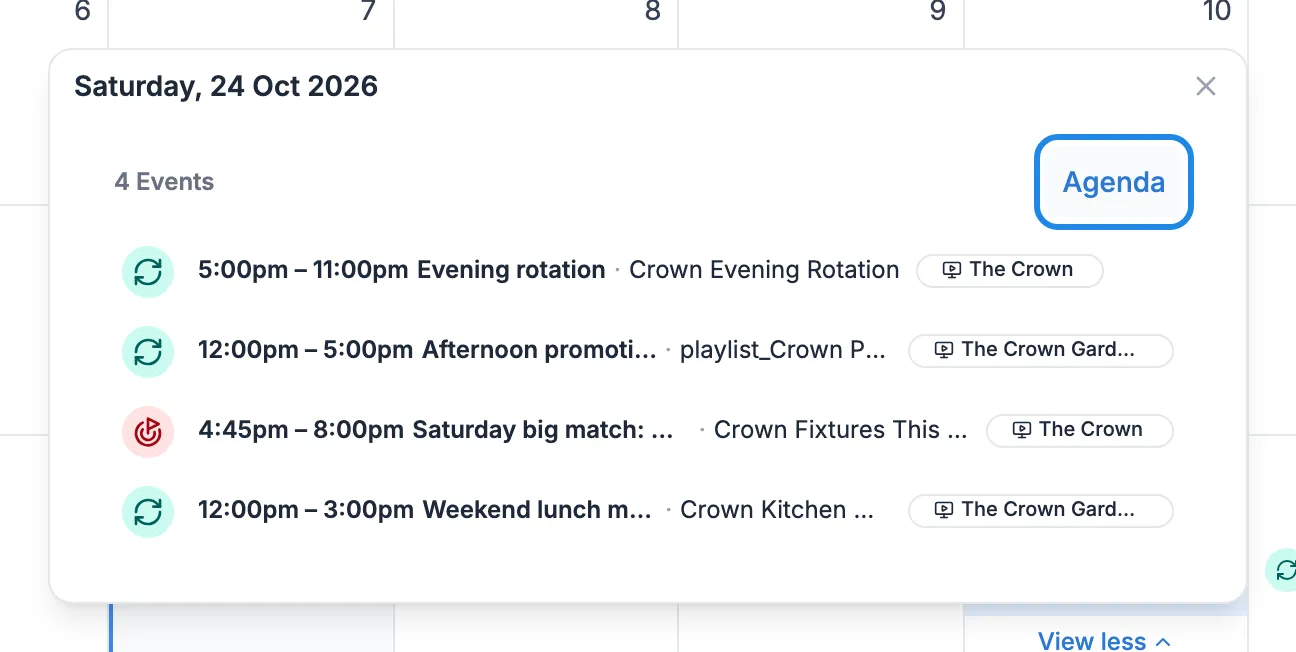
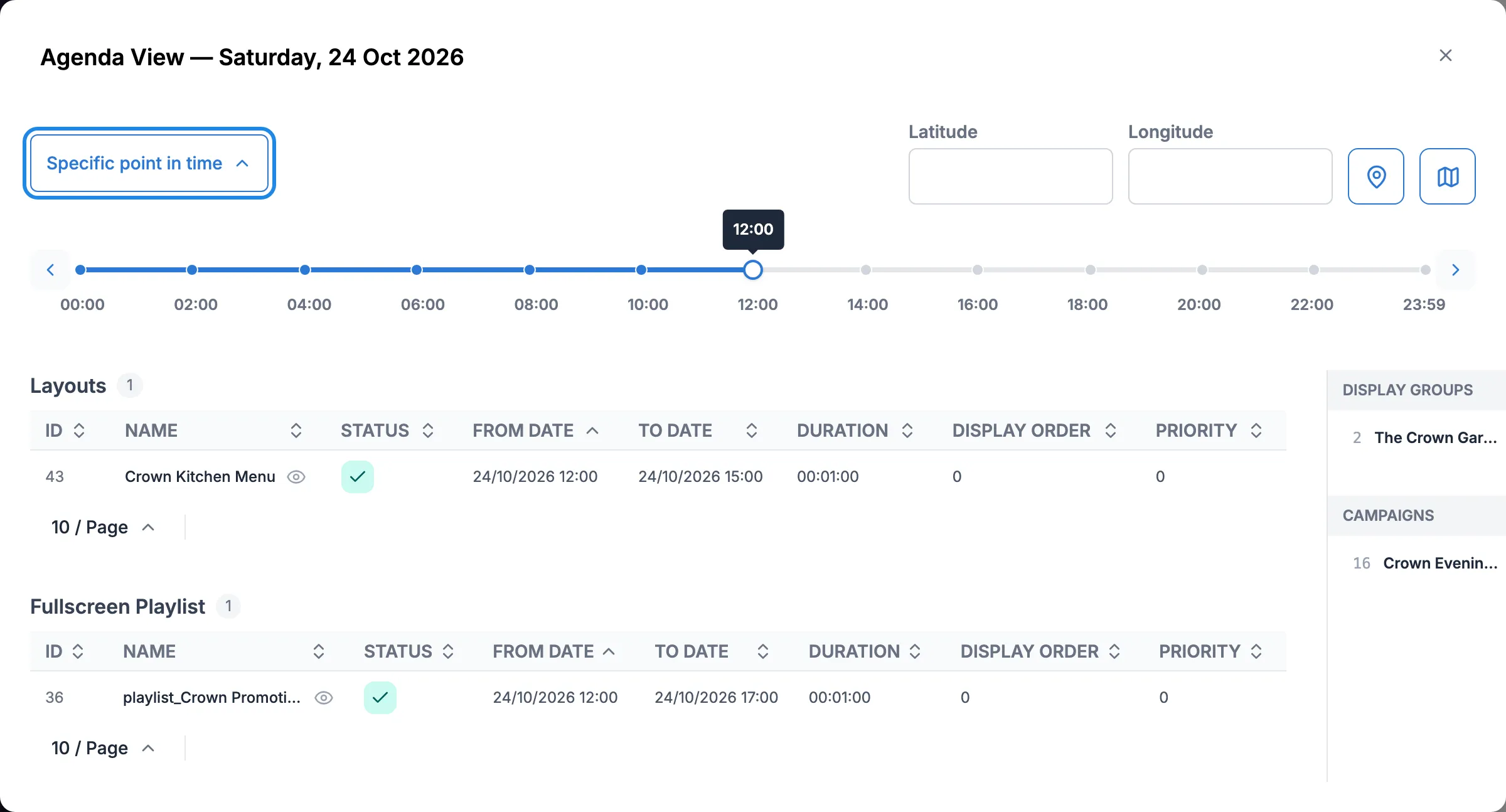
To see what a screen plays at a given moment, click Agenda in the day’s list. Click Specific point in time and click a time on the line that appears. The Layouts table lists what is due to play at that time, with each event’s start, end and Priority. If the screen gets its content through a display group, click the group’s name at the top of the agenda.