Upload media to the library
The library is where your pictures, videos and other files live. Everything you put on a screen starts here, so upload your files first, then use them in layouts and playlists.
What you can upload
Section titled “What you can upload”The upload window lists what it accepts. Each file can be up to 5 GB, in one of these formats:
APK, AVI, BMP, GIF, HTML, HTM, HTZ, IPK, JPG, JPEG, JS, MP3, MP4, MPG, MPEG, PDF, PNG, PPT, PPS, PPTX, SWF, WAV, WEBM, WMV.
For pictures, use JPG or PNG. For video, use MP4. If an upload fails, see Problems uploading media.
Upload files
Section titled “Upload files”-
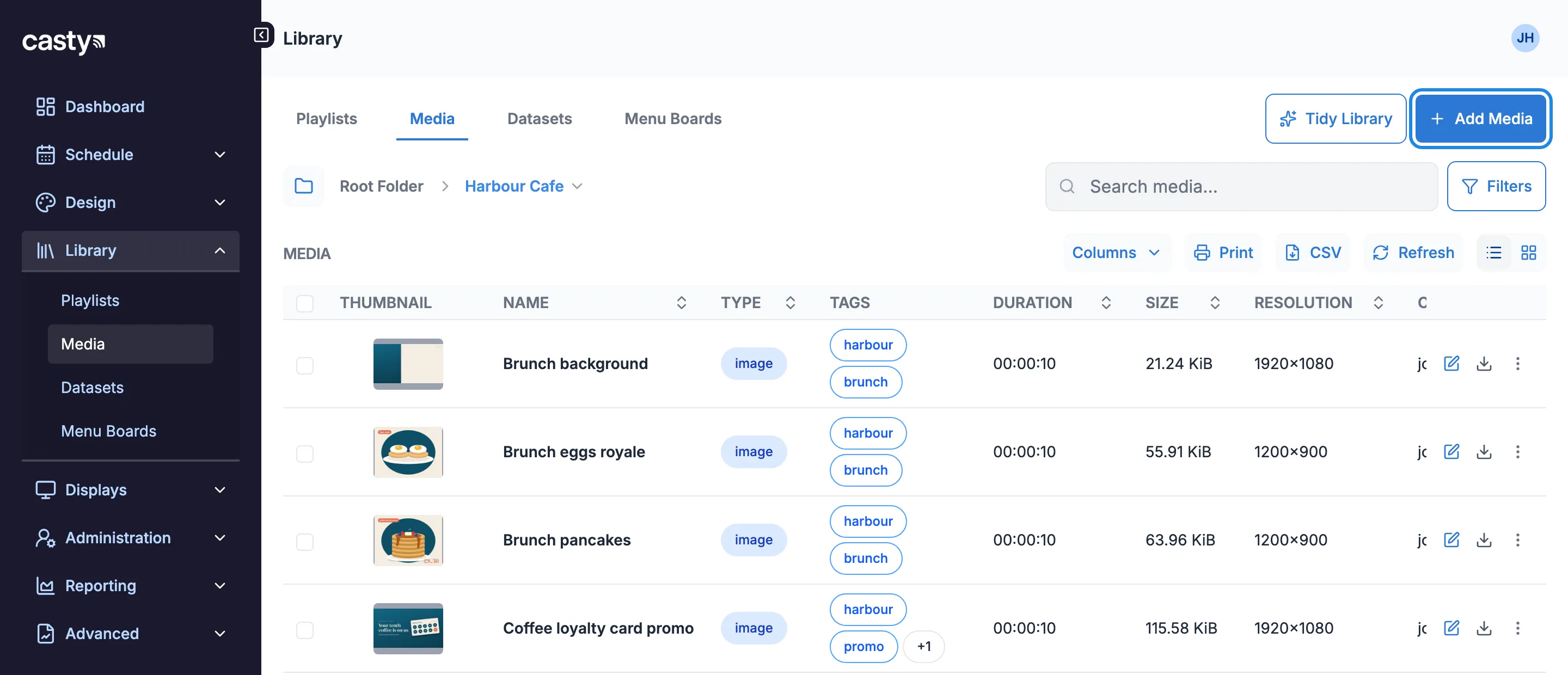
In the menu on the left, open Library and click Media. Then click Add Media at the top right.
-
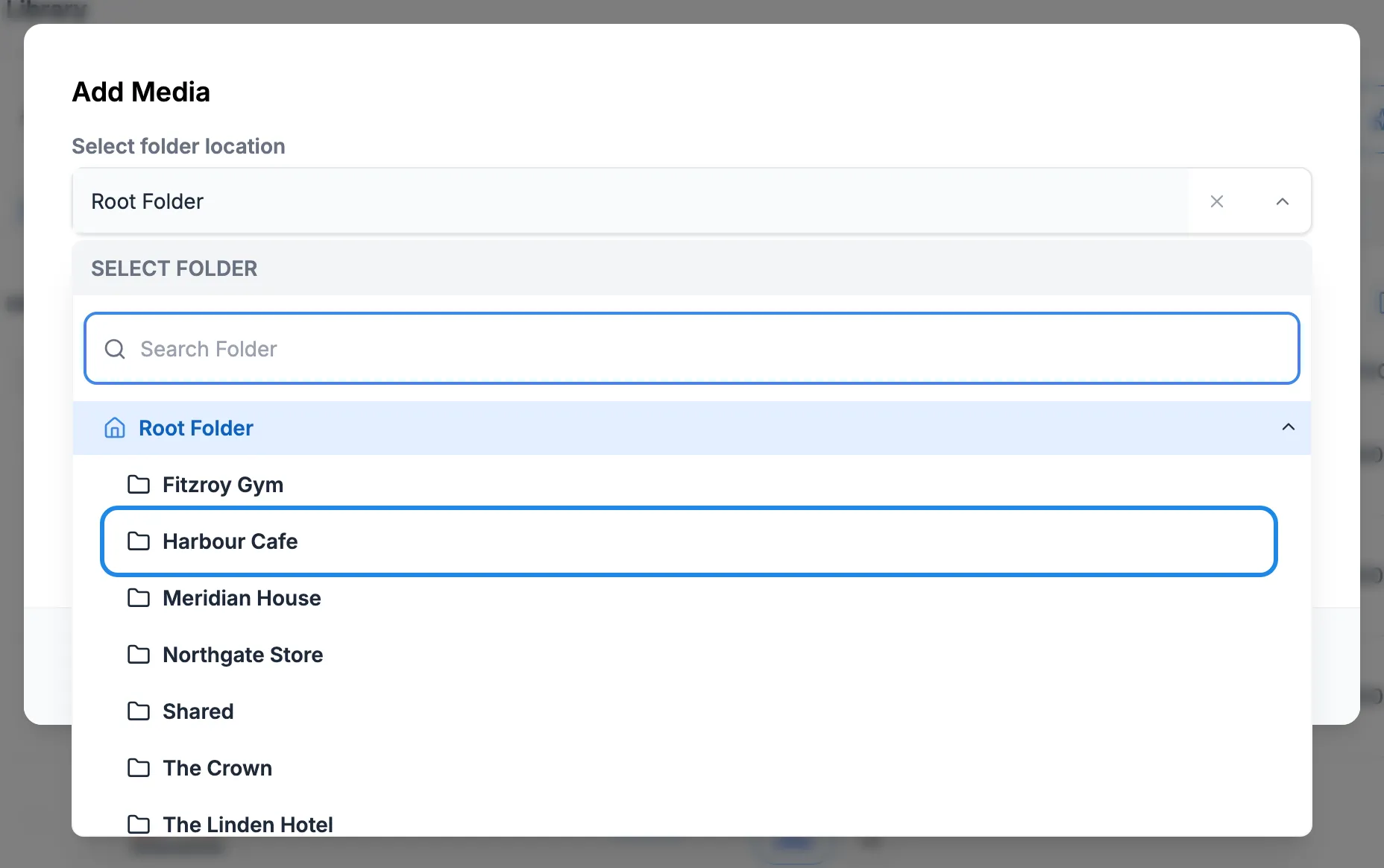
Under Select folder location, choose your venue’s folder (here, Harbour Cafe).
-
Drag your files onto the box, or click Select Files and choose them. You can pick several files at once. Hover over the information icon next to Supported formats to see the file types.
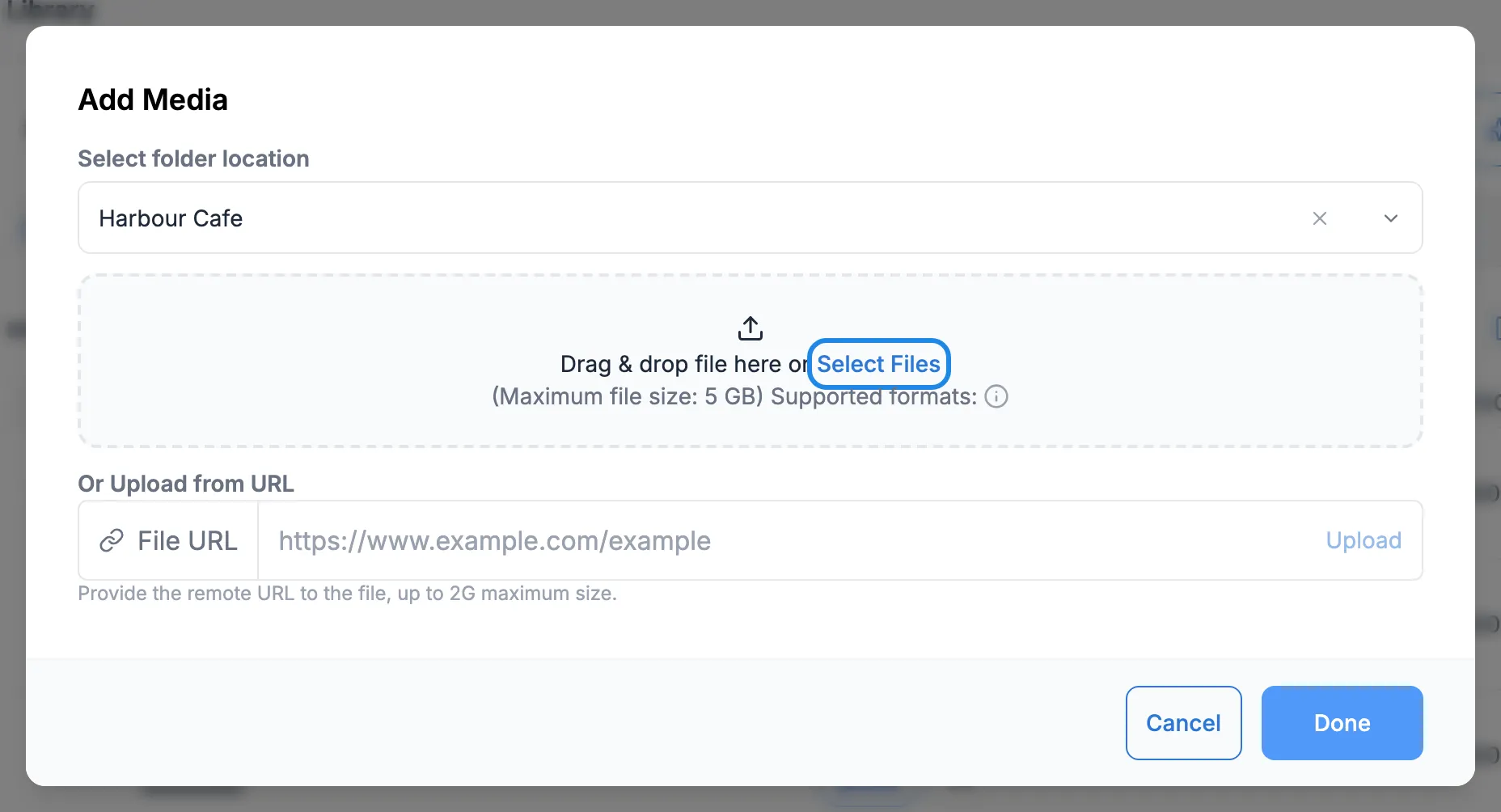
You can also paste a web address into File URL and click Upload to fetch a file from the internet. The window says files fetched this way can be up to 2G.
-
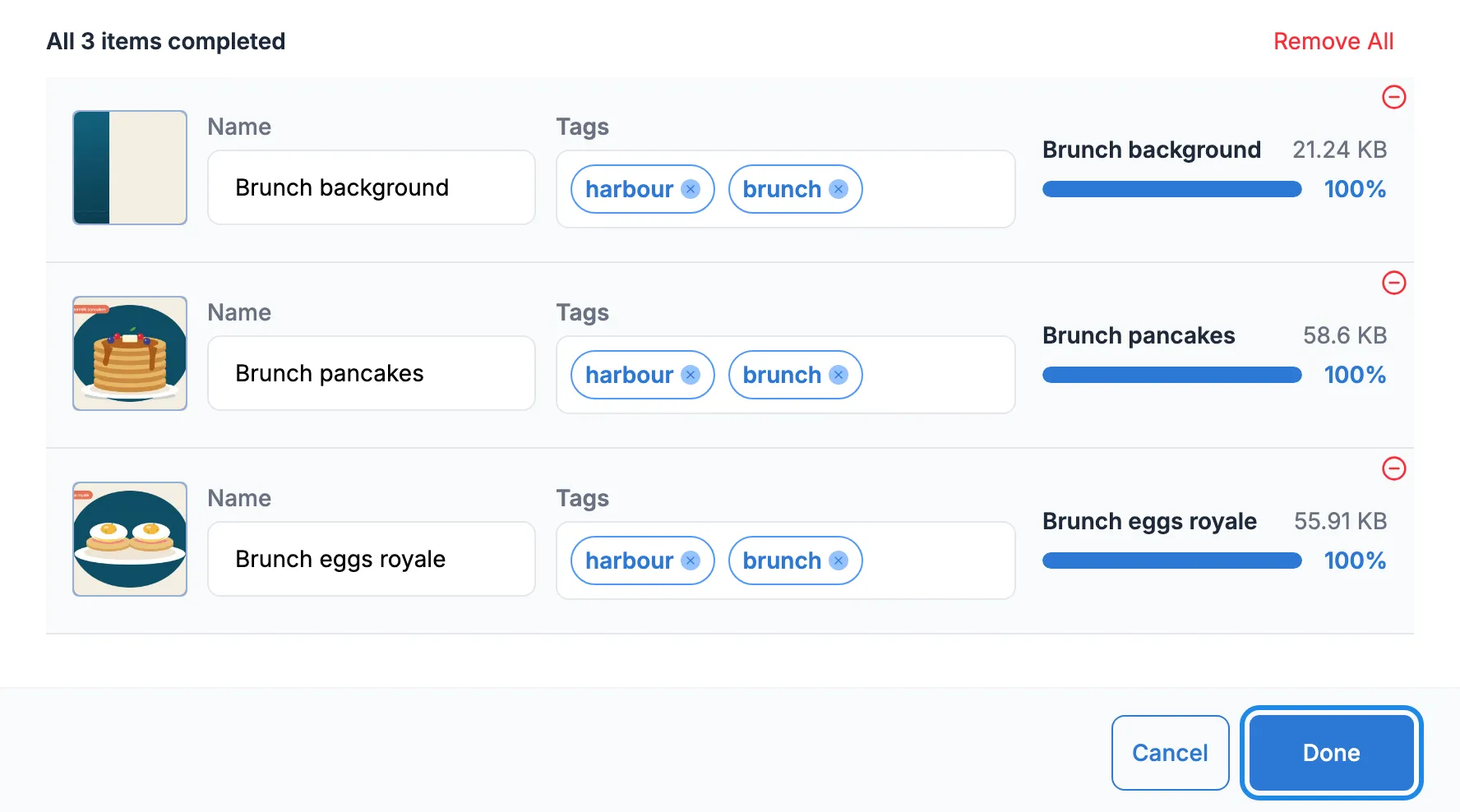
Each file uploads straight away and gets its own row. Change the File Name to something you’ll recognise later, and add Tags such as the venue or the menu it belongs to. Type a tag and press Enter, or pick one from the suggestions. Click Done when you’re finished.
Find your files
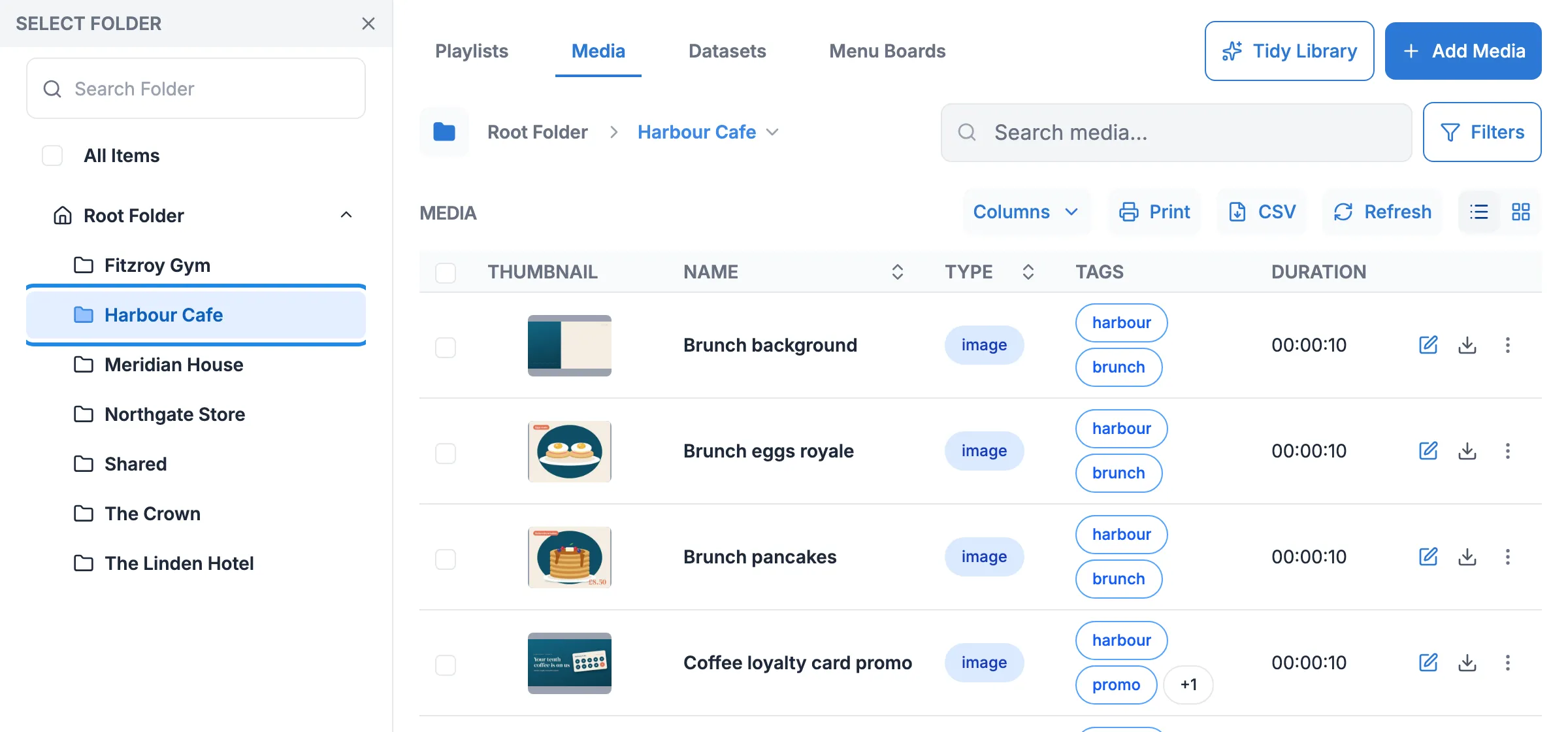
Section titled “Find your files”The media list shows a thumbnail, name, type, tags, duration, size and resolution for each item. Type in Search media… to find something by name, or click Filters for more options.
To browse by folder, click the folder icon (Toggle Folder Tree) and choose a folder.
To move files between folders or share them with someone, see Folders and sharing.
Set an expiry date
Section titled “Set an expiry date”Use an expiry date for anything that has an end, such as an offer or a seasonal promotion.
-
Click the pencil icon (Edit) on the file’s row.
-
Open Expiry Date and choose End of Today, In 7 Days, In 14 Days, In 30 Days, or Choose Date to pick your own. Click Save.
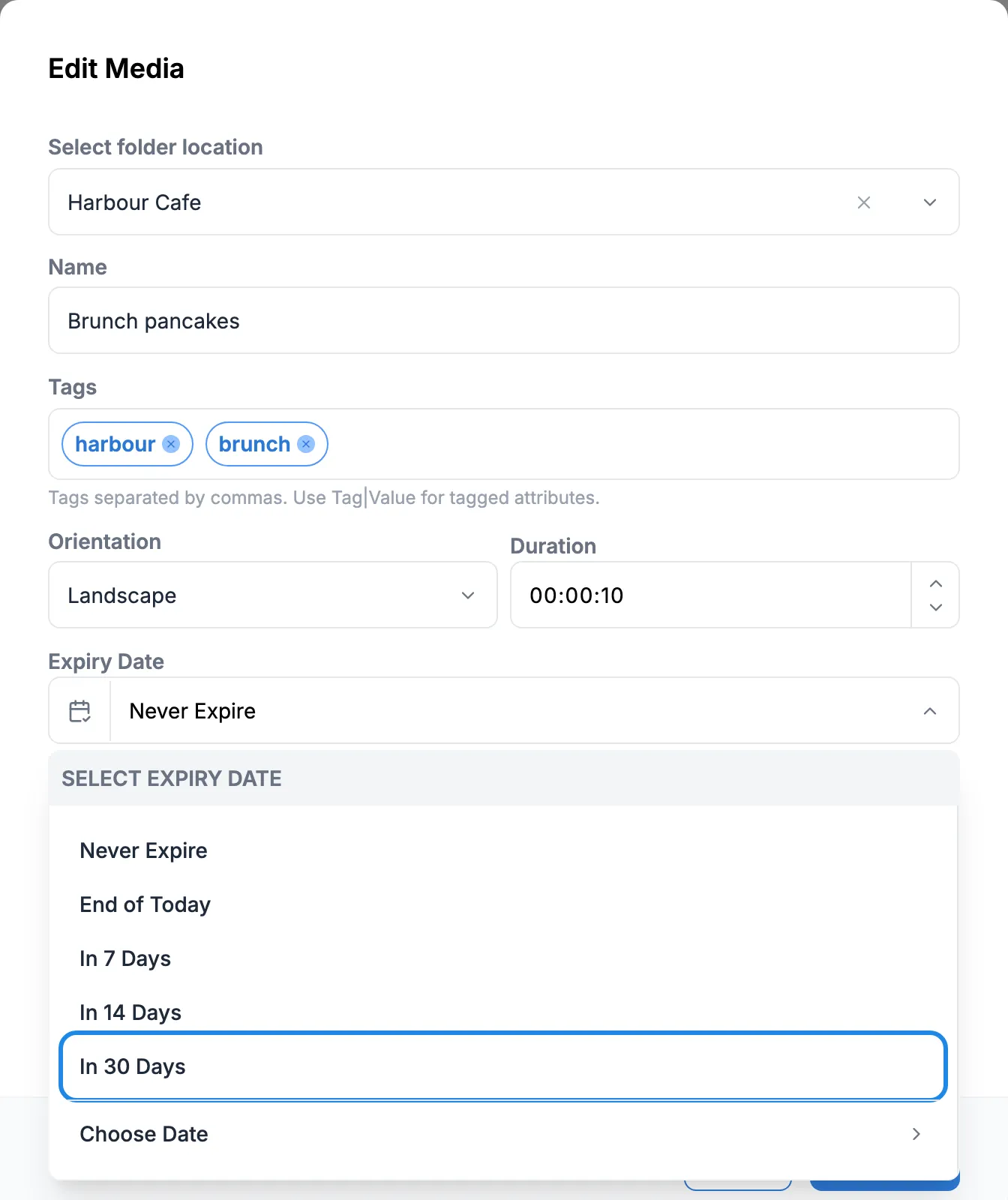
The same window lets you rename the file, change its tags or folder, and set its default Duration (how long it shows for when you add it to a playlist).
Replace a file with a new version
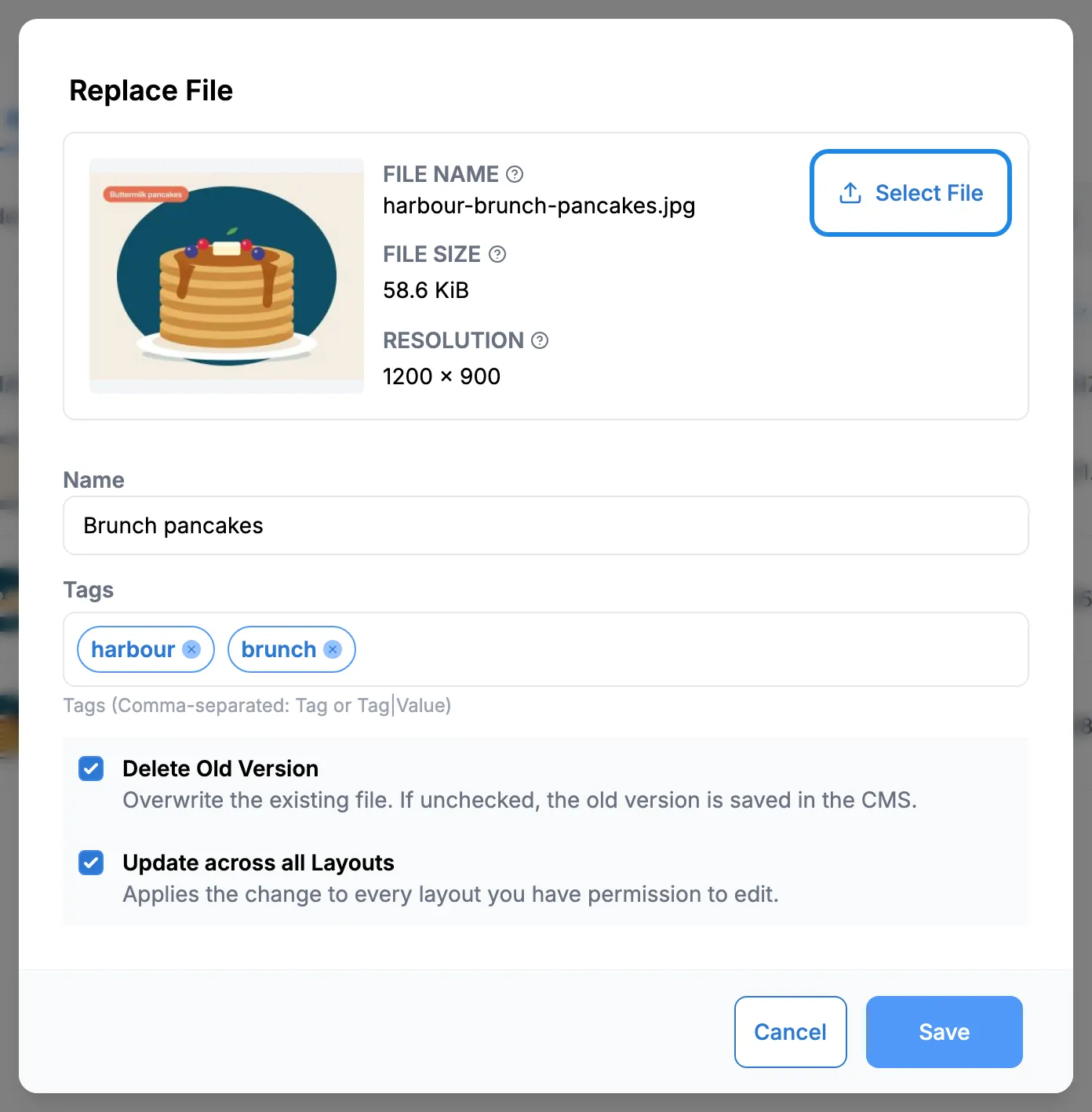
Section titled “Replace a file with a new version”When a price or a photo changes, replace the file. It keeps its name, tags and folder.
-
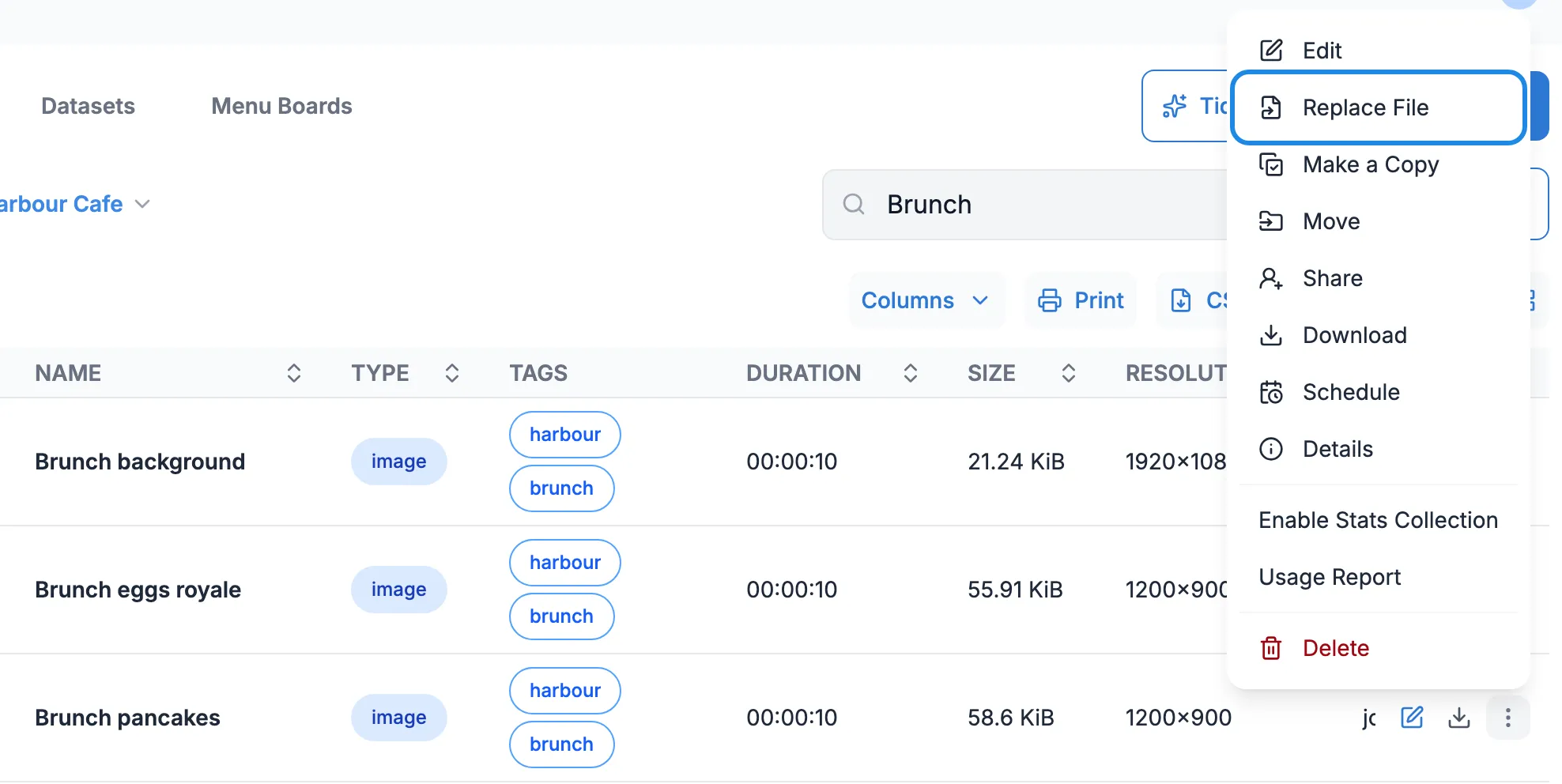
Click the three dots (More actions) on the file’s row and choose Replace File.
-
Click Select File and choose the new file. Leave Delete Old Version and Update across all Layouts ticked, then click Save. With Update across all Layouts ticked, the new file goes into every layout you’re allowed to edit.
See where a file is used
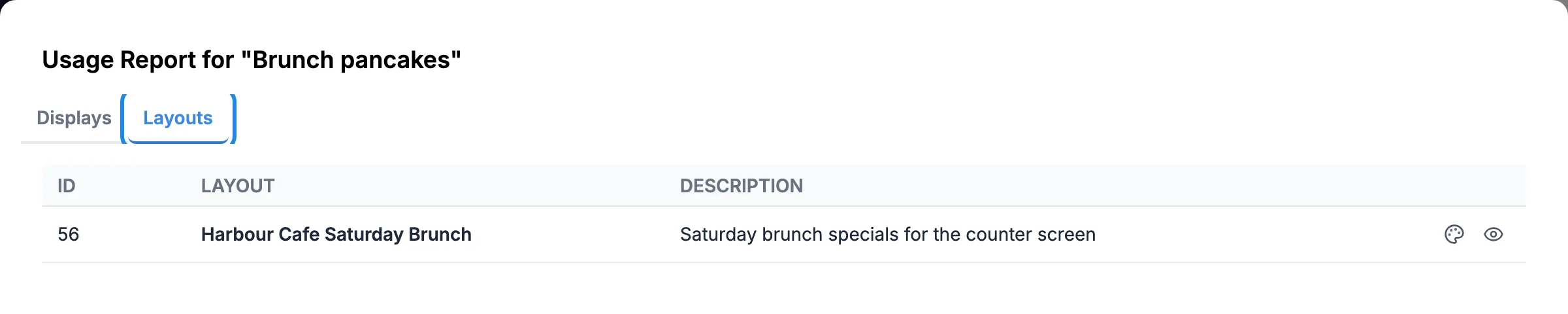
Section titled “See where a file is used”Click More actions on the file’s row and choose Usage Report. The Displays and Layouts tabs list where the file is in use.
Delete files you no longer need
Section titled “Delete files you no longer need”-
Check the file’s Usage Report first, so you know whether a layout still uses it.
-
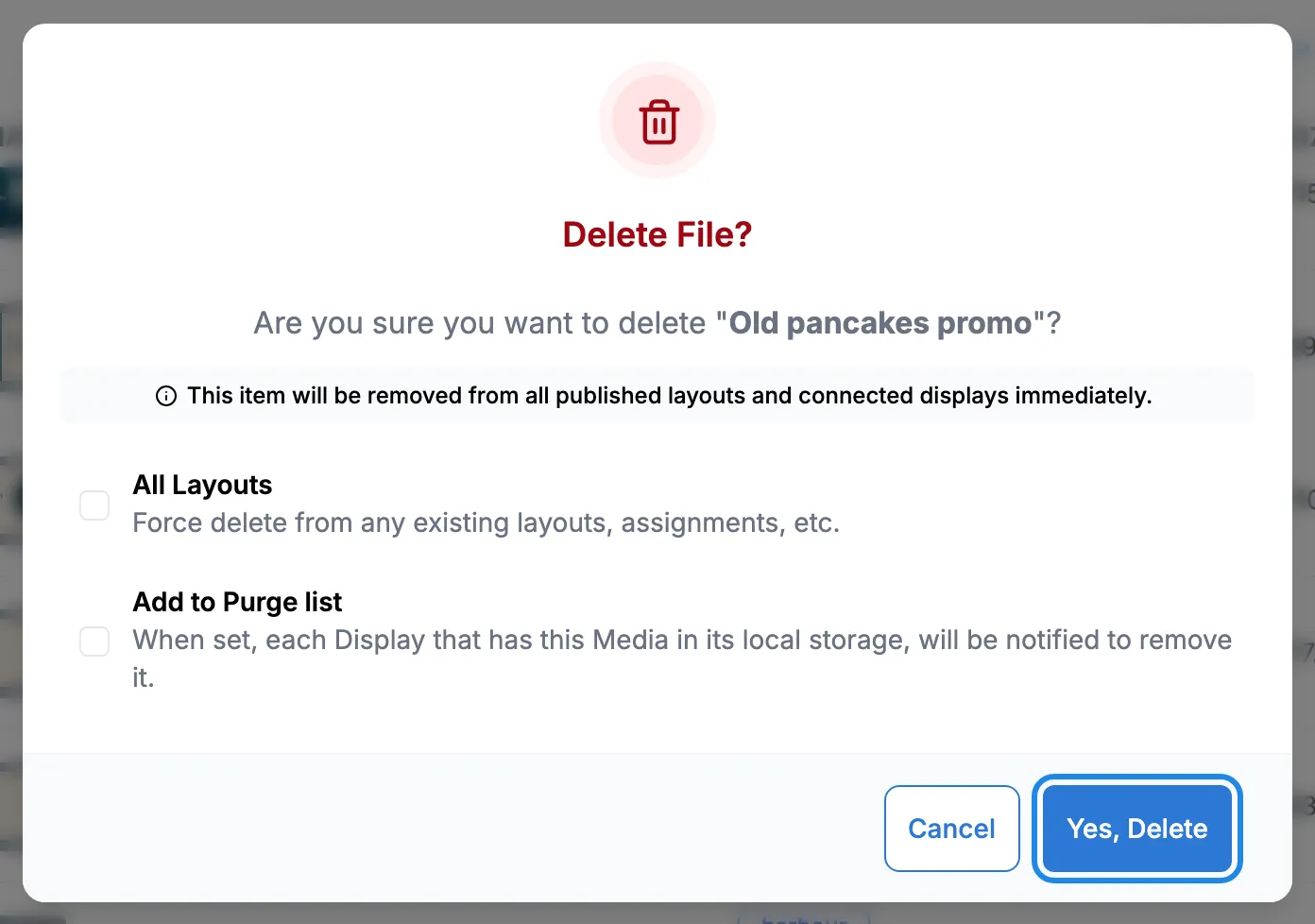
Click More actions on the file’s row and choose Delete.
-
Read the message, then click Yes, Delete. If a layout still uses the file, the All Layouts option removes it from those layouts as well.
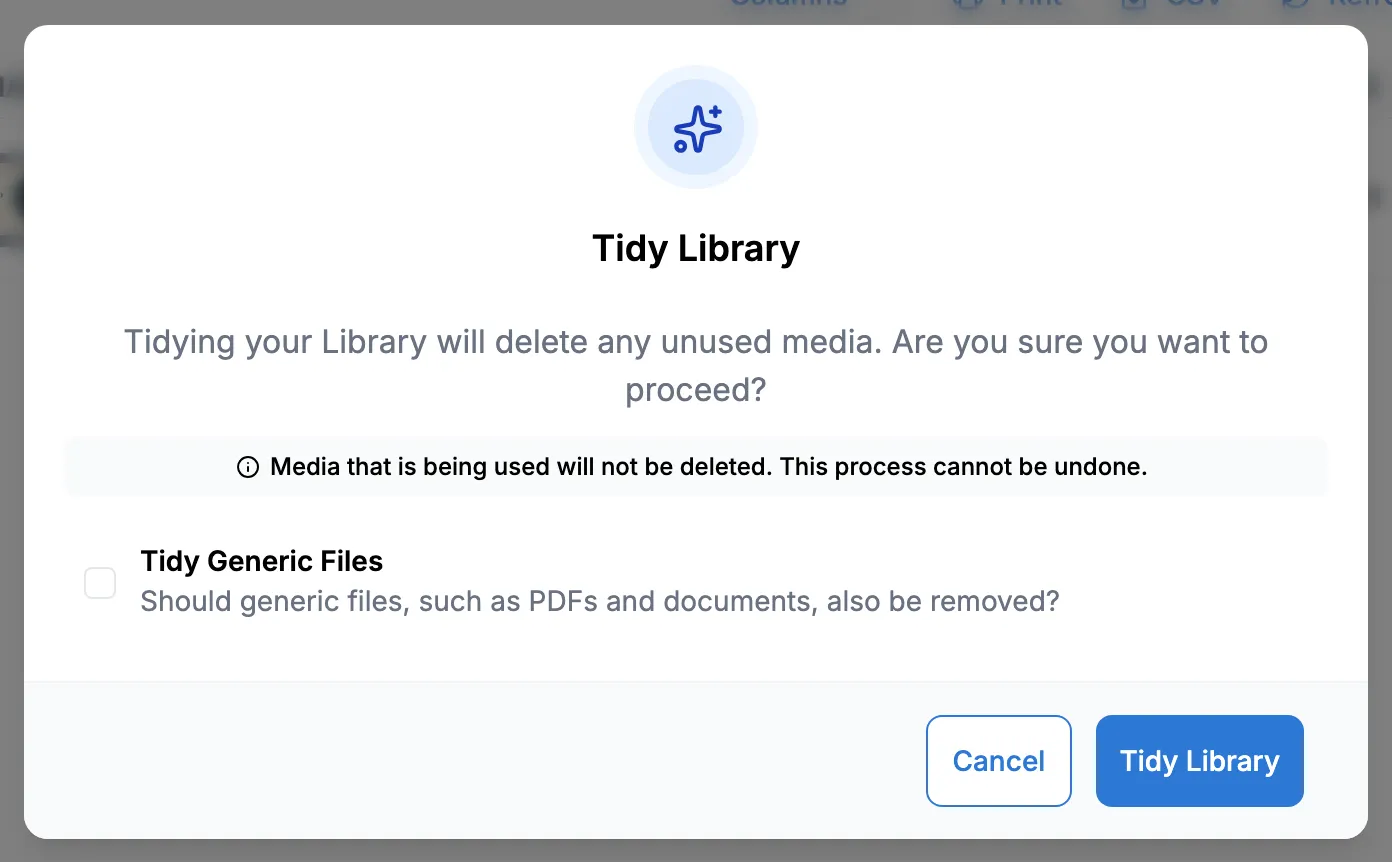
To clear out everything you’re not using in one go, click Tidy Library at the top of the media page. It deletes media that isn’t used anywhere, and leaves anything in use alone. Tick Tidy Generic Files if you also want unused PDFs and documents removed. This can’t be undone.