

Cafe: breakfast and lunch menus
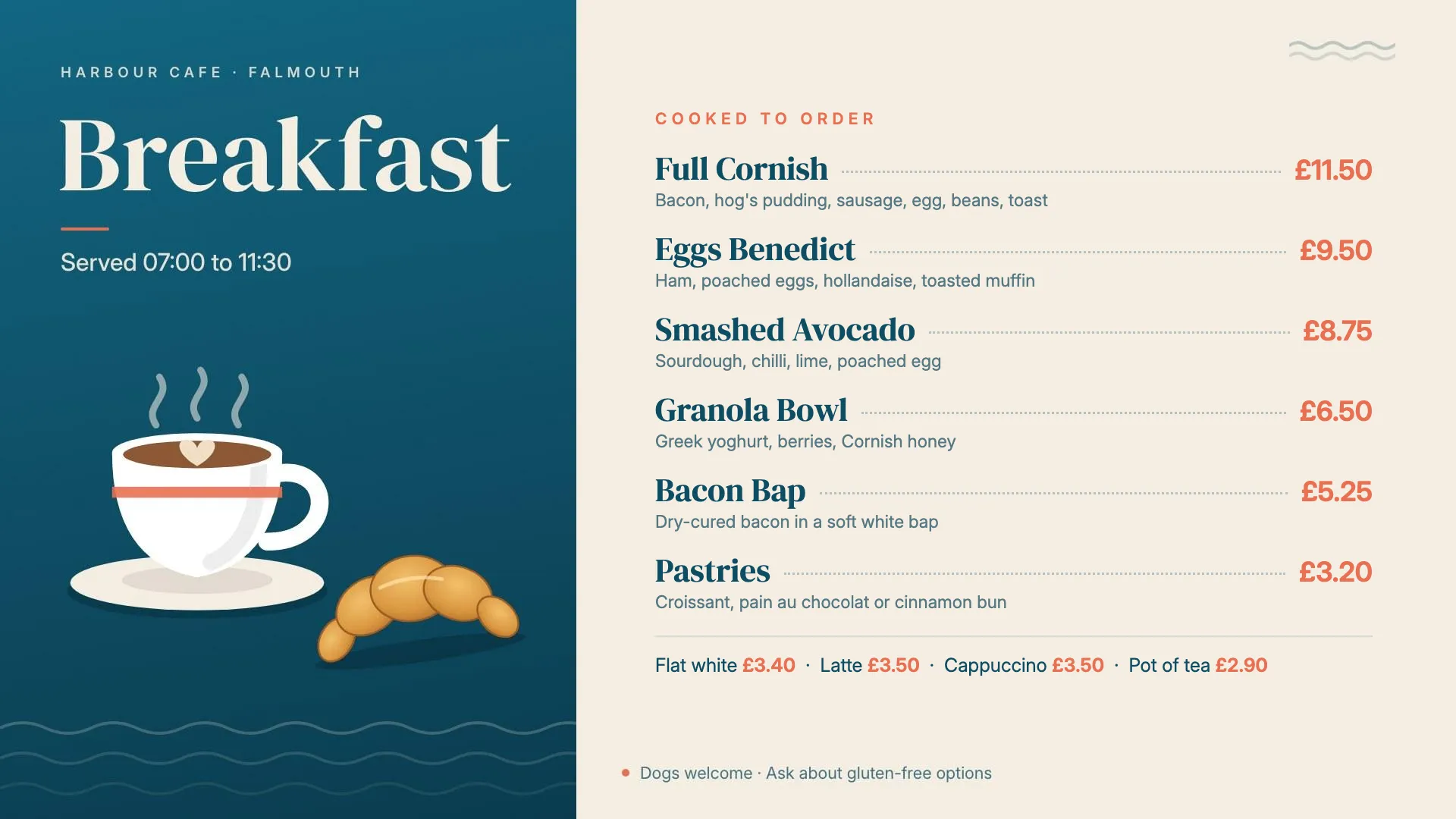
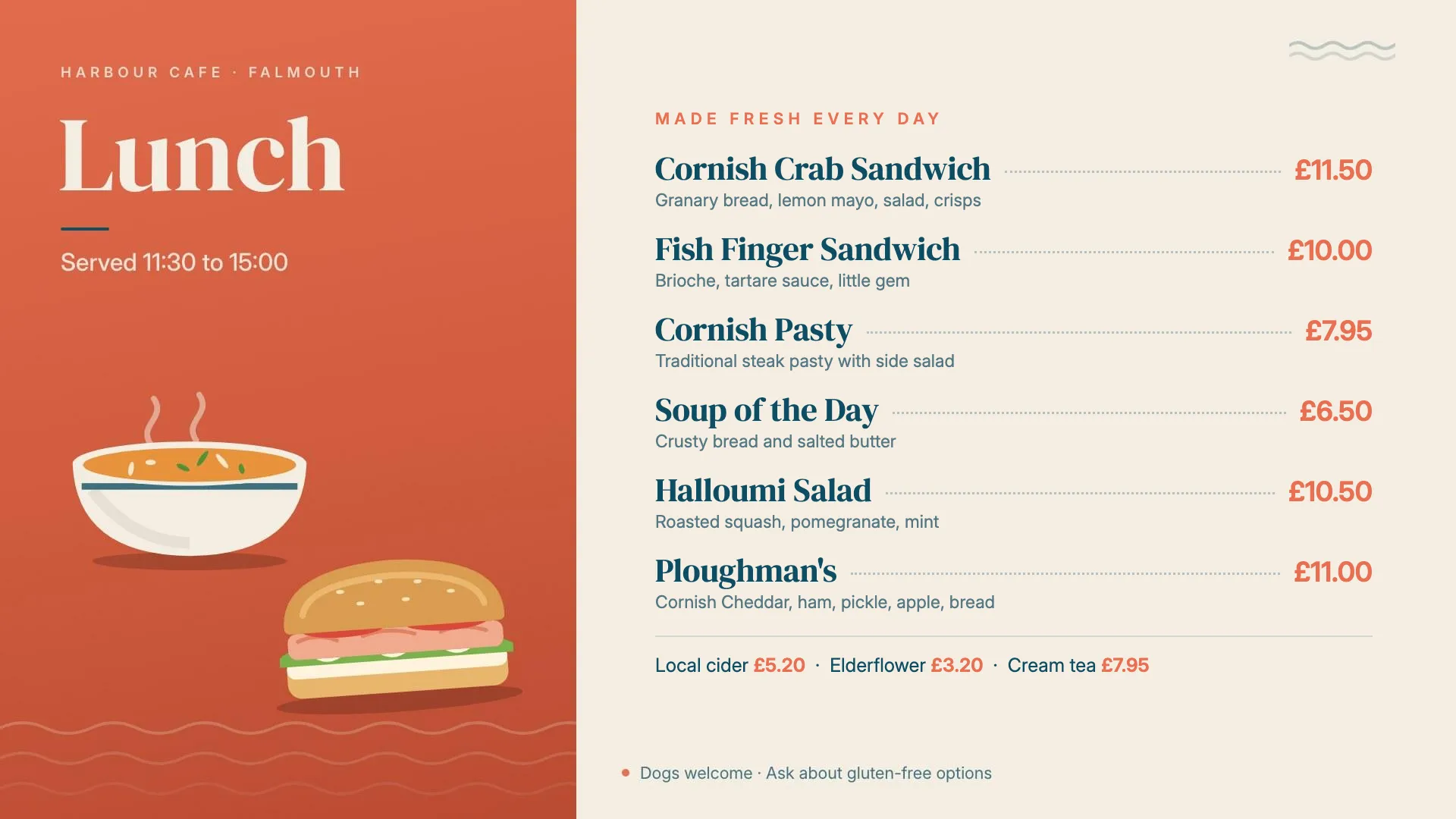
This tutorial follows Harbour Cafe in Falmouth, which has a screen behind the counter and one in the window. By the end, both screens will show the breakfast menu from 07:00 until 11:30 and the lunch menu from 11:30 until 15:00, every day, with nobody touching anything at 11:30.
Before you start
Section titled “Before you start”You need two layouts, one for each menu. Harbour Cafe’s are Harbour Breakfast Menu and Harbour Lunch Menu. To build your own, see Design a layout and Set up a menu board.
It also helps to have a display group with all the cafe’s screens in it, so one event covers both. Harbour Cafe’s group is called Harbour Cafe. See Group your screens.
1. Set up the dayparts
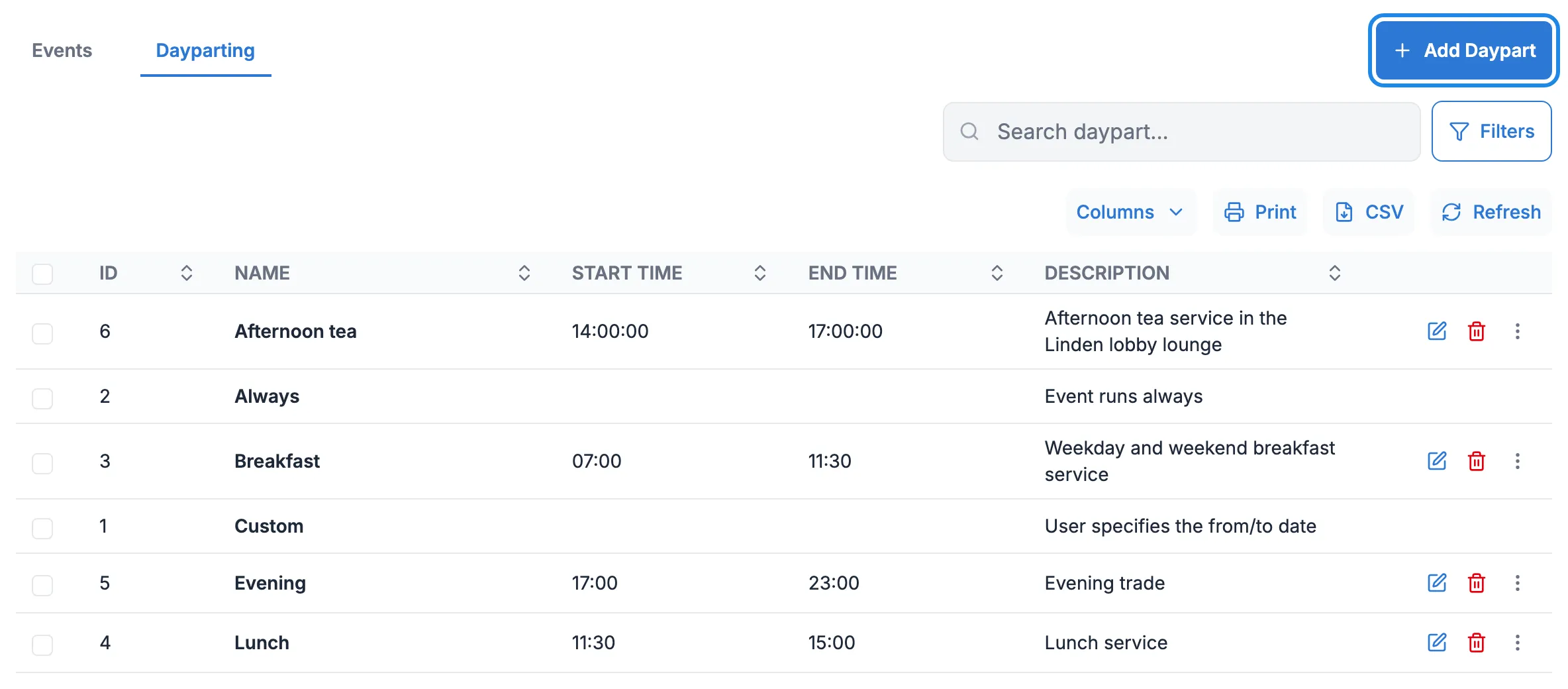
Section titled “1. Set up the dayparts”Dayparts hold the times, so you set 11:30 in one place.
-
Click Schedule in the menu on the left, then Dayparting.
-
If you don’t have breakfast and lunch dayparts yet, click Add Daypart. Name the first one “Breakfast” with a Start Time of 07:00 and an End Time of 11:30, and click Save. Add “Lunch” from 11:30 to 15:00 the same way. The full steps are in Use dayparts.
2. Schedule the breakfast menu
Section titled “2. Schedule the breakfast menu”-
Click Events, then Add Event. Leave Event Type on Layout, choose Harbour Breakfast Menu and click Next.
-
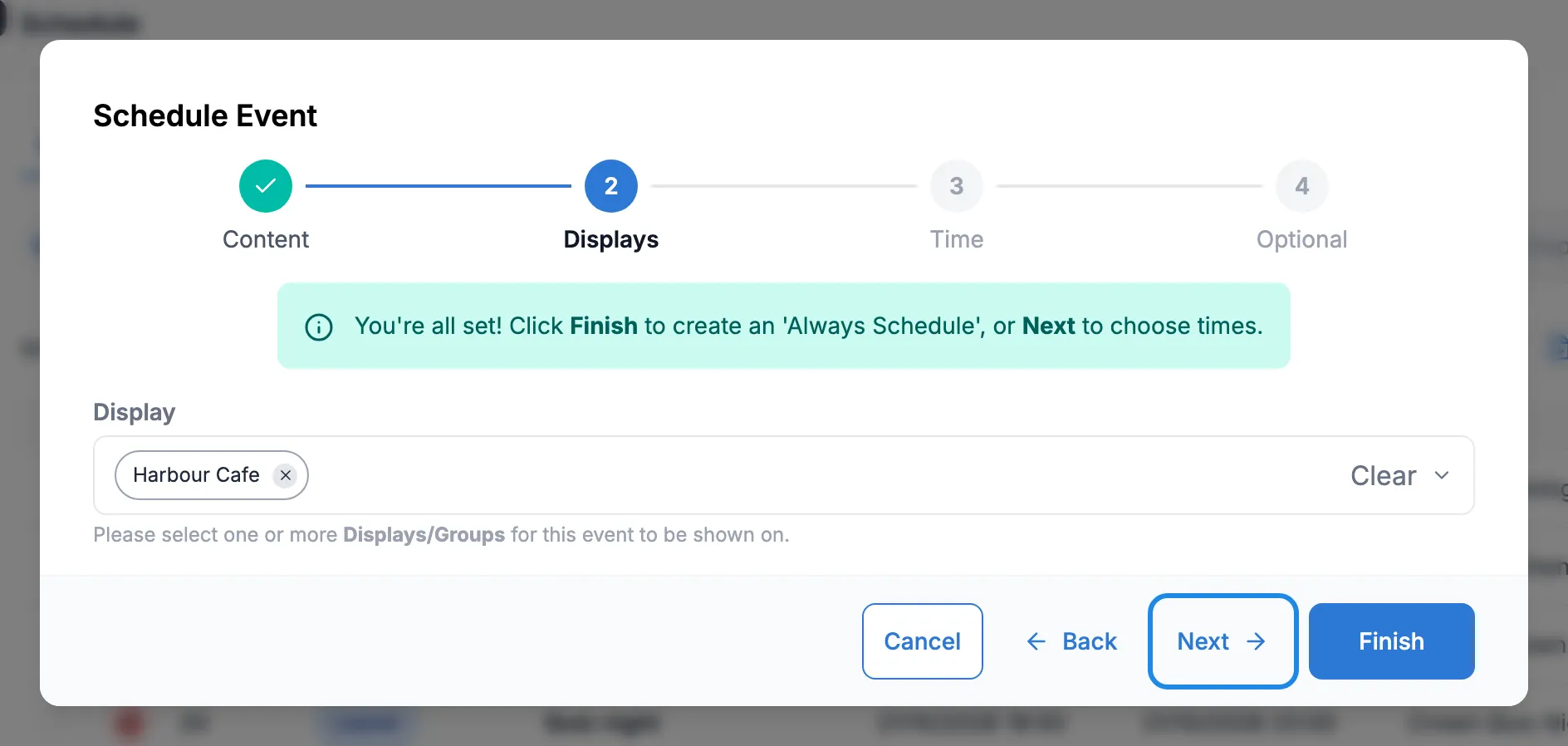
Tick the Harbour Cafe display group and click Next.
-
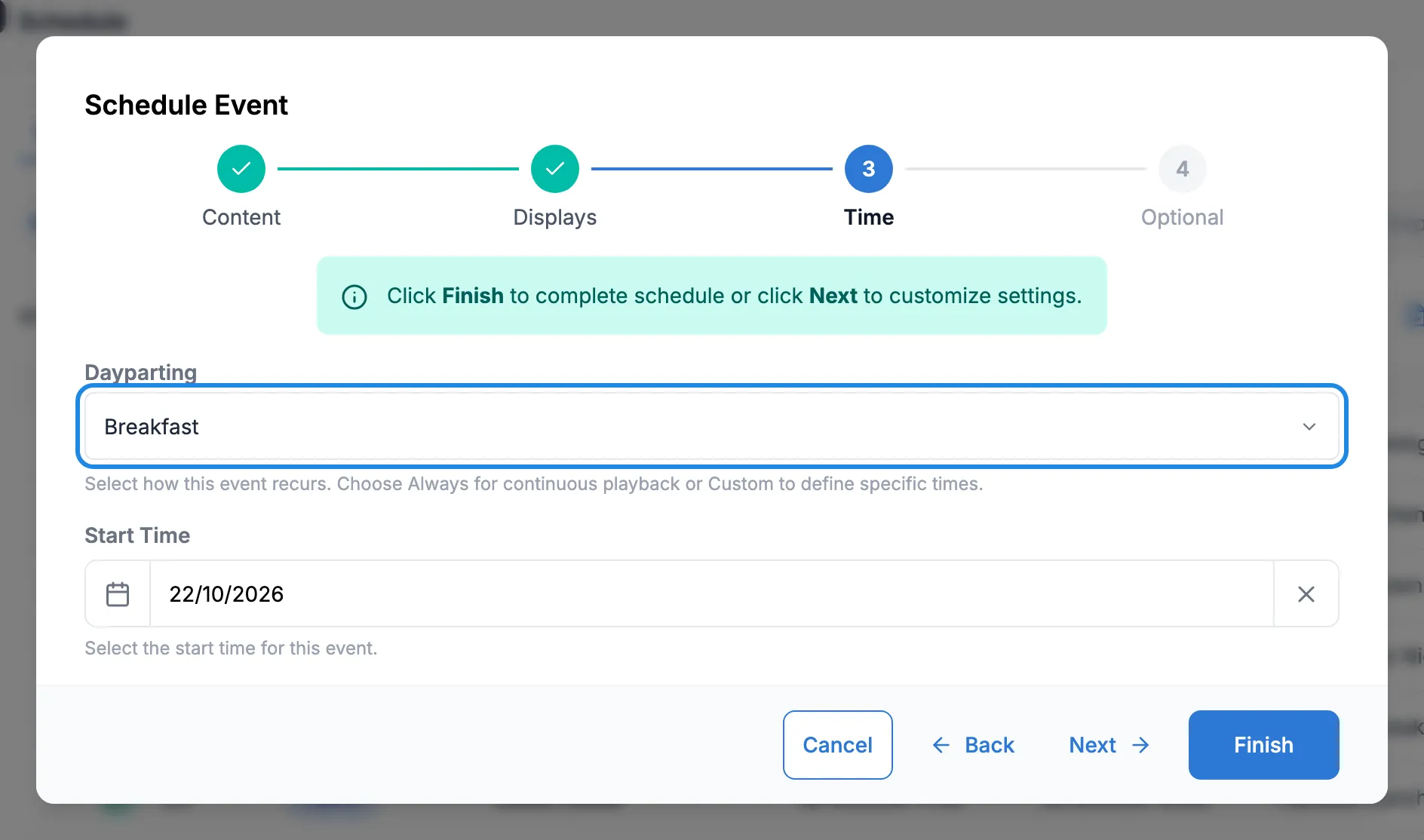
In Dayparting, choose Breakfast. Click Start Time, pick the first day the menu should run and click Apply. Click Next.
-
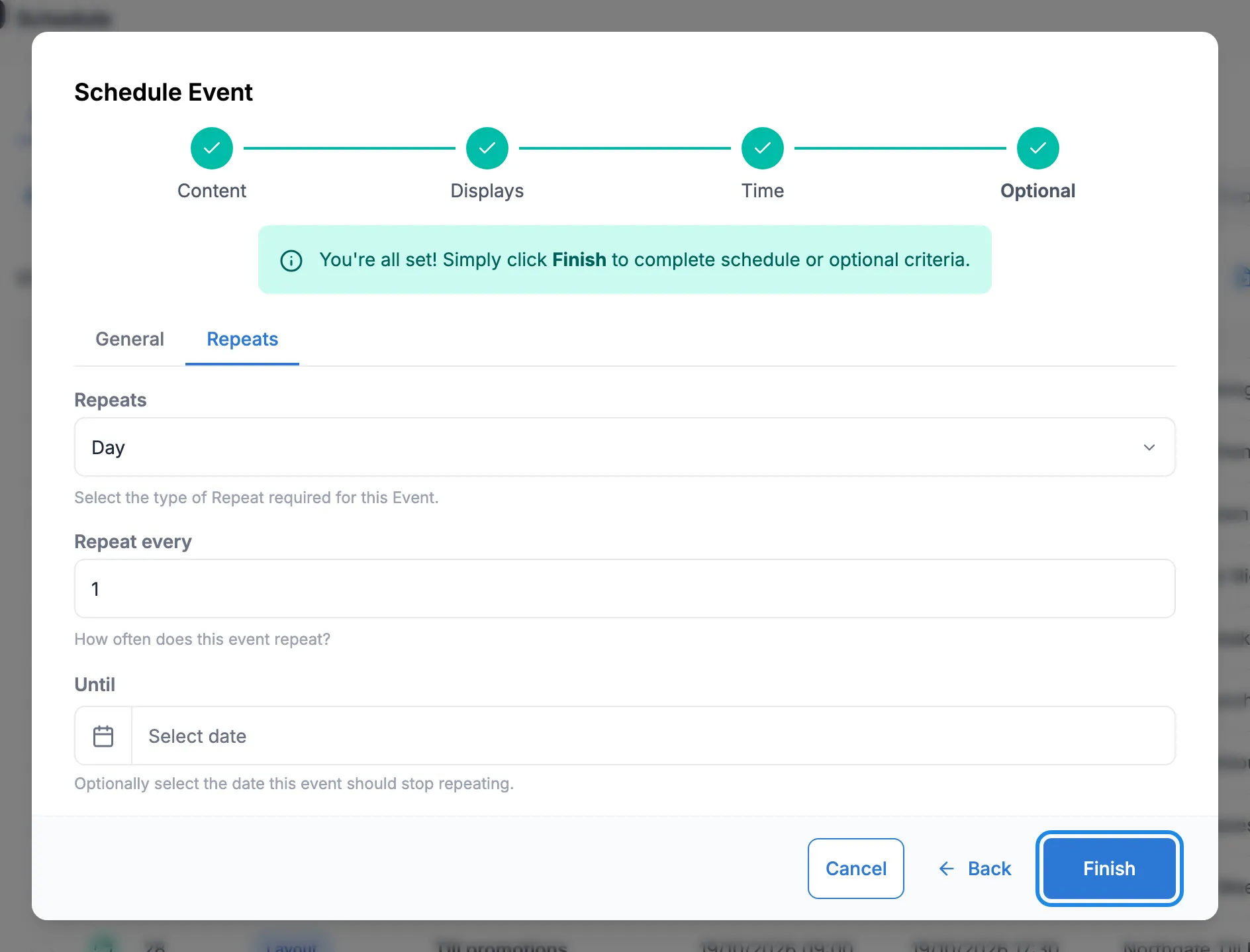
Name the event, for example “Breakfast menu (every day)”. On the Repeats tab, choose Day. Leave Until empty so it carries on every day. Click Finish.
3. Schedule the lunch menu
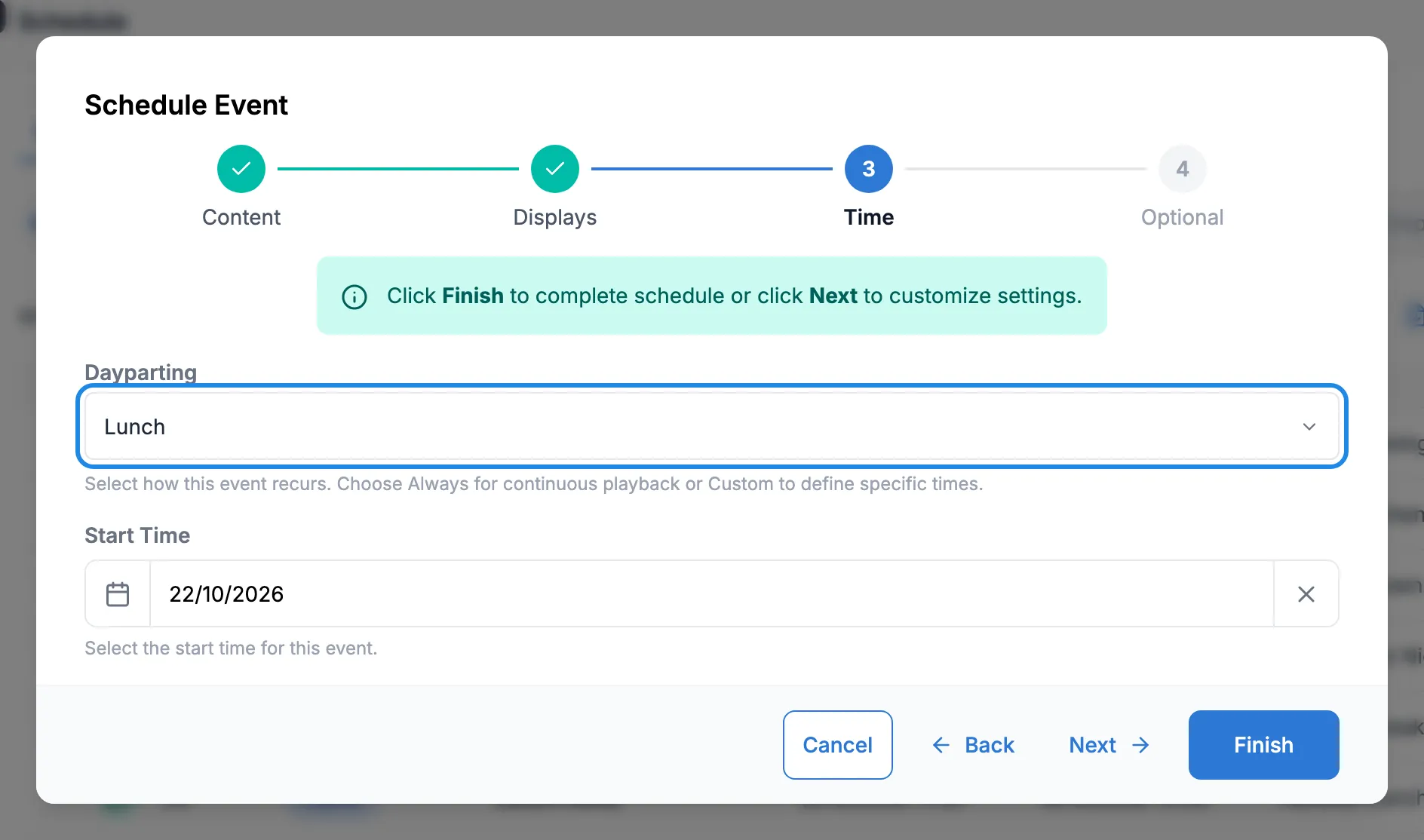
Section titled “3. Schedule the lunch menu”Repeat section 2 with Harbour Lunch Menu and the Lunch daypart. Name it “Lunch menu (every day)” and set Repeats to Day.
4. Check the switch-over
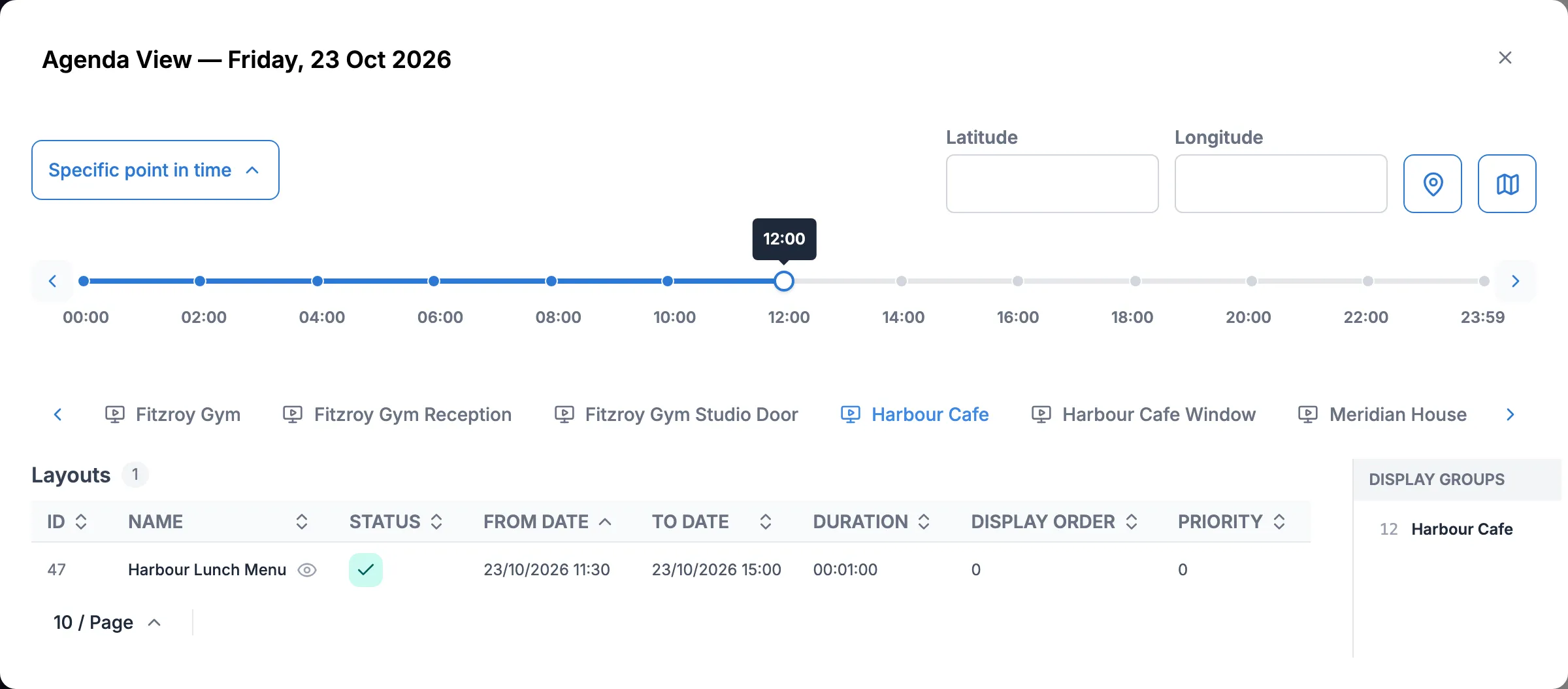
Section titled “4. Check the switch-over”Click Calendar View and click any day. Both events are listed with their times. Click Agenda, then Specific point in time, and click the Harbour Cafe group at the top.
At 10:00 the group has the breakfast menu, from 07:00 to 11:30.
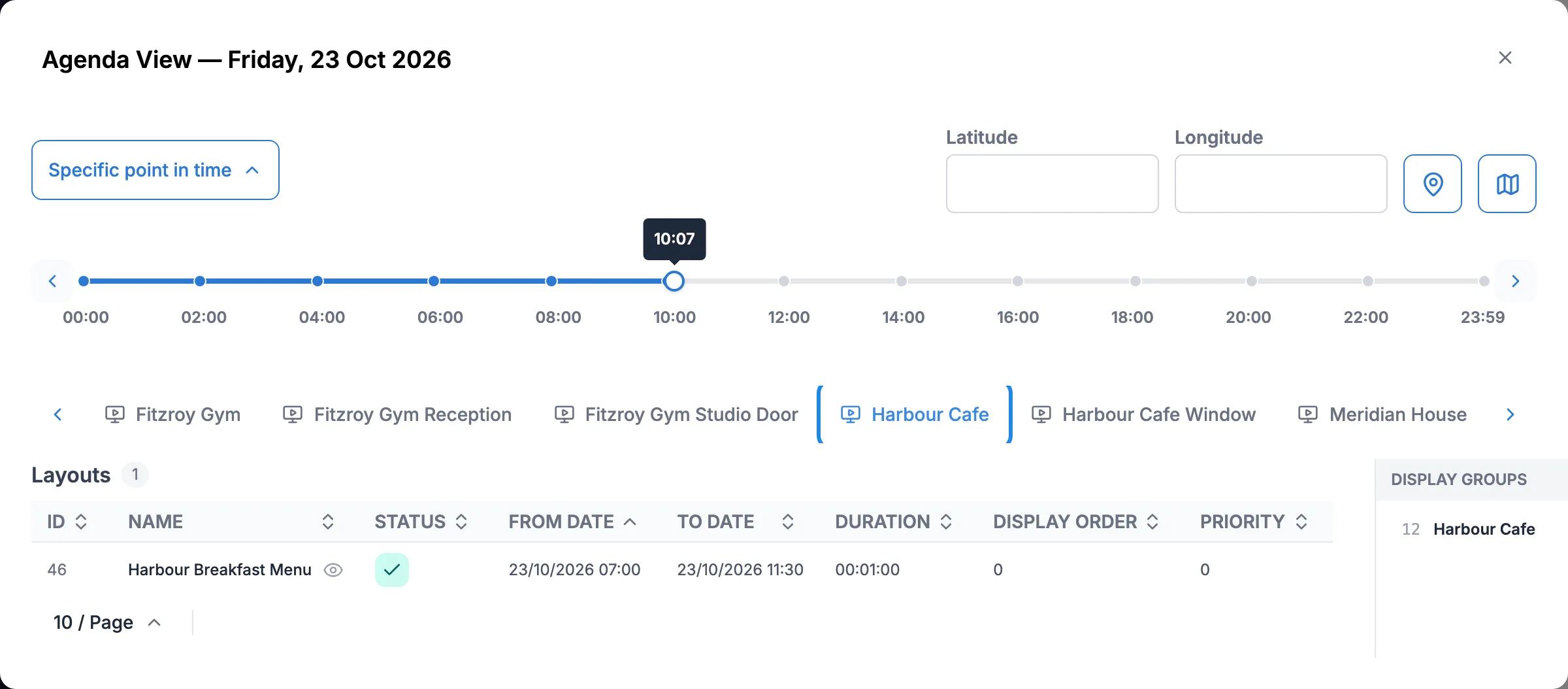
At 12:00 it has the lunch menu, from 11:30 to 15:00.
Outside those hours, the screens play whatever else is scheduled for them, or their default layout if nothing is. See The default layout.