Build a playlist
A playlist is a list of pictures, videos and widgets that play one after another. Put a playlist in an area of a layout and that area rotates through your specials or promotions. Use the same playlist in several layouts, and when you change it, every one of them shows the change.
Create a playlist
Section titled “Create a playlist”-
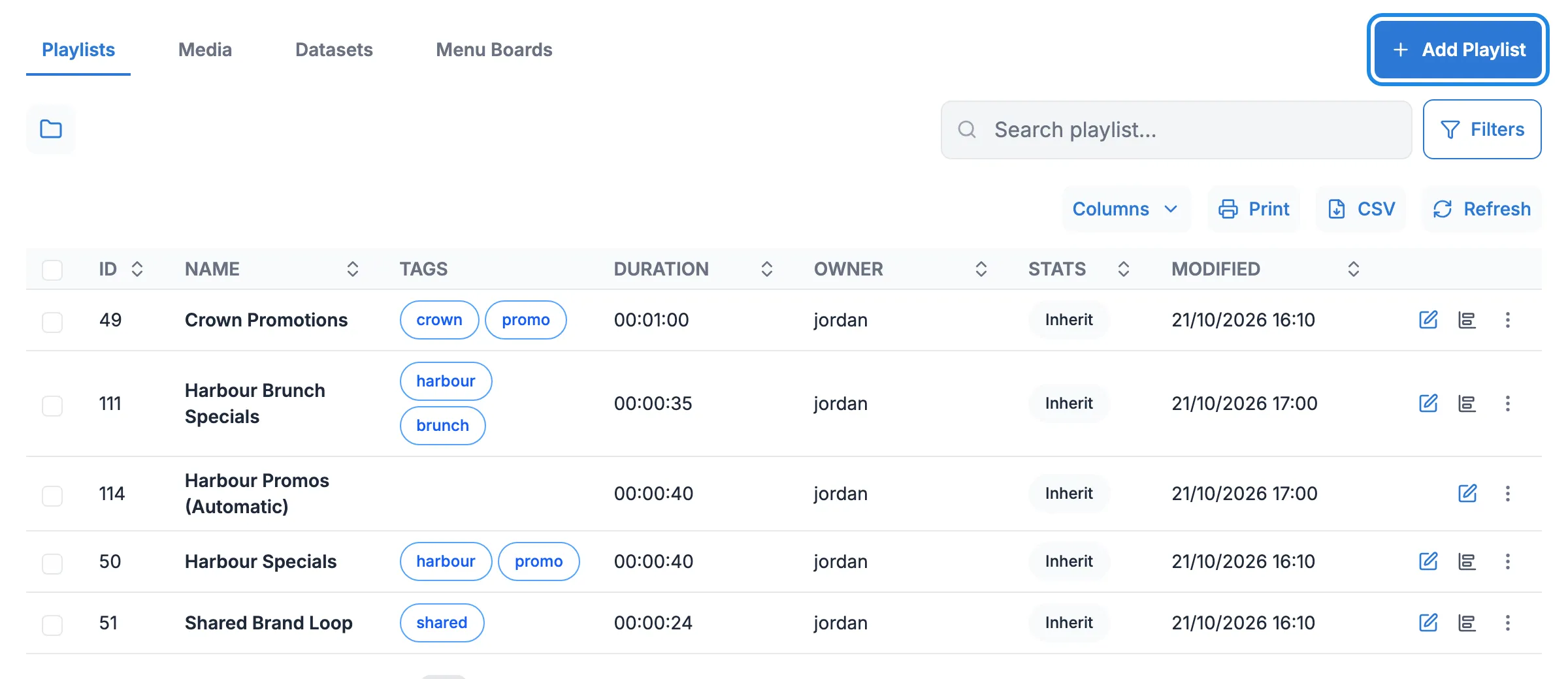
In the menu on the left, open Library and click Playlists. Then click Add Playlist.
-
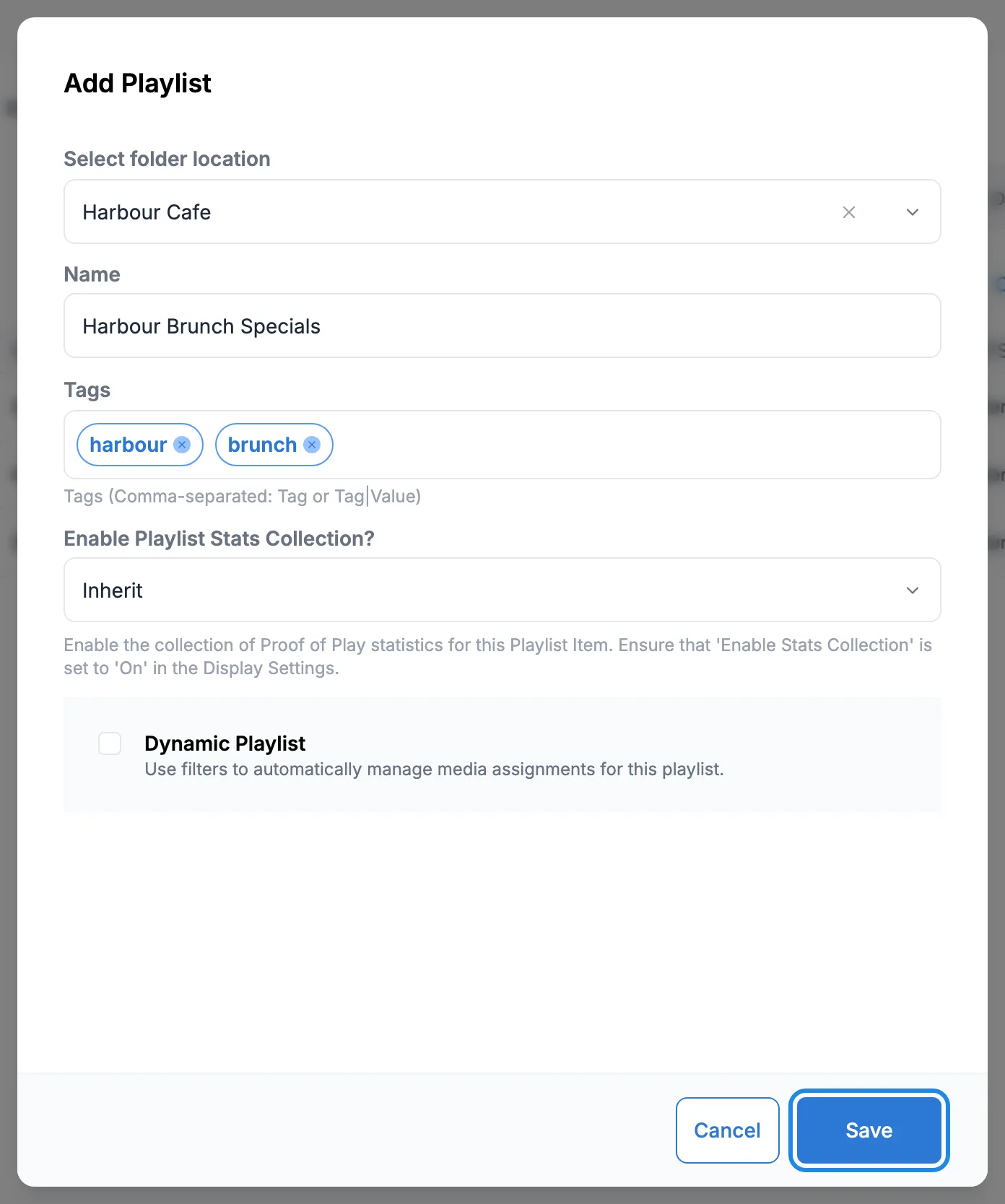
Choose your venue’s folder under Select folder location, type a Name and add any Tags. Leave Dynamic Playlist unticked for now. Click Save.
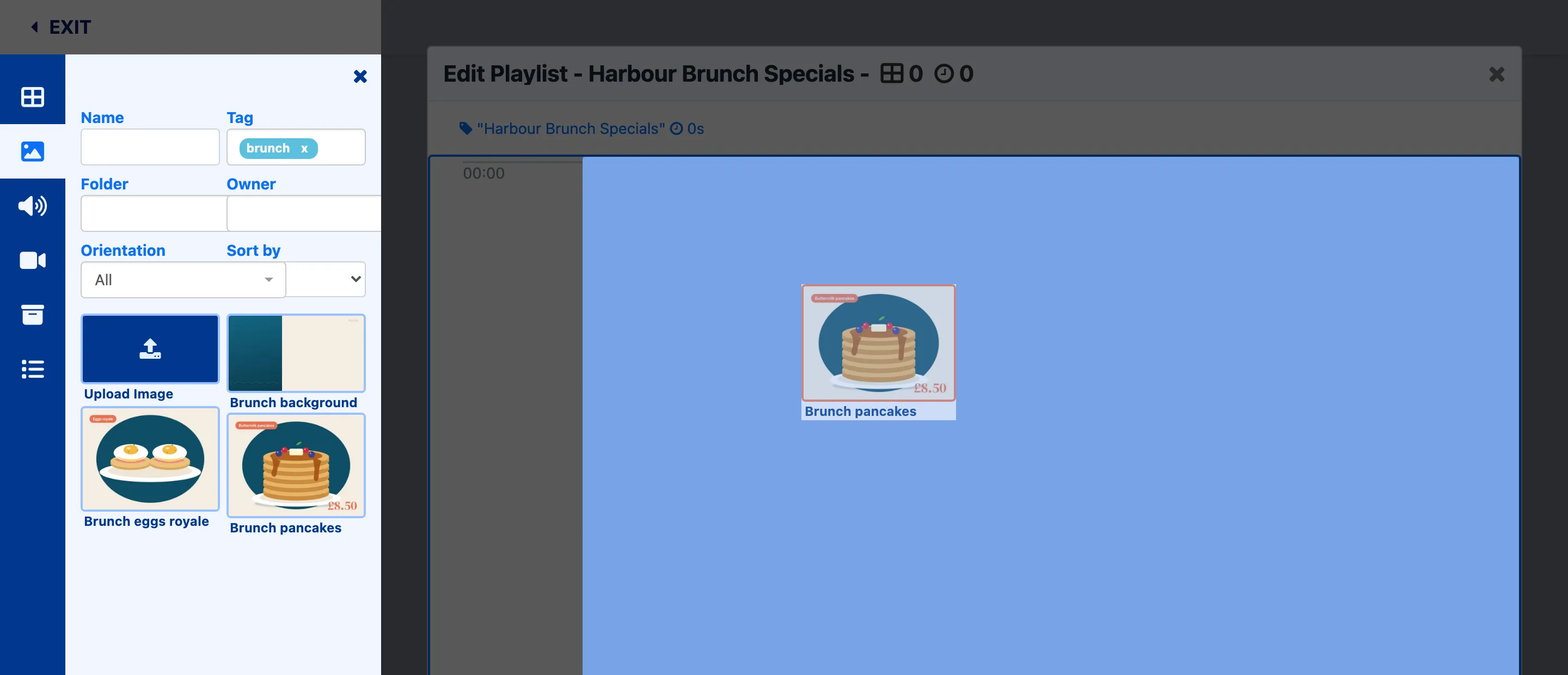
The playlist editor opens, ready for you to add things.
Add pictures and videos
Section titled “Add pictures and videos”-
Click the picture icon in the toolbox (Library image search), or the video icon for videos. Type a tag into Tag to narrow the list down.
-
Drag each item into the playlist. Each one shows for 10 seconds to start with.
-
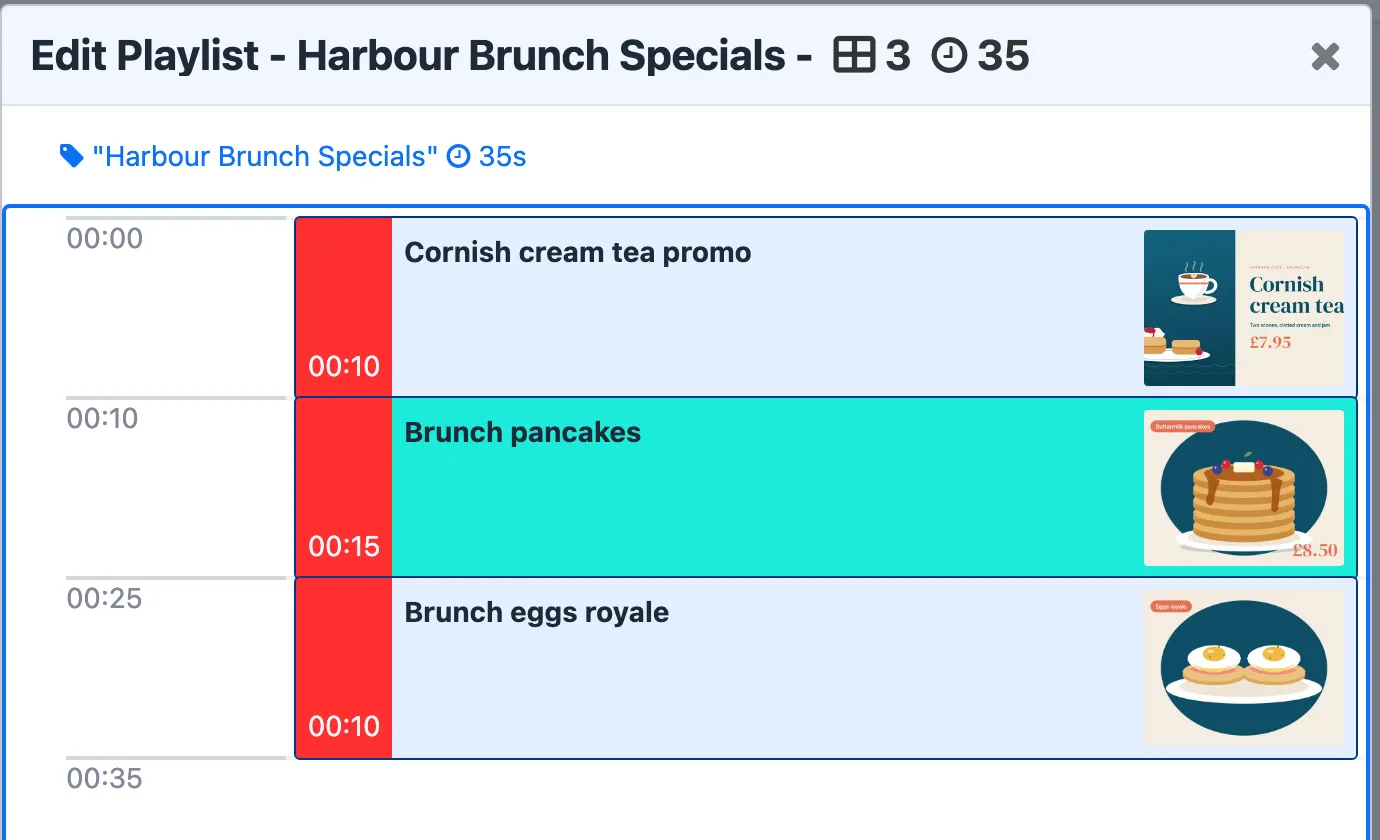
To change the order, drag an item up or down the list. Here the cream tea promotion moves to the top.
-
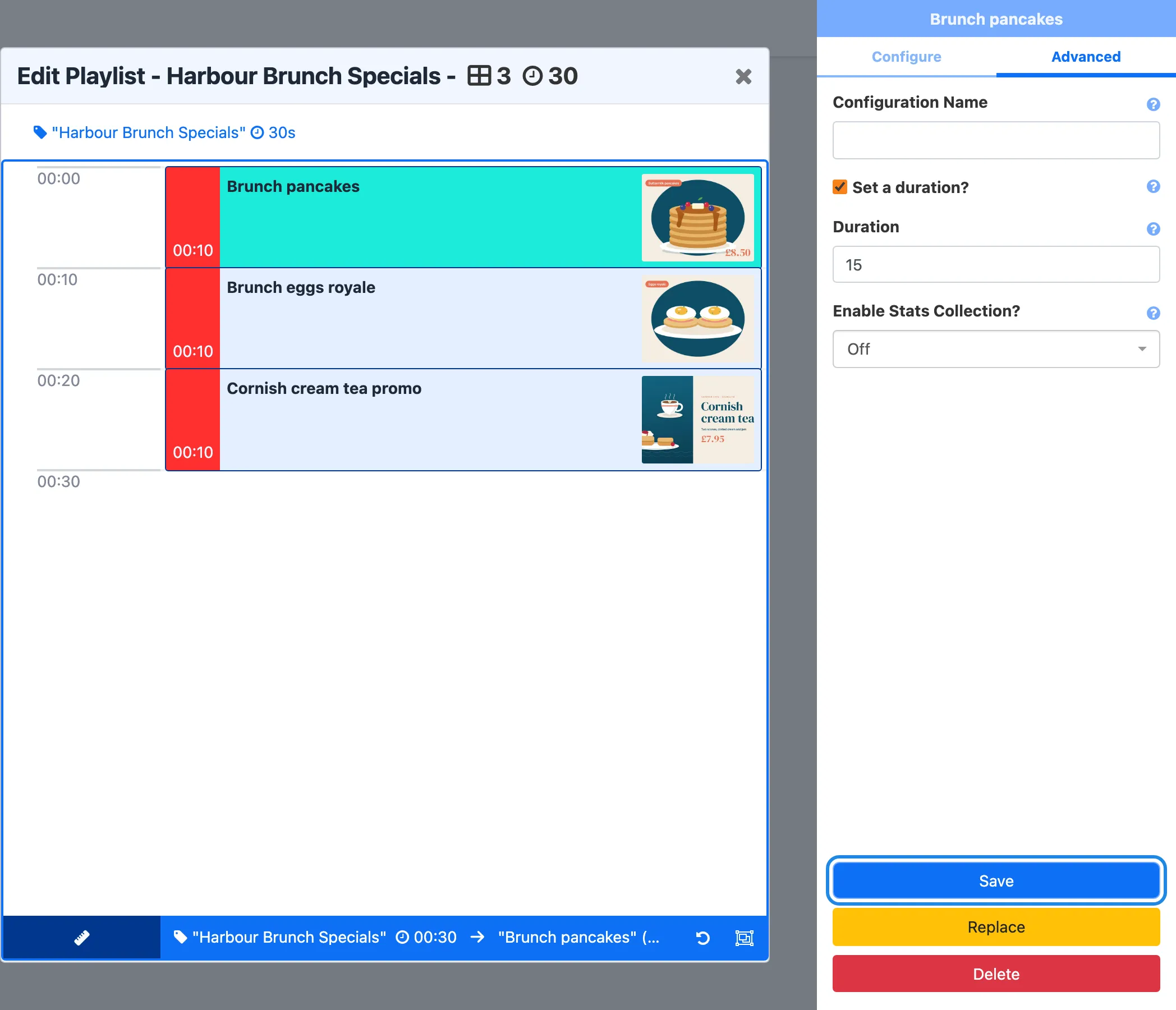
To change how long an item shows, click it, open the Advanced tab on the right, tick Set a duration? and type the number of seconds into Duration. Click Save. The total running time at the top of the editor updates.
-
Click EXIT at the top left when you’re done.
Use a playlist in a layout
Section titled “Use a playlist in a layout”-
Open the layout in the editor and click Add Playlists in the toolbox. Your playlists are listed with their running times.
-
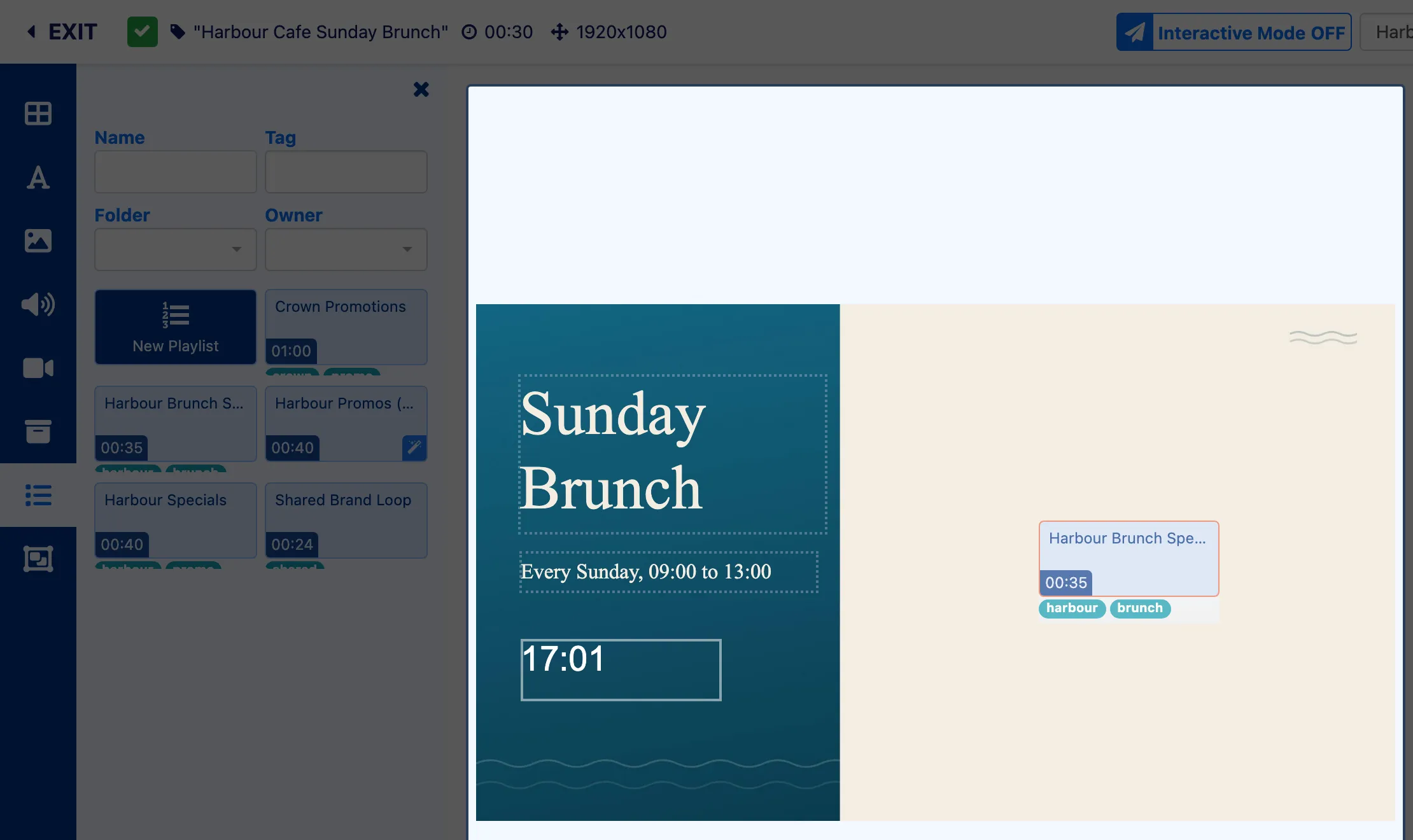
Drag the playlist onto the canvas.
-
Resize and position it. The Positioning tab takes exact sizes, the same as for an image. Then publish the layout.
The playlist’s area now plays each item in turn:
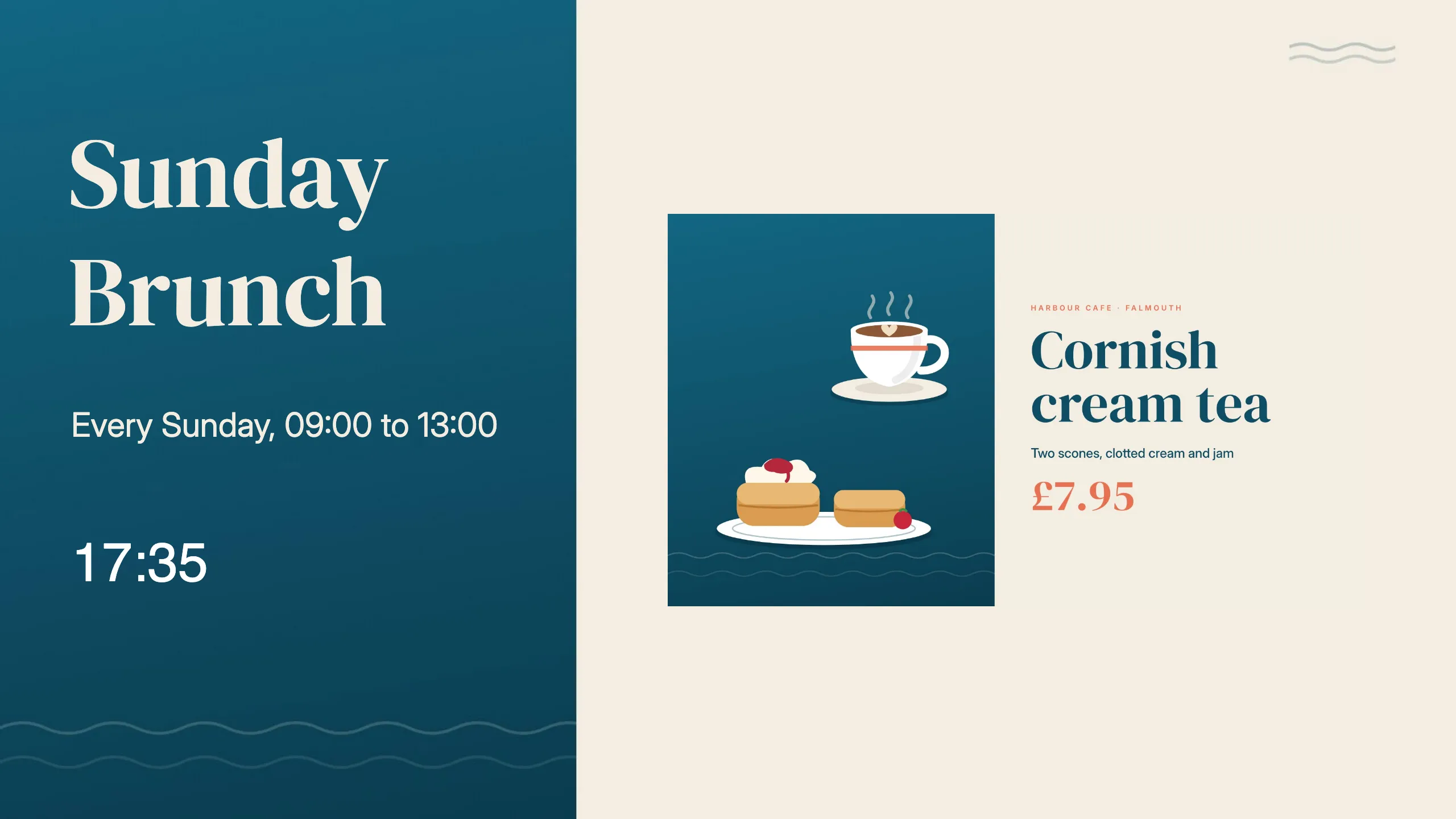
Because the layout uses the playlist itself, editing the playlist later changes what the layout shows. You don’t need to edit or publish the layout again.
Fill a playlist automatically from tags
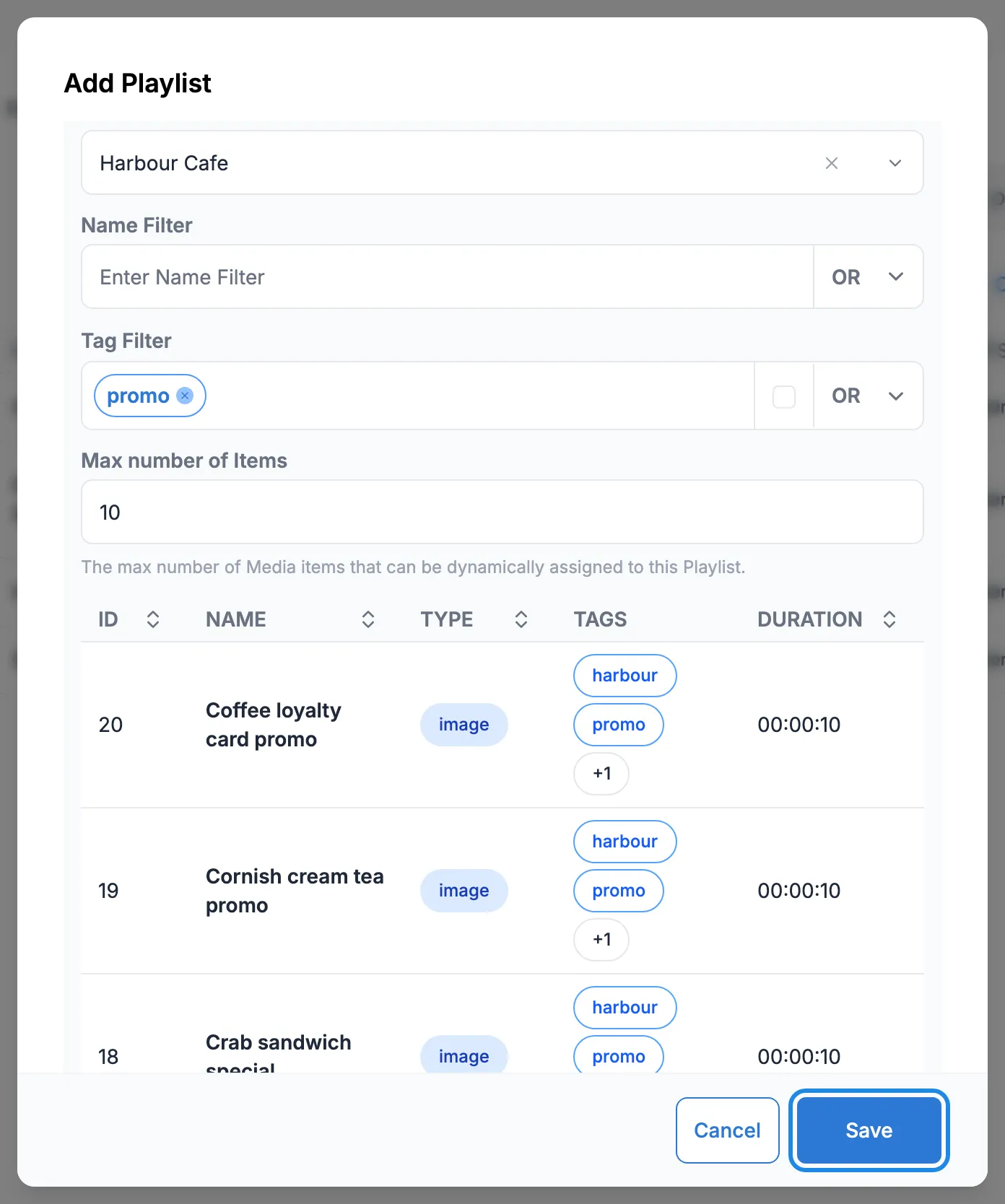
Section titled “Fill a playlist automatically from tags”A dynamic playlist fills itself from your library using filters. Tag your promotions promo, and the playlist picks up the files with that tag.
-
Click Add Playlist, choose a folder and type a Name.
-
Tick Dynamic Playlist and set the filters. Select folder location takes media from one folder only. Name Filter takes media whose name matches, and Tag Filter takes media with those tags. Max number of Items is the most the playlist will hold.
The list underneath shows the media that matches. Click Save.
Show a playlist full screen
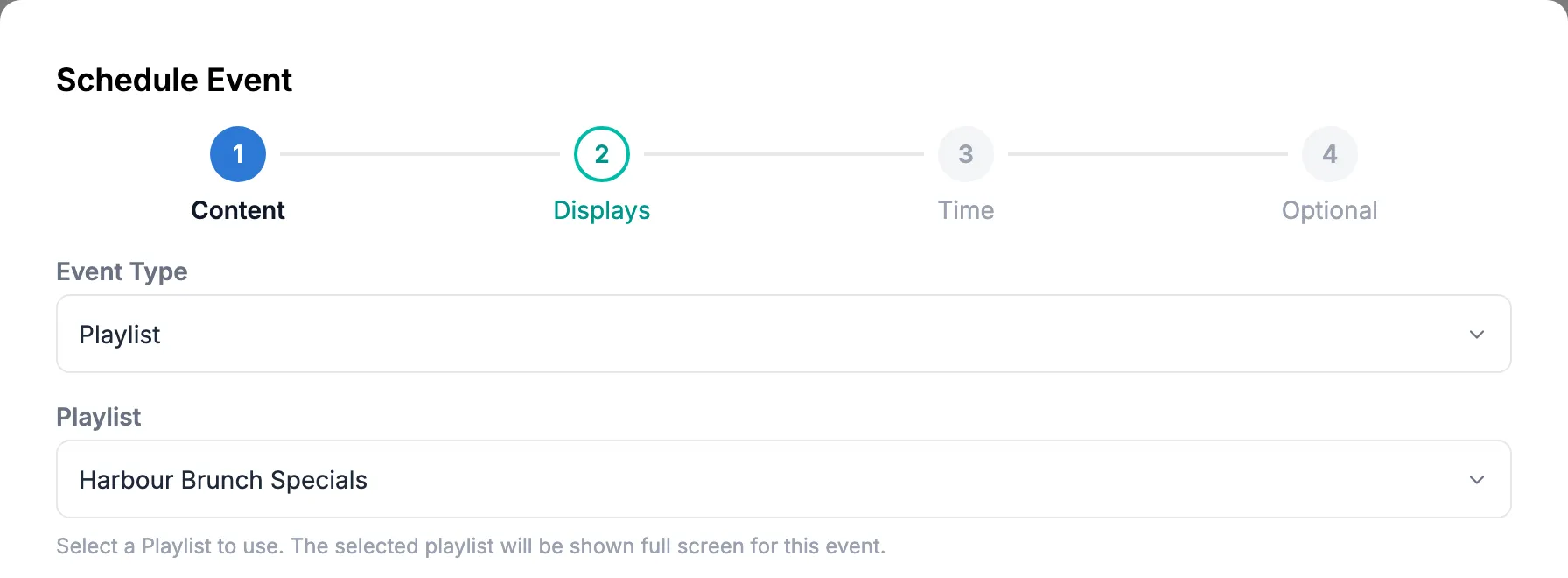
Section titled “Show a playlist full screen”You can schedule a playlist on its own, without a layout. It fills the whole screen.
-
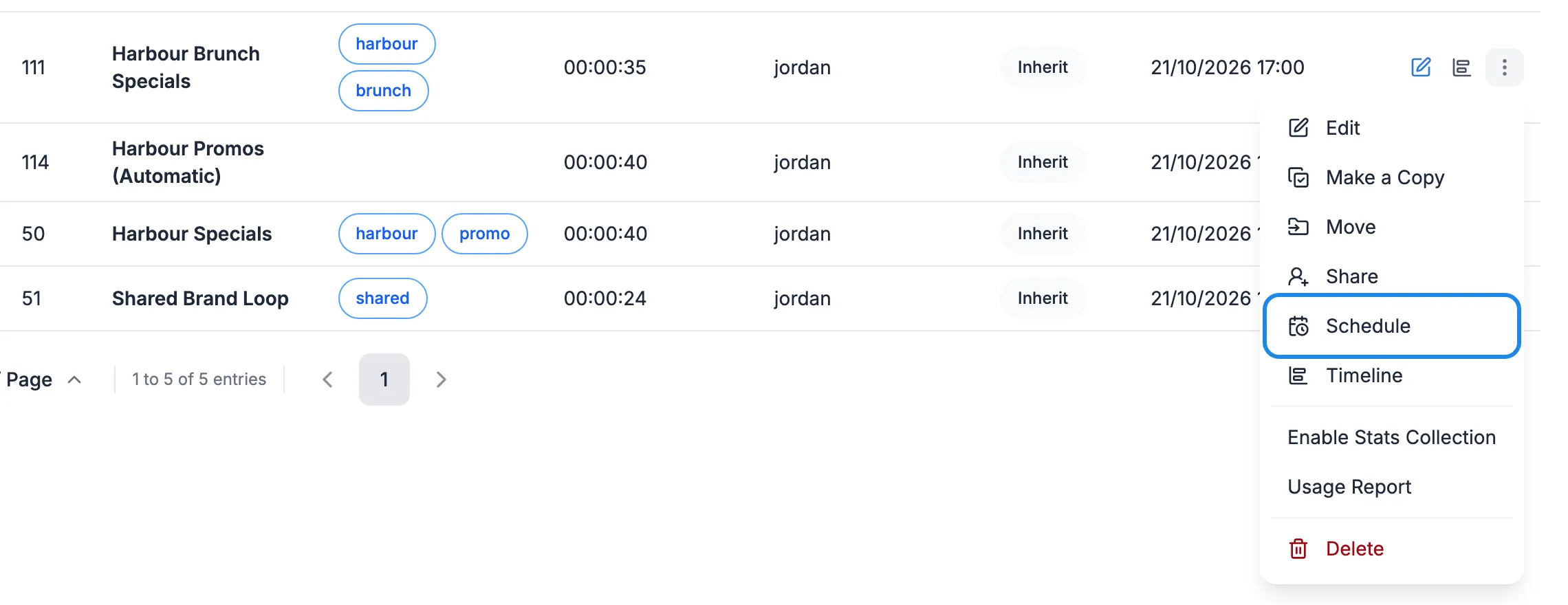
On the Playlists page, click More actions on the playlist’s row and choose Schedule.
-
The Schedule Event window opens with the playlist already chosen. Carry on with the displays and times as in Schedule content.