Set up a menu board
A menu board keeps your menu as data: categories, and products with prices, descriptions and allergy information. You design the screen once. After that, a price change or a sold-out dish is a quick edit to the menu, and the layout picks up the change.
This page builds a weekend brunch menu for Harbour Cafe.
Create the menu board
Section titled “Create the menu board”-
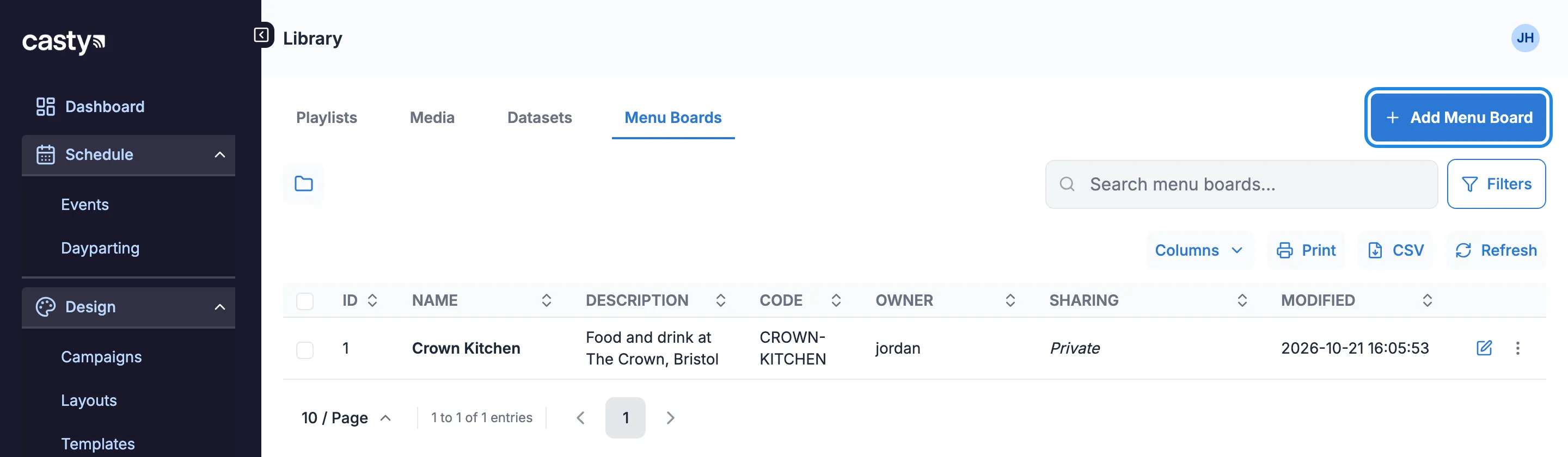
In the menu on the left, open Library and click Menu Boards. Then click Add Menu Board.
-
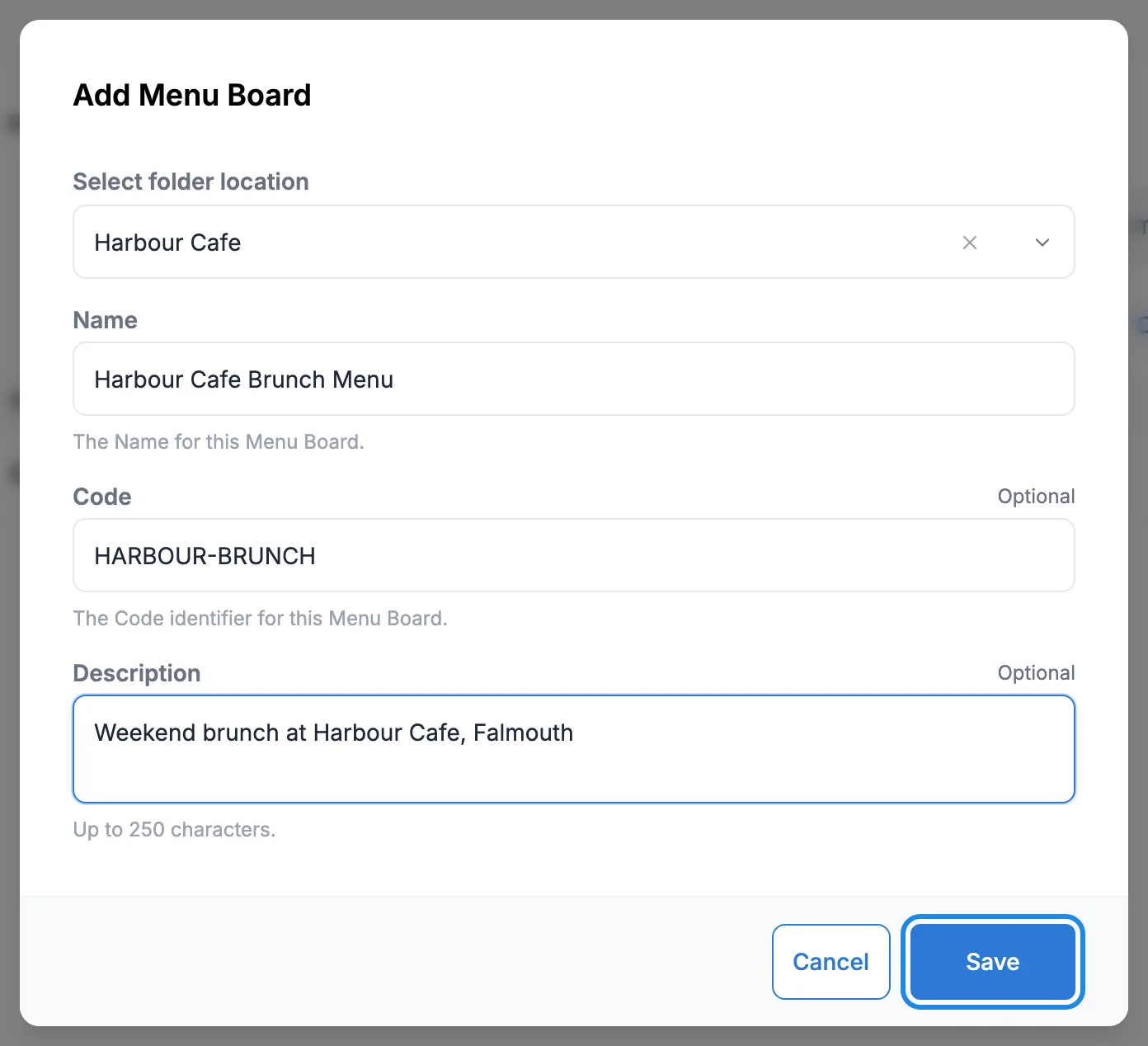
Choose your venue’s folder and type a Name. Code and Description are optional. Click Save.
Add a category
Section titled “Add a category”Categories group your products, such as Breakfast, Brunch or Drinks.
-
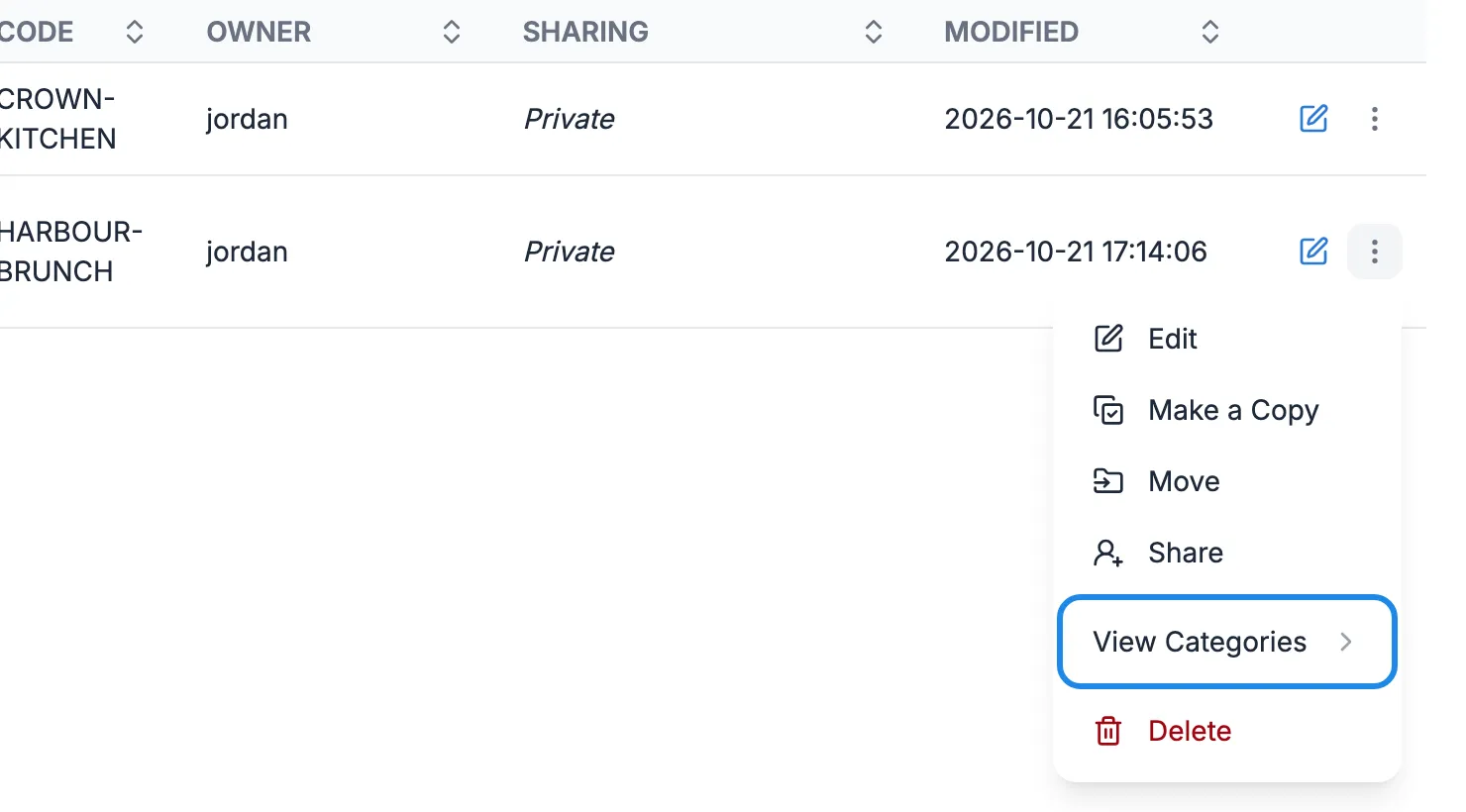
Click More actions on the menu board’s row and choose View Categories.
-
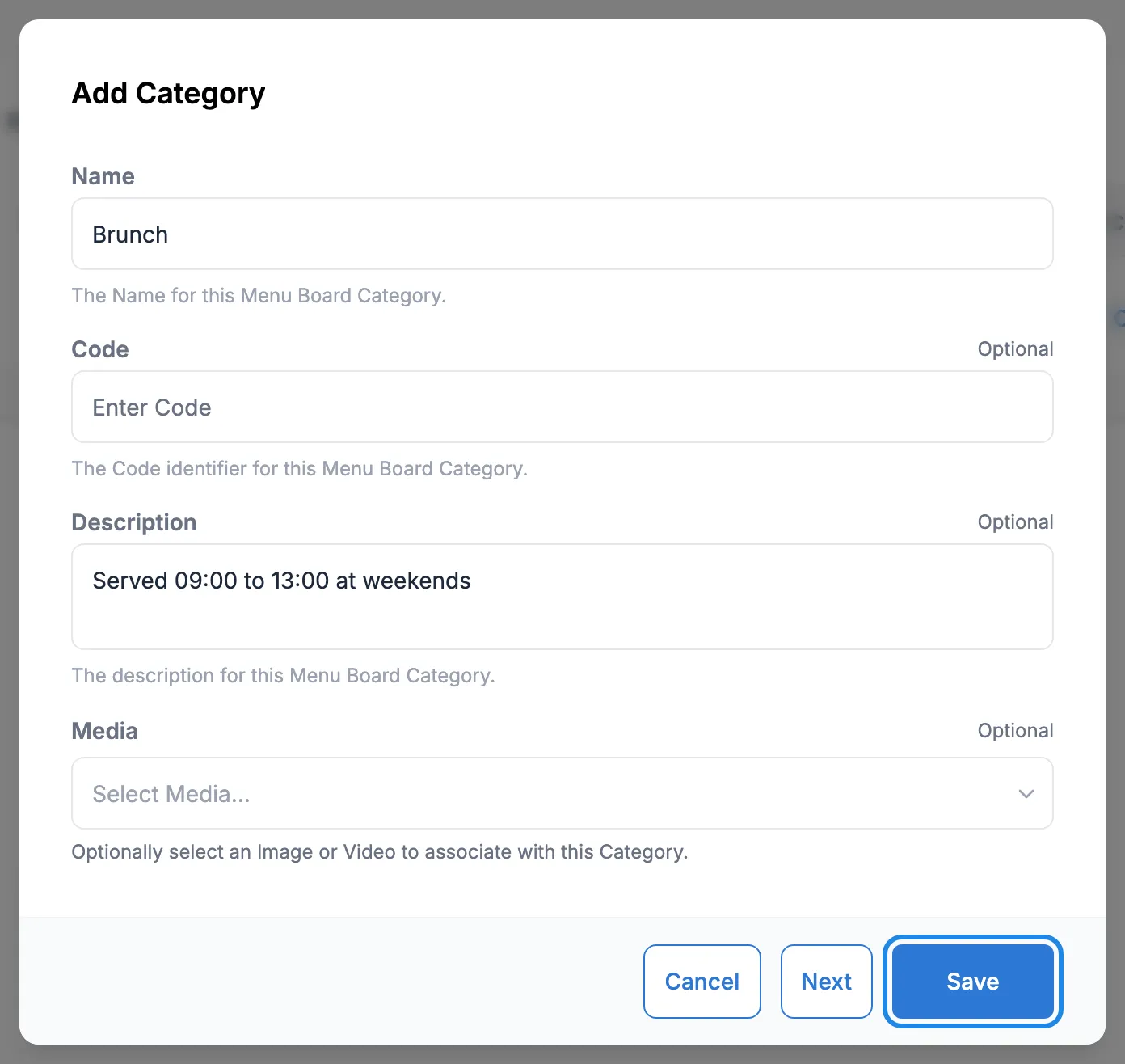
Click Add Category. Type a Name, and if you like a Description and a picture or video under Media. Click Save.
Add products
Section titled “Add products”-
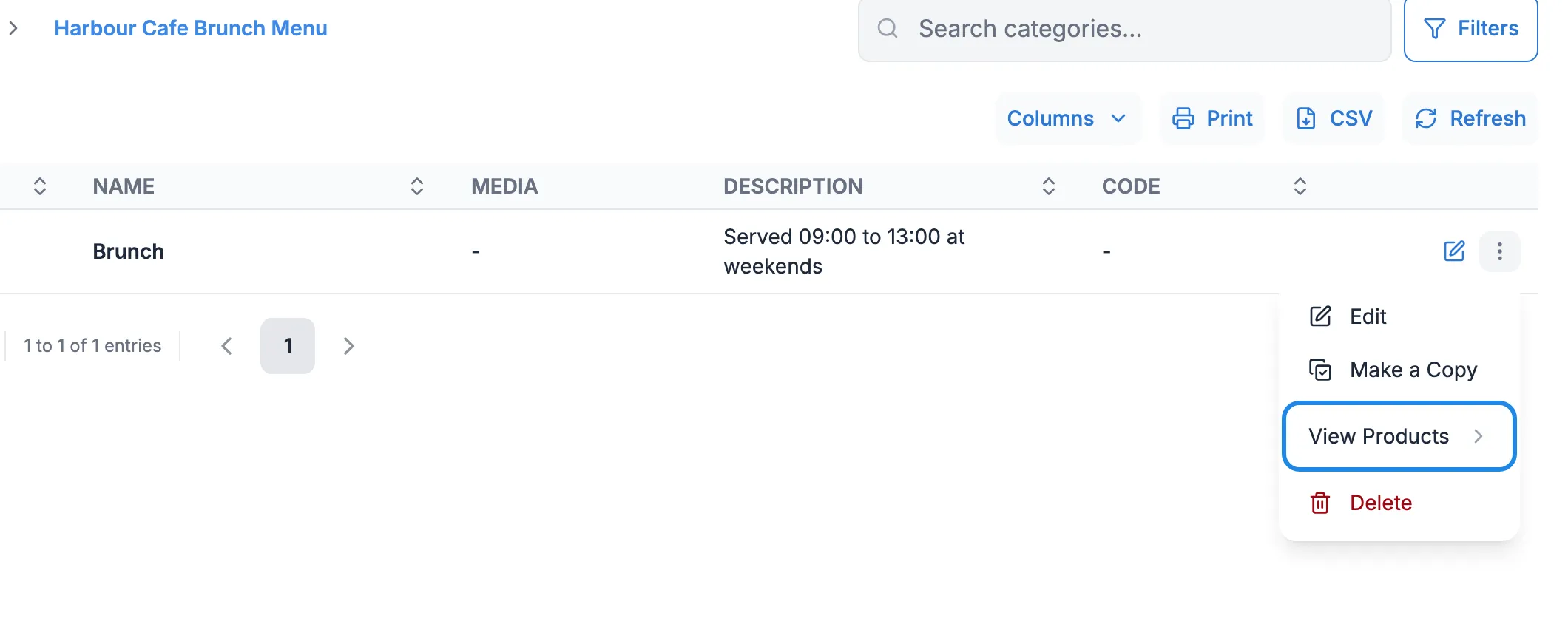
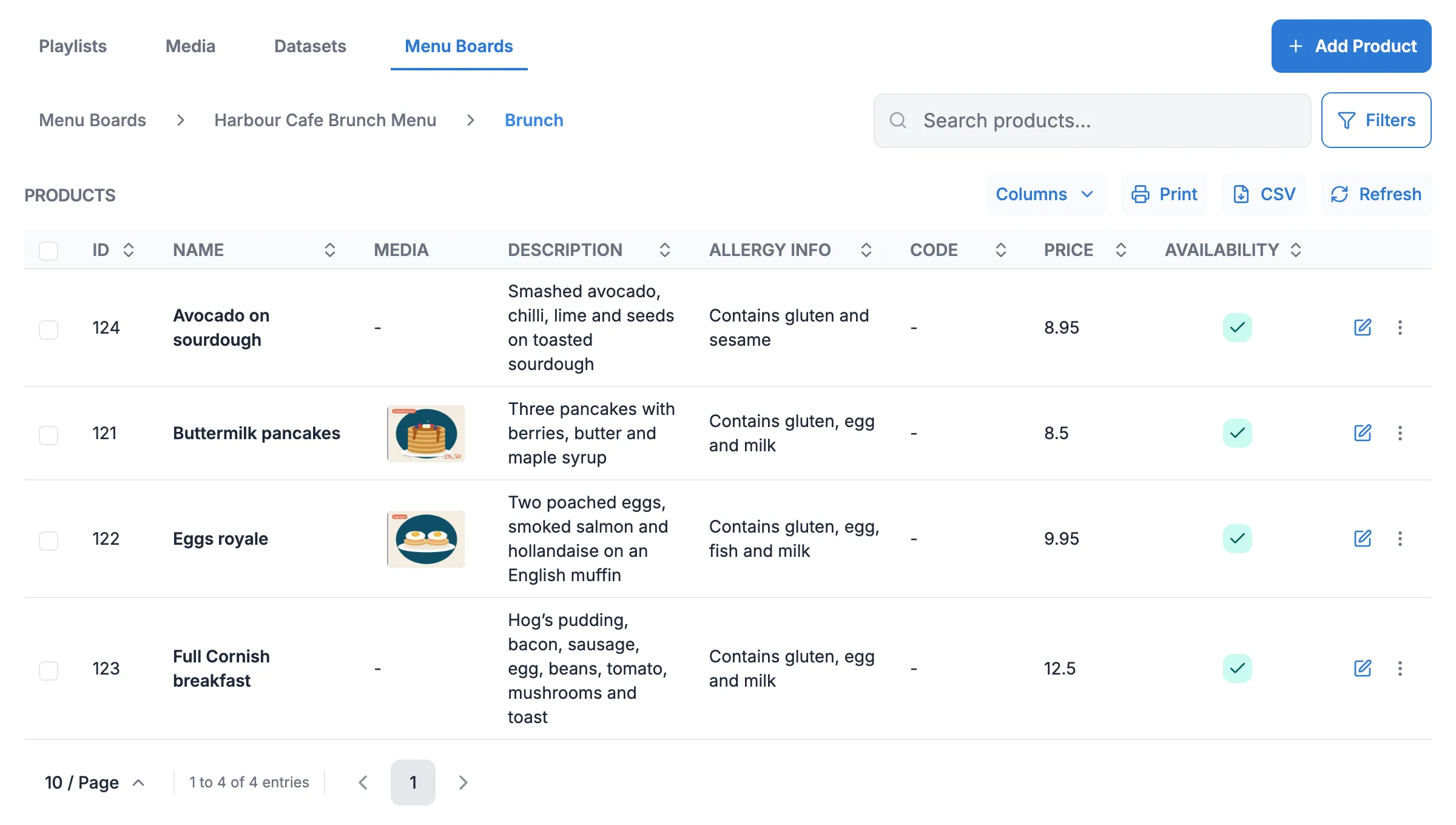
Click More actions on the category’s row and choose View Products. Then click Add Product.
-
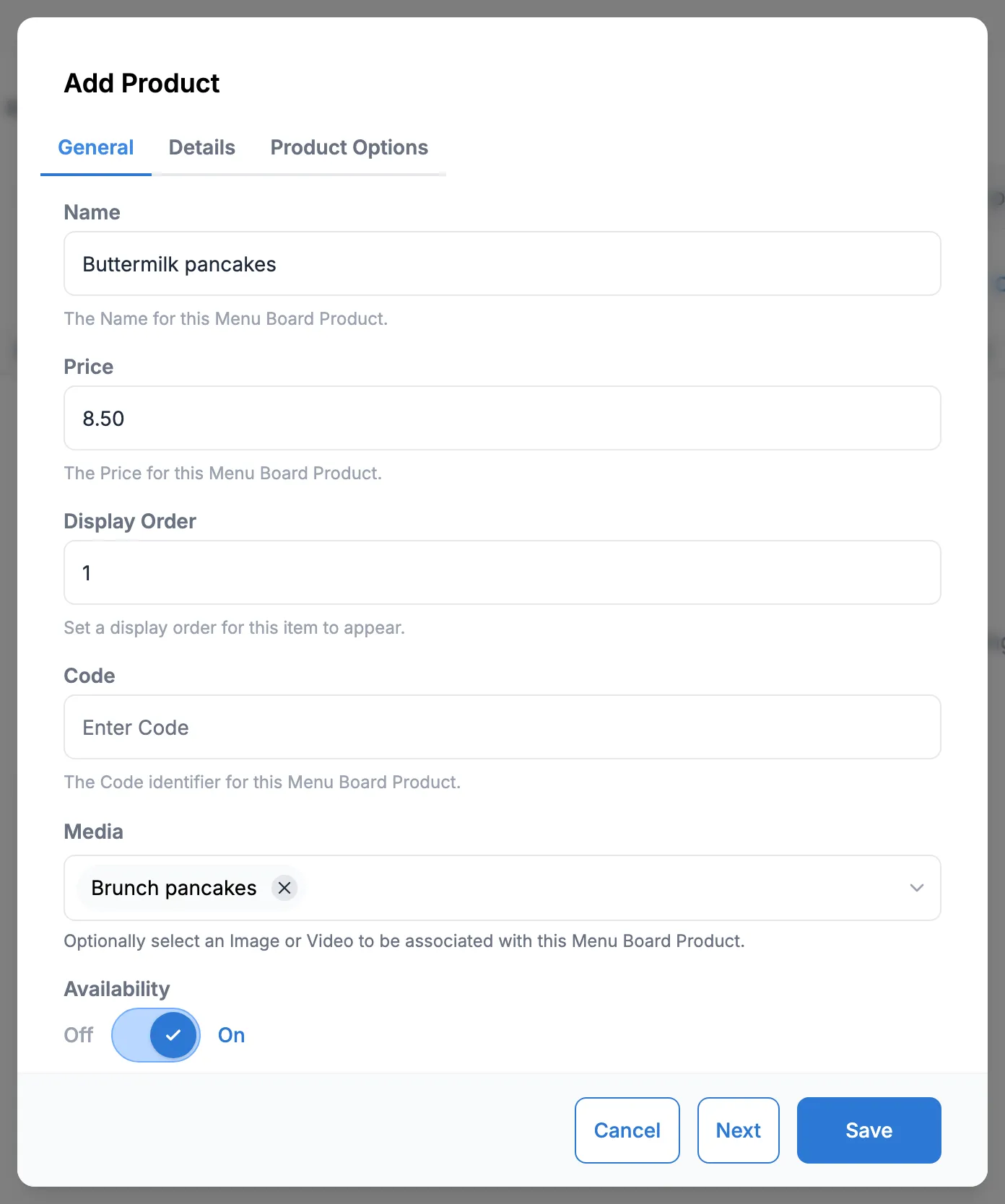
On the General tab, type the Name and Price. Type the price as a number, without the £ sign. Display Order sets where the product comes in the list (1 is first). Under Media you can pick a photo from your library. Leave Availability on.
-
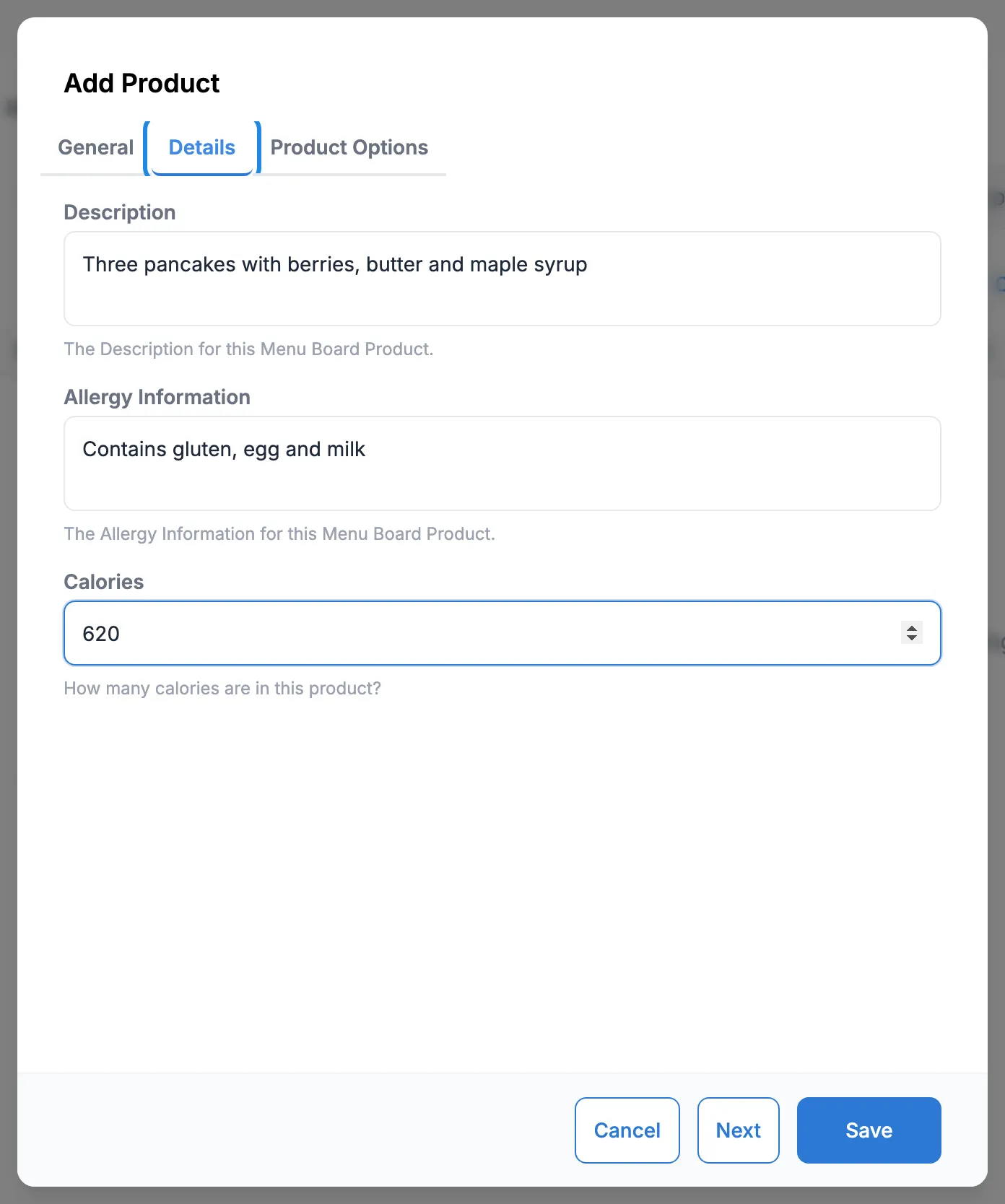
On the Details tab, add a Description, Allergy Information and Calories if you want to show them.
-
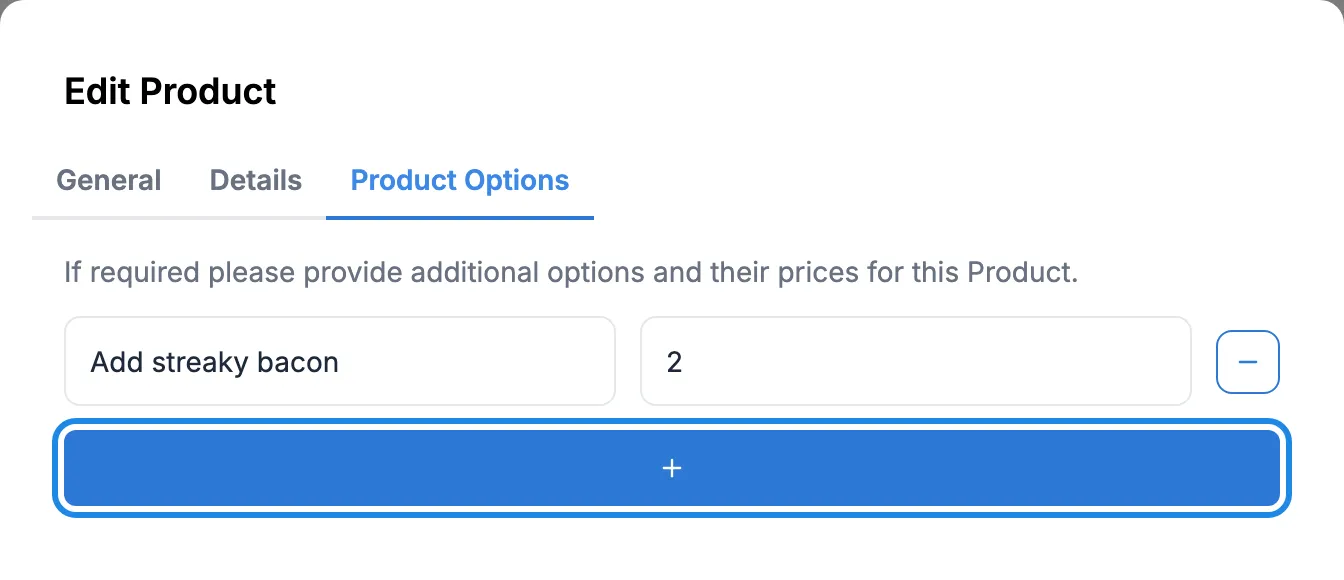
On the Product Options tab, click the + bar to add an extra, such as a side or a topping, with its price.
-
Click Save. Add the rest of your products the same way.
Show the menu on a layout
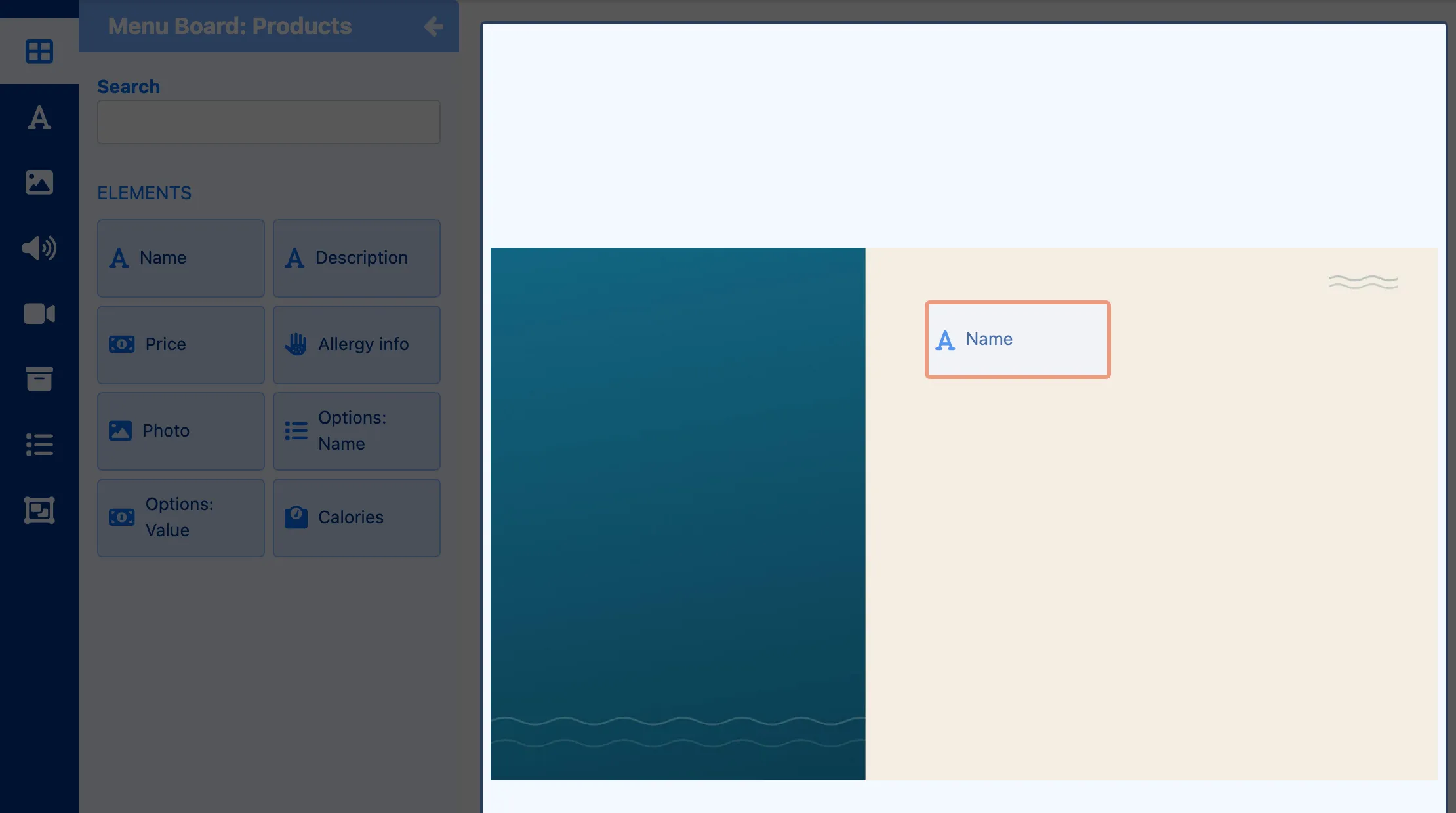
Section titled “Show the menu on a layout”The Menu Board: Products widget places each part of a product (its name, price, description and so on) wherever you want it on the screen. Each product has a numbered slot: slot 1 is the first product in the list, slot 2 the second.
-
Create a layout and add your background as in Design a layout.
-
Click Add widgets in the toolbox and click Menu Board: Products. Drag Name onto the canvas.
-
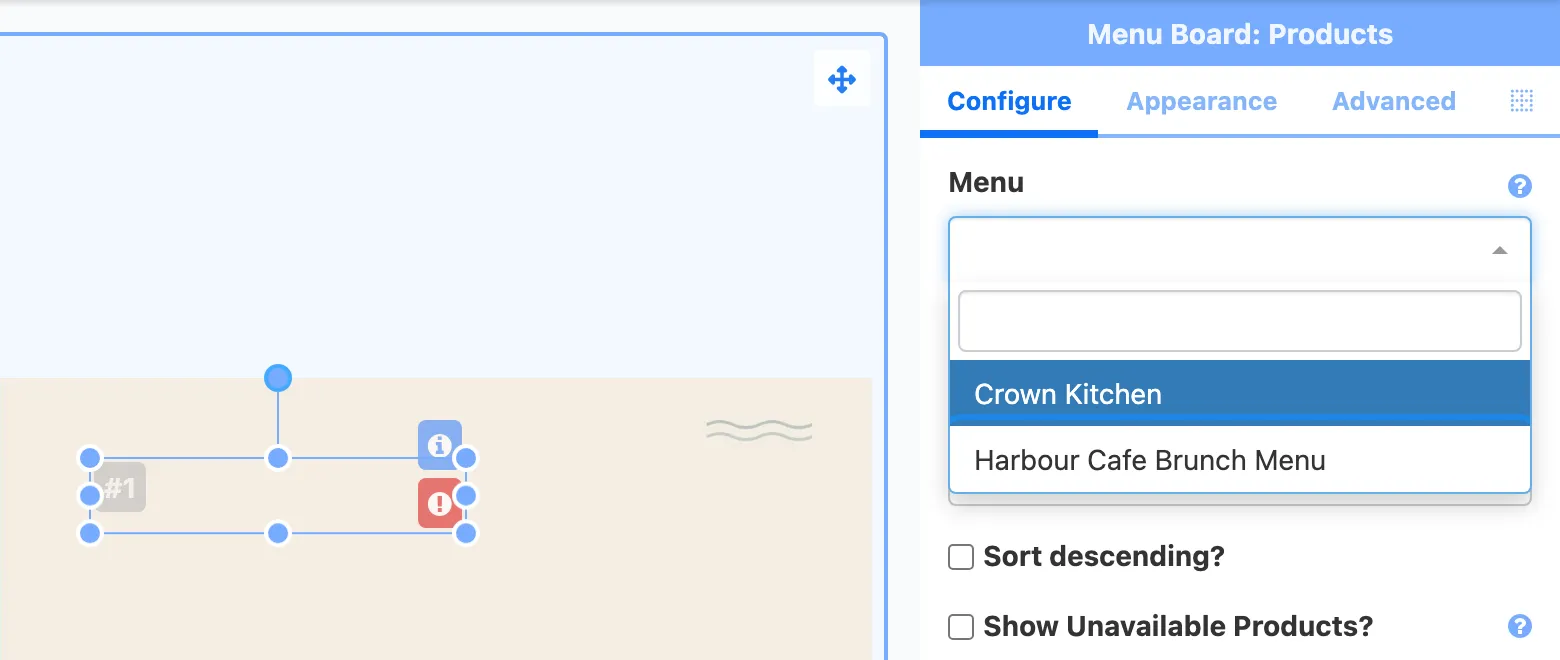
On the Configure tab, choose your menu under Menu, then your Category. Leave Sort by on Display Order.
-
On the Appearance tab, set the font, colour and size, then position it. Data Slot shows which product it is.
-
Drag Price next to the name. On its Appearance tab, type
£into Prefix so the price shows with a pound sign. Add Description under the name in the same way.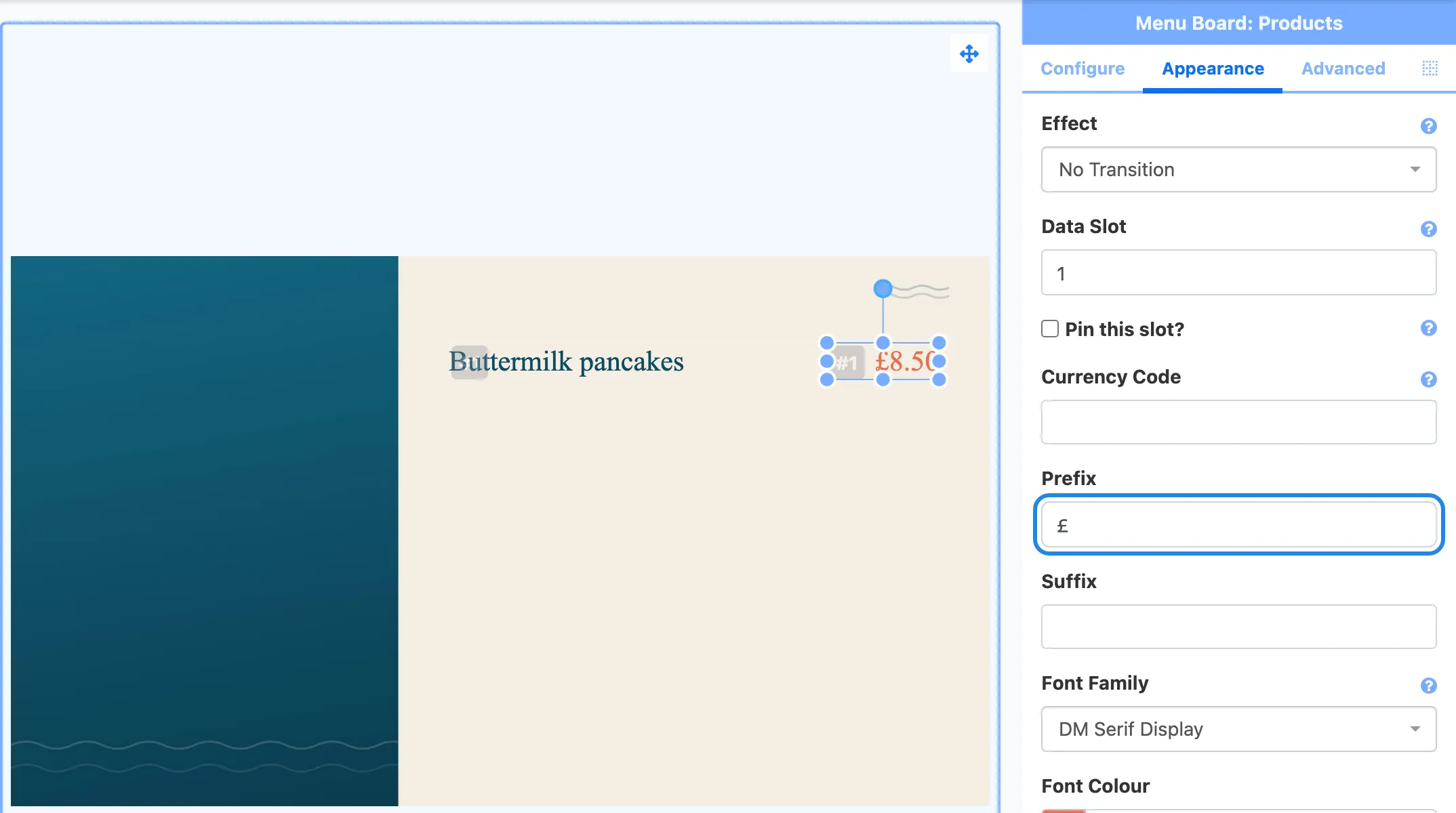
-
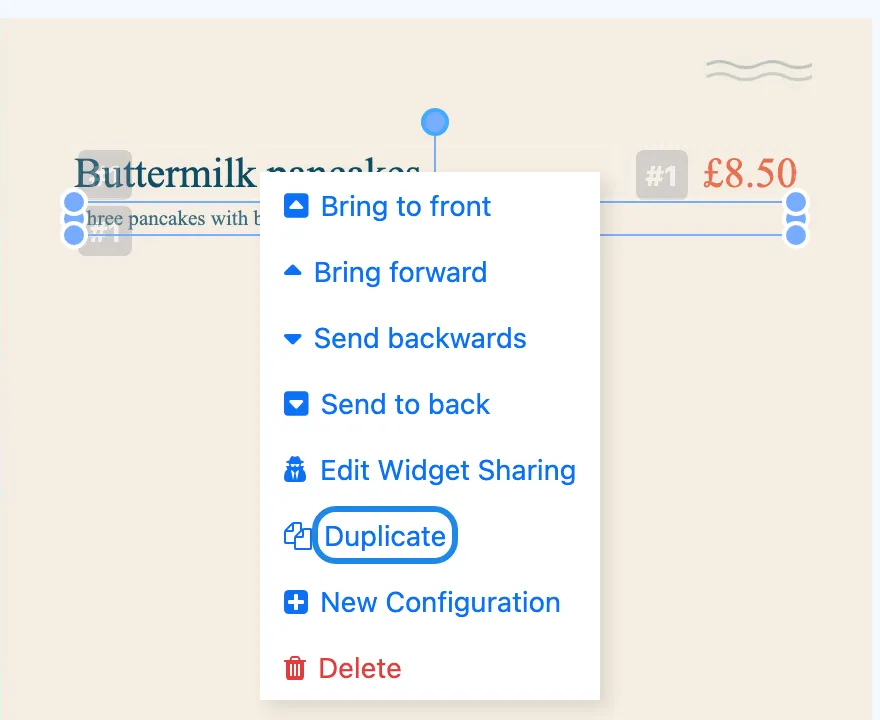
For the next product, right-click each element and choose Duplicate. Move the copy down, and on its Appearance tab change Data Slot to 2. Repeat for slots 3, 4 and so on.
-
Add a heading with a Text element from Global Elements, then preview and publish the layout.
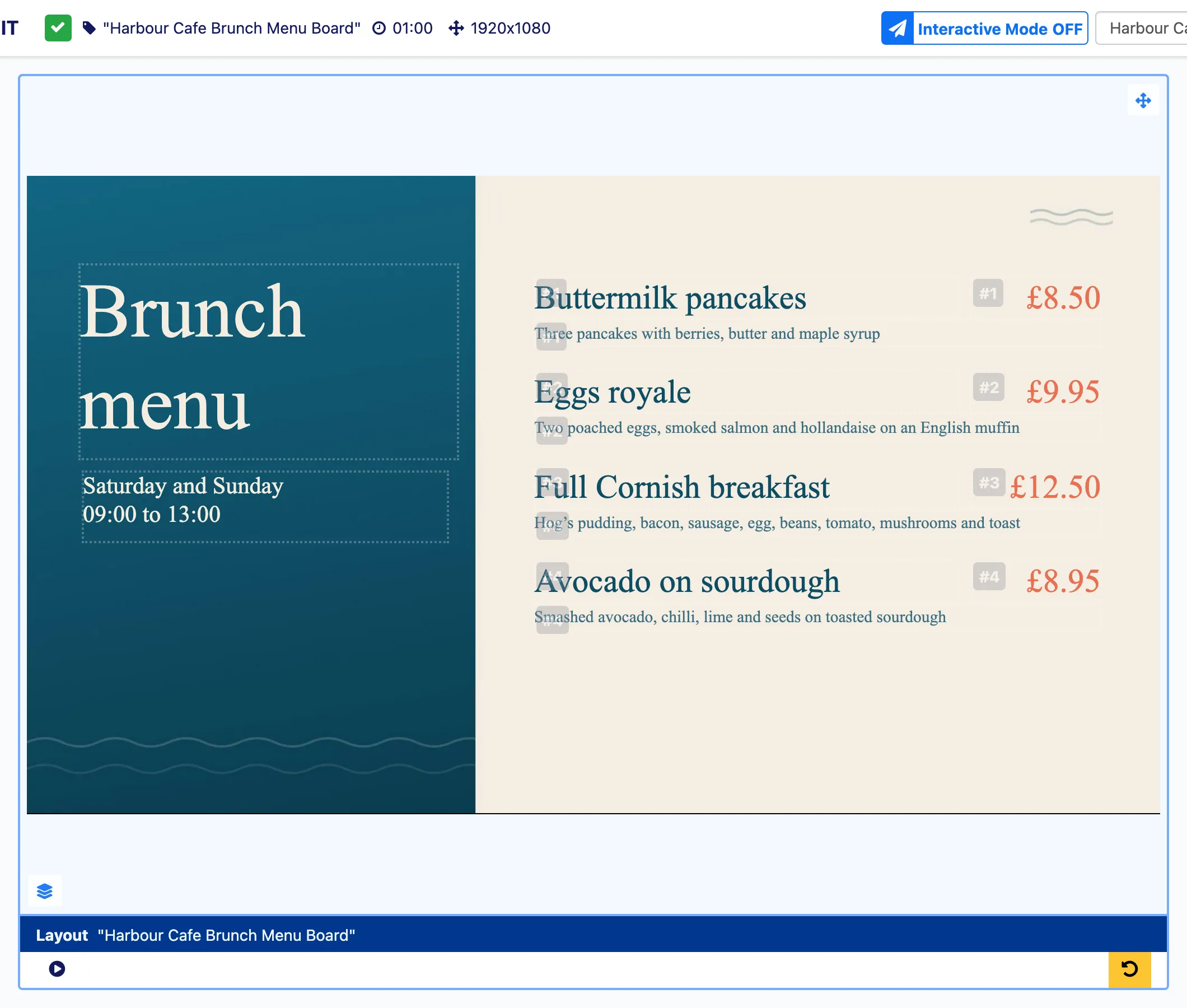
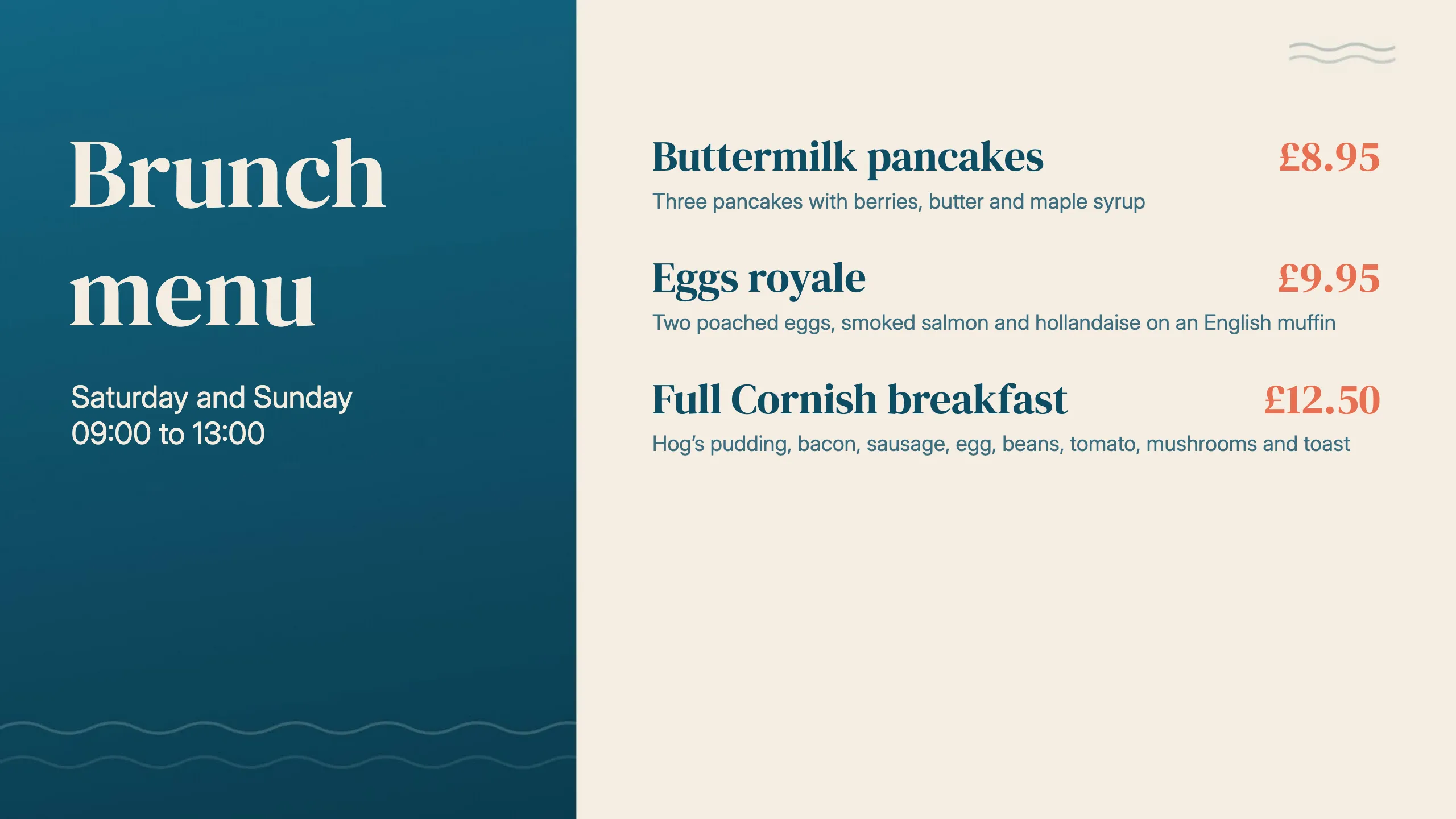
The finished menu:
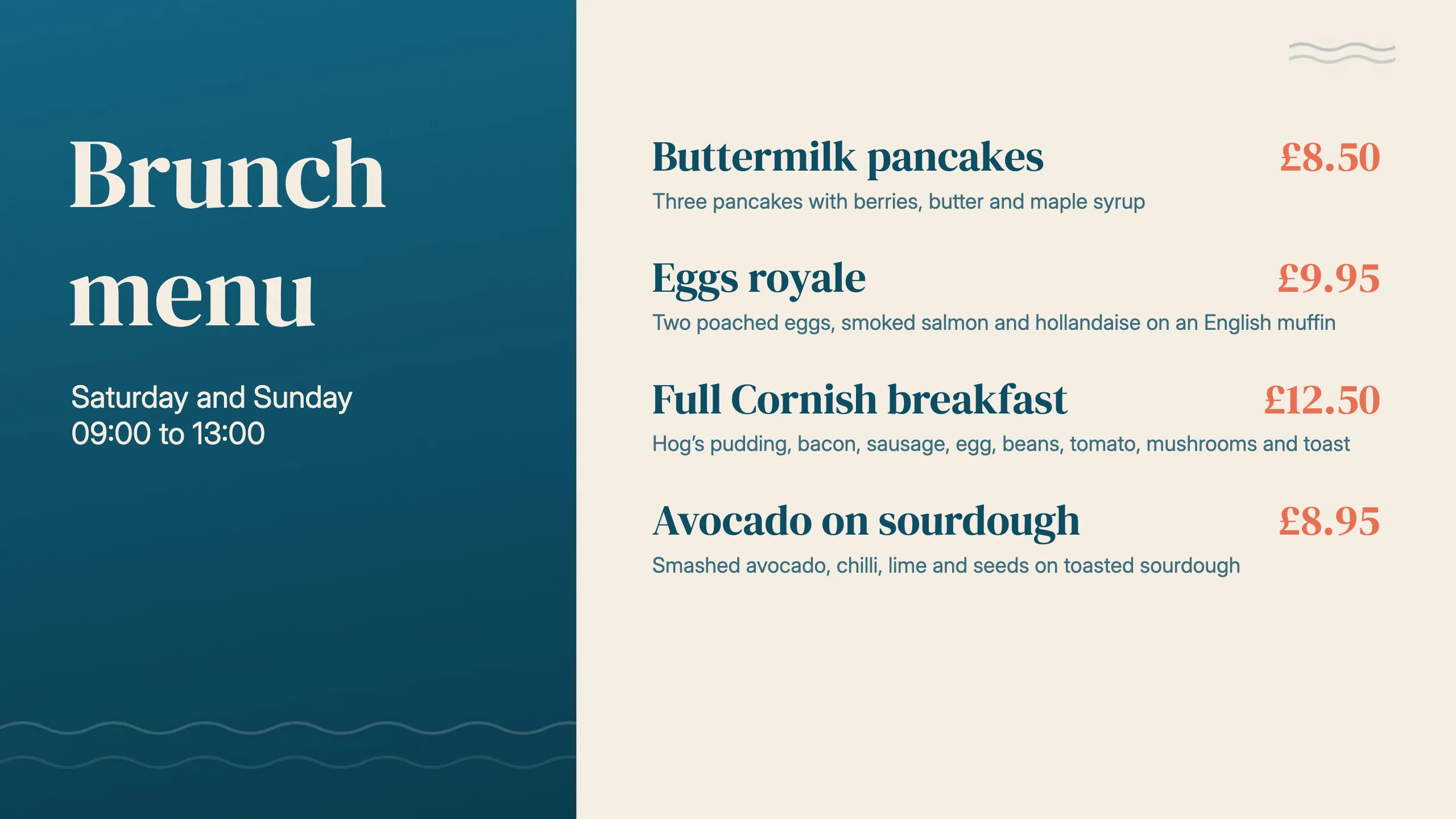
To show a category’s name, description or photo from the menu board, use the Menu Board: Category widget in the same way.
Change a price
Section titled “Change a price”-
Go to Library, Menu Boards, open the category’s products, and click the pencil icon (Edit) on the product’s row.
-
Change the Price and click Save.
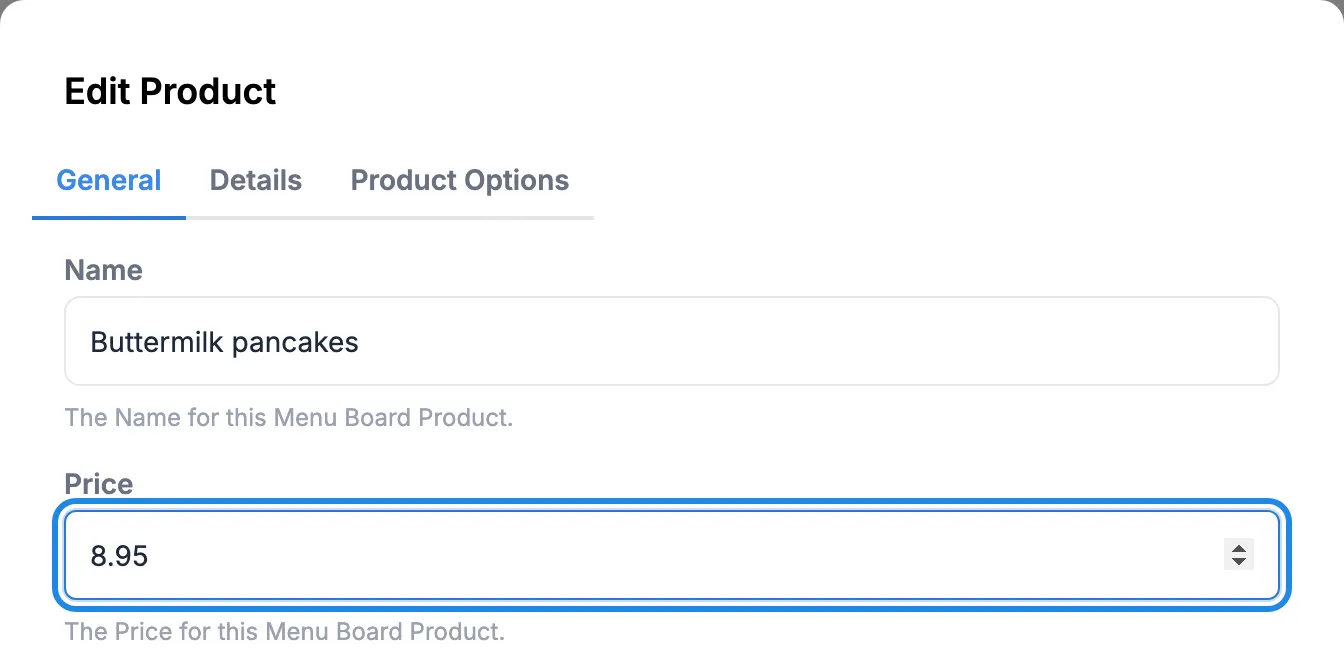
You don’t need to touch the layout. The menu on screen shows the new price.
Take a product off when it sells out
Section titled “Take a product off when it sells out”-
Click the pencil icon (Edit) on the product’s row.
-
Switch Availability to Off and click Save.
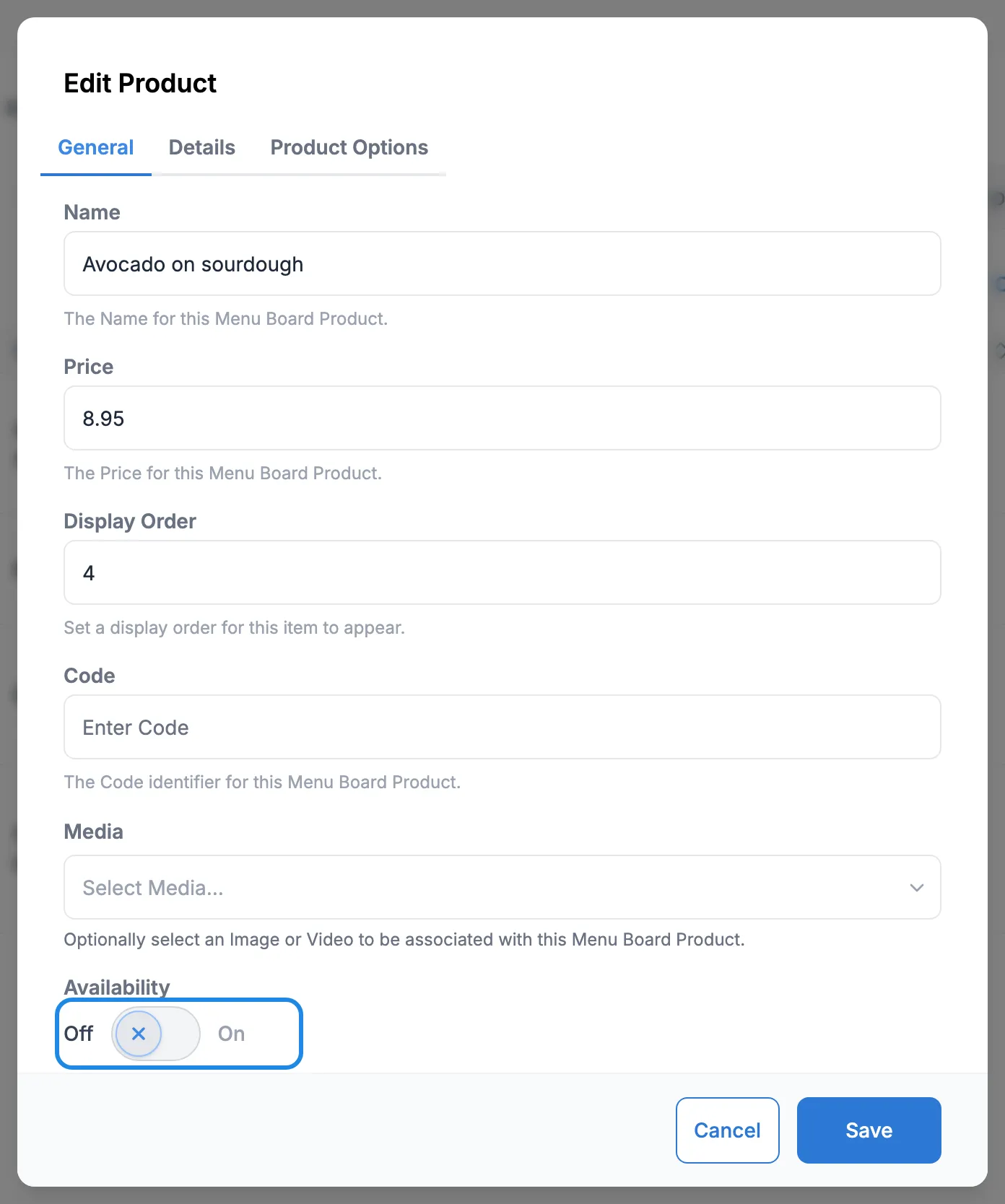
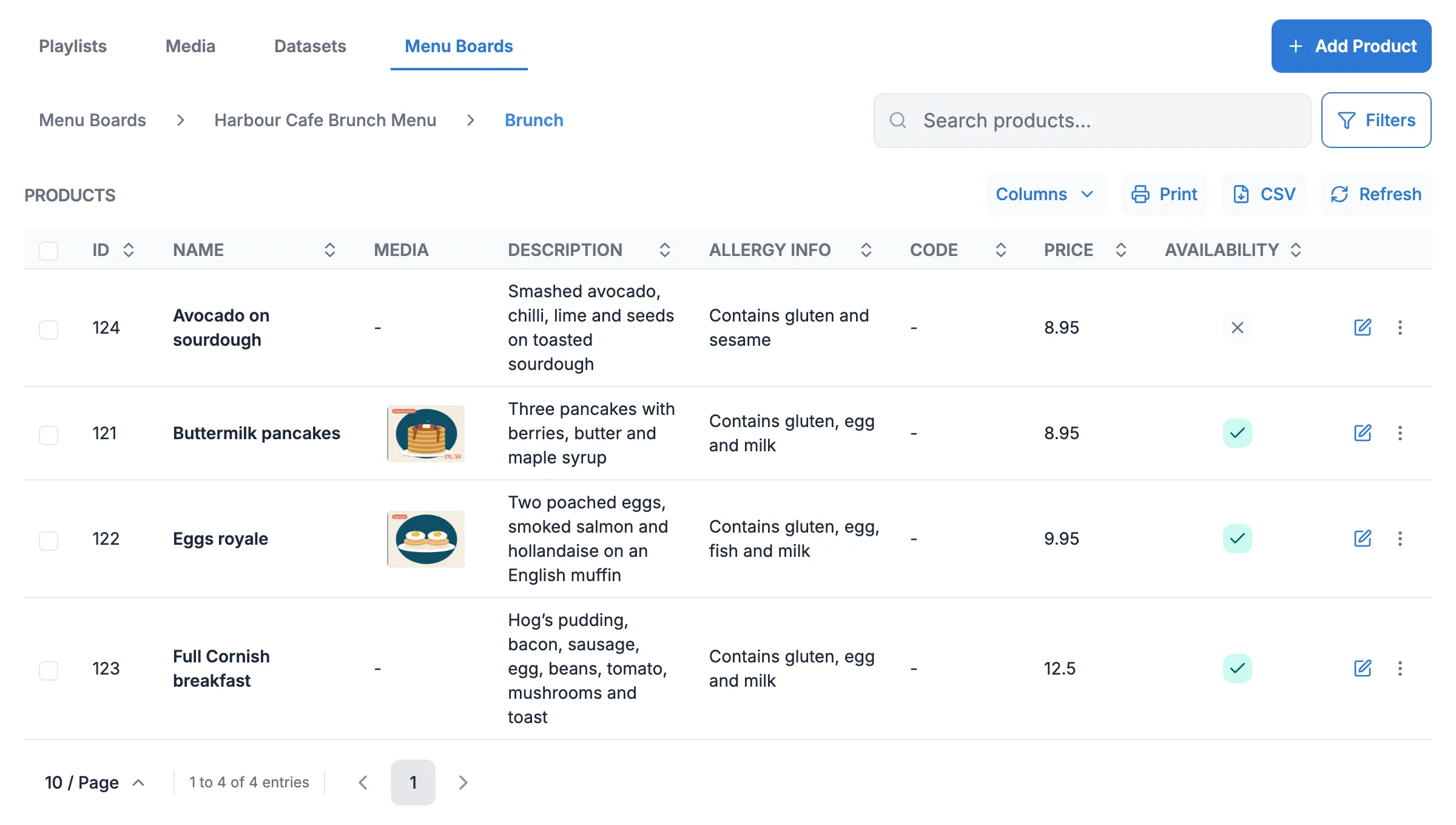
The product shows a cross in the Availability column, and it no longer appears on the screen. Switch Availability back on to bring it back.