Use dayparts
A daypart is a named slot in the day with a start and an end time, such as breakfast from 07:00 to 11:30. You set it up once, then pick it when you schedule, so you don’t type the same times into every event.
Two dayparts are always there: Always means all day, every day, and Custom means you type the times into each event.
Add a daypart
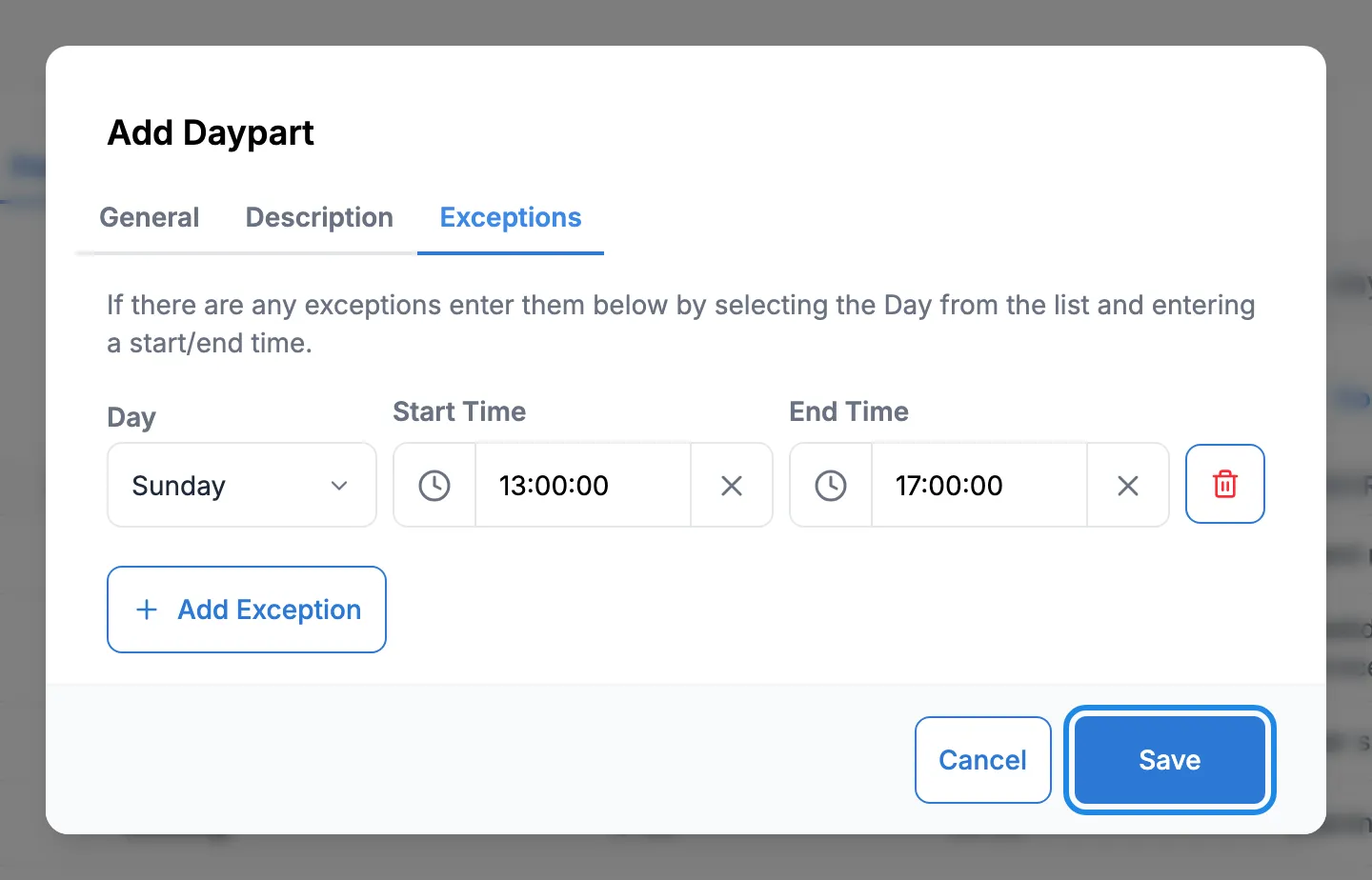
Section titled “Add a daypart”This example adds an afternoon tea slot for The Linden Hotel: 14:00 to 17:00, starting an hour earlier on Sundays.
-
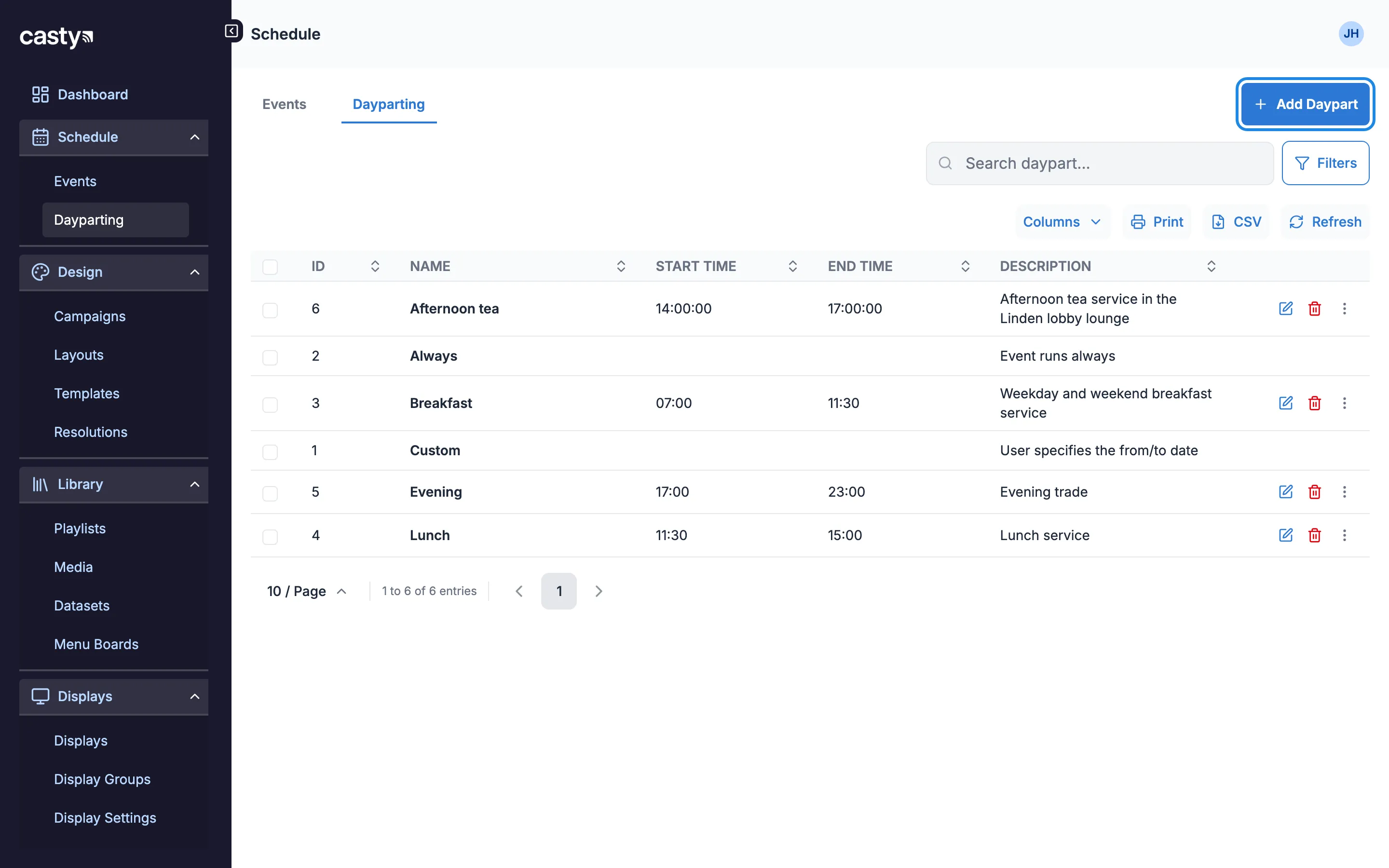
Click Schedule in the menu on the left, then Dayparting. Click Add Daypart.
-
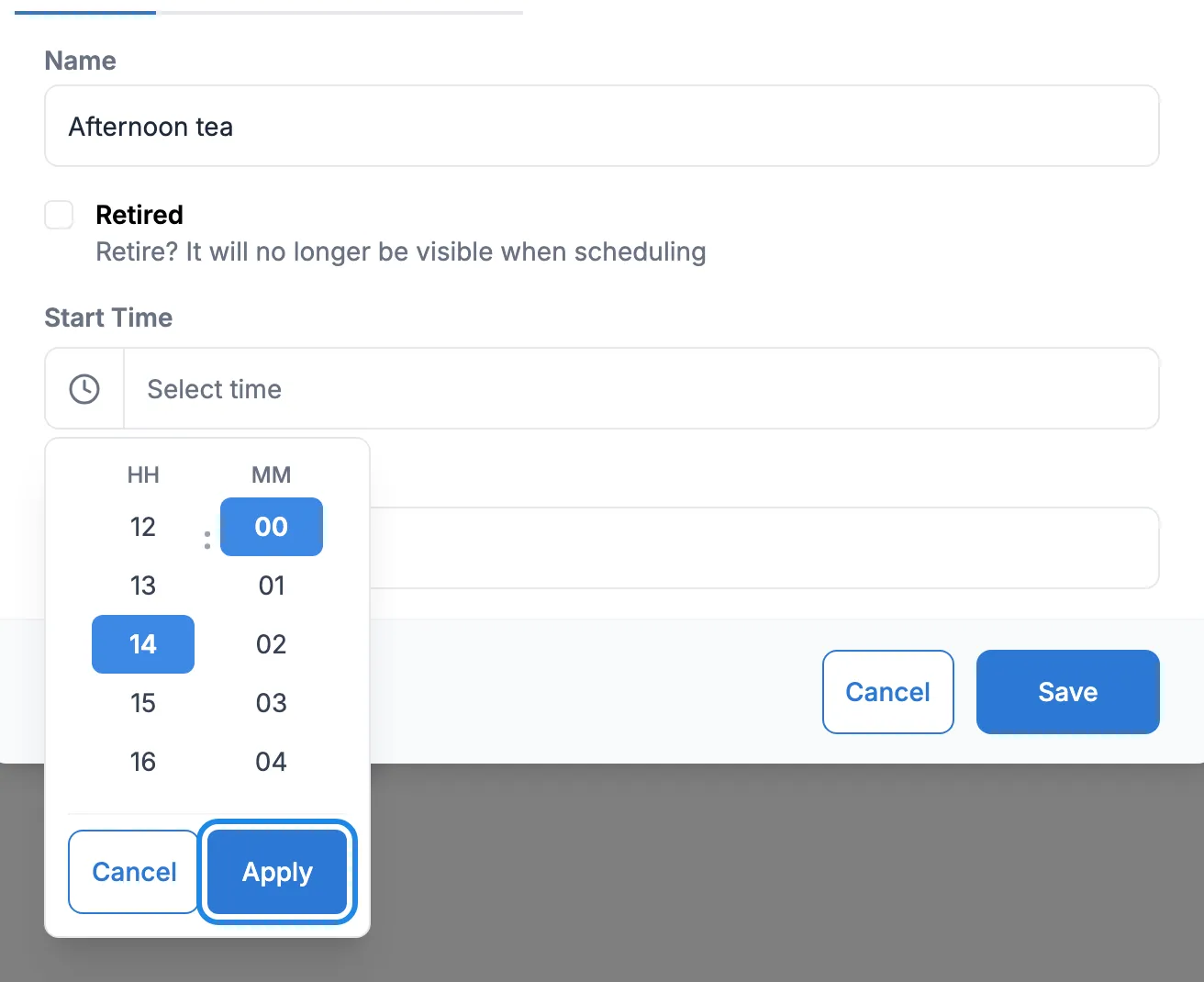
Type a Name. Click the Start Time box, click the hour and the minutes in the two columns, then click Apply.
-
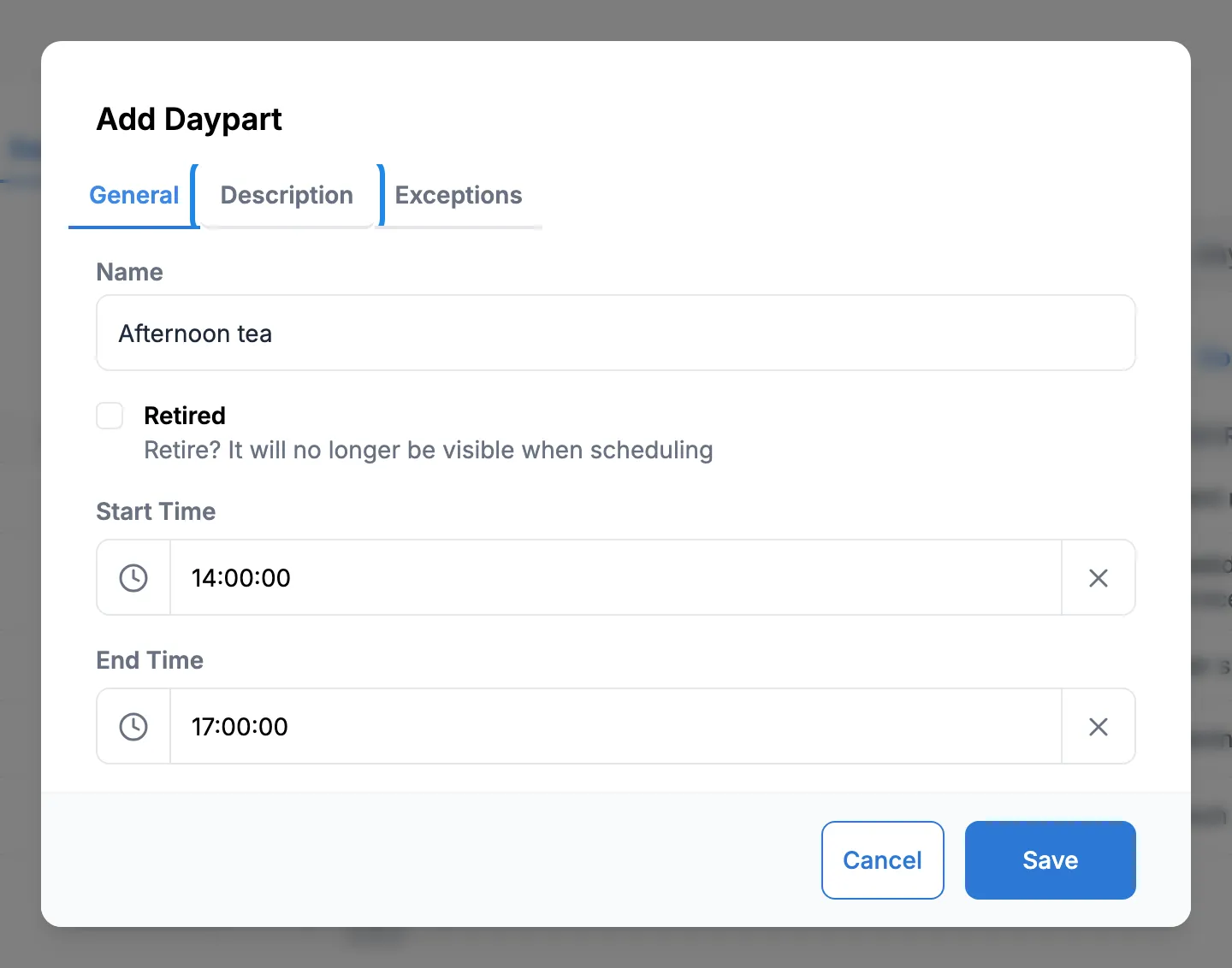
Set the End Time the same way.
-
Click the Description tab if you want to add a note about what the daypart is for.
-
If one day of the week has different hours, click the Exceptions tab, then Add Exception. Choose the Day and set its Start Time and End Time. Click Add Exception again for another day. The bin icon removes an exception.
-
Click Save. The daypart appears in the list and in the Dayparting list on the event form.
To change a daypart, click the edit icon on its row. Every event that uses the daypart follows its new times, so you don’t need to change the events. The bin icon deletes a daypart. Tick Retired on the General tab to hide a daypart you no longer use from the event form without deleting it.

Schedule an event in a daypart
Section titled “Schedule an event in a daypart”Here the afternoon tea promotion image plays on the lobby screen during afternoon tea every day.
-
Click Schedule, then Events, then Add Event. Choose the content and the screens as usual (see Schedule content on your screens). This example uses the Media event type to show one image full screen.
-
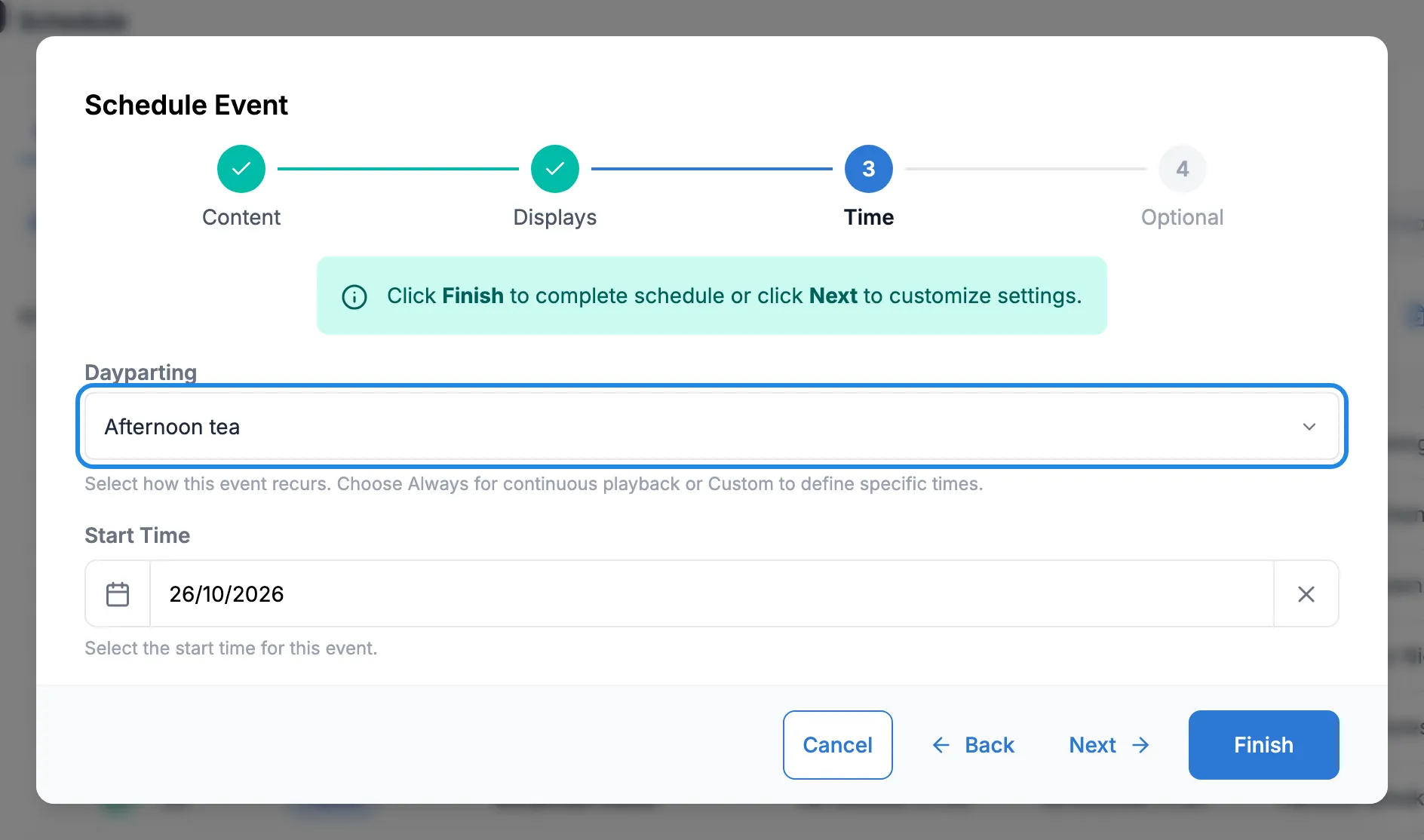
On the Time step, choose your daypart in Dayparting. The end time disappears because the daypart sets the times. Click Start Time, pick the first day the event should run and click Apply. Click Next.
-
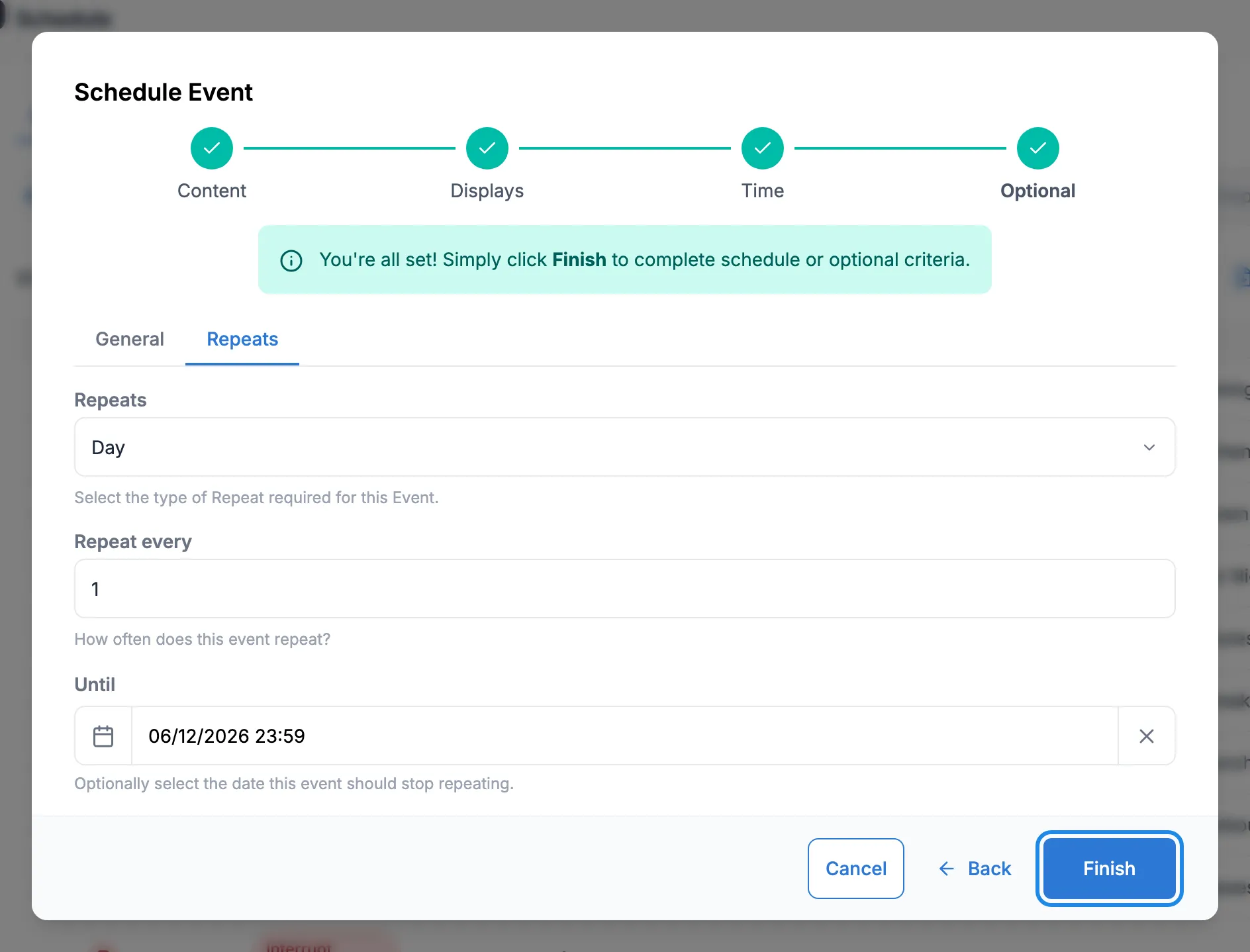
Type a Name on the General tab. Click the Repeats tab, set Repeats to Day so the event runs in the daypart every day, and set Until if it should stop on a certain date. Click Finish.
Check the times
Section titled “Check the times”Click Calendar View on the Events page and click a day. The event shows with the daypart’s times.
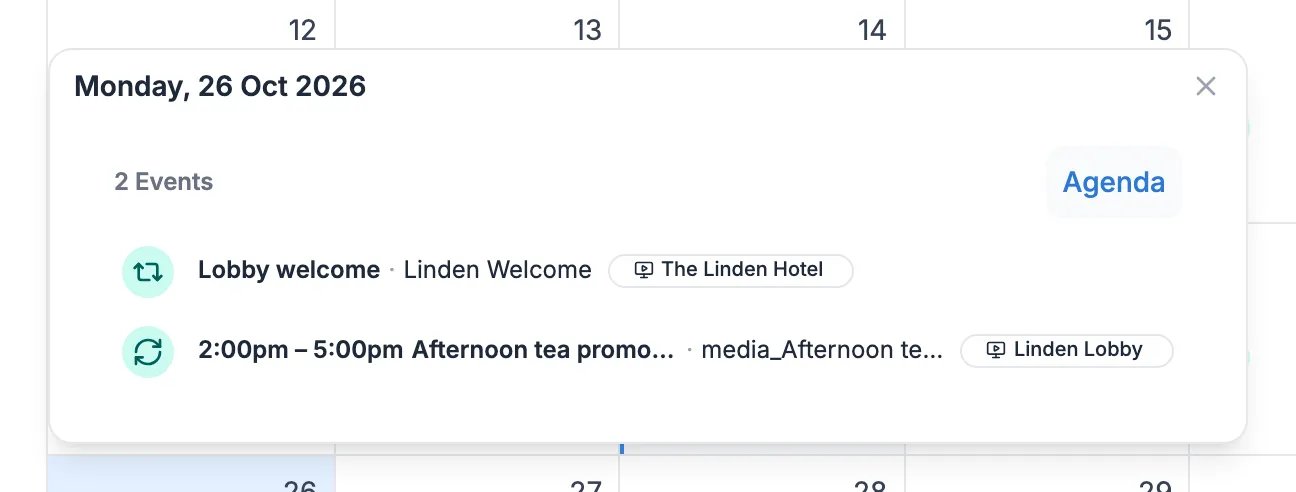
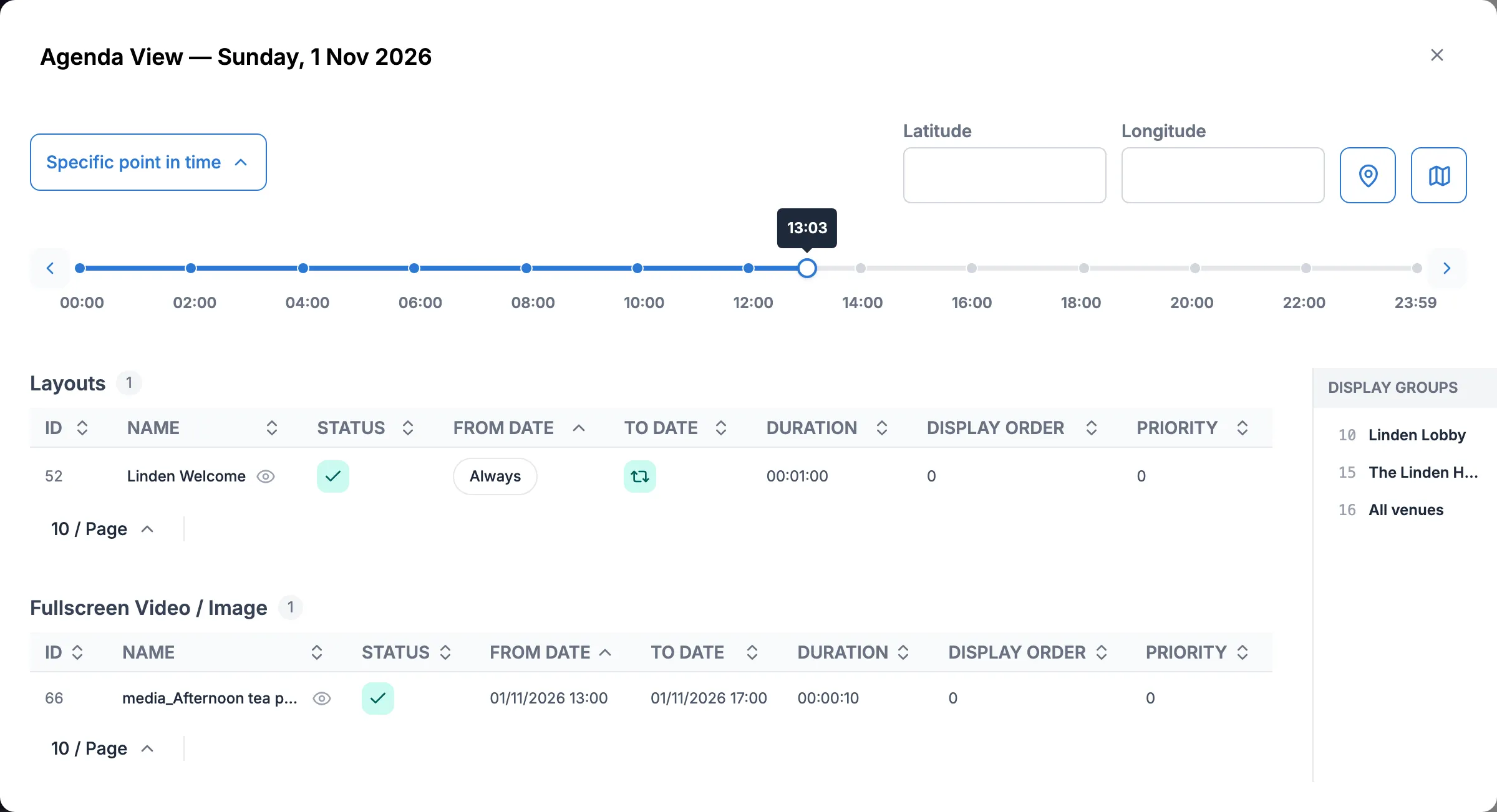
The day list shows a daypart’s usual times. To check an exception, open the agenda for that day: click Agenda, then Specific point in time, then a time. On a Sunday the afternoon tea image runs from 13:00.