

Group your screens
A display group is a set of screens you can schedule to in one go. Instead of picking three screens every time you add an event at The Crown, you pick the group called The Crown. When you add a new screen to the group later, it picks up everything already scheduled to the group.
Your account may already have a group for each venue and one for all venues. This page shows you how to make your own, how groups can contain other groups, and how a dynamic group fills itself from tags.
Make a display group
Section titled “Make a display group”This example makes a group for the two front-of-house screens at The Crown.
-
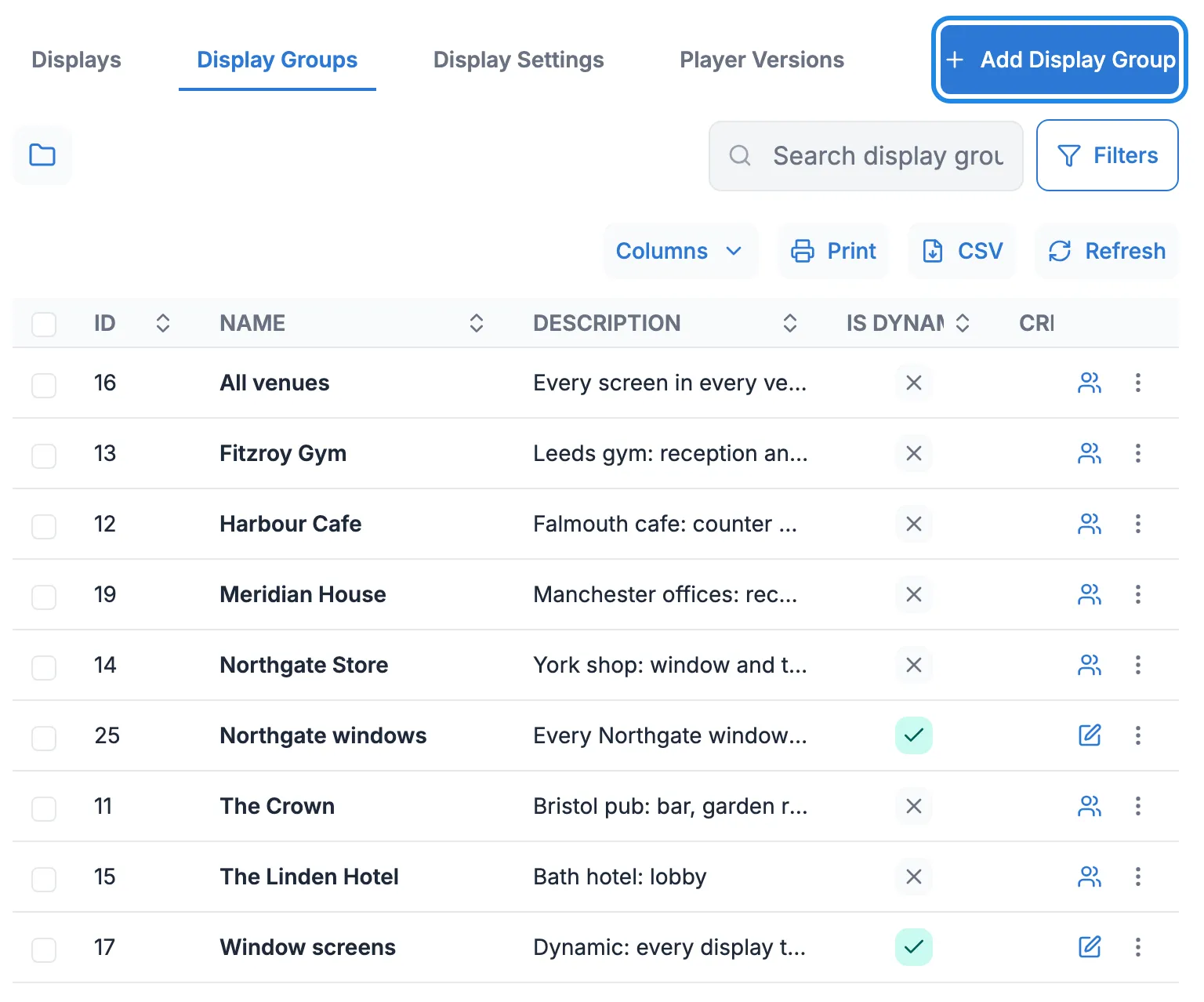
Click Displays in the menu on the left, then Display Groups. Click Add Display Group.
-
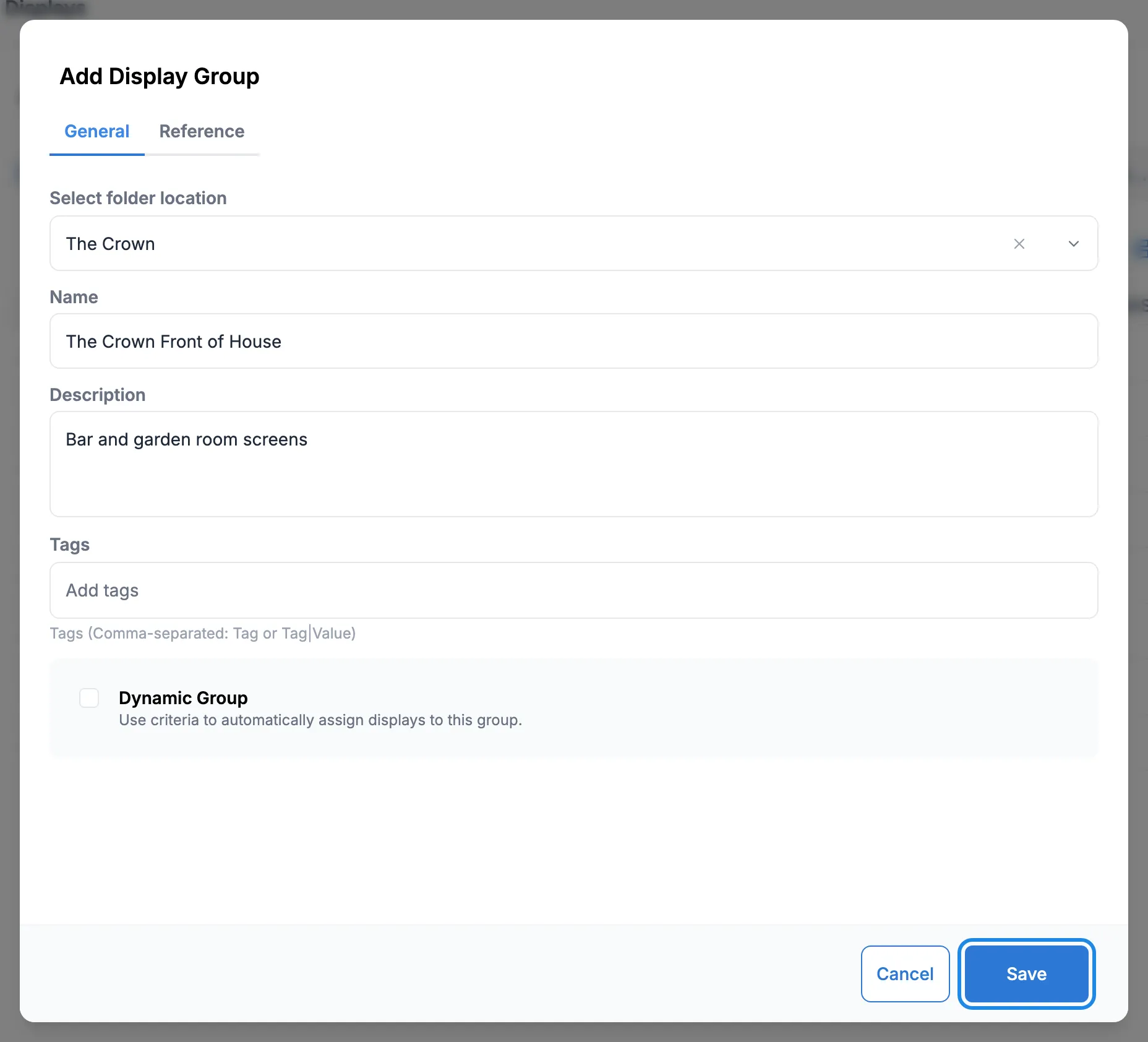
In Select folder location, pick the venue’s folder. Type a Name and, if you like, a Description that says which screens are in it. Leave Dynamic Group unticked. Click Save.
-
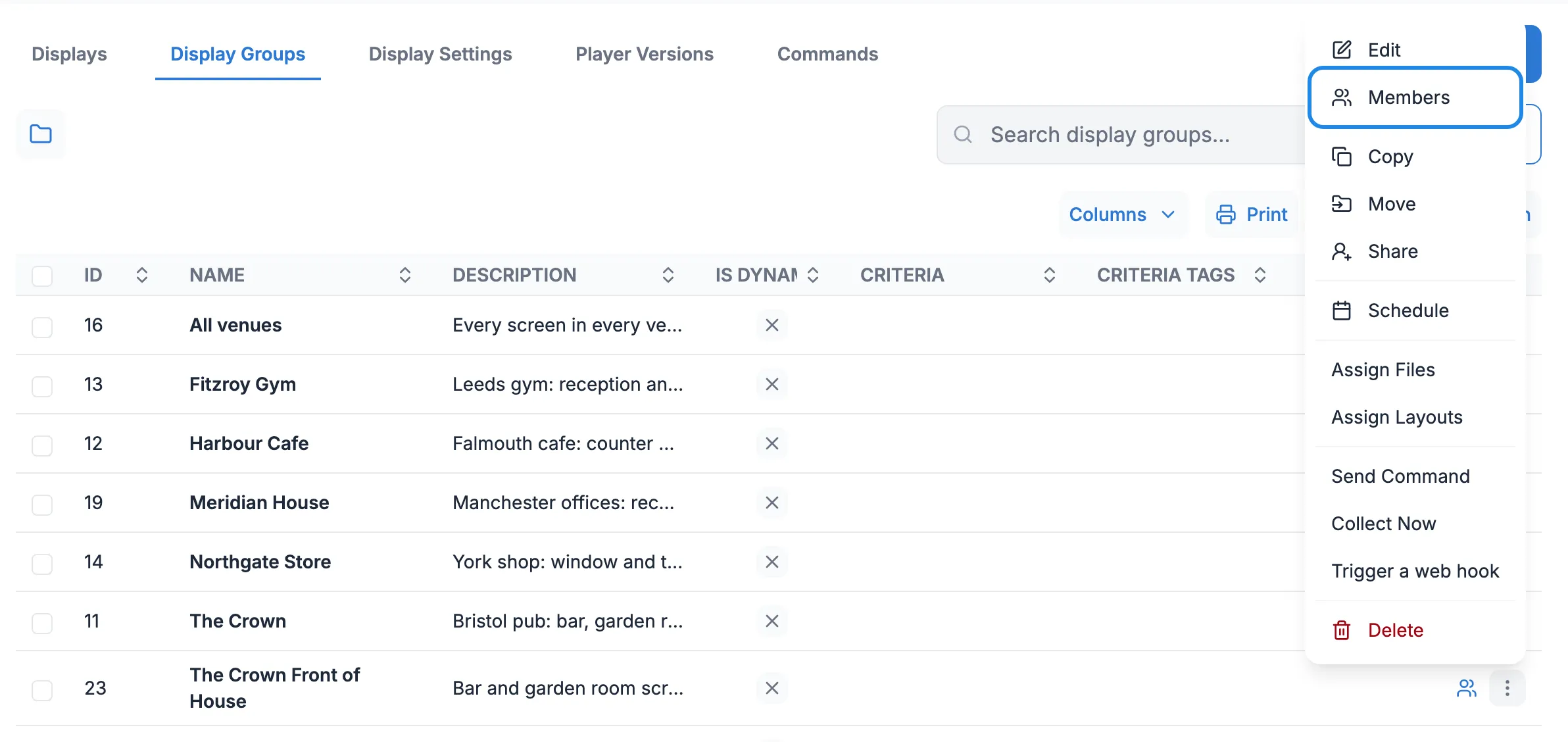
Find the new group in the list. Click the three dots at the end of its row and click Members. (The people icon next to the three dots does the same.)
-
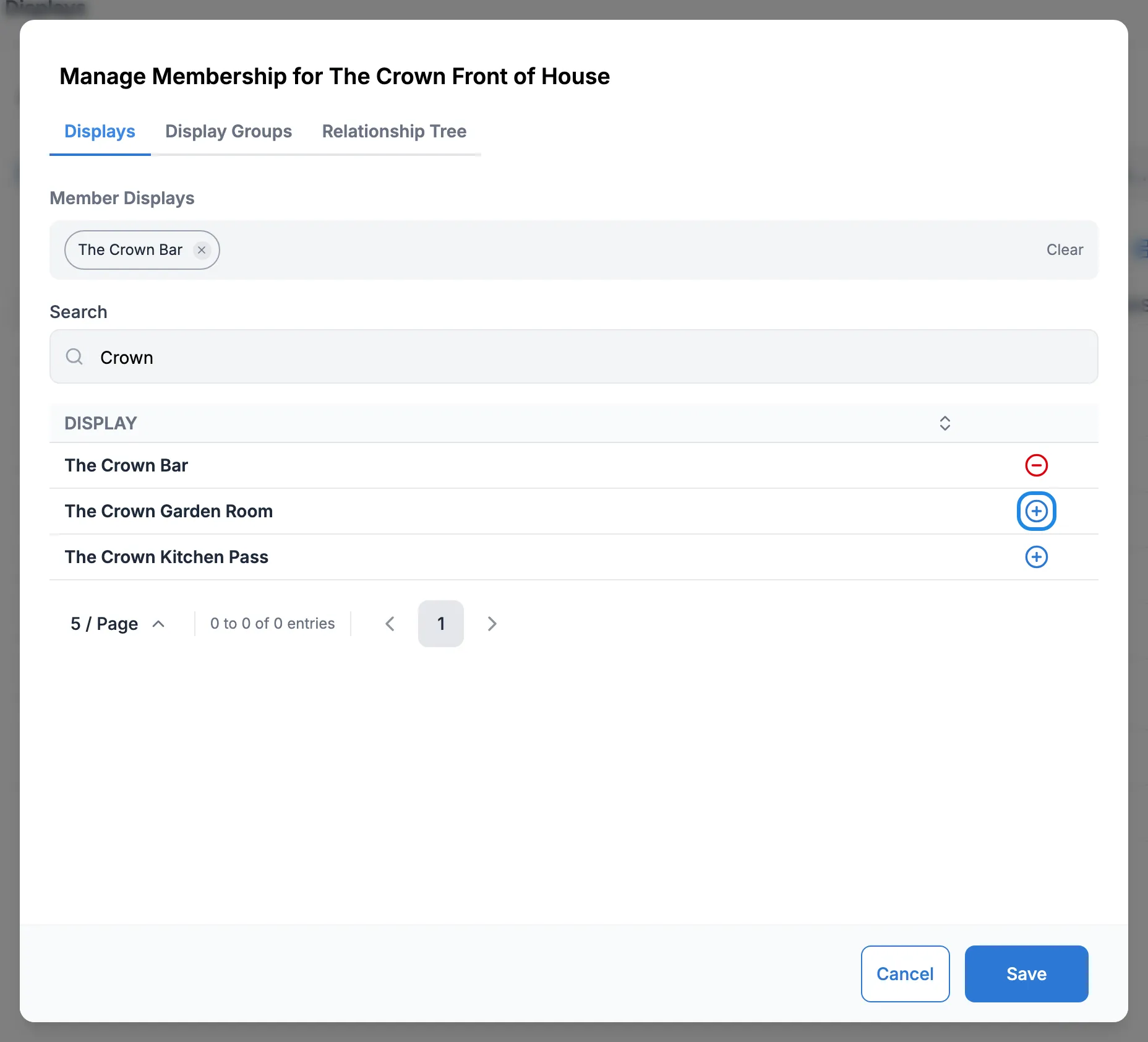
On the Displays tab, type part of a screen name in Search. Click the plus icon next to each screen you want in the group. Each one moves up to Member Displays, and its plus icon turns into a red minus icon you can click to take it out again. Click Save.
You can also add a single screen to a group from the Displays page: click the three dots on the screen’s row, then Add to Group (see Connect a screen).
Groups inside groups
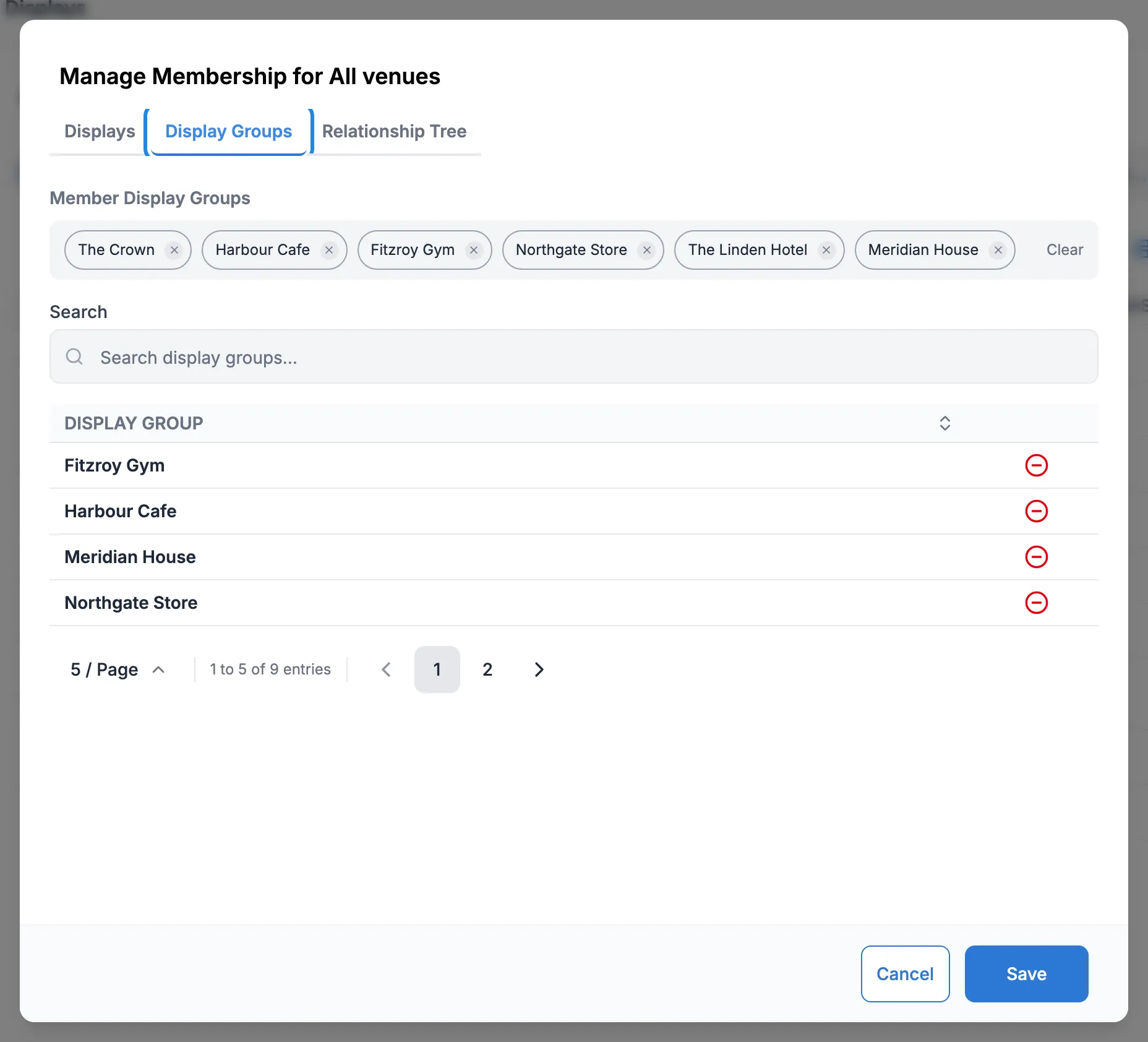
Section titled “Groups inside groups”A group can contain other groups. The All venues group in the example account contains each venue’s group, so anything scheduled to All venues plays on every screen in every venue.
To put one group inside another, open the outer group’s Members window and click the Display Groups tab. Search for the group and click its plus icon, then click Save. The Relationship Tree tab shows how the groups fit together.
Dynamic groups: fill a group from tags
Section titled “Dynamic groups: fill a group from tags”A dynamic group picks its screens for you. You give it a tag, and every screen with that tag joins the group. Give a new screen the tag and it joins the group, with no need to open the group itself.
The example account has a dynamic group called Window screens that holds every screen tagged window, across all venues. This example makes one for bar screens.
-
On the Display Groups page, click Add Display Group. Pick a folder and type a Name.
-
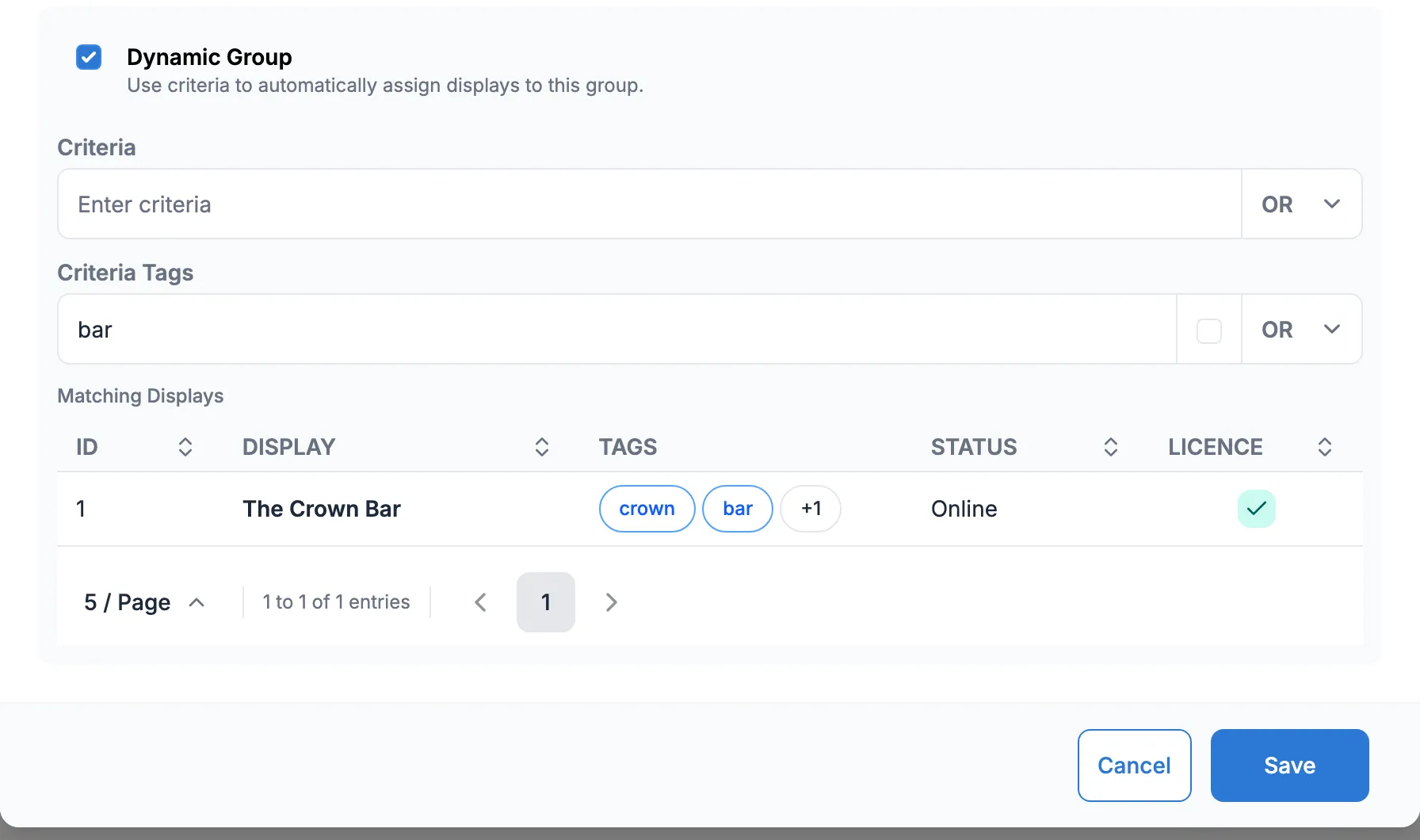
Tick Dynamic Group. Two more boxes appear.
-
In Criteria Tags, type the tag, such as bar. The Matching Displays list underneath shows the screens that have that tag. Check it lists the screens you expect.
-
Click Save.
Criteria works the same way with screen names: type part of a name and every screen whose name contains it joins the group. To give a screen a tag, edit the screen and add it in Tags (see Change a screen’s settings).
Schedule to a group
Section titled “Schedule to a group”When you add an event, the Displays step lists your groups under Display Groups, below the single screens. Tick a group to play the event on every screen in it. You can also click the three dots on a group’s row and click Schedule, which opens the same event form. See Schedule content on your screens.