

Quick start: your first screen
This page takes one picture all the way to a screen. It’s the quickest way to see how Casty fits together. Each stage links to a fuller guide when you want to do more.
The example puts an afternoon tea poster on the lobby screen at The Linden Hotel. Use your own picture and your own screen.
Before you start
Section titled “Before you start”- A screen that’s already connected and shows in Displays (see Connect a screen).
- An image the same shape as the screen, for example 1920 by 1080 pixels for a landscape TV. A JPG or PNG is fine.
1. Upload the picture
Section titled “1. Upload the picture”-
Click Library in the menu on the left, then Media. Click Add Media.
-
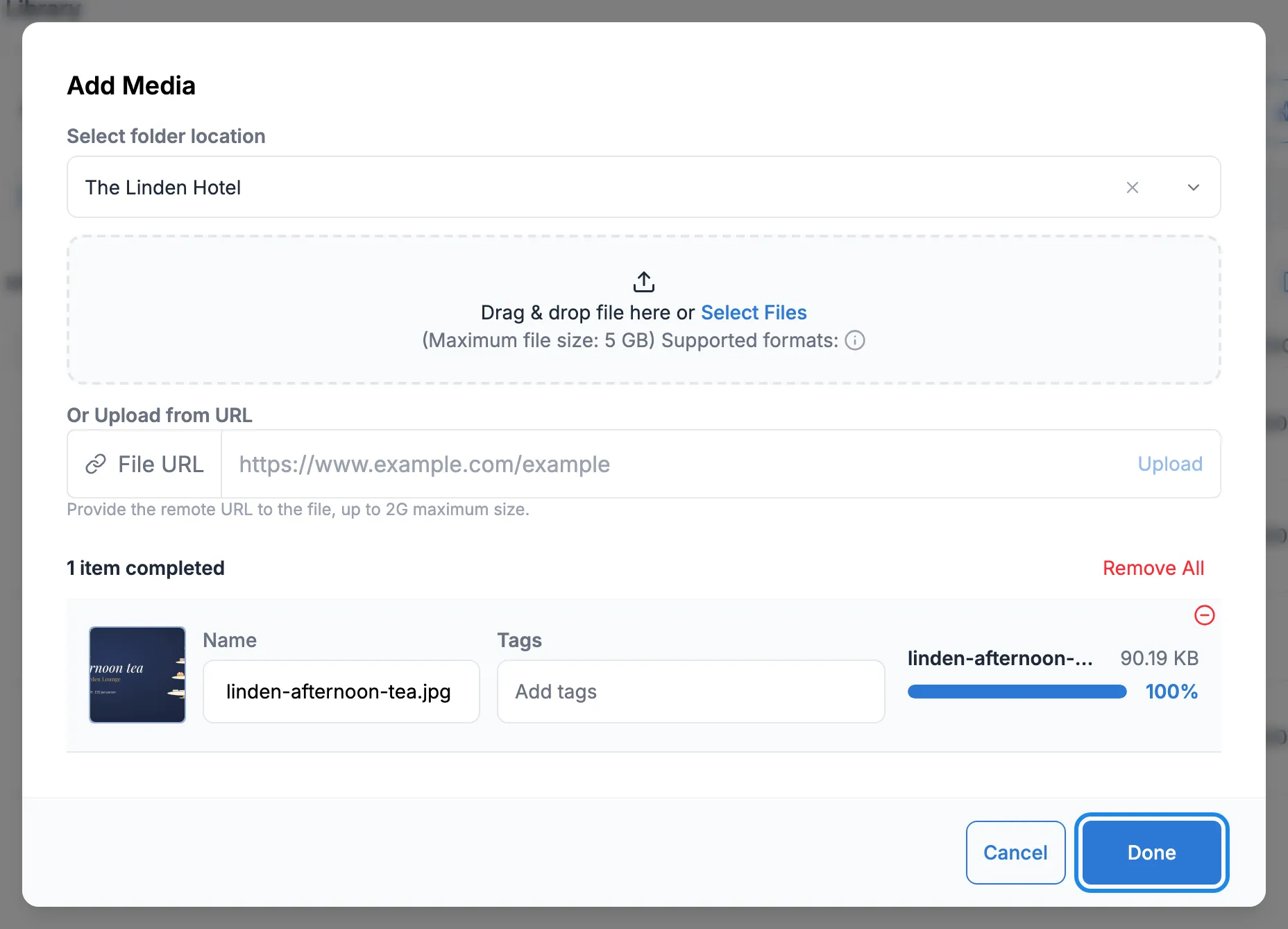
In Select folder location, pick the venue’s folder. Drag your picture into the dotted box, or click Select Files and choose it.
-
Wait for the progress bar to reach 100% and the message to say the item is completed, then click Done.
More on the library: Upload media to the library.
2. Make a layout
Section titled “2. Make a layout”-
Click Design in the menu, then Layouts. Click Add Layout. The layout editor opens with a new, empty layout called Untitled followed by today’s date and time.
-
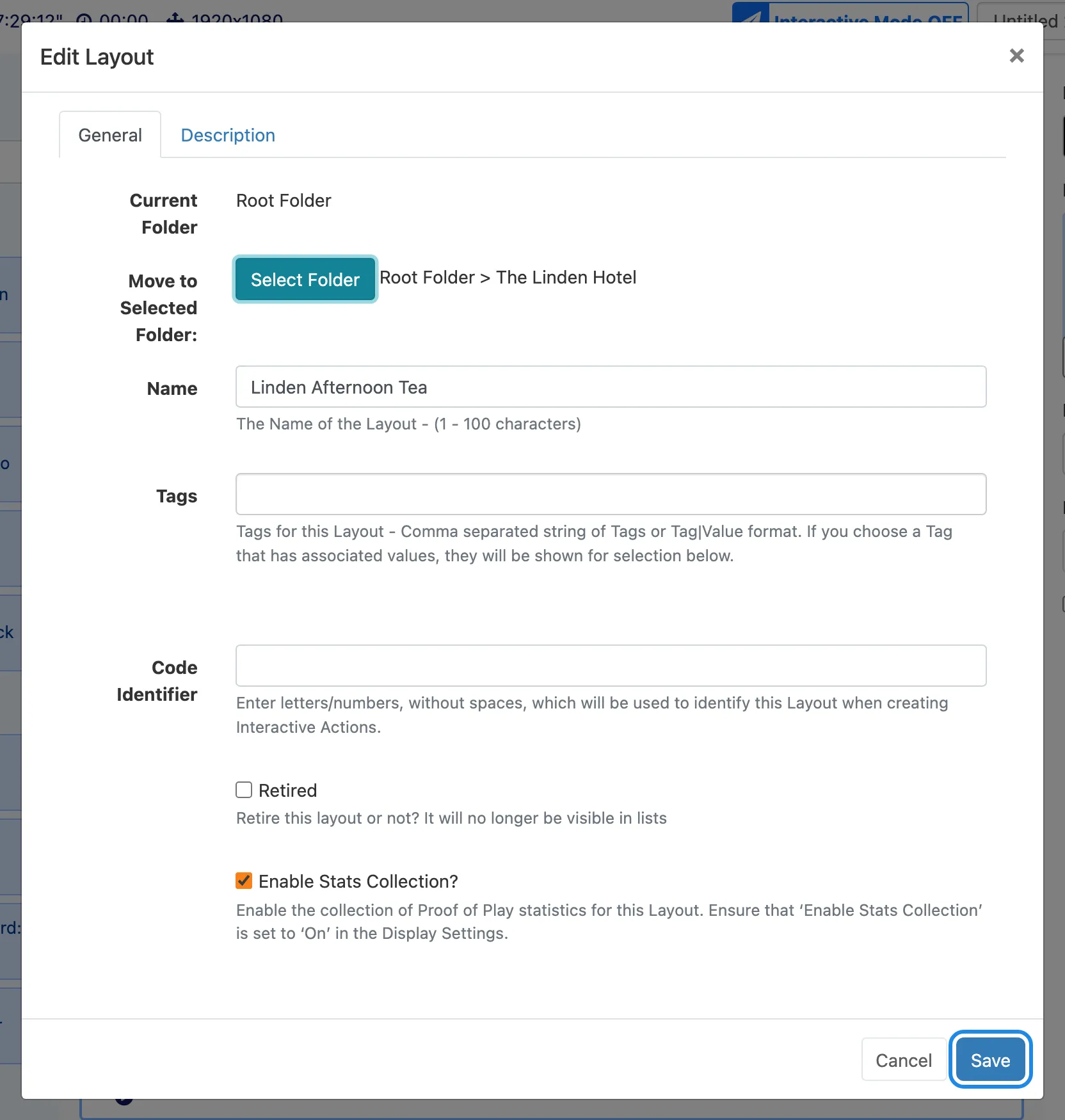
Click the layout’s name at the top of the editor. In Edit Layout, type a Name you’ll recognise later. Click Select Folder, pick the venue’s folder and click Done. Click Save.
-
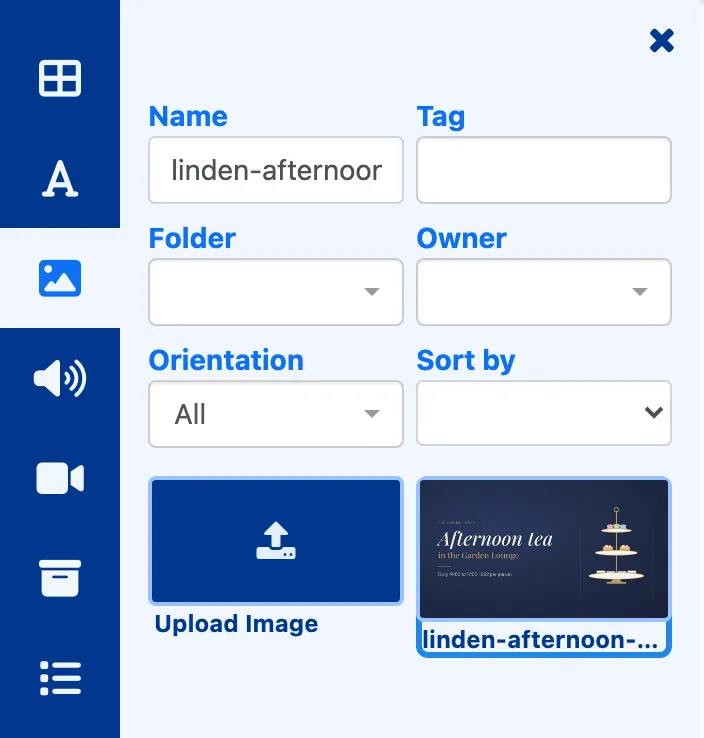
In the strip of icons on the left, click the picture icon. Type part of your file’s name in Name to find it.
-
Drag the picture onto the black canvas in the middle. It lands as a small box and the panel on the right shows its settings.
-
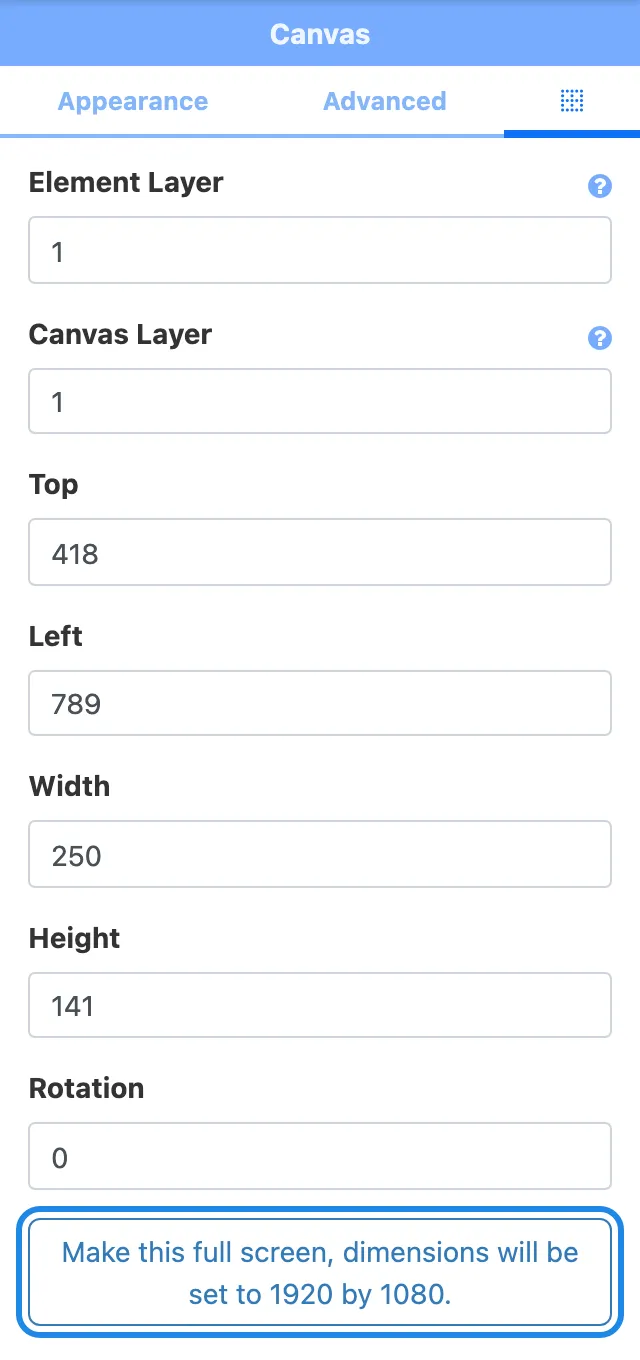
With the picture still selected, click the last tab at the top of the right-hand panel (the small grid icon after Advanced). Click Make this full screen, dimensions will be set to 1920 by 1080.
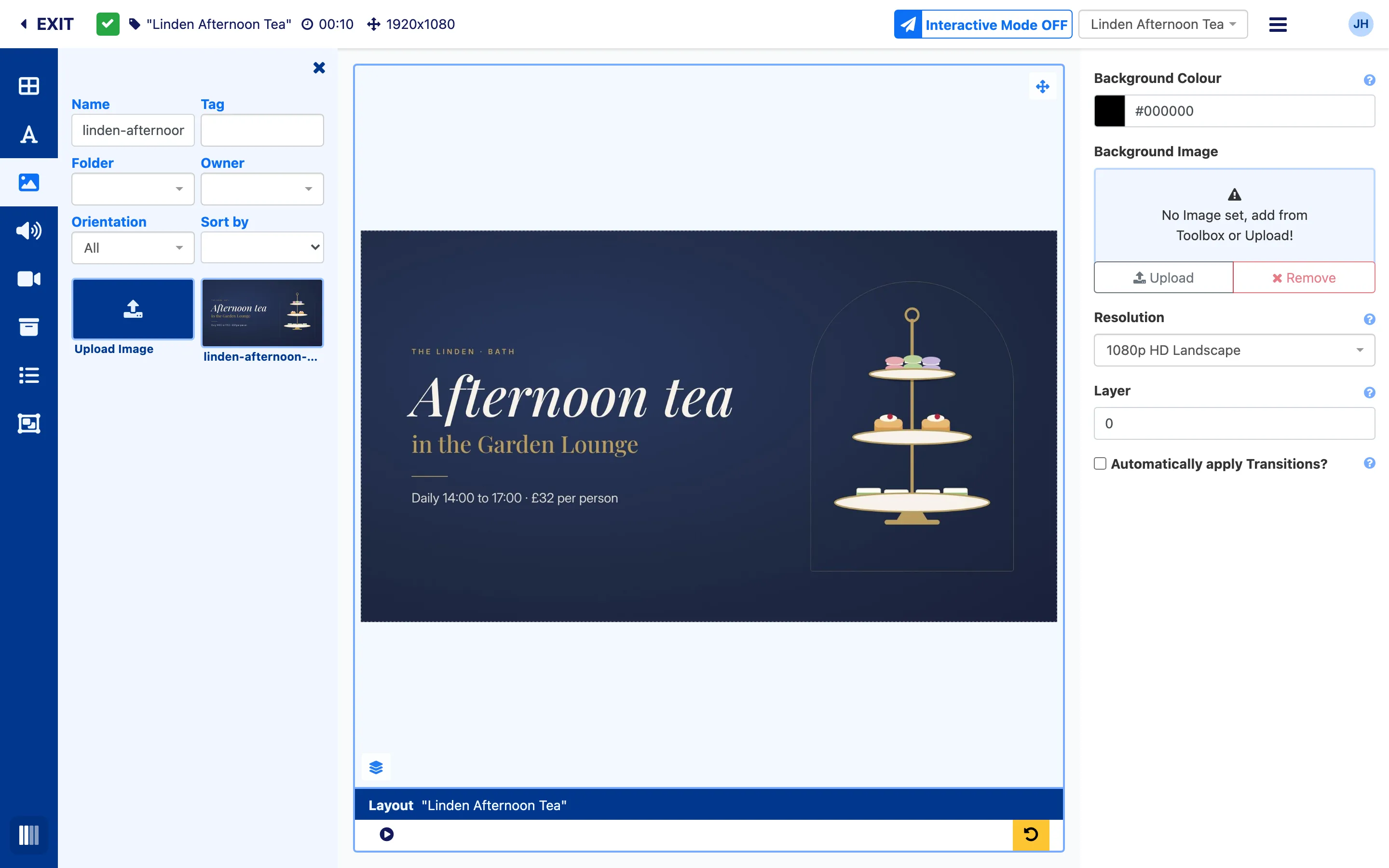
The picture now fills the canvas. The bar under the canvas shows the layout’s name, and the play button there previews it.
The editor saves each change as you make it. More on designing: Design a layout.
3. Publish the layout
Section titled “3. Publish the layout”A new or changed layout is a draft until you publish it. Screens only play published layouts.
-
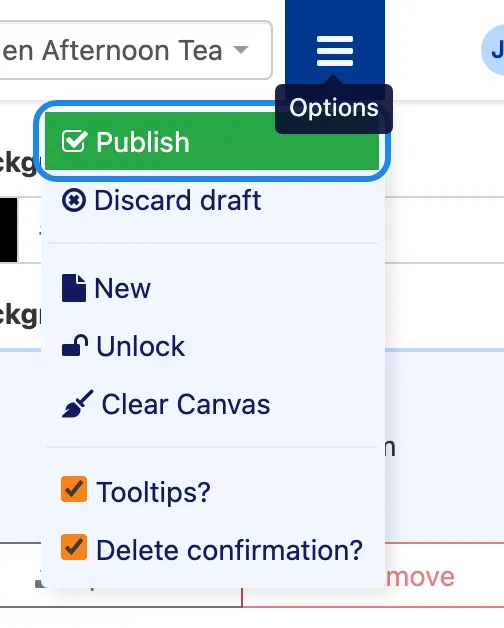
Click the menu icon (three lines) in the top right of the editor, then Publish.
-
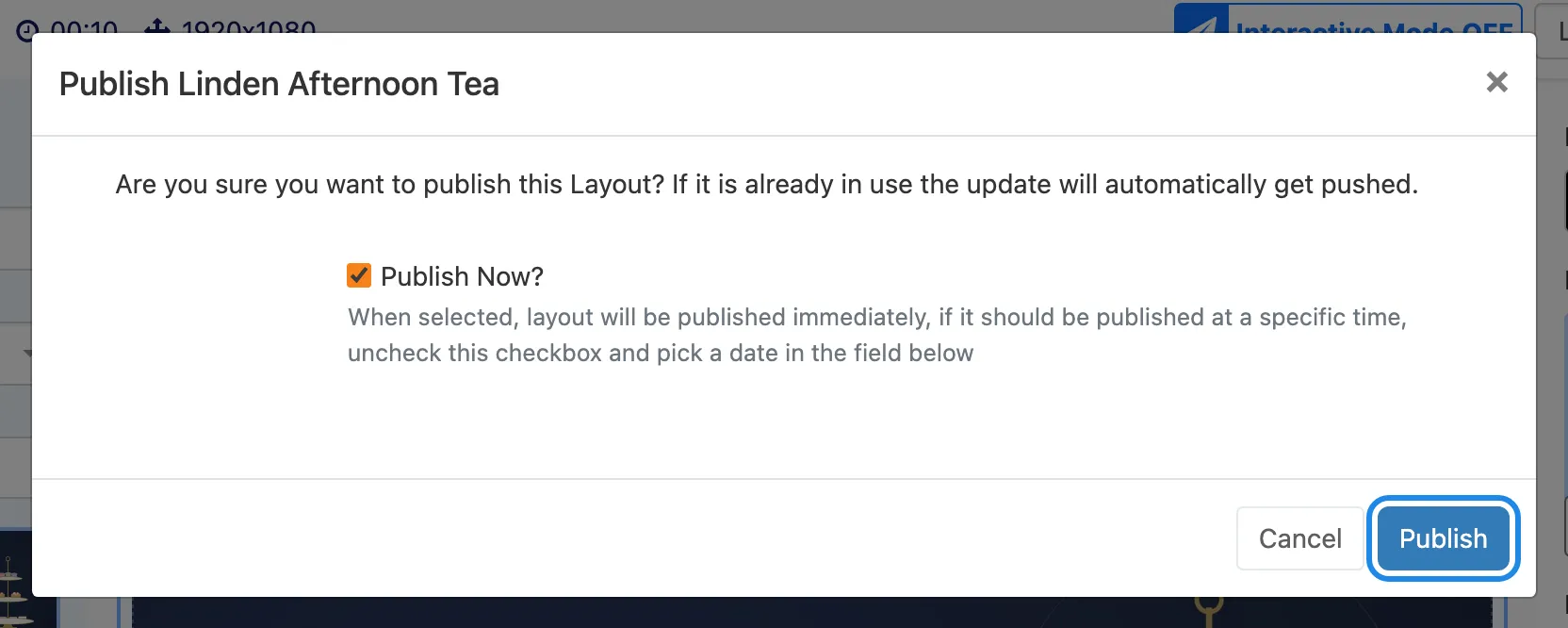
Leave Publish Now? ticked and click Publish.
-
Click Exit in the top left to leave the editor.
4. Schedule it on a screen
Section titled “4. Schedule it on a screen”-
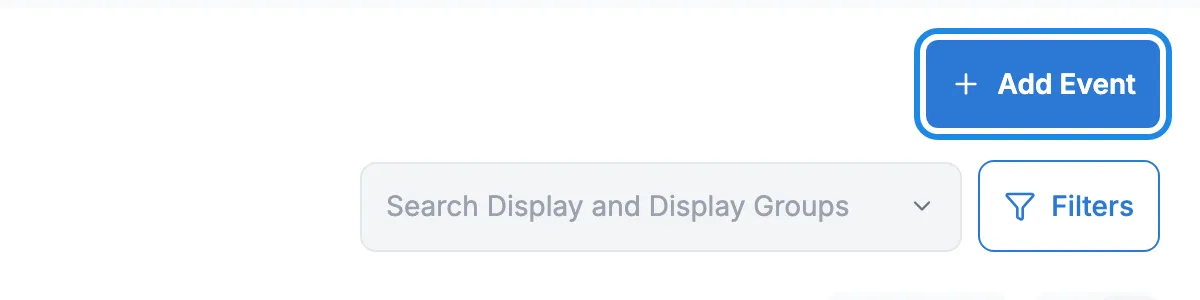
Click Schedule in the menu, then Events. Click Add Event.
-
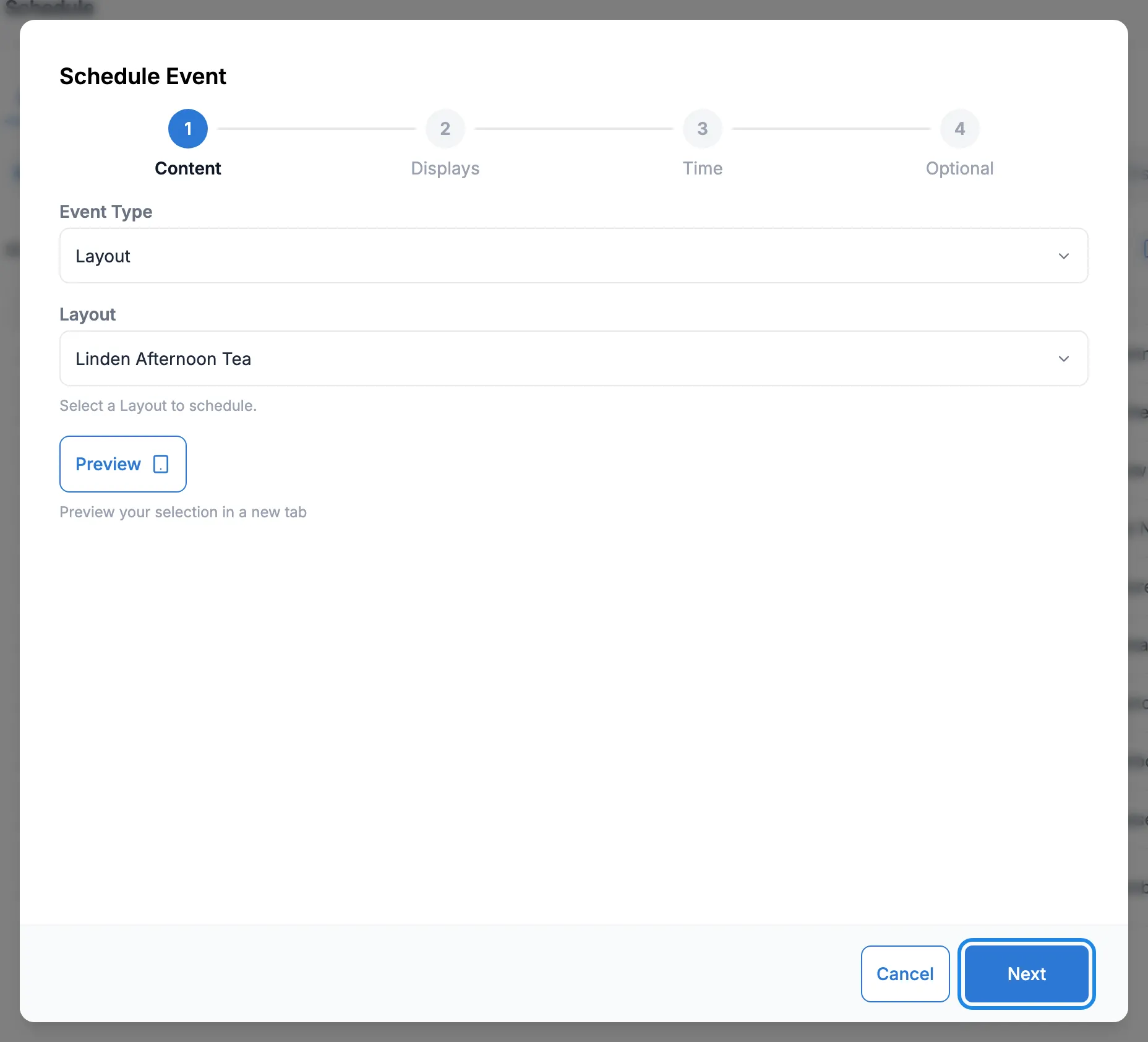
Leave Event Type set to Layout. Click the Layout box, type part of your layout’s name and pick it. Click Next.
-
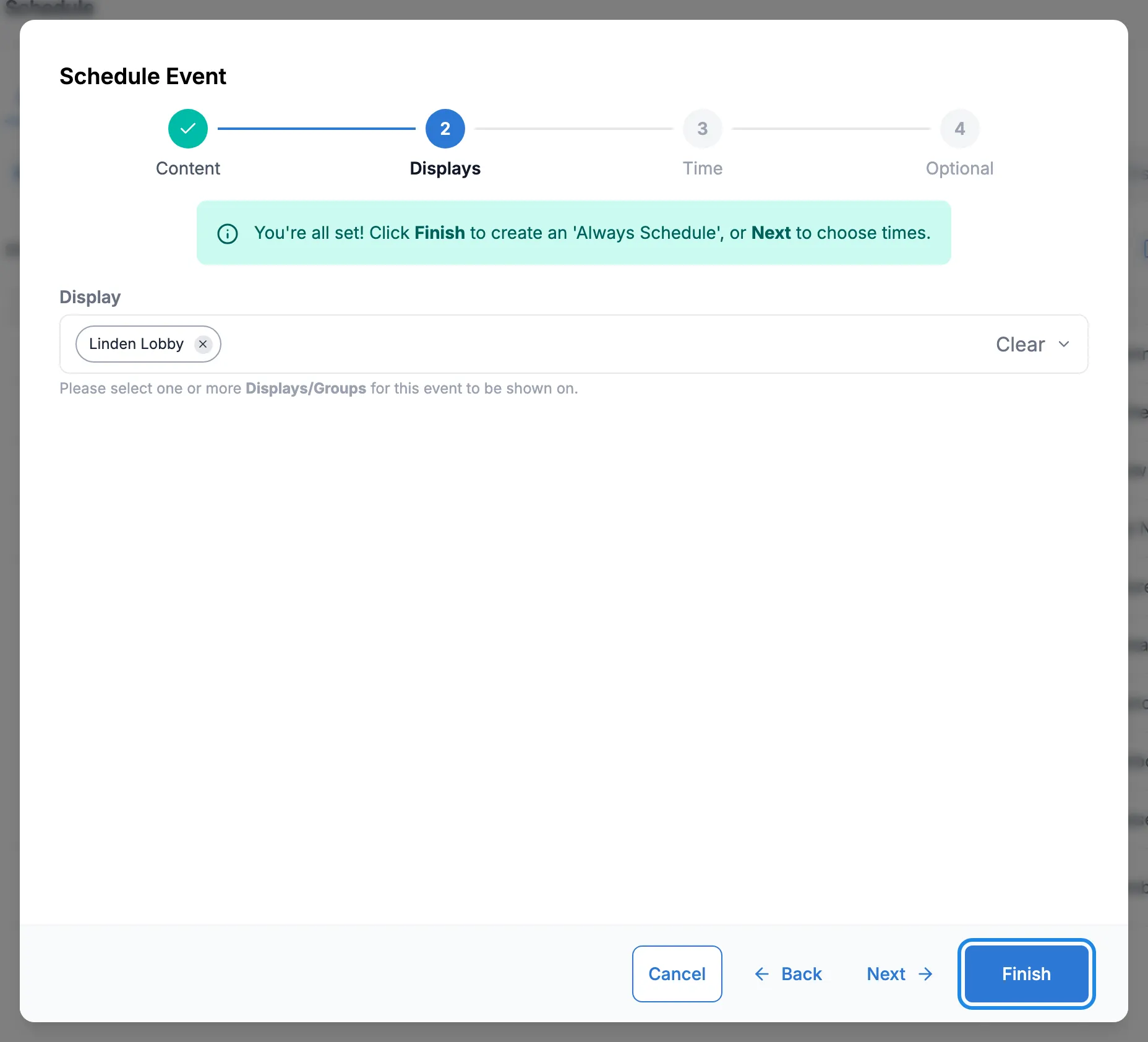
Click Search Display and Display Groups, type part of the screen’s name and tick it. Click the word Display above the box to close the list.
-
Click Finish. This creates an event that plays all the time on that screen. To play it only at certain times, click Next instead and set the times (see Schedule content on your screens).
5. Check the screen picked it up
Section titled “5. Check the screen picked it up”The screen doesn’t change the instant you click Finish. It picks up the new event the next time it checks in with the CMS.
-
Click Displays in the menu, then Displays. Type the screen’s name in the search box.
-
Look at Current Layout. When the screen has checked in and started playing your layout, its name appears there.

-
To see the screen for yourself, click the picture in the Thumbnail column. If you’d like a fresh one, open the row’s menu (the three dots) and click Request Screenshot.