

Send a command to a screen
Screens check in with the CMS on their own at regular intervals. Sometimes you don’t want to wait: you’ve fixed a price and want it on screen now, or you want to see what a screen is showing this minute. This page covers the requests you can send from the Displays page.
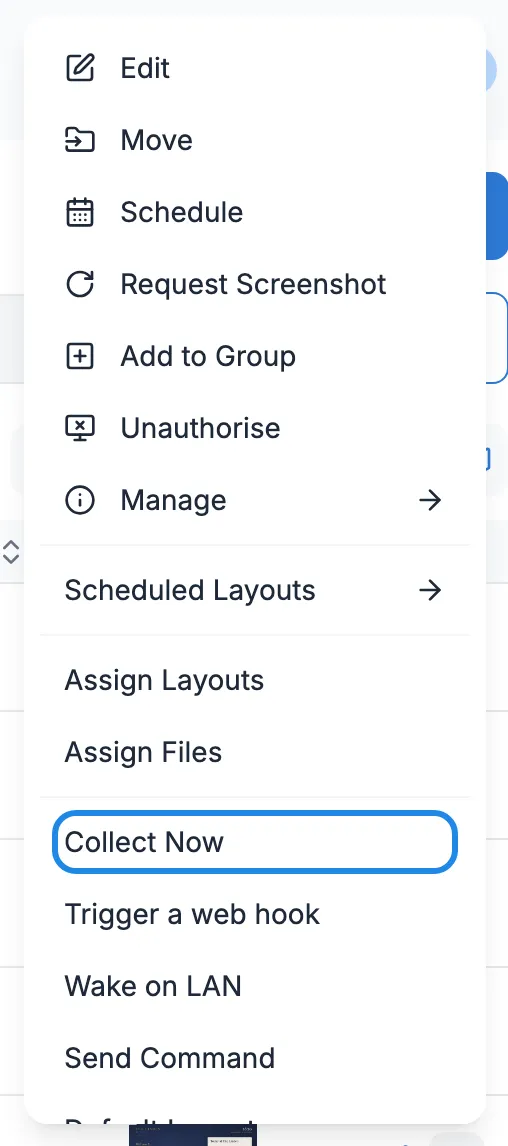
All of them start from the screen’s menu: click Displays in the menu on the left, then Displays, and click the three dots at the end of the screen’s row.
Check in now (Collect Now)
Section titled “Check in now (Collect Now)”Collect Now asks the player to check in with the CMS straight away. It picks up any changes to its schedule and downloads anything new, instead of waiting for its next regular check-in.
-
In the screen’s menu, click Collect Now.
-
Click Collect Now in the window that opens.
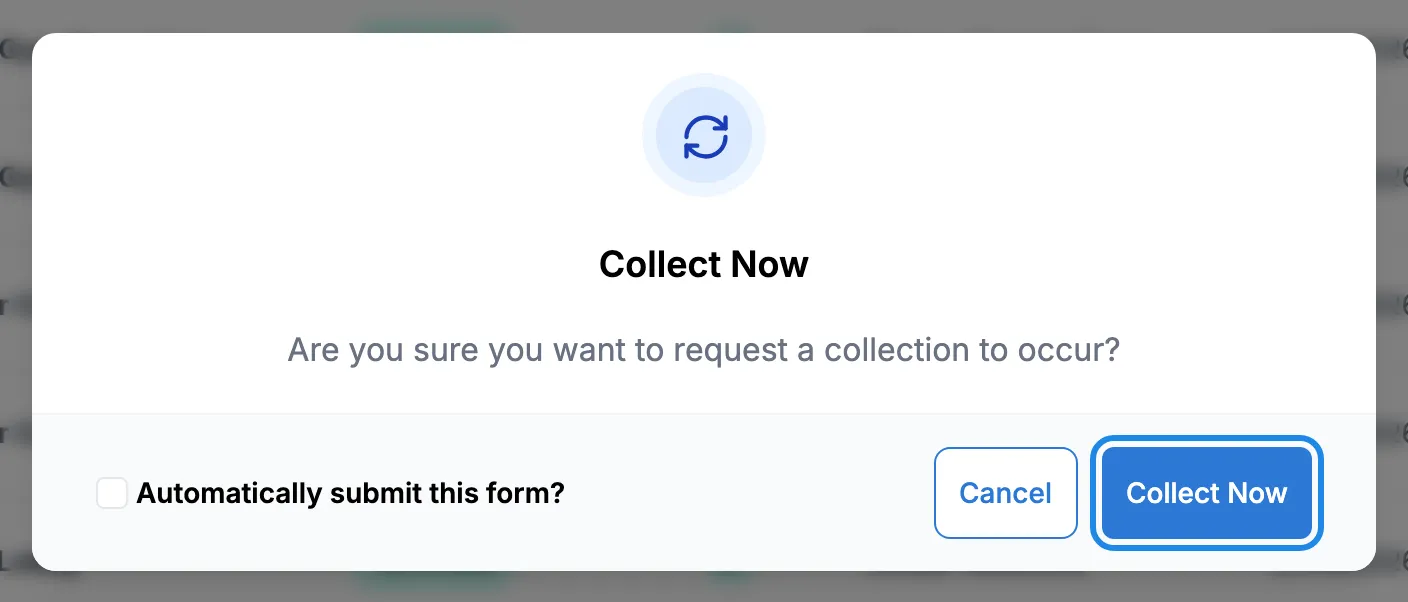
To do this for every screen in a venue at once, go to Display Groups, click the three dots on the group’s row and click Collect Now there.
If the window says the screen is not ready to receive push commands, the request couldn’t be sent straight away. The screen still picks up your changes at its next regular check-in. If you see this message for a screen that shows as logged in, email hello@casty.co.uk and we’ll look at its connection.
Take a screenshot
Section titled “Take a screenshot”-
In the screen’s menu, click Request Screenshot.
-
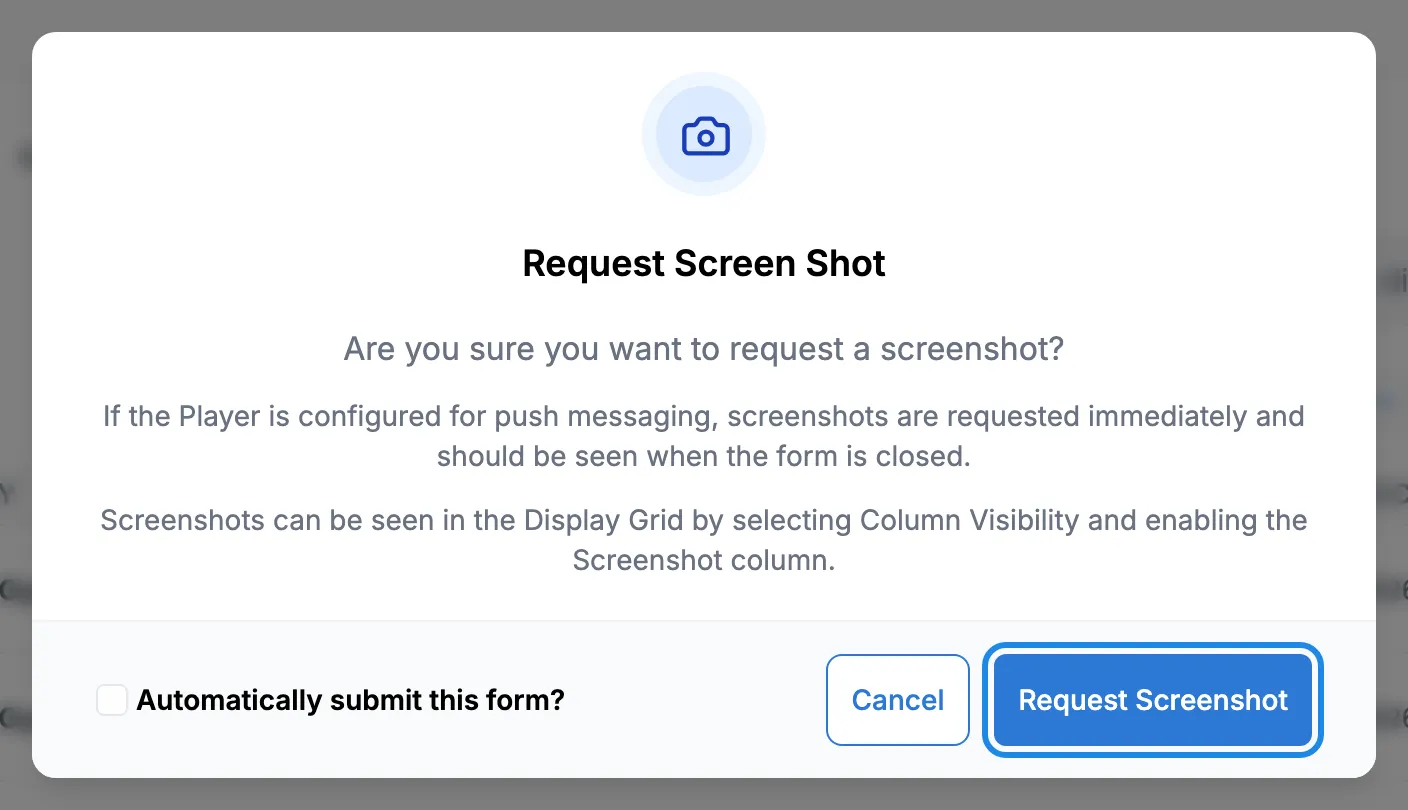
Click Request Screenshot in the window that opens.
-
Wait a moment, then click Refresh above the list. The new screenshot appears in the Thumbnail column. Click it to see it full size (see Check on your screens).
If the screen can’t take instant requests, the window says the screenshot will be taken the next time the player checks in. It then appears after that check-in.
You can also request a screenshot from the full-size viewer: click a thumbnail, then Request Screenshot at the top.
Send a command
Section titled “Send a command”Send Command in the screen’s menu sends one of the commands set up for your screens, such as rebooting the player. Pick it from the Command list and click Send.
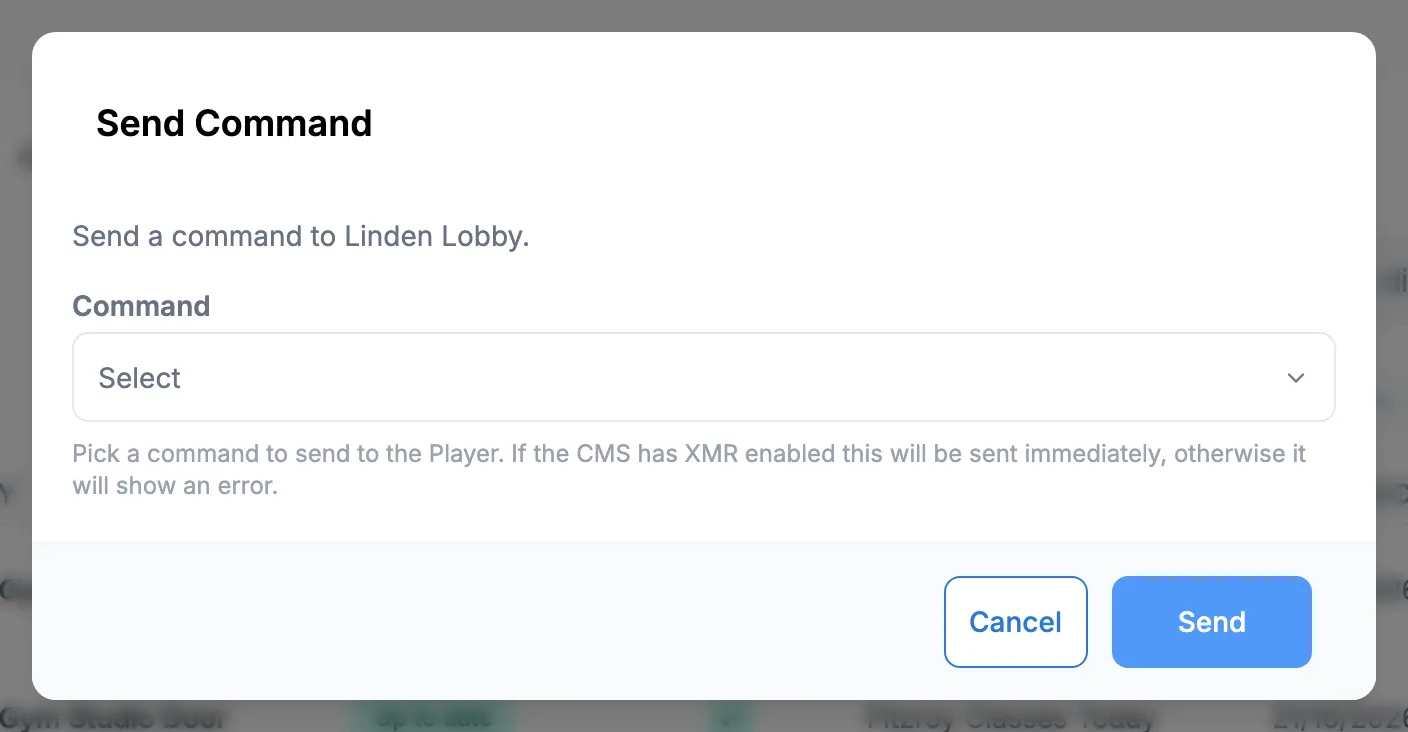
Commands depend on the player and the hardware (see Choosing a player). If the list is empty, no commands are set up for your account yet. Email hello@casty.co.uk if you’d like to be able to reboot a screen or switch it on and off from the CMS.
The rest of the menu
Section titled “The rest of the menu”Wake on LAN and Trigger a web hook are for special set-ups that we configure with you. Unauthorise, Delete and Transfer to another CMS take a screen off your account or stop it playing, so email us before using them.