

Check on your screens
The Displays page tells you how every screen is doing without leaving your desk. This page explains what each column means, how to look at a screenshot from a screen, and how to spot a screen that has stopped checking in.
The Displays list
Section titled “The Displays list”Click Displays in the menu on the left, then Displays. Each row is one screen.
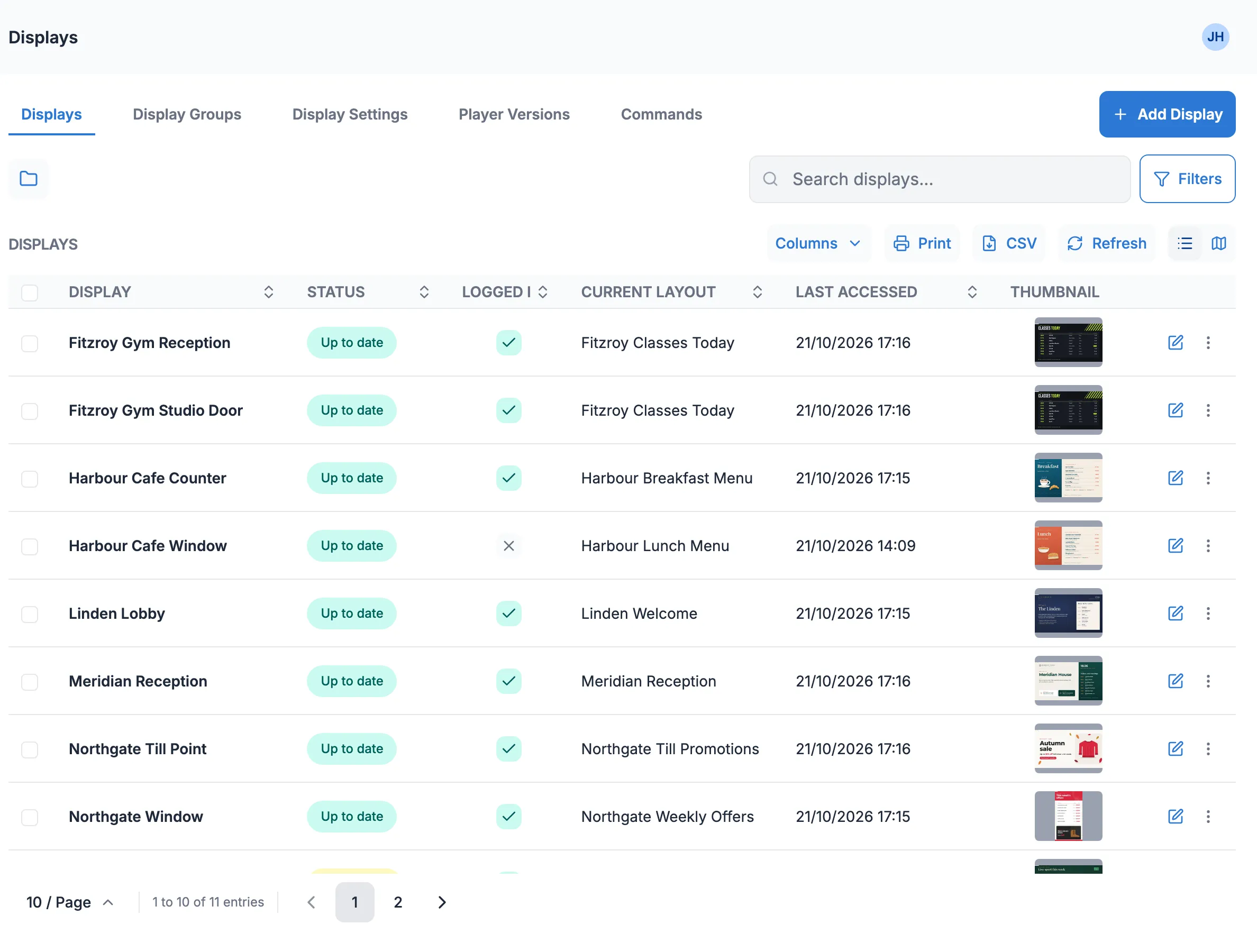
These are the columns you see to begin with:
| Column | What it tells you |
|---|---|
| ID | The screen’s number in the CMS. Useful when you email us. |
| Display | The screen’s name. |
| Status | Whether the player has everything it needs. Up to date (green) means it has downloaded all the files for what’s scheduled. Downloading means it’s still fetching them. Out of date (yellow) means it doesn’t have everything for its latest content yet, for example because you’ve changed what’s scheduled since it last checked in. |
| Player Type | The kind of player, such as Android, Windows, Tizen or webOS. |
| IP Address | The network address the player last checked in from. |
| Logged In | A tick means the player is checking in with the CMS as expected. A cross means it hasn’t checked in for a while. This is the column to watch. |
| Current Layout | The layout the screen said it was playing at its last check-in. |
| Last Accessed | The date and time of the screen’s last check-in. |
| Thumbnail | The most recent screenshot from the screen. Click it to see it full size. |
The picture above has ID, Player Type and IP Address hidden to save space.
Choose which columns to show
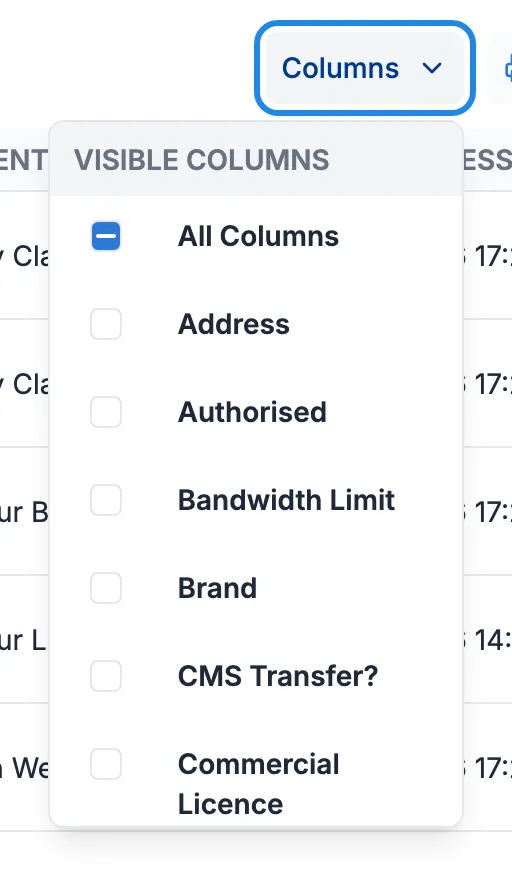
Section titled “Choose which columns to show”Click Columns above the list and tick the columns you want. There are many more, such as Orientation, Resolution, Timezone, Tags, Default Layout and the player’s Version. All Columns turns them all on or off.
Refresh reloads the list. CSV downloads it as a spreadsheet and Print prints it.
See what a screen is showing
Section titled “See what a screen is showing”-
Click the screen’s picture in the Thumbnail column.

-
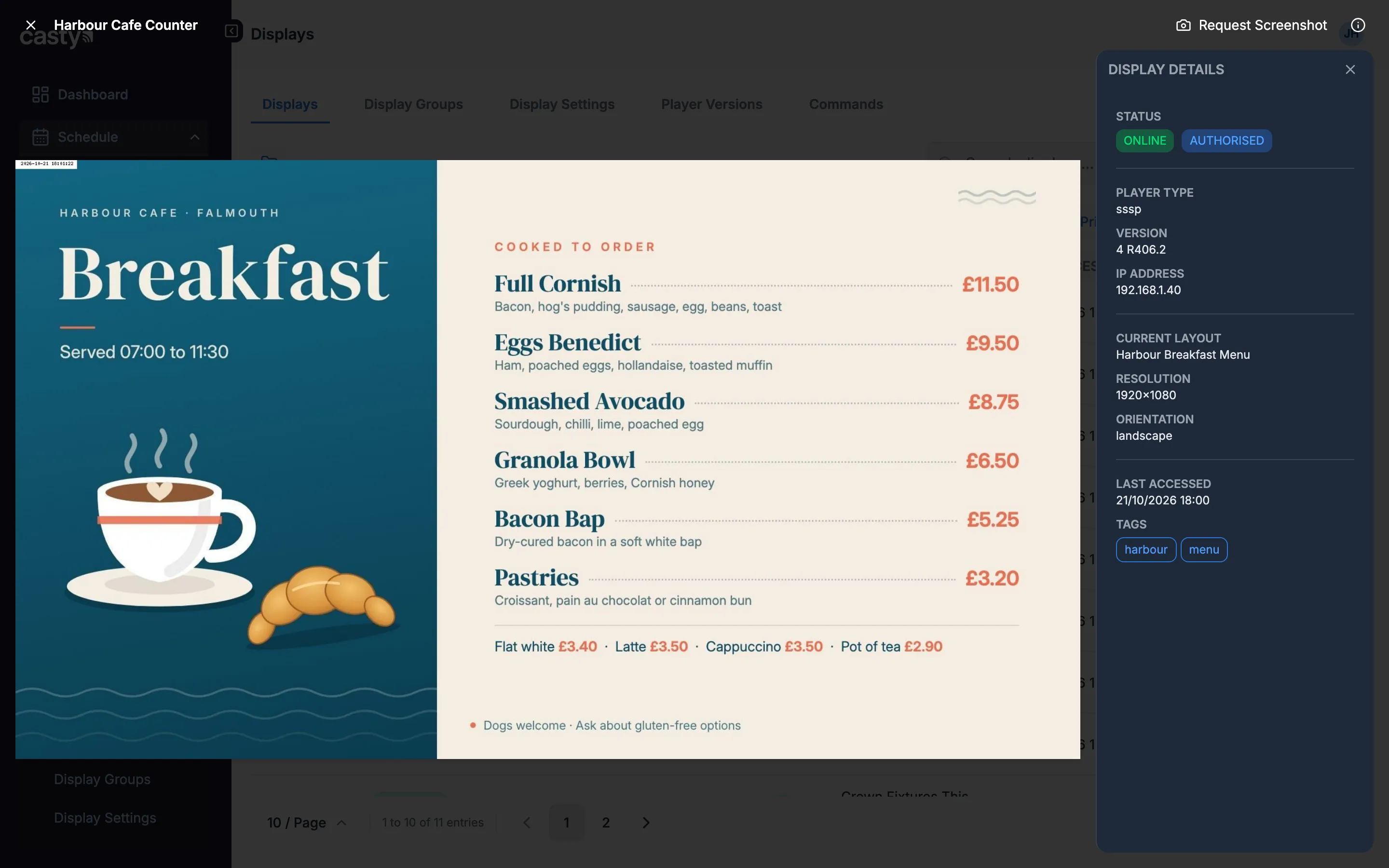
The screenshot opens full size. The small date and time in its top left corner show when it was taken. The small i icon in the top right opens Display Details: whether the screen is online, its player, current layout, resolution, orientation, last check-in and tags.
-
For a fresh screenshot, click Request Screenshot at the top. The new one appears once the player has sent it. See Send a command to a screen.
-
Click the cross in the top left to close the viewer.
Find screens that are offline
Section titled “Find screens that are offline”Click Filters above the list. Set Logged In to No. The list now shows only the screens that aren’t checking in. Click Reset to clear the filter.
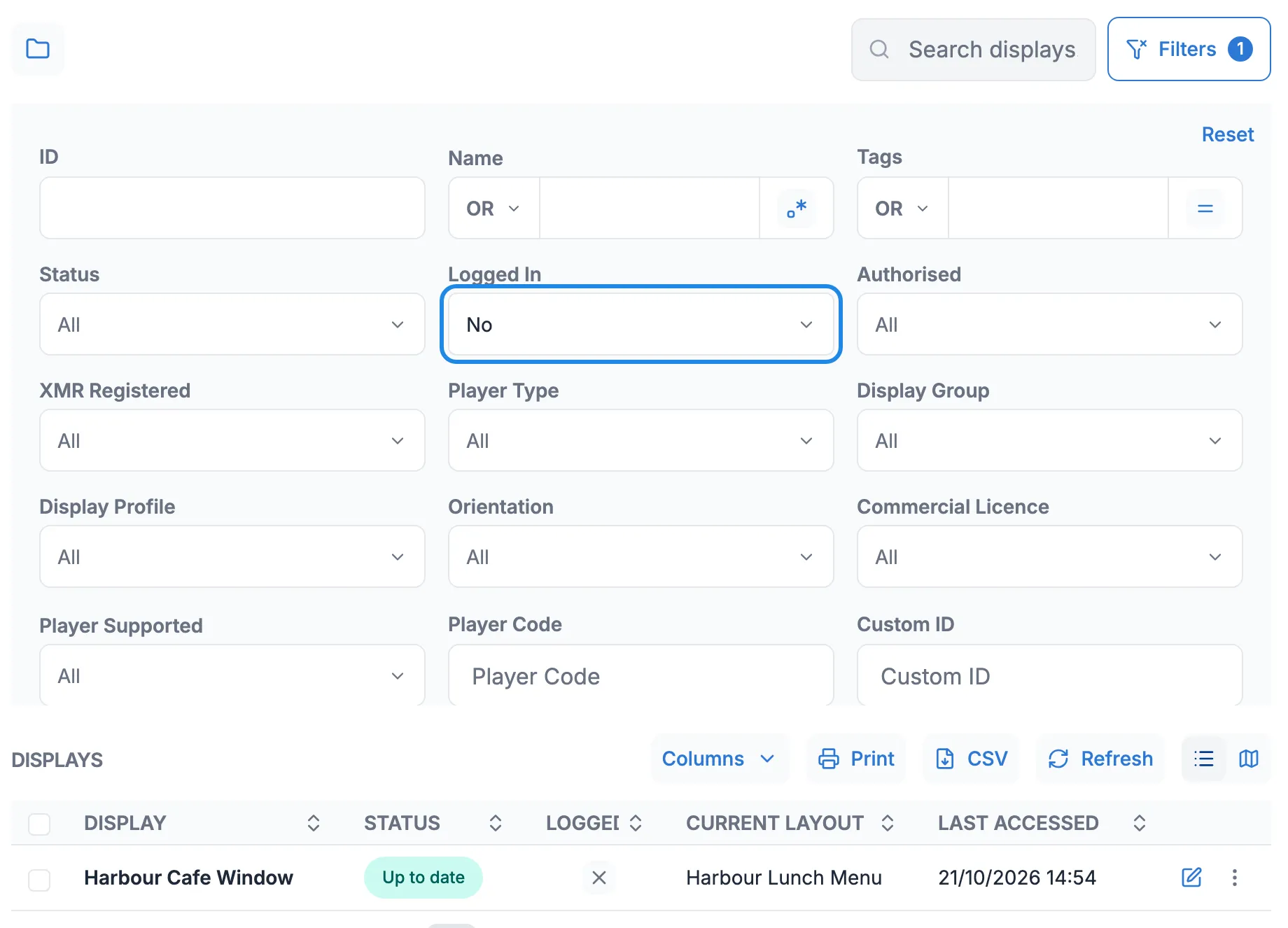
The other filters work the same way. Status finds screens that are out of date or still downloading, and Display Group shows the screens in one group.
If a screen is offline, see A screen shows as offline.
See your screens on a map
Section titled “See your screens on a map”Click the map icon to the right of Refresh to switch to the map view. Each screen with a location appears as a pin, coloured by its status. The key in the corner explains the colours. Where several screens are close together they show as a numbered circle. Zoom in to split them up. Click the list icon to go back.
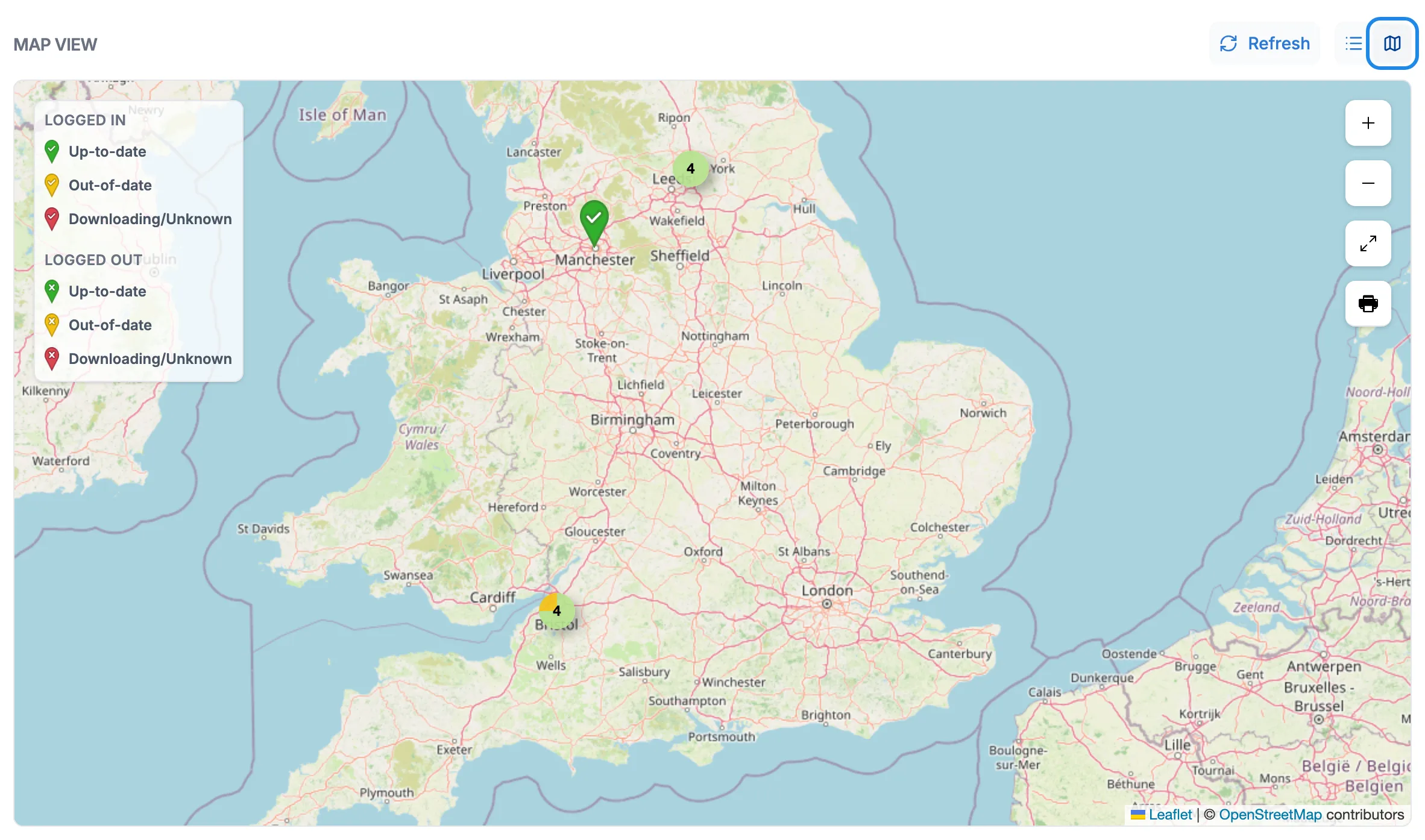
A screen only appears on the map if it has a latitude and longitude. See Change a screen’s settings.
More detail for one screen
Section titled “More detail for one screen”Click the three dots on a screen’s row and then Manage. This shows the files the screen has, any faults the player has reported, and how much data it has downloaded. It’s most useful when we’re helping you with a problem.