

Log in and find your way around
This page shows you how to log in to Casty and what each part of the menu is for. It’s worth five minutes on your first day.
Before you start
Section titled “Before you start”You need the username and password we sent you when we set up your account. If you don’t have them, or you need a login for someone else on your team, email hello@casty.co.uk.
Log in
Section titled “Log in”-
Go to app.casty.co.uk in your web browser.
-
Type your Username and Password, then click Login. The eye icon in the password box shows what you’ve typed, which helps if you think you’ve mistyped it.
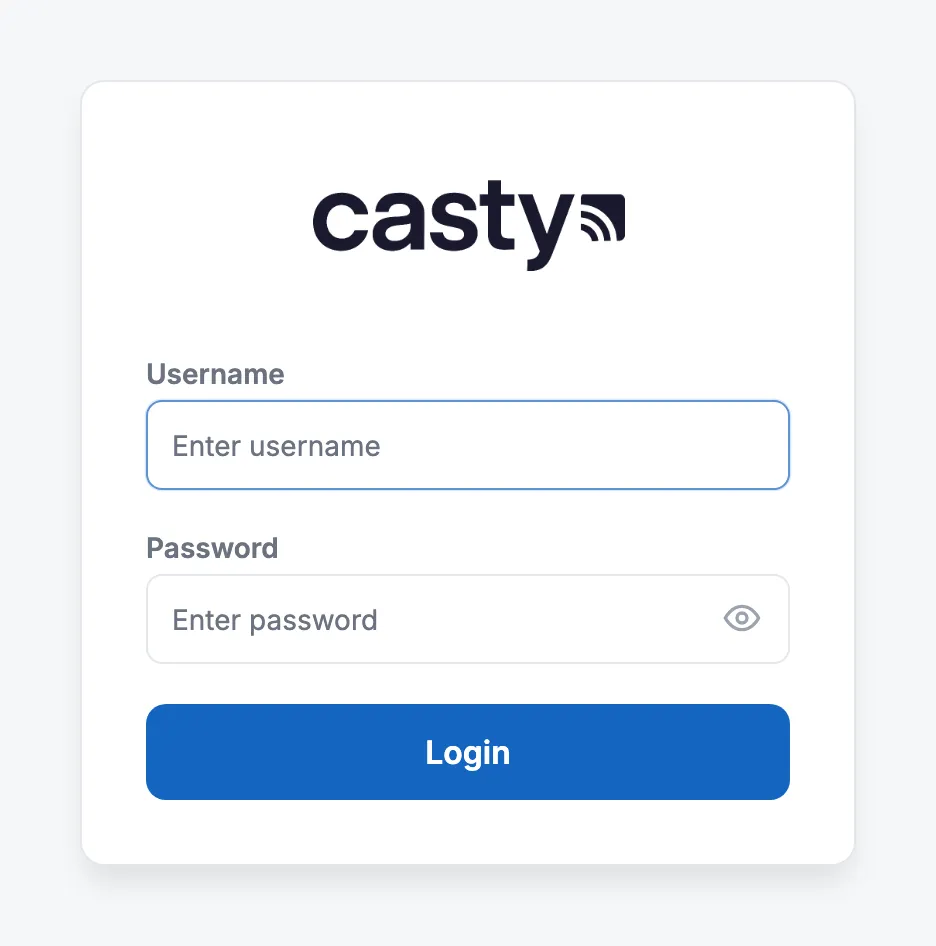
-
If you’ve turned on two-factor authentication, type the six-digit code from your authenticator app and click Verify. See Keep your account secure.
You land on the dashboard. Its tiles are shortcuts to the parts of the CMS you’ll use most: Schedule, Templates, Layouts and Library. About shows the version of the CMS.
The menu
Section titled “The menu”The menu on the left is always there. Click a heading to open it and see the pages inside. The small arrow button next to the page title shrinks the menu to a strip of icons when you want more room. Click it again to bring the full menu back.
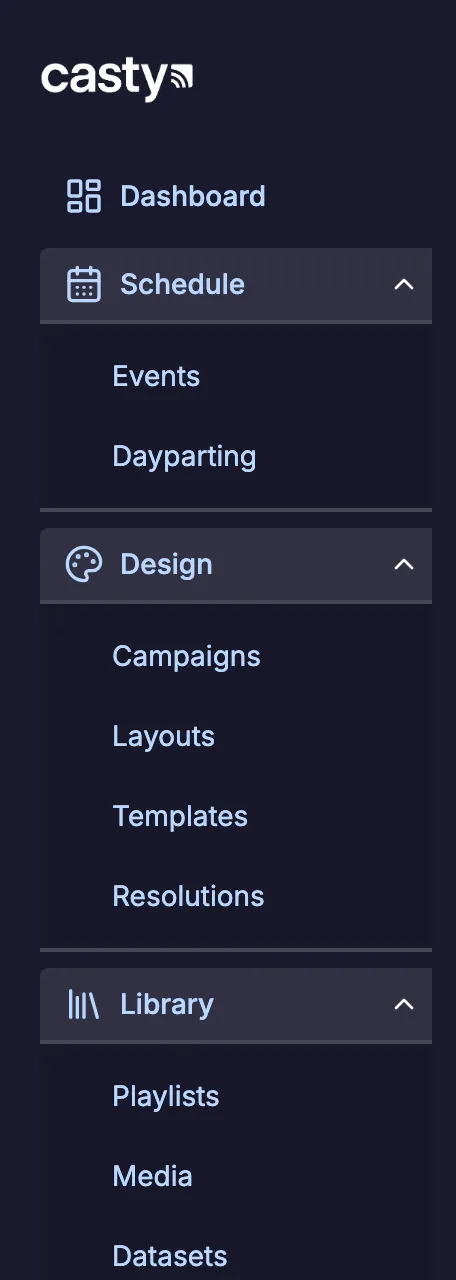
Here is what each heading is for.
| Heading | Pages | What you do there |
|---|---|---|
| Dashboard | Shortcut tiles | |
| Schedule | Events, Dayparting | Decide what plays on which screens and when. Set up named time slots such as breakfast and lunch. |
| Design | Campaigns, Layouts, Templates, Resolutions | Design your screens. Group layouts into campaigns. Start from a template. |
| Library | Playlists, Media, Datasets, Menu Boards | Upload images and video, build playlists, and keep tables of data and menus up to date. |
| Displays | Displays, Display Groups, Display Settings, Player Versions, Commands | Check your screens, name them and group them. |
| Administration | Tags | See the tags used across your account. |
| Reporting | All Reports | Run proof of play and other reports. |
| Advanced | Log | Technical logs, used for troubleshooting. |
Display Settings, Player Versions and Commands hold player settings and software. We set these up for you, so you won’t normally need them.
Your user menu
Section titled “Your user menu”Click your initials in the top right corner to open the user menu. It shows your name, your email address and the current time in your time zone.
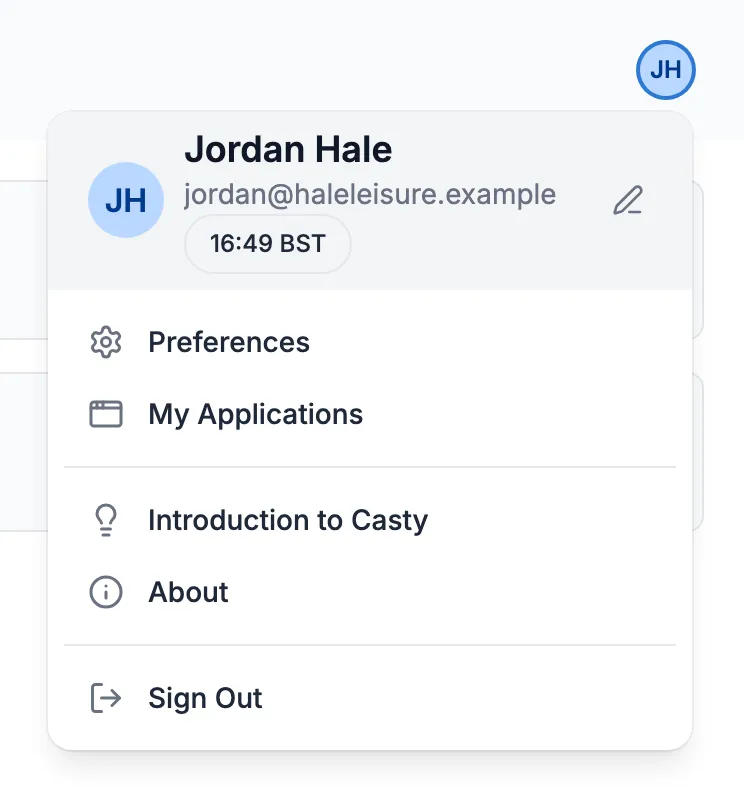
- The pencil icon next to your name opens Edit User Profile, where you change your password, your email address and two-factor authentication.
- Preferences holds a few settings for how the CMS behaves for you, such as whether the thumbnail column appears on its own when you request a screenshot from a display.
- Introduction to Casty opens a welcome page with shortcuts to the main areas.
- Sign Out logs you out. Always sign out on a computer other people use.