Run a proof of play report
Proof of play records each time a layout or media item plays on a screen and for how long. Use it to show a supplier that their promotion ran, or to check that a screen played what you scheduled.
Turn on proof of play for a layout
Section titled “Turn on proof of play for a layout”Proof of play is switched on for each layout. Turn it on before a campaign starts, because plays are only recorded while it is on.
-
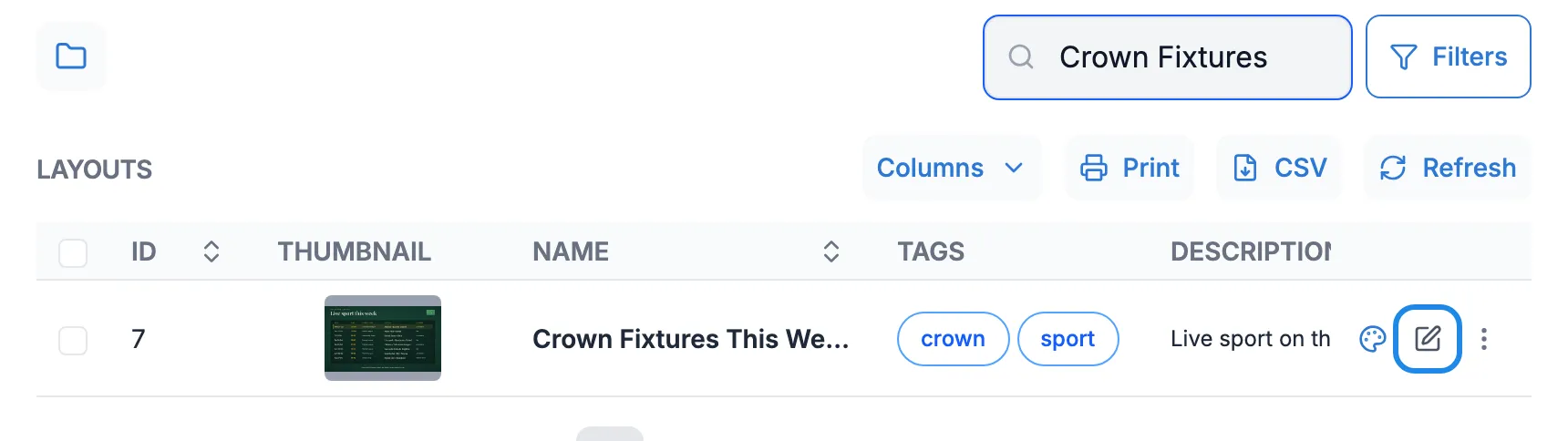
Click Design in the menu on the left, then Layouts. Click the edit icon on the layout’s row.
-
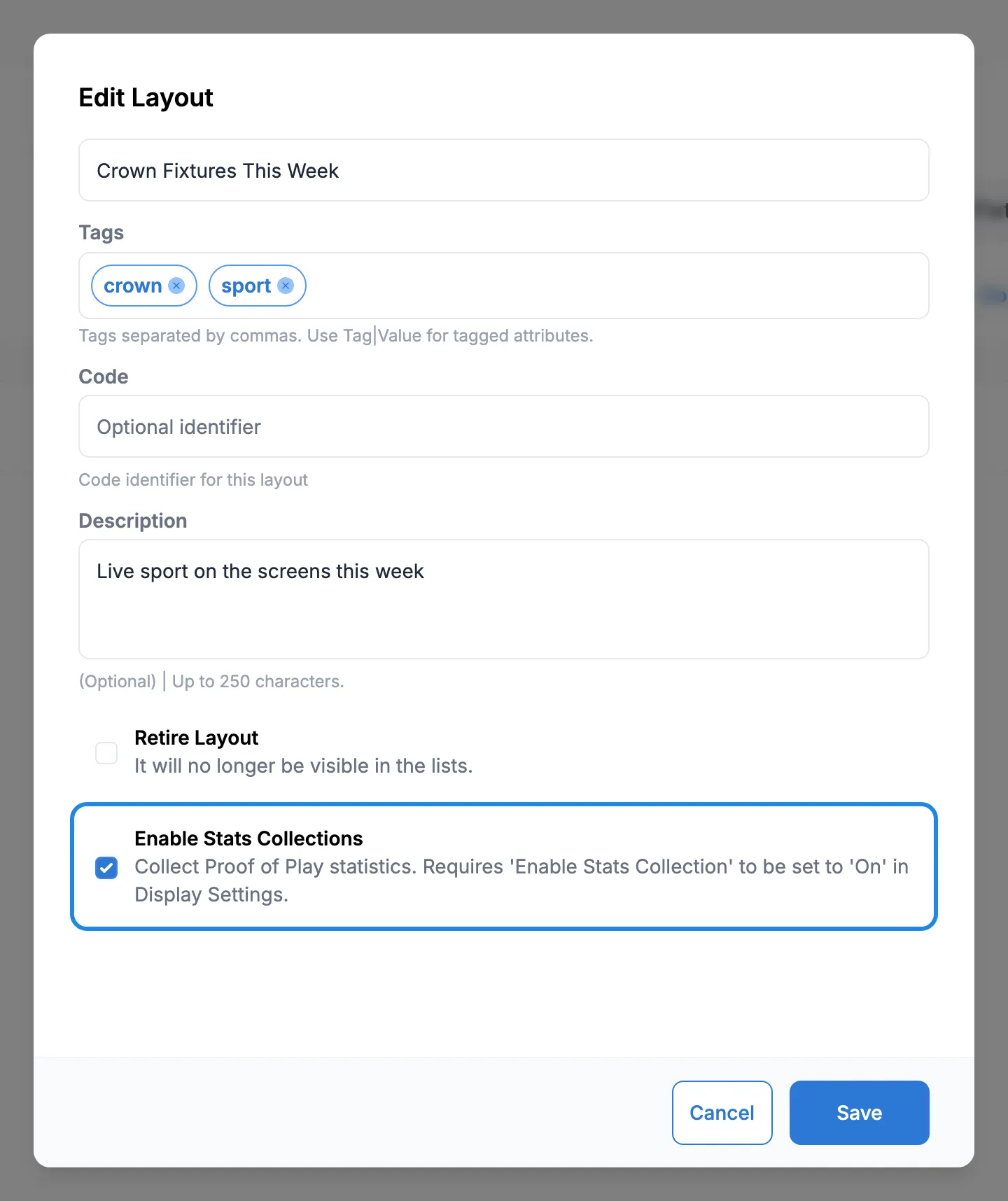
Tick Enable Stats Collections at the bottom of the Edit Layout window and click Save.
The Stats? column in the layouts list shows a tick for each layout that is recording.
Turn on proof of play for a media item
Section titled “Turn on proof of play for a media item”You can also record every play of a single image or video, wherever it appears.
-
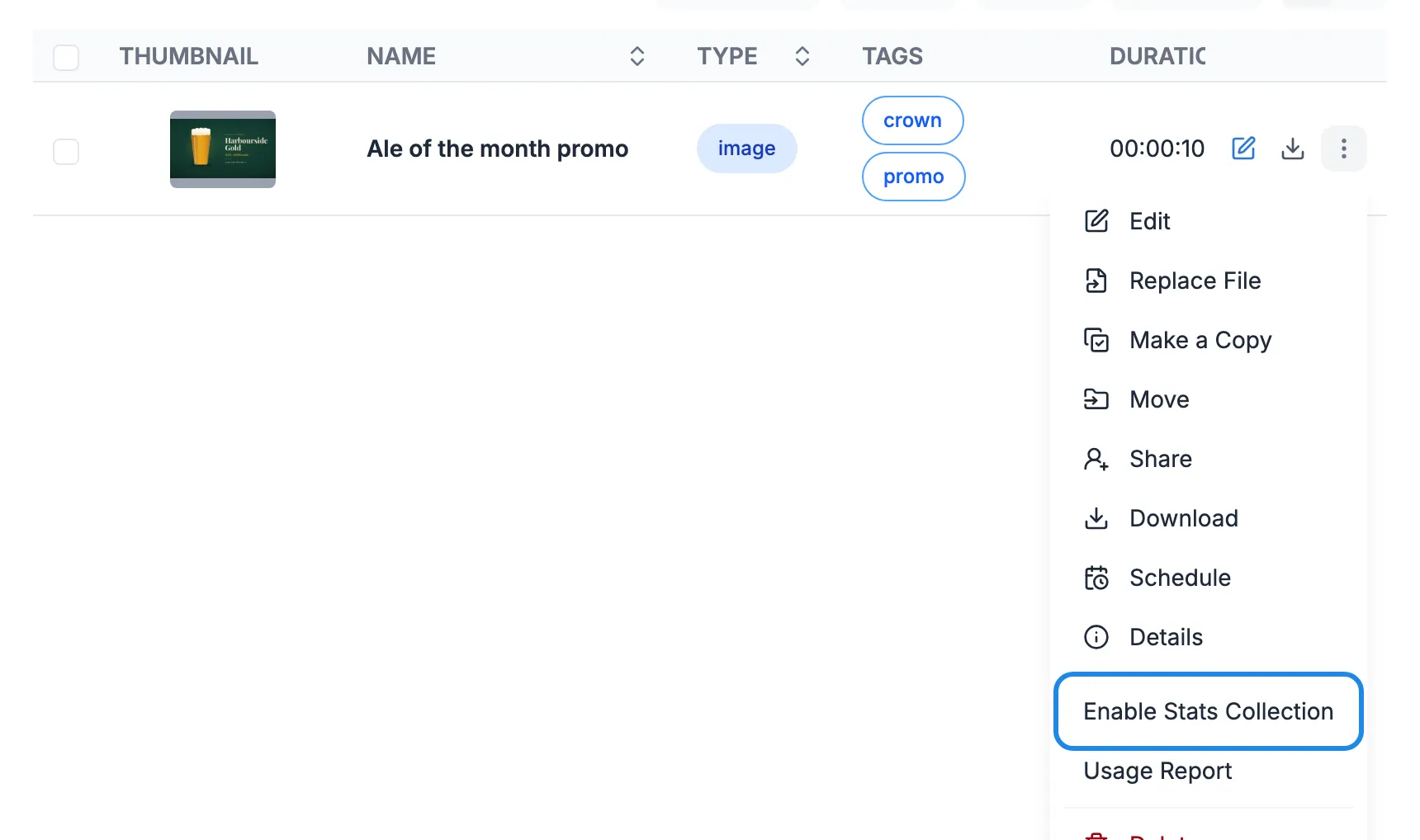
Click Library, then Media. Open the item’s menu (the three dots at the end of its row) and click Enable Stats Collection.
-
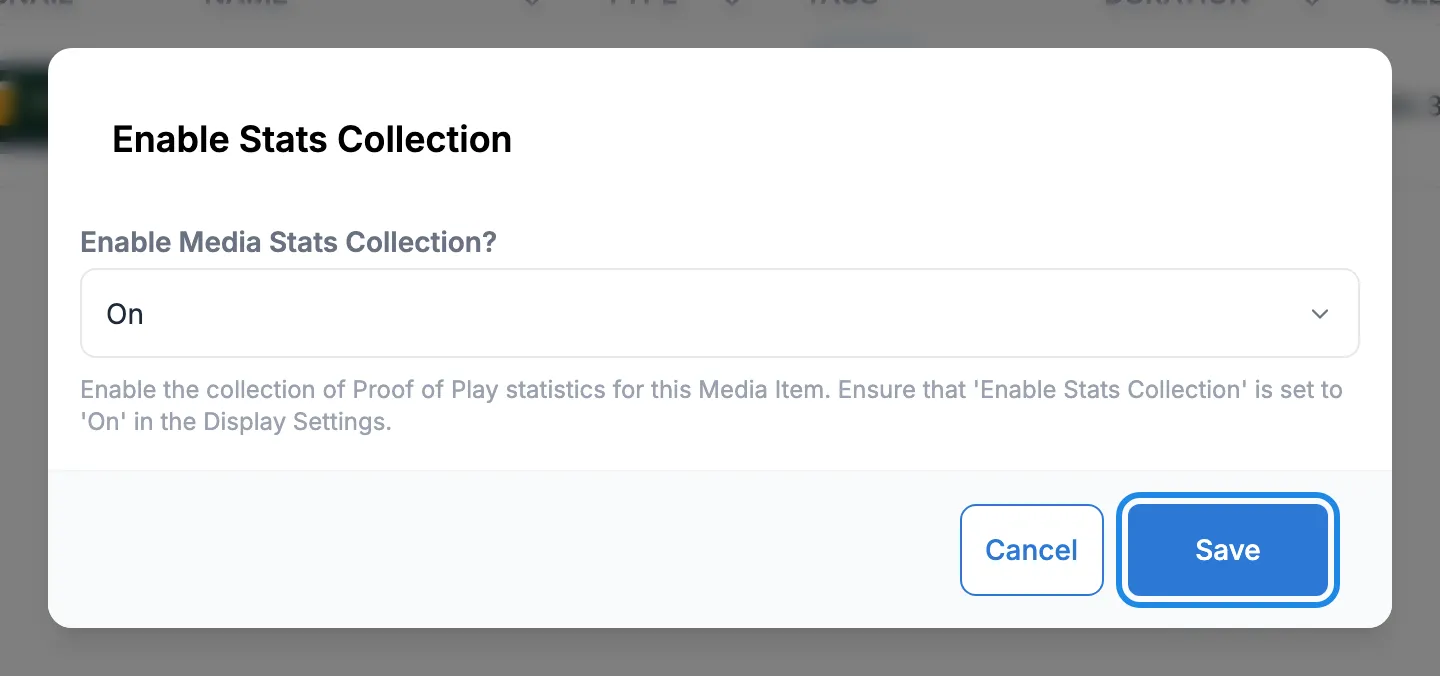
Set Enable Media Stats Collection? to On and click Save.
Run the report
Section titled “Run the report”-
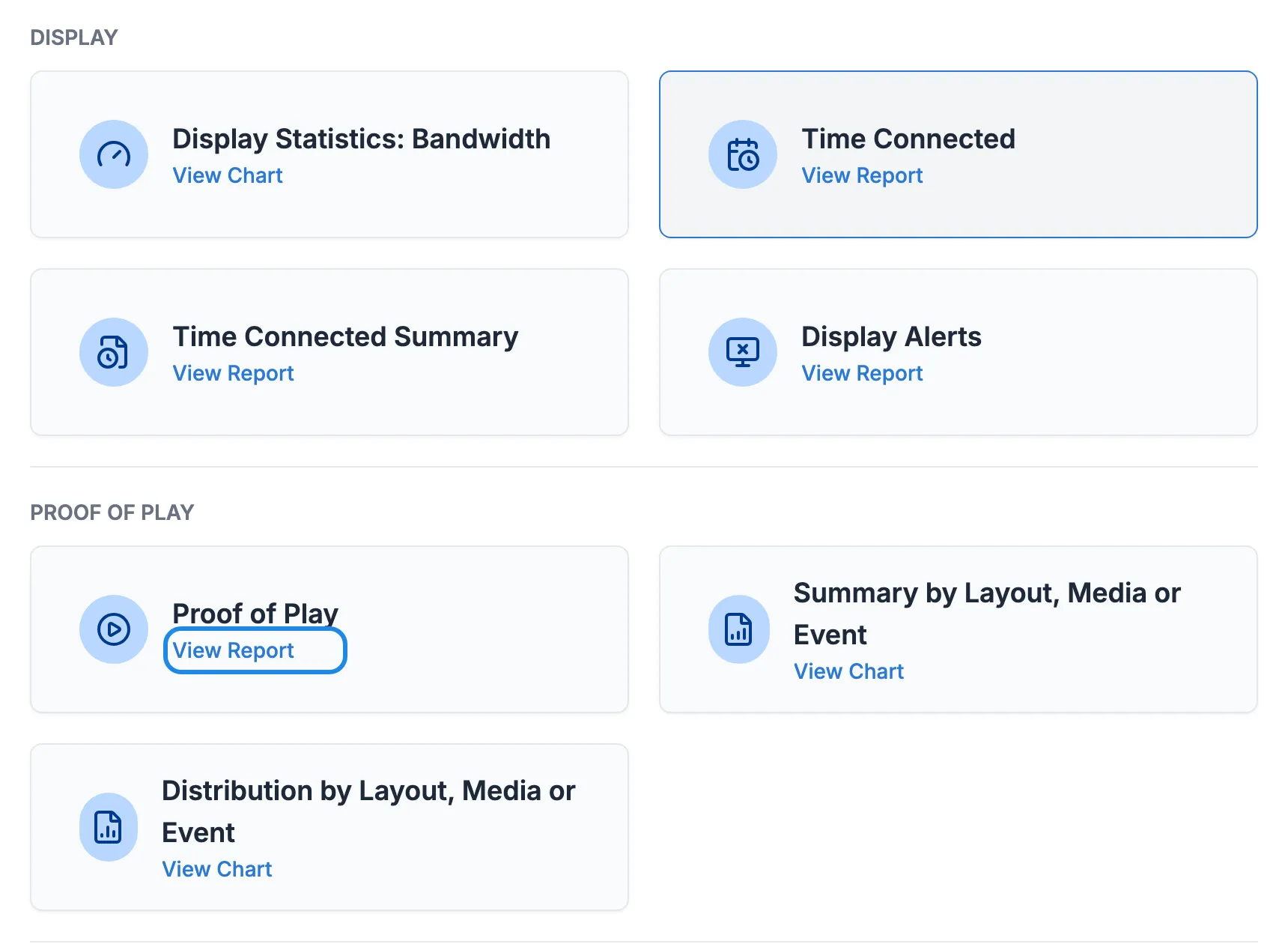
Click Reporting in the menu on the left, then All Reports. Under Proof of Play, click View Report on the Proof of Play card.
-
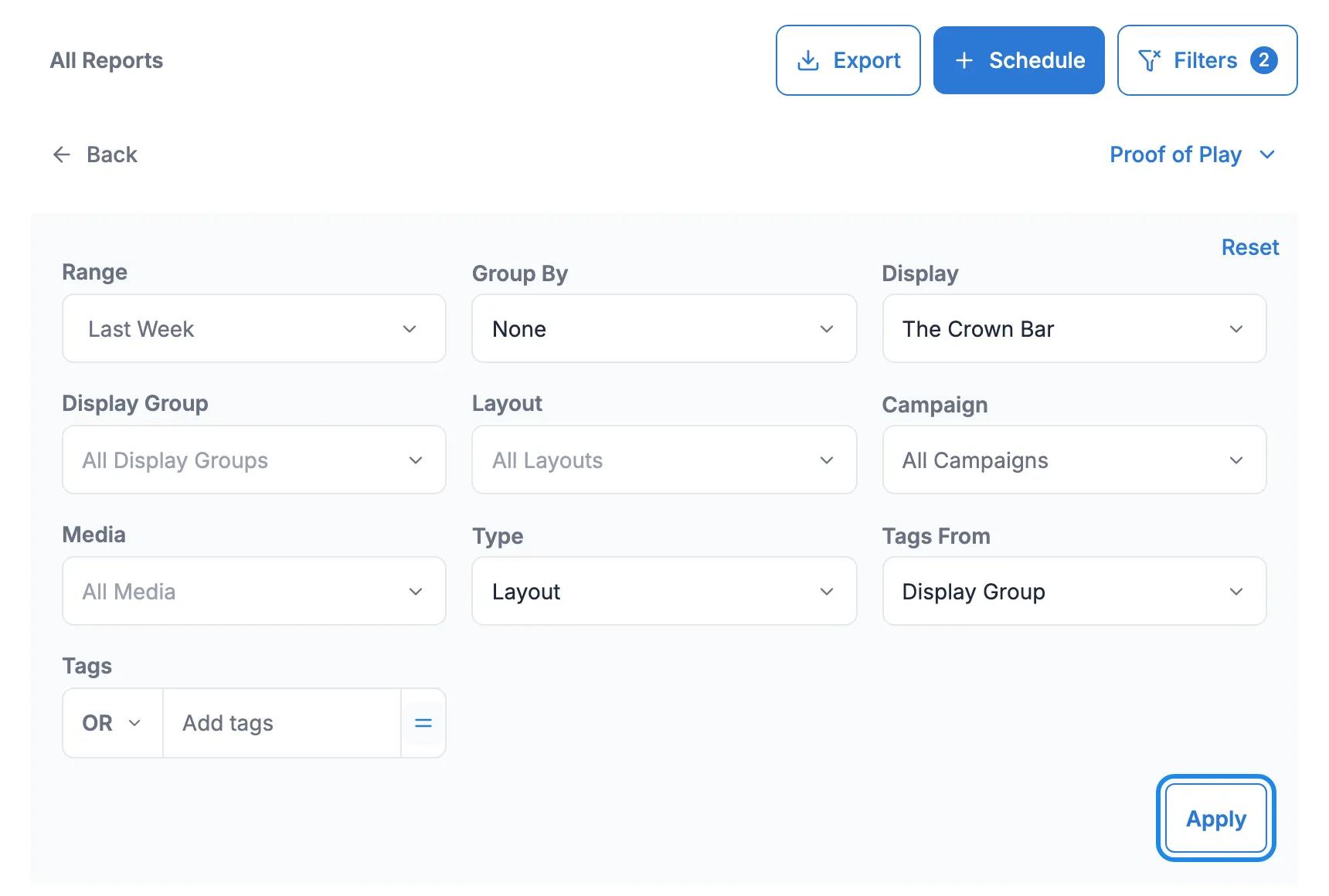
Set the filters:
- Choose the period in Range. Last Week is the last full week, and Custom Range lets you pick your own dates.
- Leave Display and Display Group on all screens, or pick the ones you want.
- Use Layout, Campaign or Media to narrow the report to particular content.
- Set Type to Layout for whole layouts or Media for single images and videos.
- To add up the plays, set Group By to Display, Display Group or Tag. Otherwise leave it on None.
-
Click Apply.
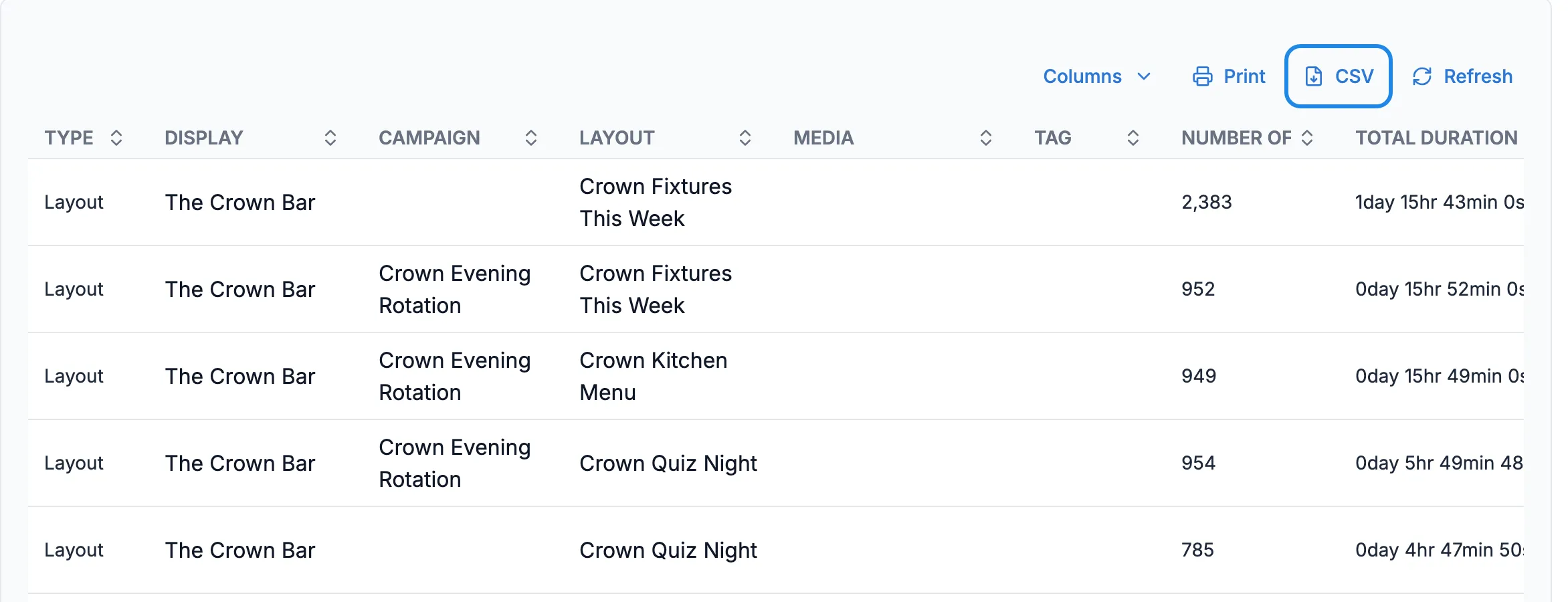
Each row shows a layout or media item on a screen, with the campaign it played in, the Number of Plays, the Total Duration and when it was first and last shown in the period. To change the filters, click Filters at the top of the page.
Download the report
Section titled “Download the report”Click CSV above the table to download it as a CSV file, which you can open in any spreadsheet program. Print prints the table, and Columns chooses which columns show.
See plays over time as a chart
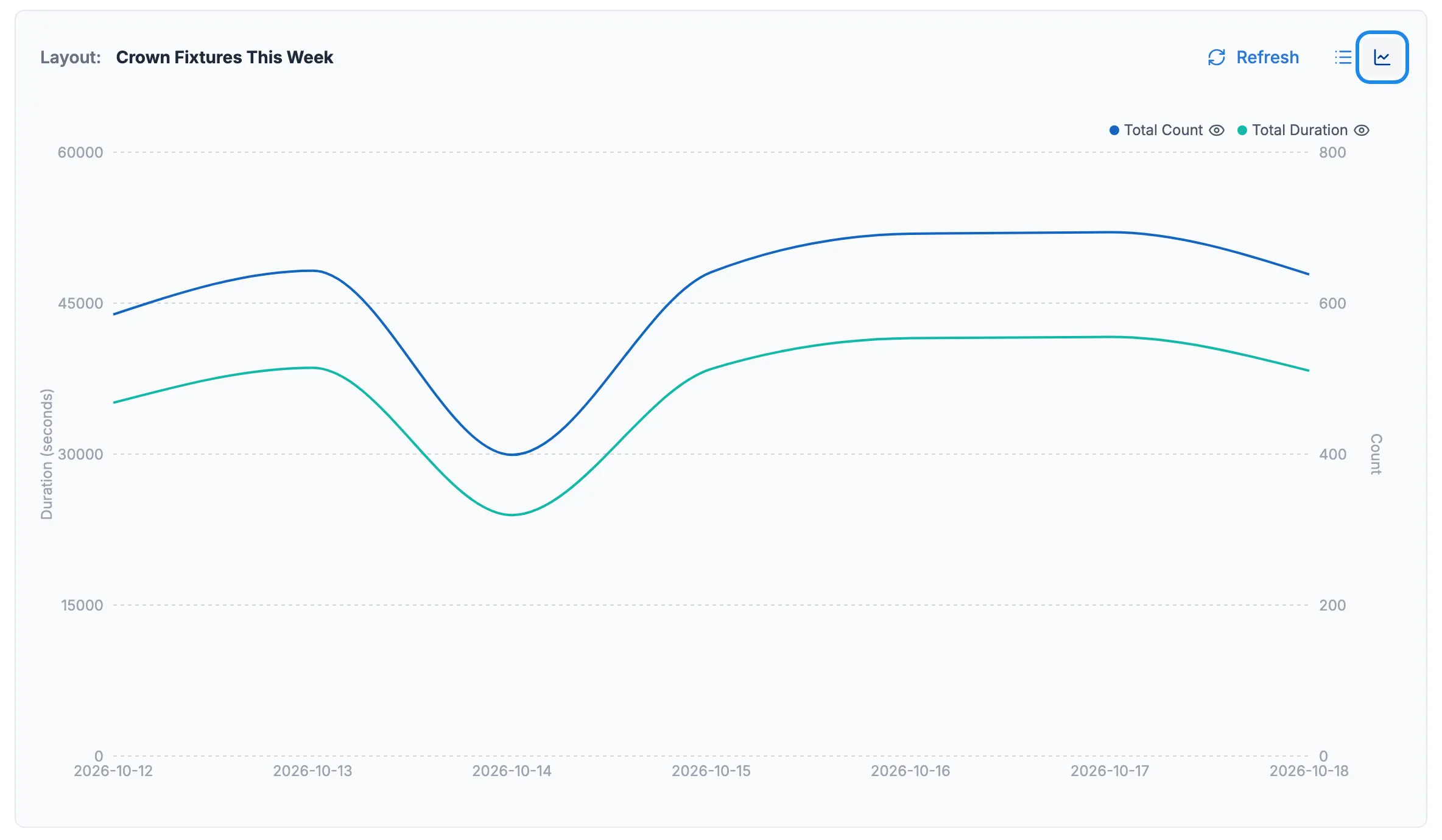
Section titled “See plays over time as a chart”The Summary by Layout, Media or Event report shows one layout’s plays day by day.
-
On All Reports, click View Chart on the Summary by Layout, Media or Event card.
-
Choose a Range, set Type to Layout, pick the layout in Layout and click Apply.
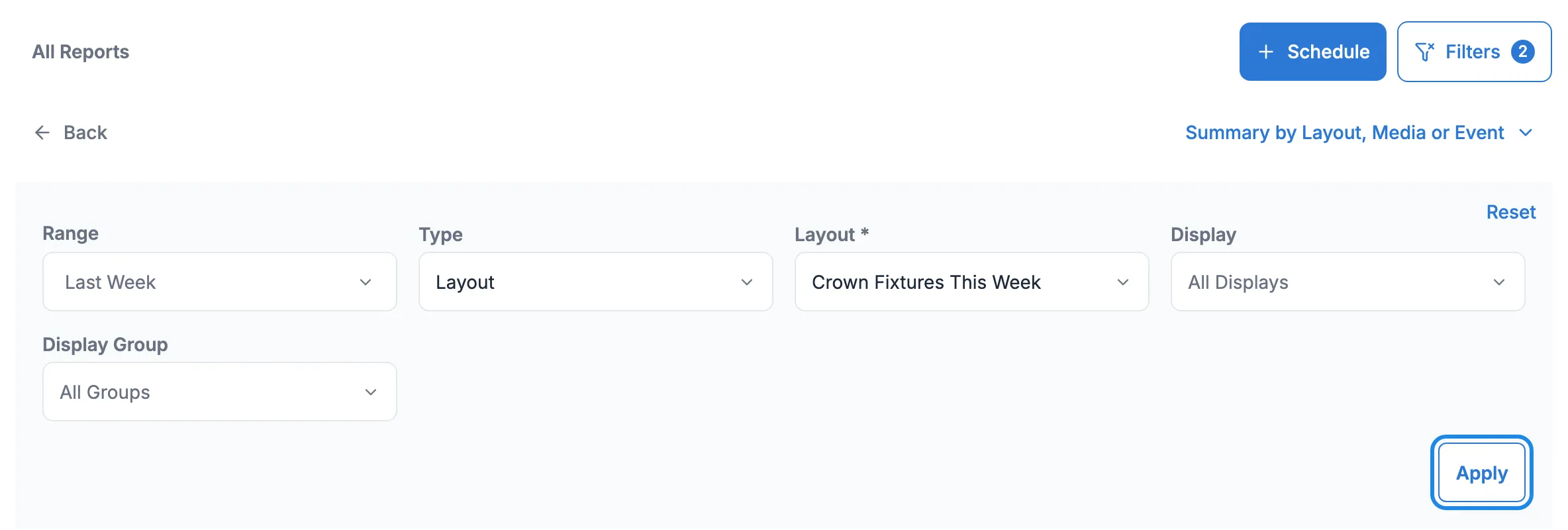
-
The results show the count and duration for each day. Click the chart icon next to Refresh to see them as a line chart.