Design a layout
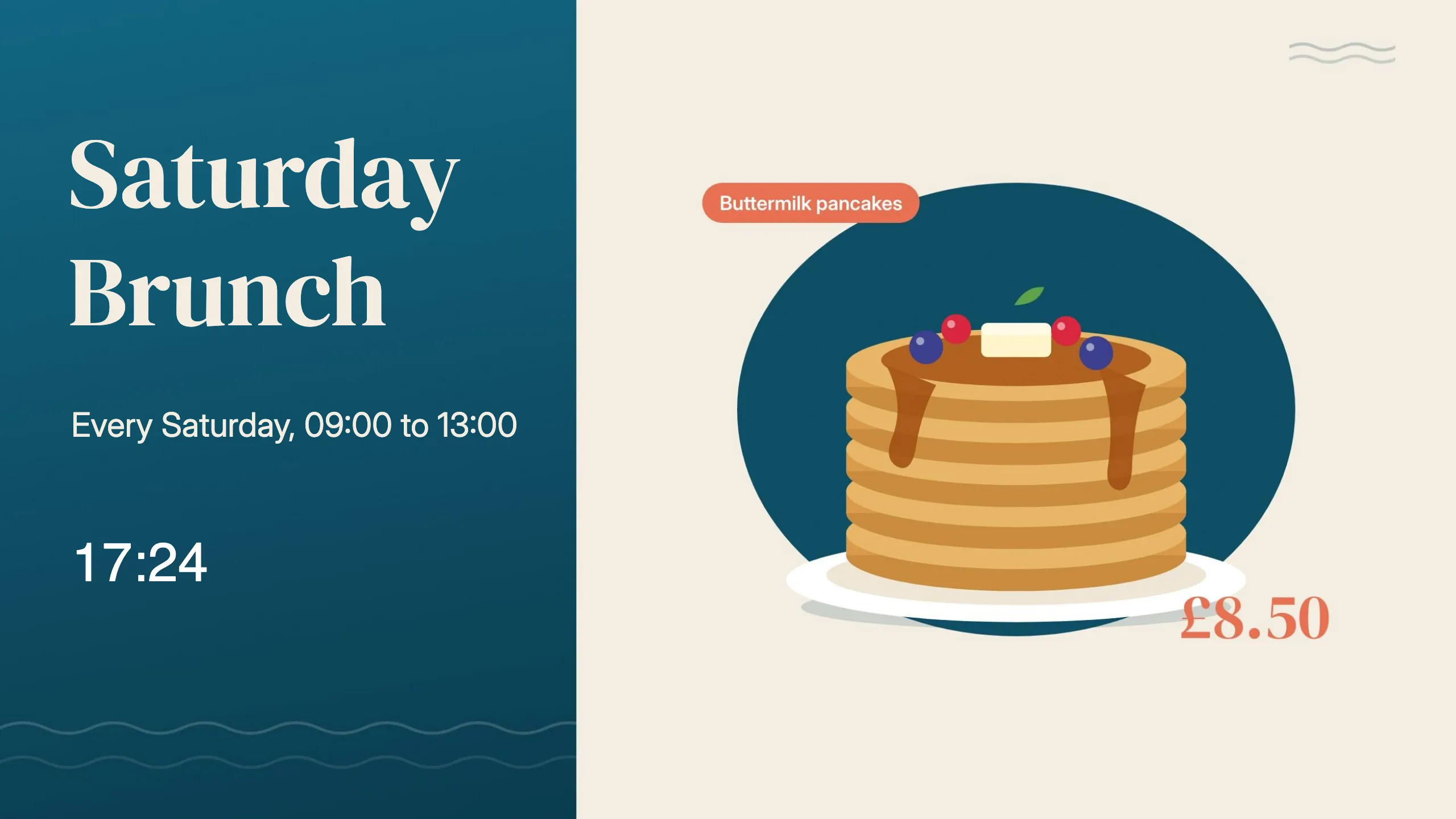
A layout is one full-screen design: a background, plus the images, text and widgets that sit on top of it. This page builds a real example from start to finish, a Saturday brunch screen for Harbour Cafe, and publishes it ready to schedule.
Before you start
Section titled “Before you start”Upload the pictures you want to use to the media library. For this example we uploaded a background, a photo of pancakes and a photo of eggs royale, all tagged brunch.
Create the layout
Section titled “Create the layout”-
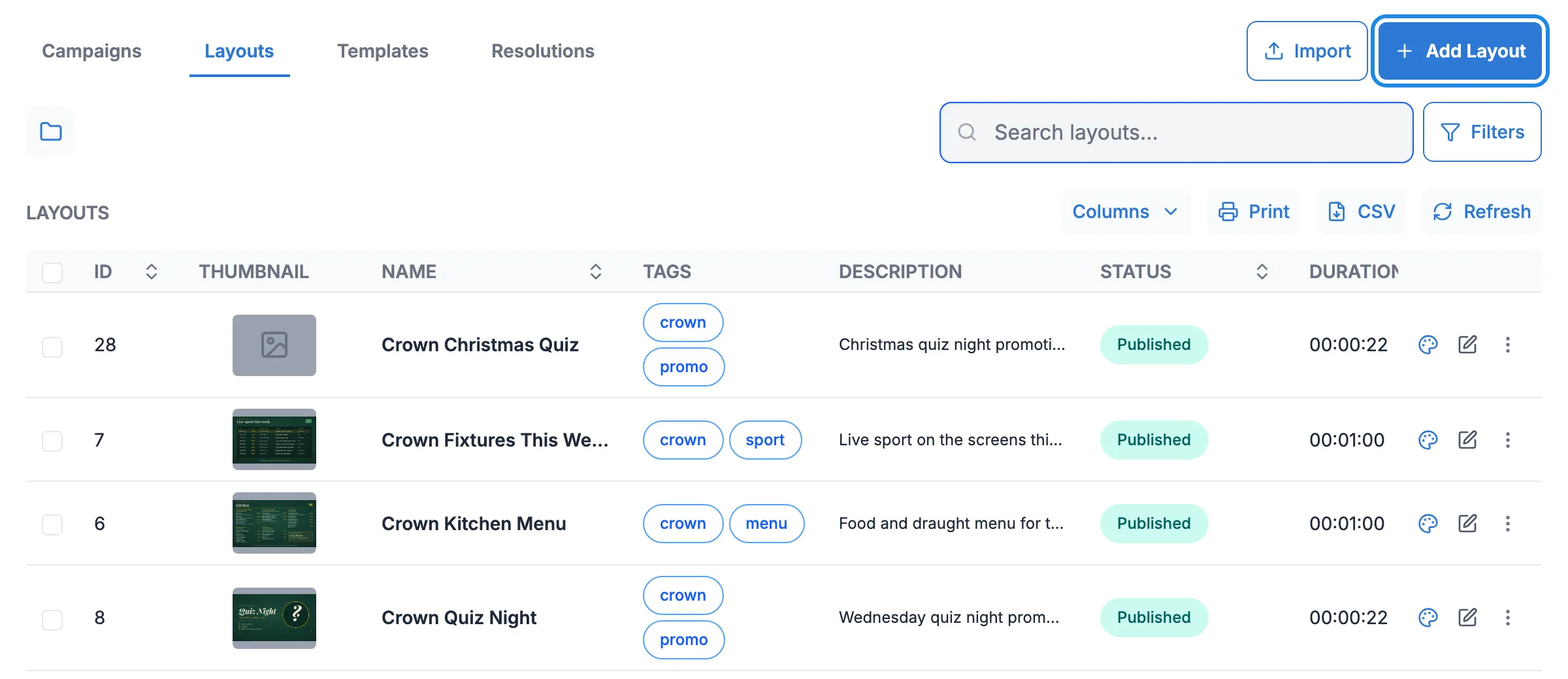
In the menu on the left, open Design and click Layouts. Then click Add Layout.
-
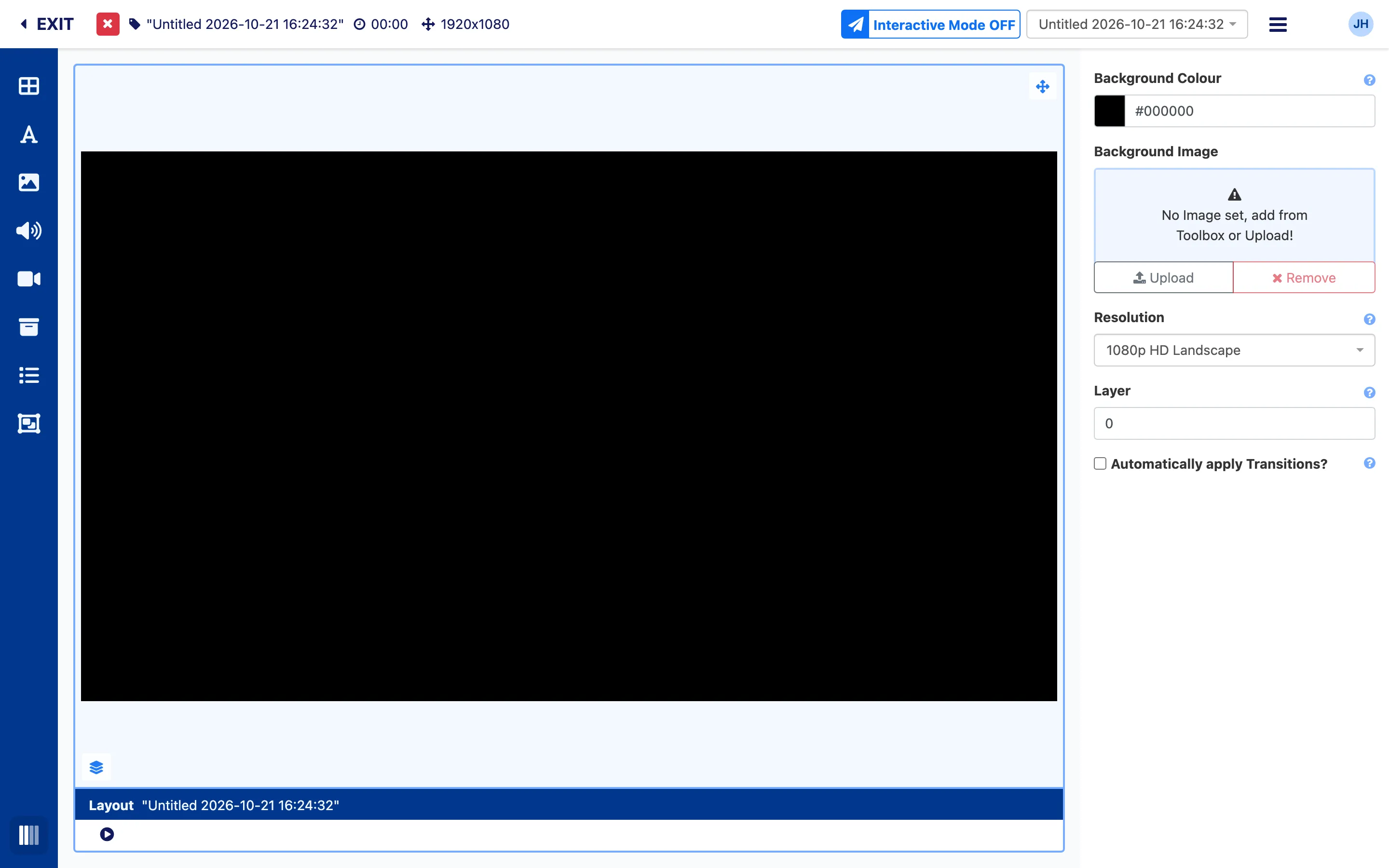
The layout editor opens with a new, empty layout called “Untitled” and the date. It’s 1920 x 1080 (1080p HD Landscape) to start with.
-
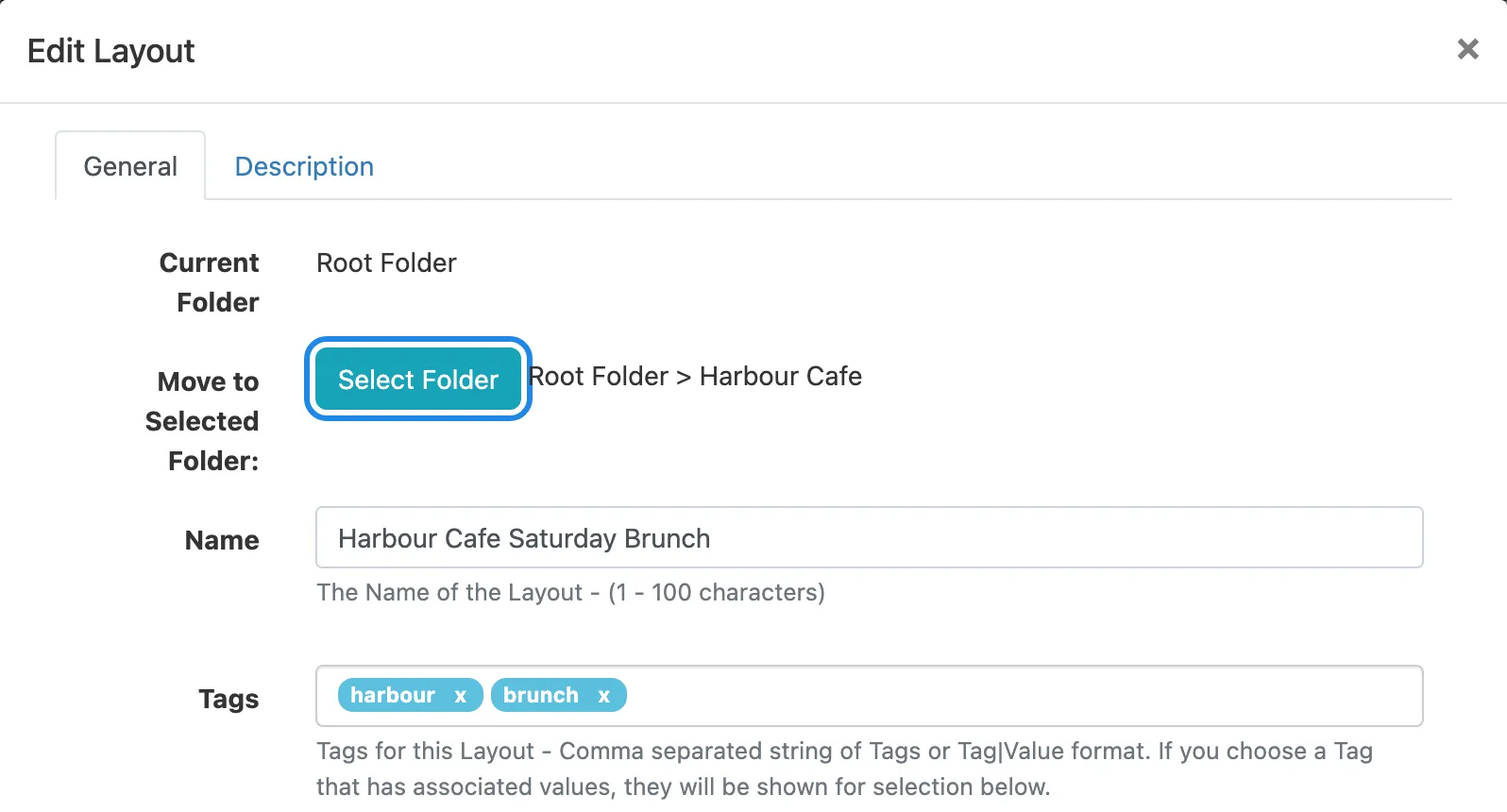
Click the layout’s name at the top of the editor. In the Edit Layout window, type a Name, click Select Folder to choose your venue’s folder, and add any Tags. You can add a note on the Description tab. Click Save.
If your screen is portrait, or not 1920 x 1080, change Resolution in the panel on the right. The choices include 1080p HD Portrait, 4k UHD Landscape, 4k UHD Portrait and 720p HD Landscape.
Find your way around the editor
Section titled “Find your way around the editor”- The toolbox is the dark blue strip down the left. Each icon opens a panel: Add widgets, Global Elements (text, date and time, and shapes), searches for library images, audio, video and other files, Add Playlists, and Search for Layout Templates. Hover over an icon to see its name.
- The canvas in the middle is your screen. Click anything on it to select it.
- The properties panel on the right shows the settings for whatever is selected. With nothing selected, it shows the layout’s own settings: Background Colour, Background Image and Resolution.
- The bar under the canvas shows what’s selected, and has the play button for a preview.
- The top bar shows the layout’s name, its running time and its size. The menu icon at the top right (Options) holds Publish and the other layout actions. EXIT at the top left takes you back to the Layouts page.
Add a background
Section titled “Add a background”Type a colour into Background Colour, or use a picture.
-
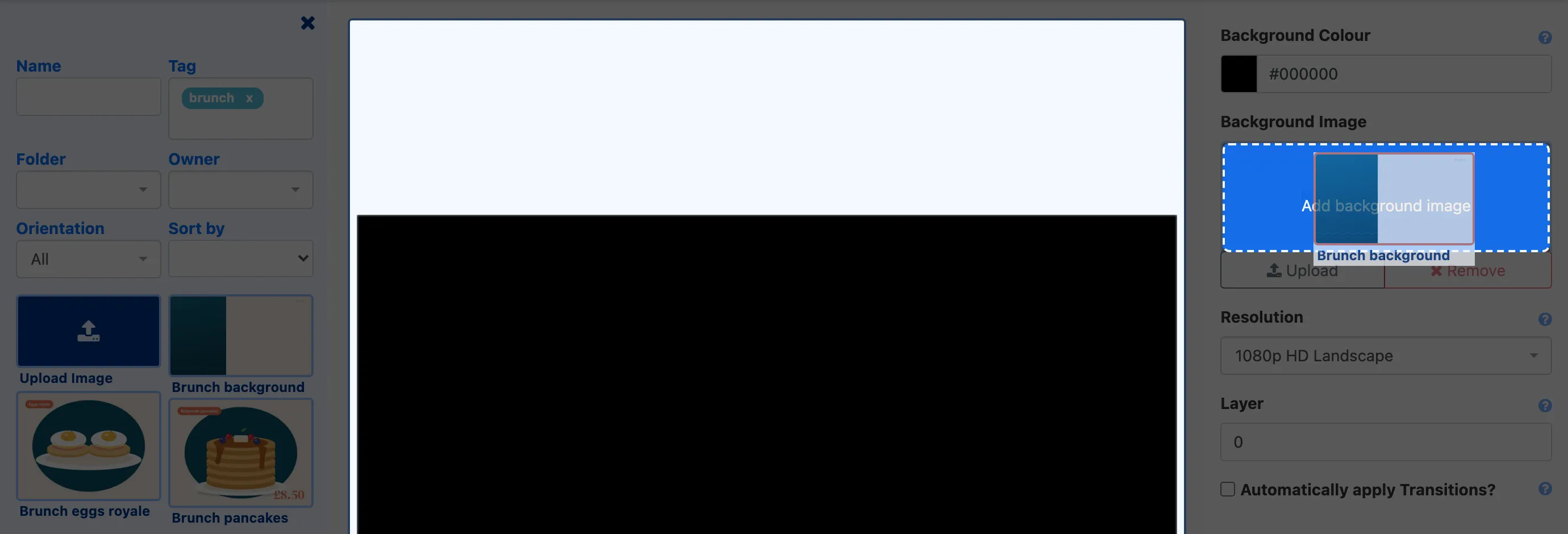
Click the picture icon in the toolbox (Library image search). Type a tag into Tag to narrow the list down.
-
Drag the picture onto the Background Image box in the properties panel.
Add an image
Section titled “Add an image”-
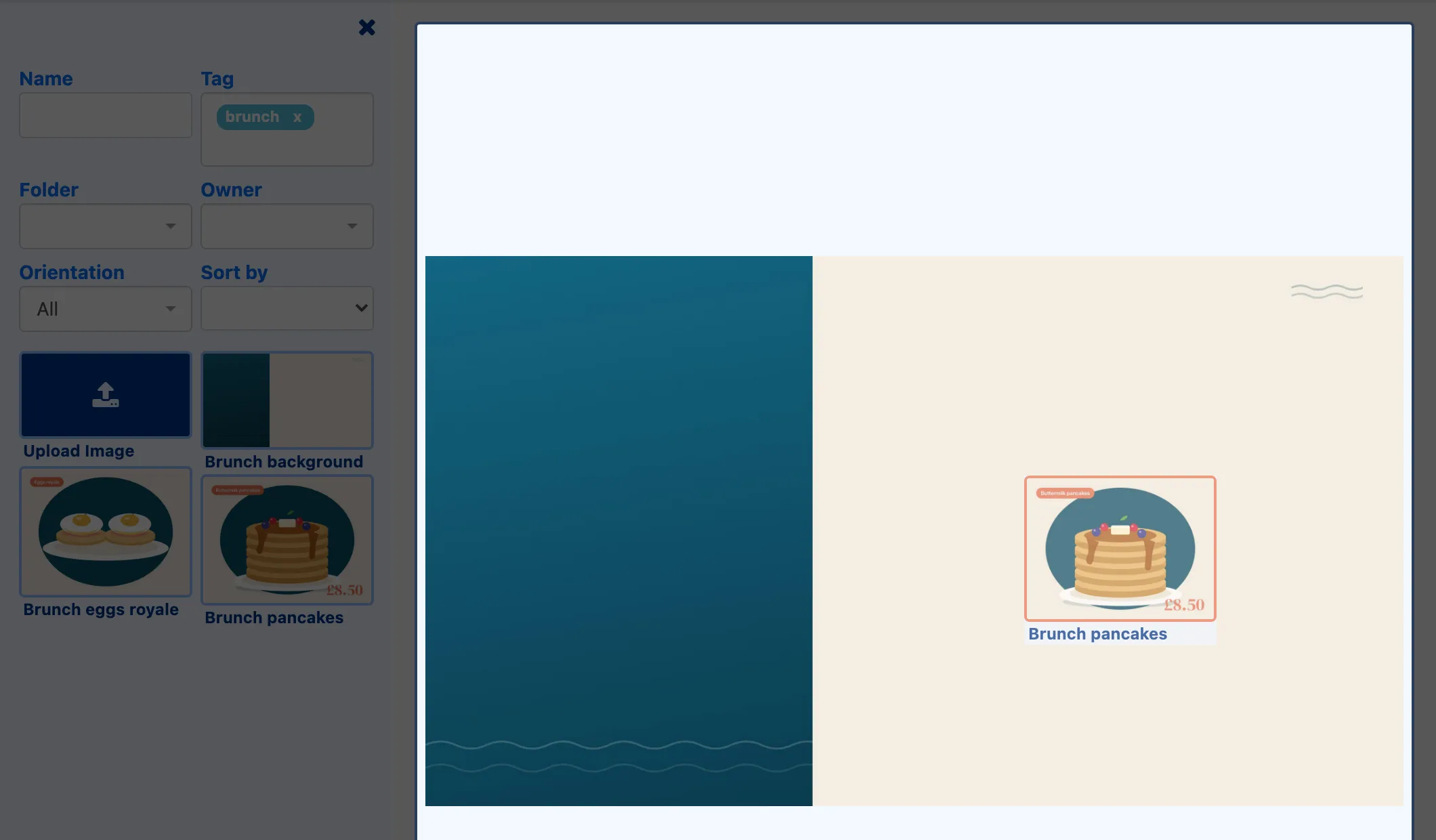
With Library image search still open, drag a picture onto the canvas.
-
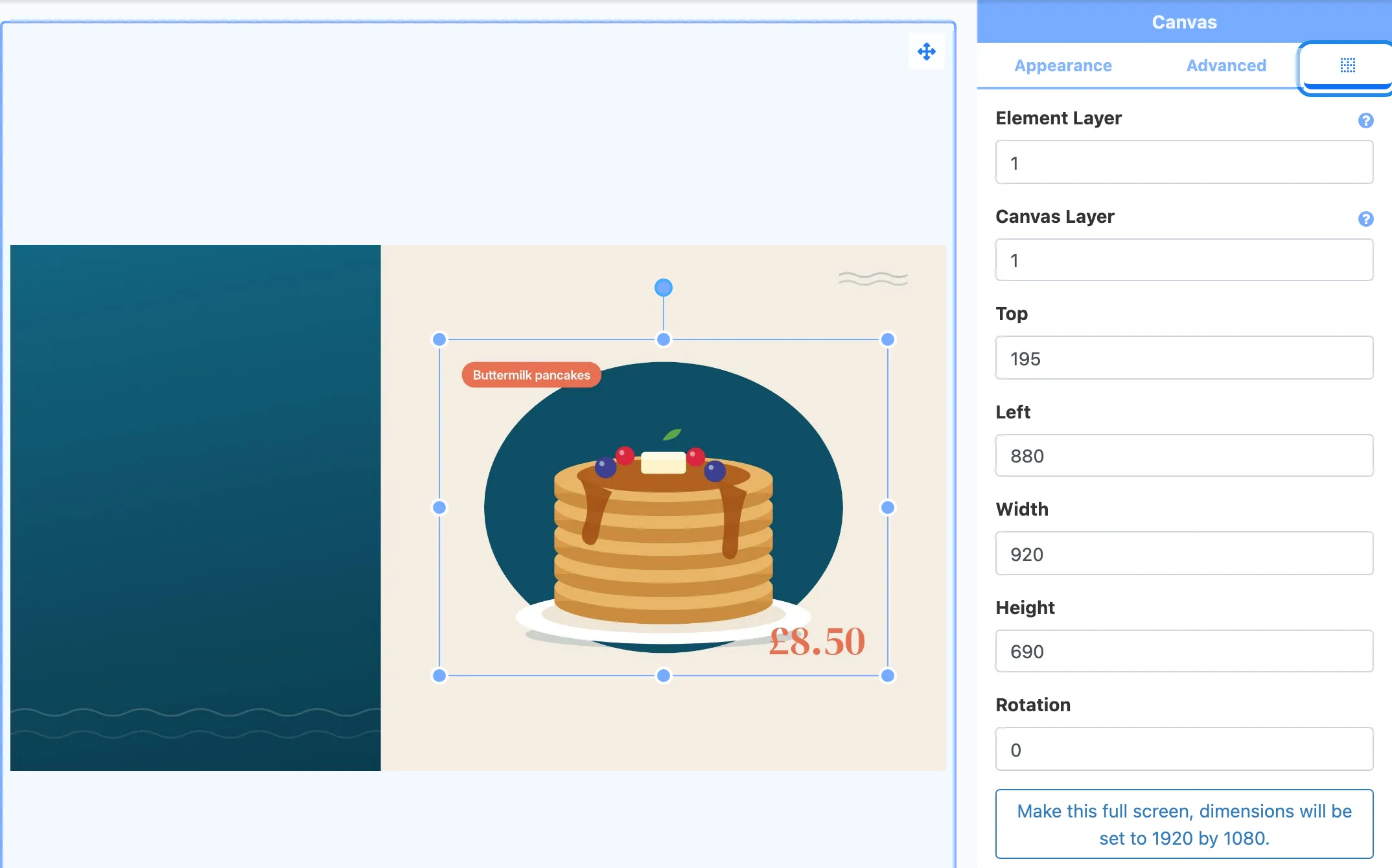
Drag the corner handles to resize it, and drag the middle of it to move it. For exact placement, click the Positioning icon (to the right of Advanced in the properties panel) and type in Top, Left, Width and Height, in pixels on a 1920 x 1080 screen.
Add text
Section titled “Add text”-
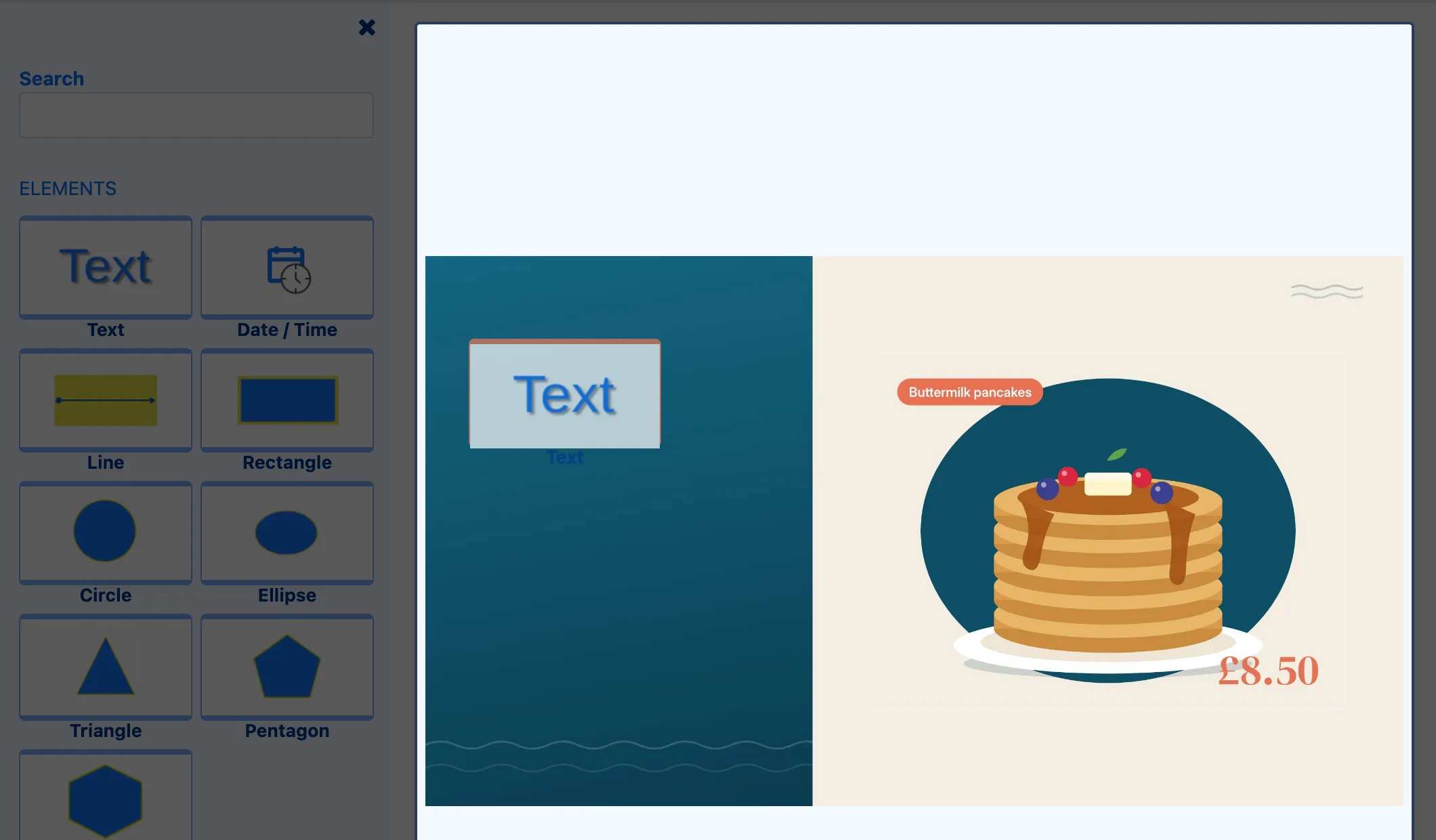
Click Global Elements in the toolbox (the letter A) and drag Text onto the canvas.
-
In the properties panel, type your words into Text. Then choose a Font Family, Font Colour and Font Size, and set Horizontal Align and Vertical Align. Resize and move the text box the same way as an image.
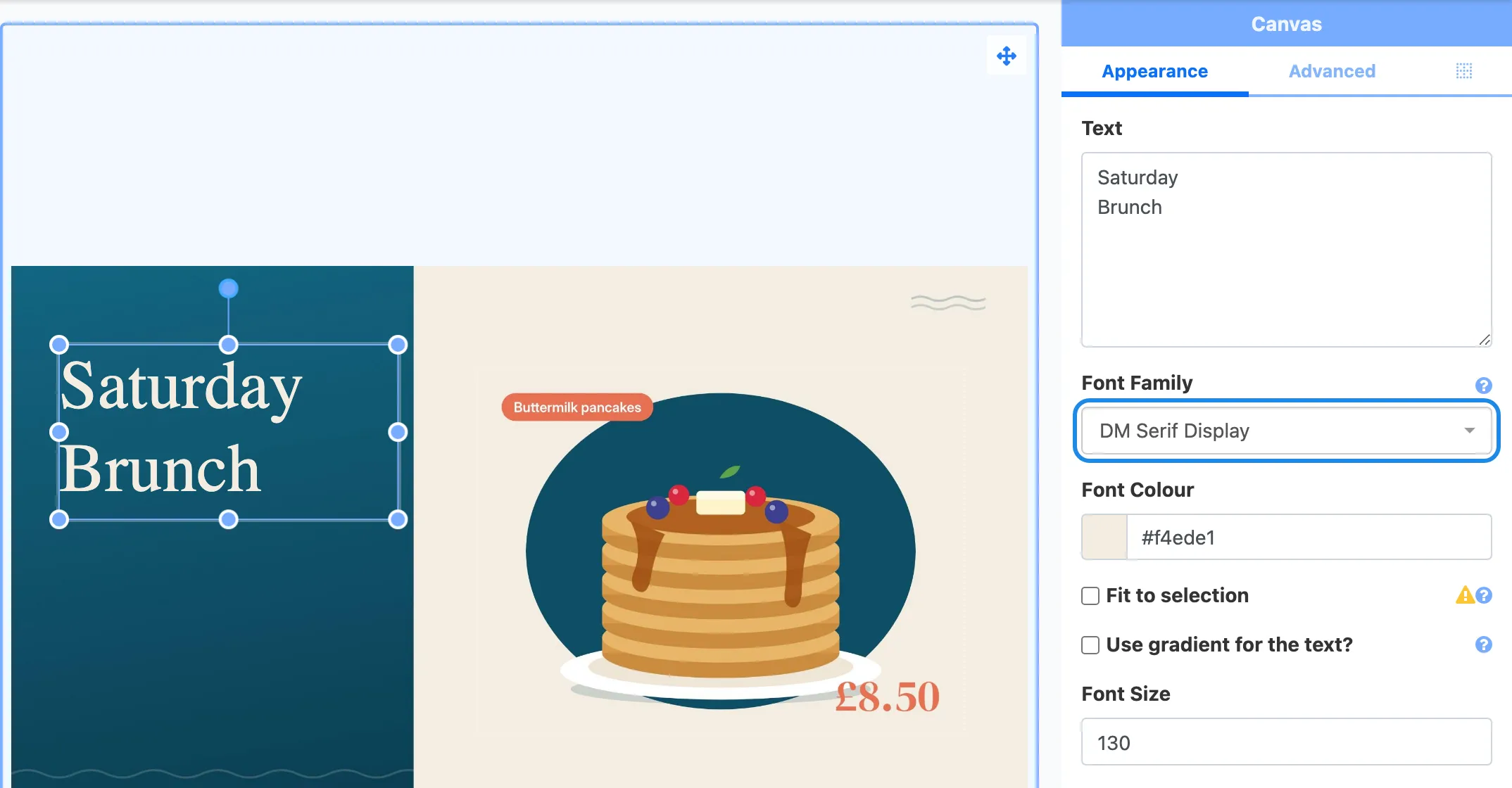
We added a second text element for the times, in a smaller size.
Add a widget
Section titled “Add a widget”Widgets add live content such as clocks, web pages, tables and feeds. Widgets and what they do lists them all. Here we add a clock.
-
Click Add widgets in the toolbox (the top icon) and click Clock. Drag Clock - Digital onto the canvas.
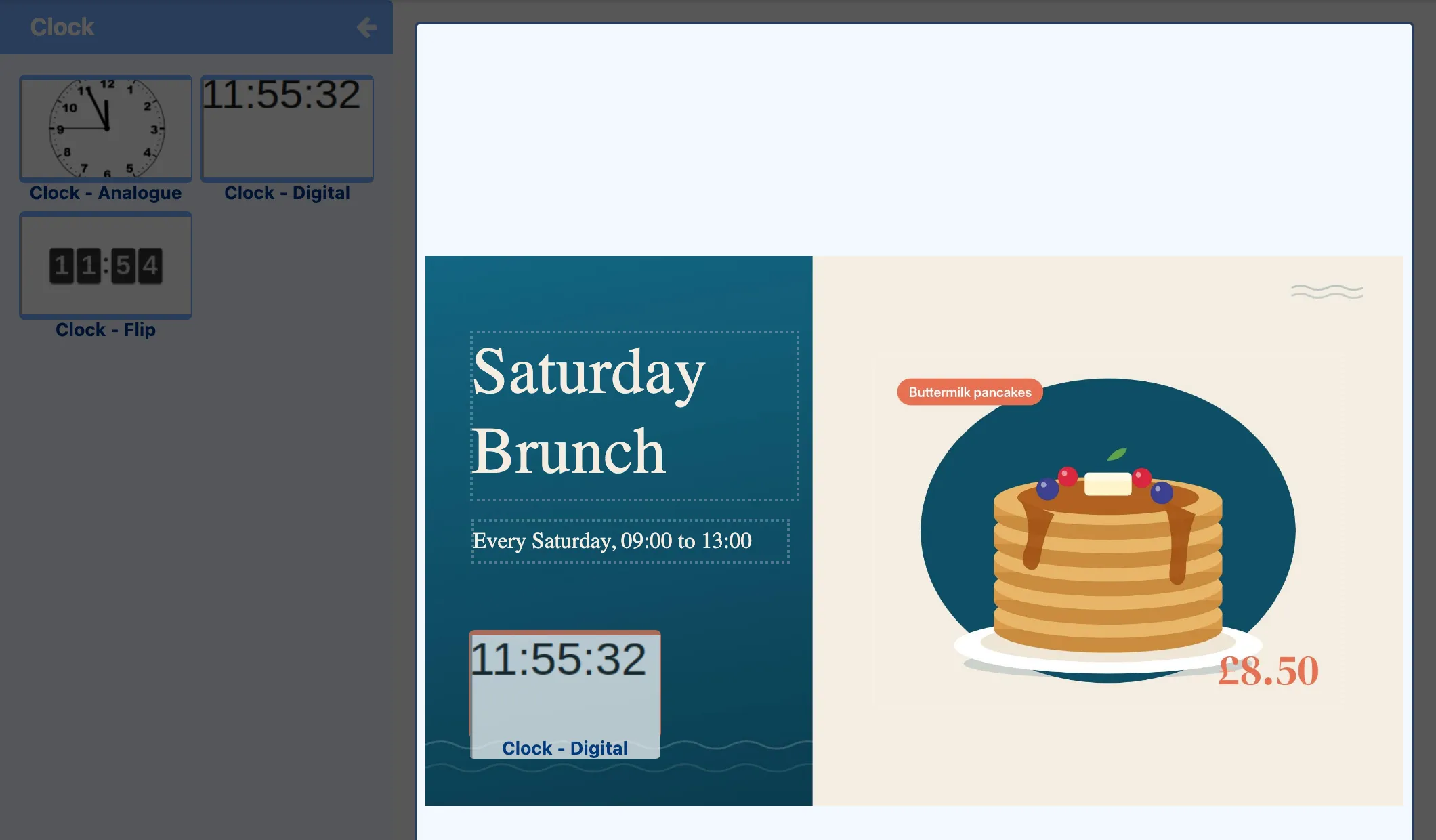
-
Set it up on the Configure tab. For the digital clock, the text box holds the time format:
[HH:mm]shows hours and minutes. You can change the font size and colour with the toolbar above it.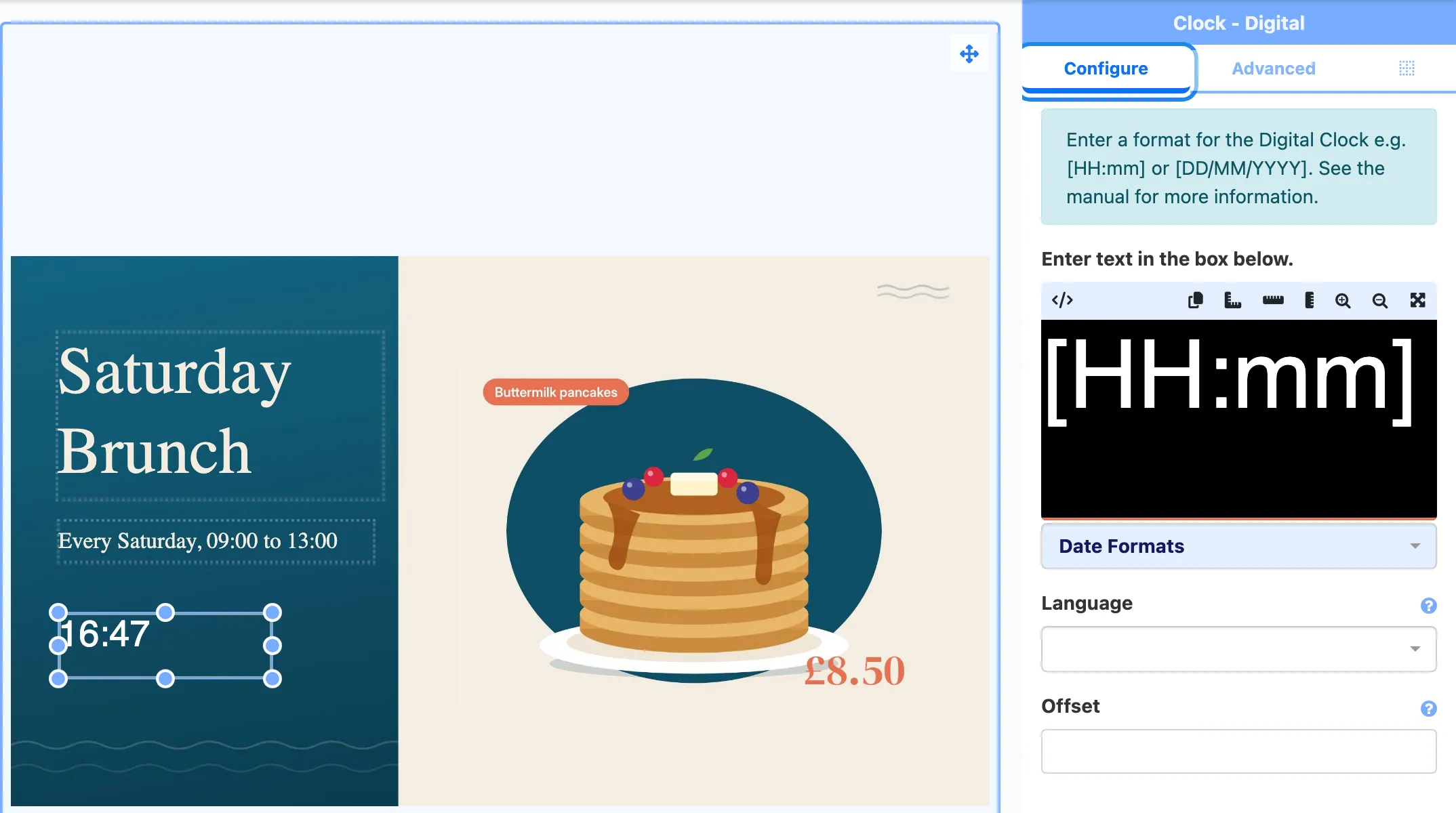
Set how long things show for
Section titled “Set how long things show for”Text, images and shapes on the canvas share one duration. A widget such as the clock has its own. The layout runs for as long as the longest of these, and the running time shows at the top of the editor, next to the clock icon.
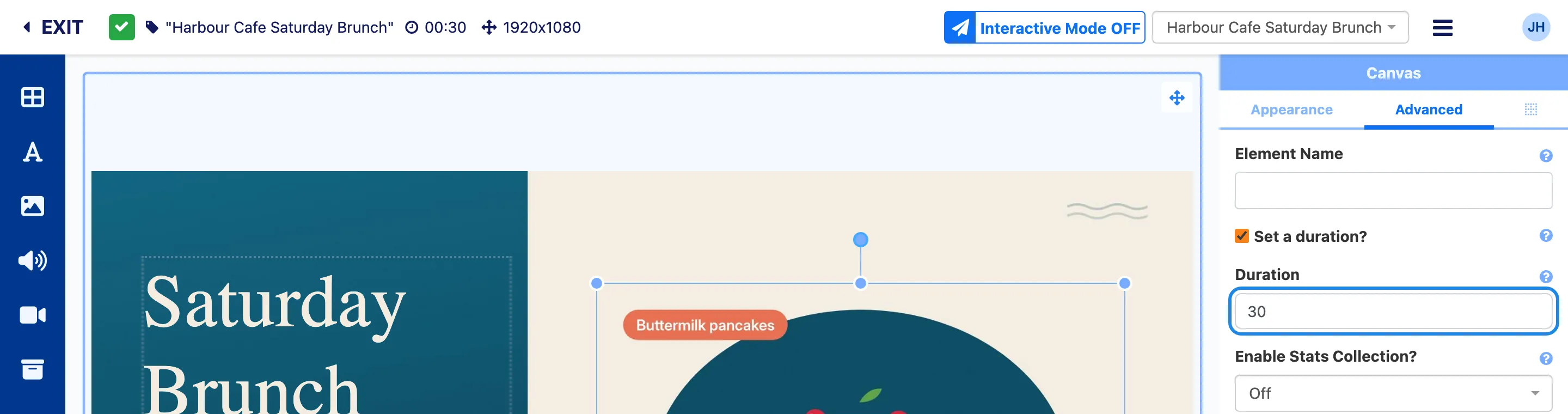
To change a duration, select the item, open the Advanced tab, tick Set a duration? and type the number of seconds into Duration. We set the pancakes image to 30 seconds, so the whole layout runs for 30 seconds.
Arrange the layers
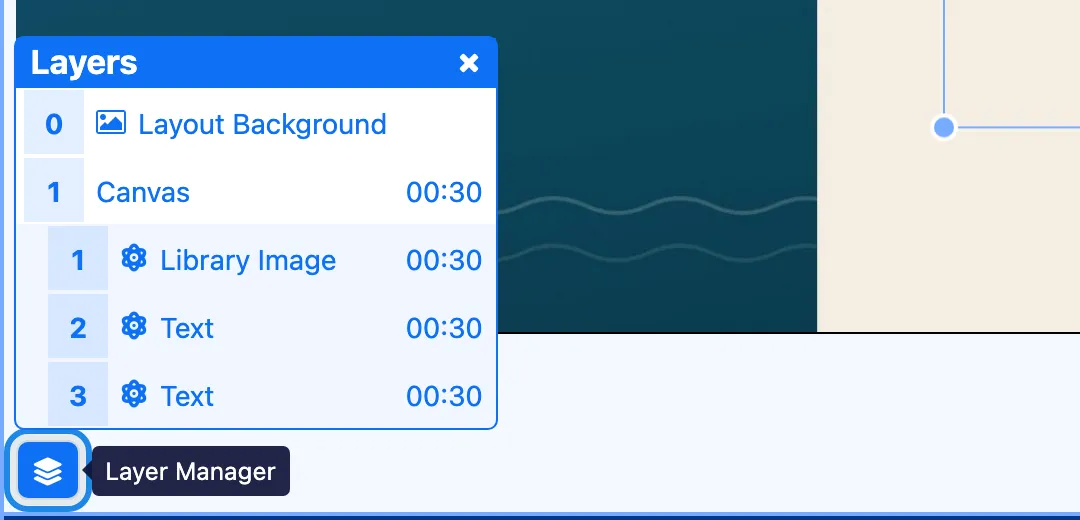
Section titled “Arrange the layers”When items overlap, the one on the higher layer shows on top. Click the Layer Manager icon at the bottom left of the canvas to see every item and its layer. You can also right-click an item on the canvas and choose Bring to front, Bring forward, Send backwards or Send to back.
Preview it
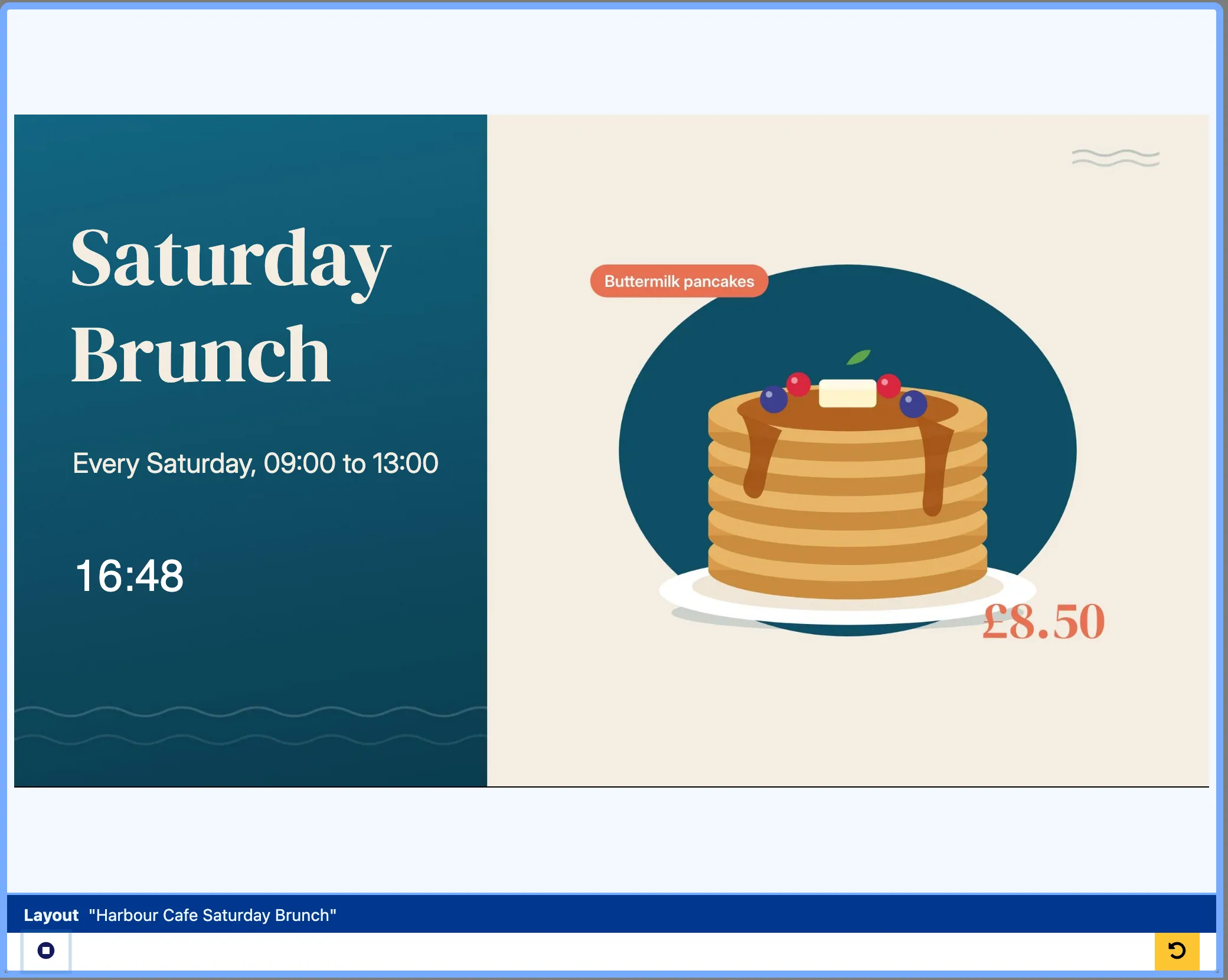
Section titled “Preview it”Click the play button in the bar under the canvas (Play Layout preview). The layout plays on the canvas with the real clock and images. Click it again to stop.

Publish it
Section titled “Publish it”Your screens only show published layouts.
-
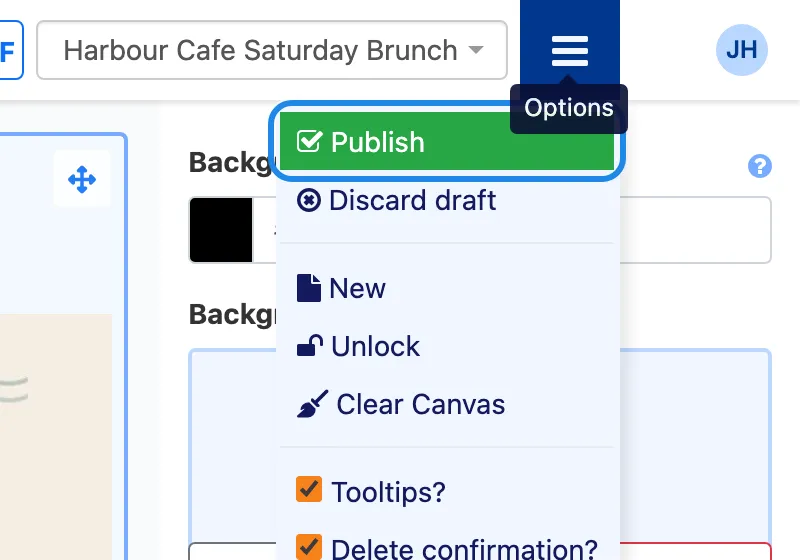
Click Options (the menu icon at the top right) and choose Publish.
-
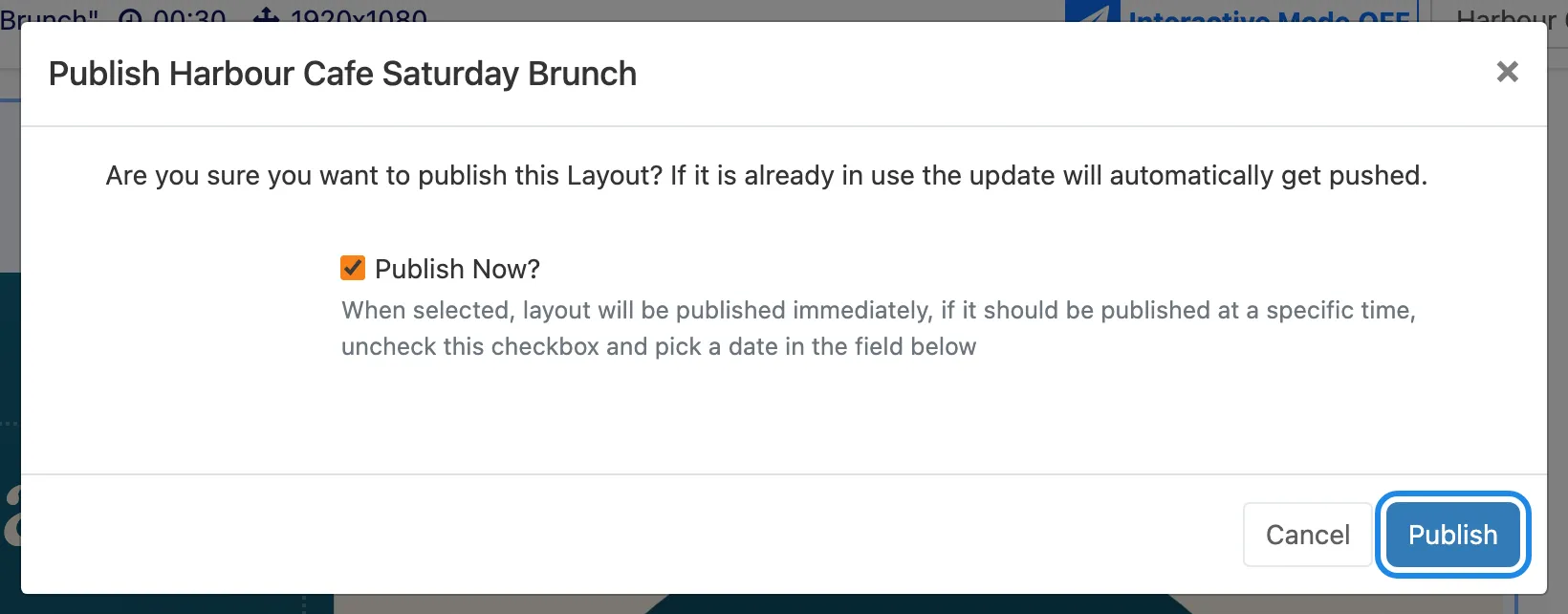
Leave Publish Now? ticked and click Publish. To publish at a later time, untick Publish Now? and pick a date instead.
-
Click EXIT. The layout now shows as Published on the Layouts page, ready to schedule.

The finished layout:
Change a published layout
Section titled “Change a published layout”A published layout is locked. When you open it again, the editor says it’s published and offers Checkout or View.

Click Checkout to make a draft copy you can edit. You can also choose Checkout from the Options menu. The published version stays as it is while you work. When you’re happy, publish again to send your changes to your screens. If you change your mind, choose Discard draft from the Options menu.