

Play several layouts in turn with a campaign
A campaign is a list of layouts that play one after another. You schedule the campaign once and each layout takes its turn on the screen. Use one when a screen should rotate through, say, a class timetable and a membership offer for the same hours.
Create a campaign
Section titled “Create a campaign”This example makes a weekend rotation for the reception screen at Fitzroy Gym.
-
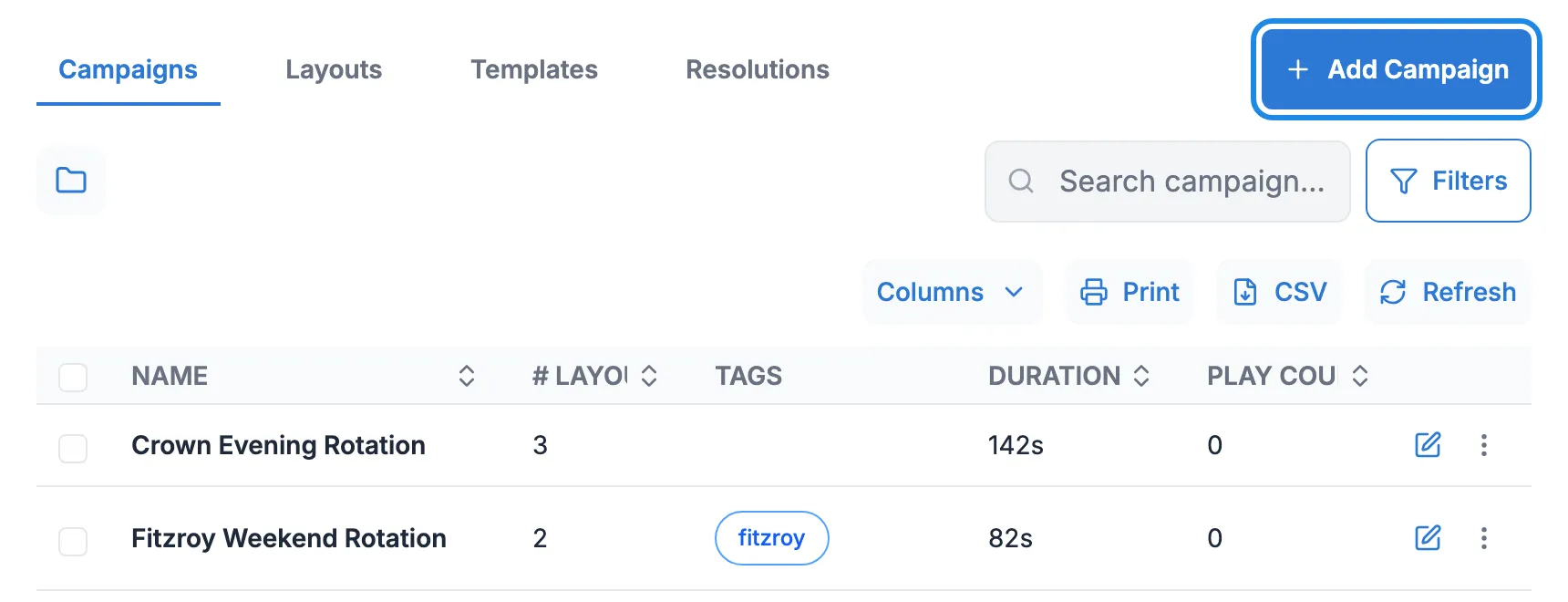
Click Design in the menu on the left, then Campaigns. Click Add Campaign.
-
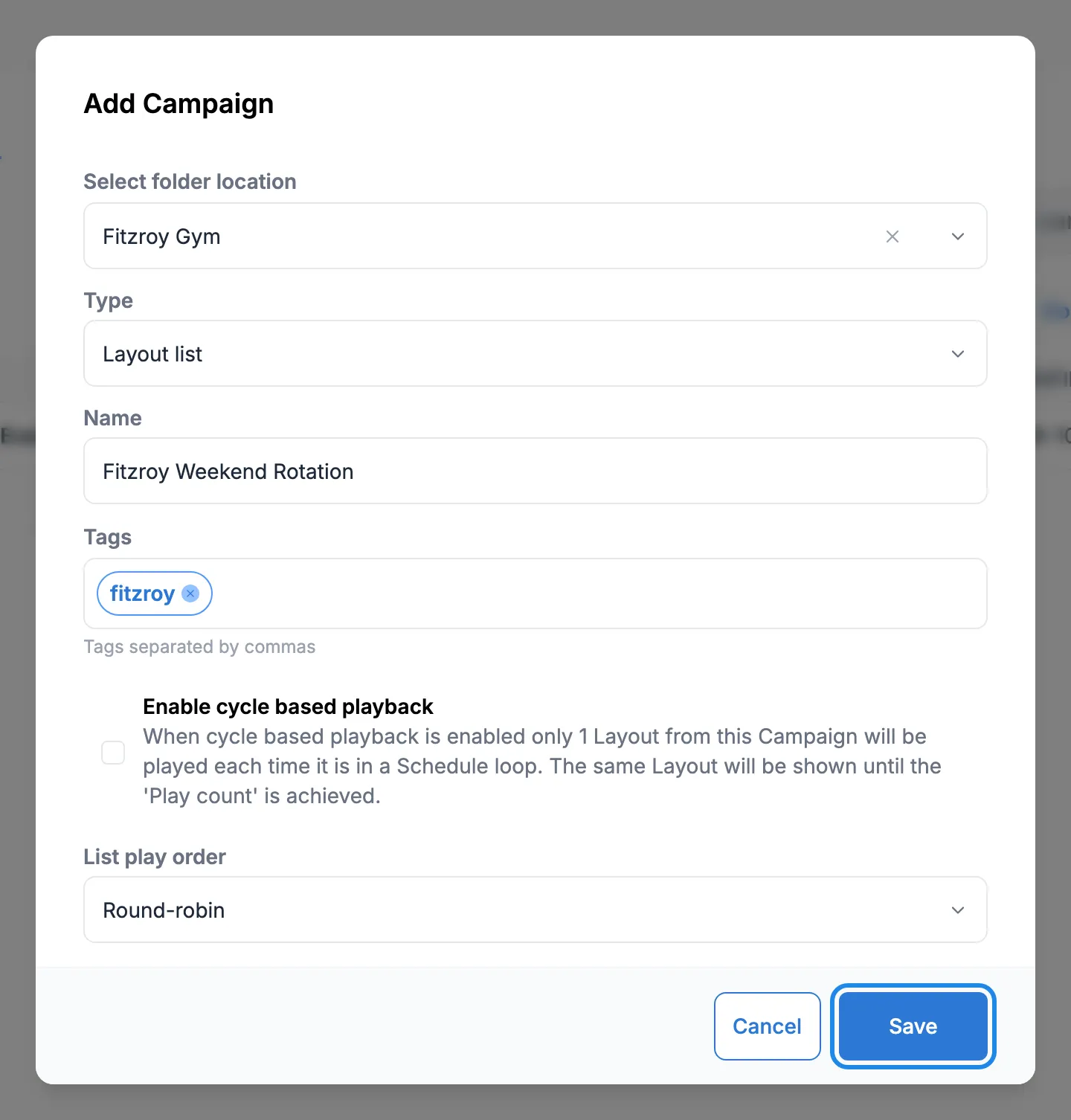
In Select folder location, choose the venue’s folder, so the campaign sits with the rest of that venue’s content. Leave Type on Layout list and type a Name you’ll recognise in the schedule. Tags are optional words to help you find the campaign later; press Enter after each one. Leave Enable cycle based playback unticked and List play order on Round-robin, then click Save.
-
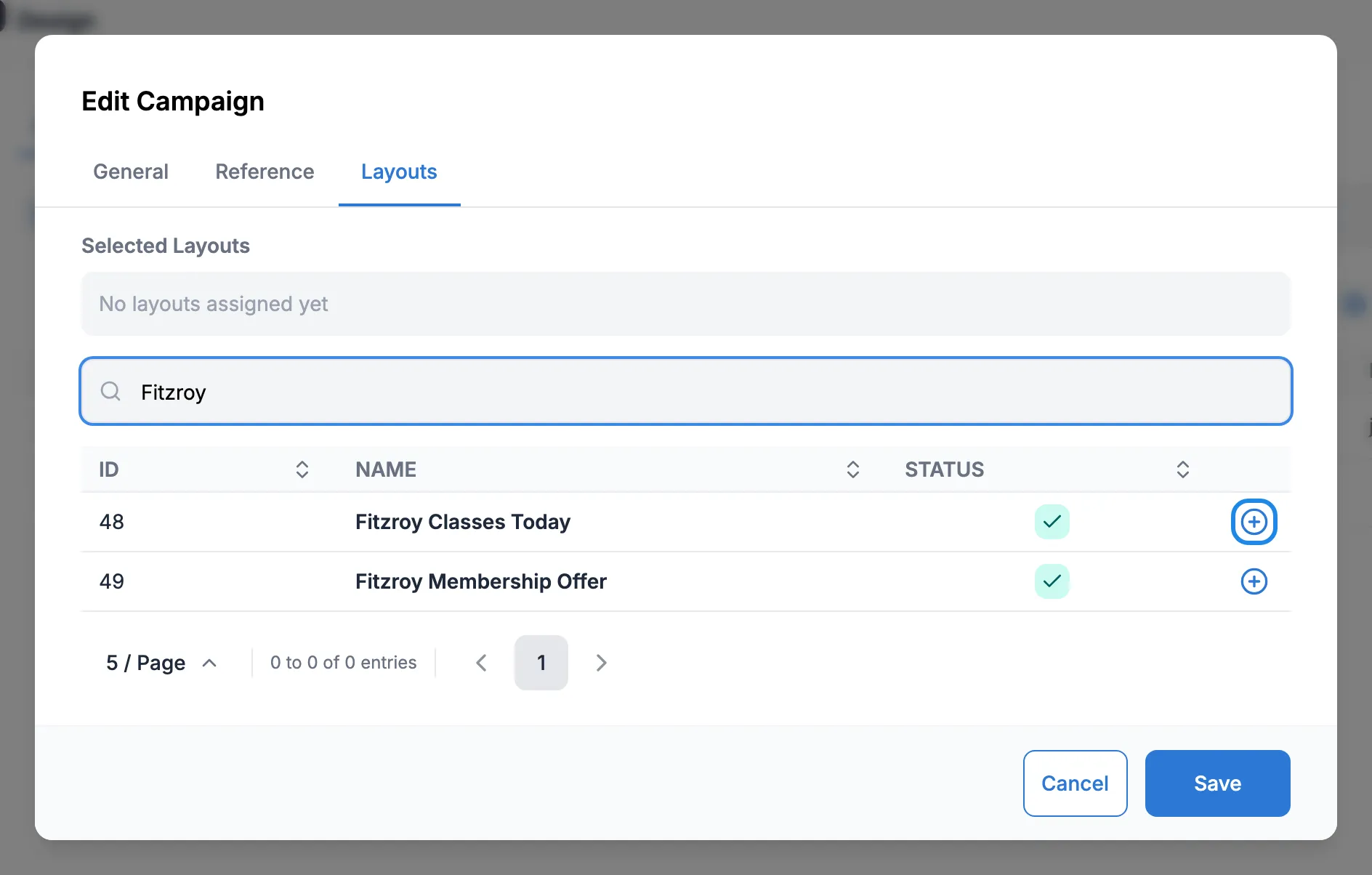
The Edit Campaign window opens. Click the Layouts tab. Type in Search to find your layouts, then click the plus icon next to each one you want.
-
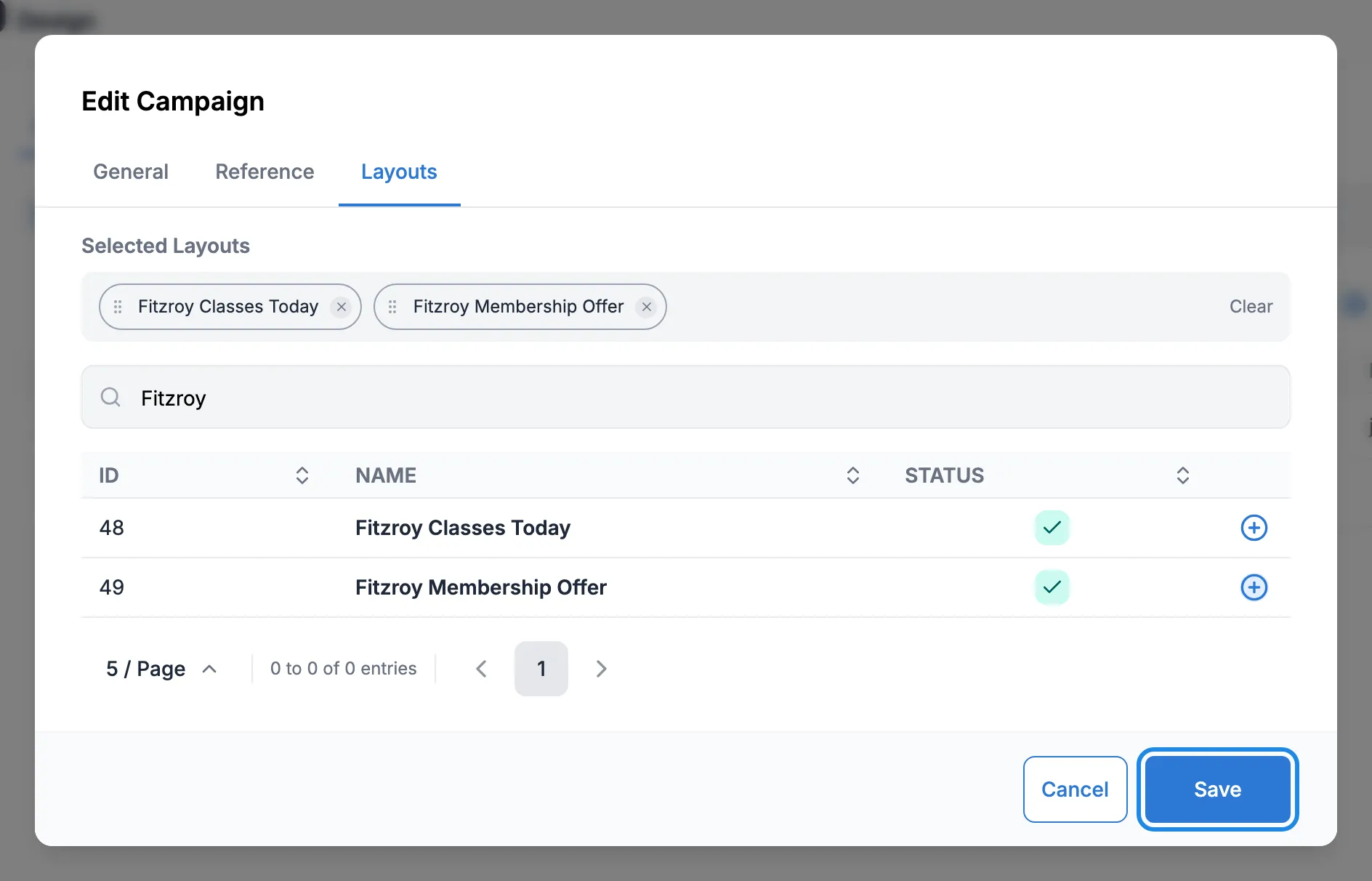
The layouts appear under Selected Layouts in the order they will play. The cross on a layout removes it from the campaign.
-
To change the order, drag a layout by the dotted handle on its left. Click Save.

The campaign appears in the list. The Duration column shows how long one pass through all its layouts takes.
Schedule the campaign
Section titled “Schedule the campaign”-
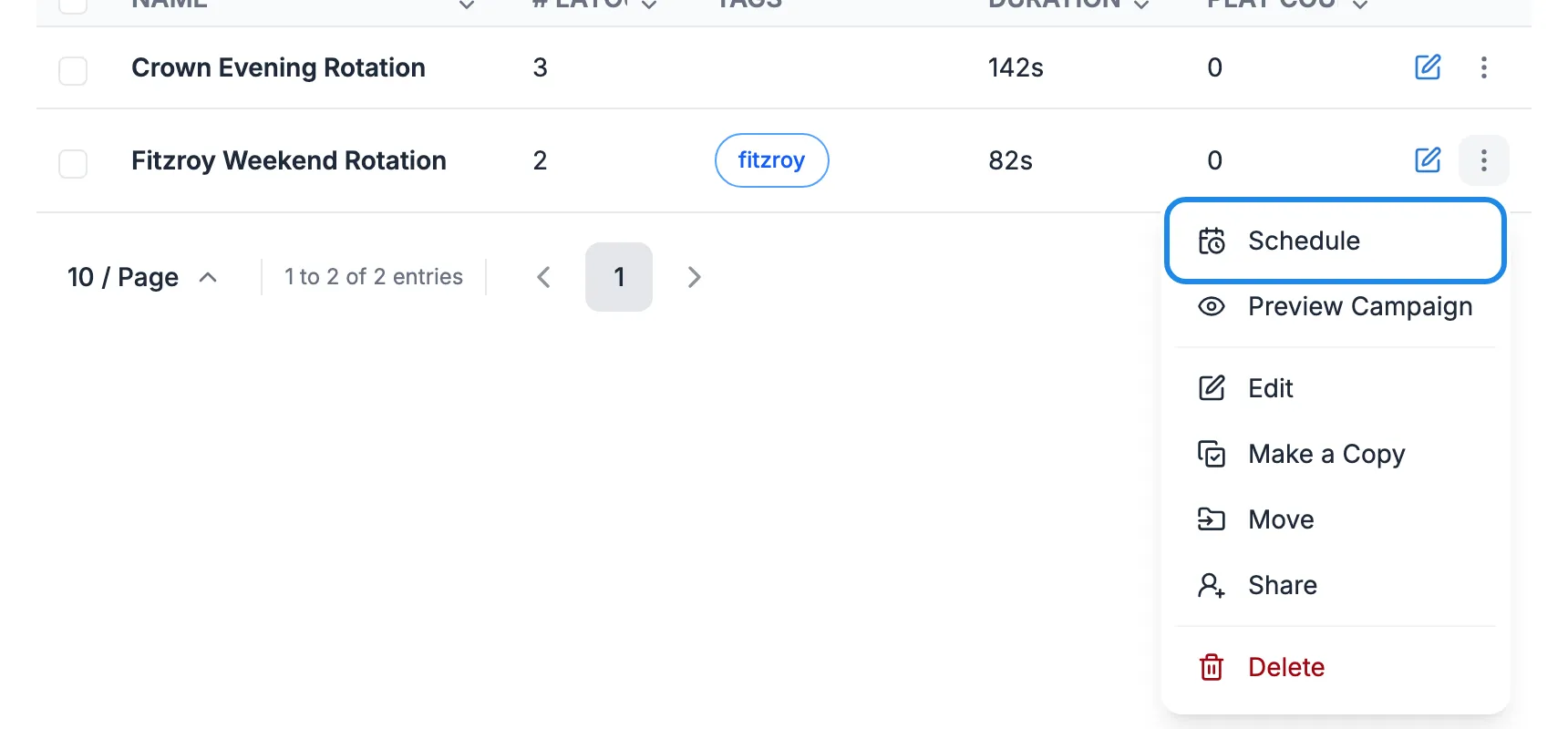
Open the campaign’s menu (the three dots at the end of its row) and click Schedule.
-
The event form opens at the Displays step with the campaign already chosen. Pick the screens, then set the times on the Time step as for any event (see Schedule content on your screens).
-
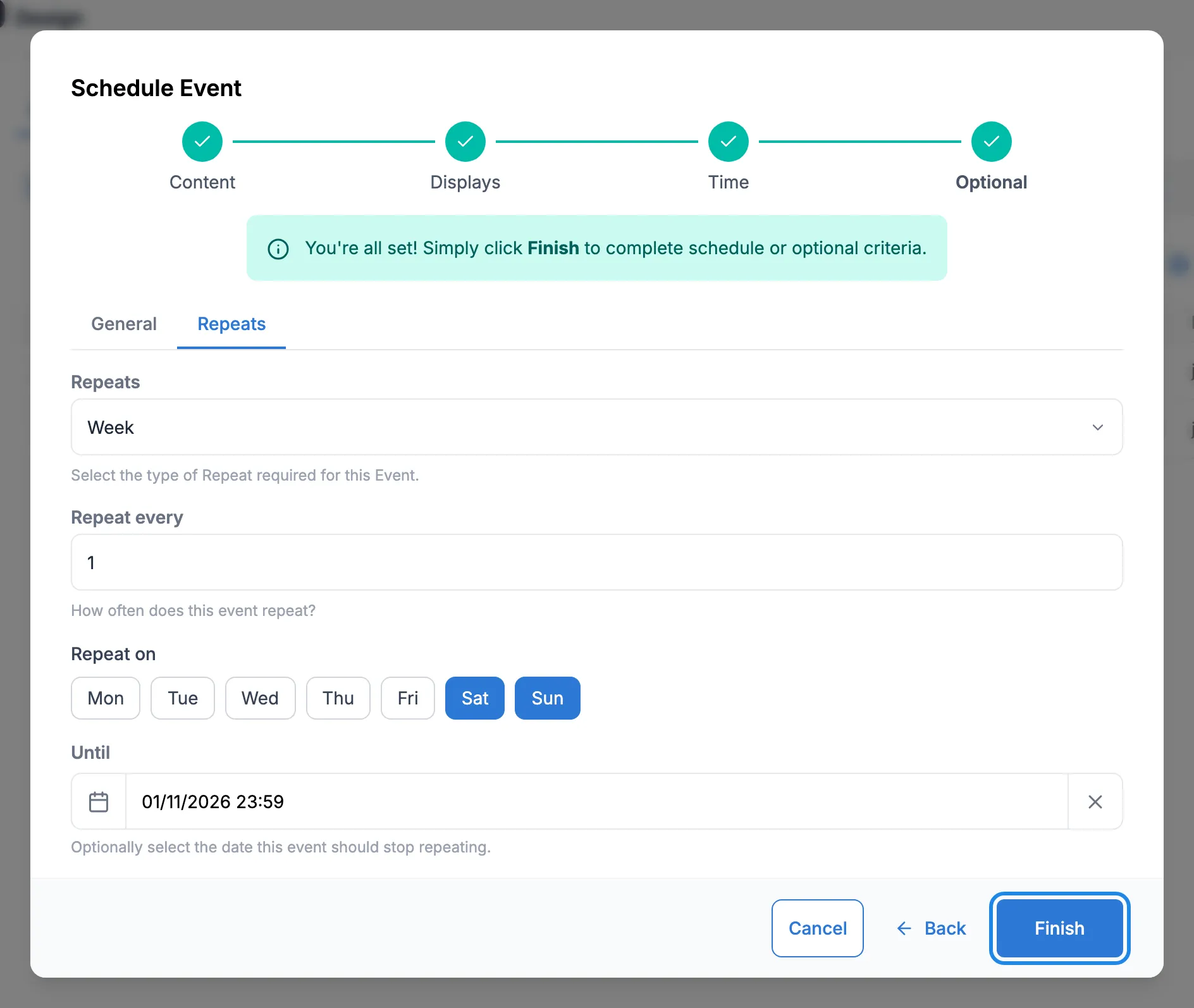
On the Optional step, give the event a Name. On the Repeats tab, choose Week, click the days and set Until. Click Finish.
You can also schedule a campaign from Schedule > Events > Add Event by choosing Campaign as the Event Type.
Change a campaign later
Section titled “Change a campaign later”Click the edit icon on the campaign’s row and open the Layouts tab to add, remove or reorder layouts. Click Save. Every event that uses the campaign plays the new list, so you don’t need to change the schedule.