

Add people to your account
You can give your managers and staff their own Casty logins, each with access to only what they need. We create the logins and set up the access for you.
Ask for a new login
Section titled “Ask for a new login”Email hello@casty.co.uk with:
- the person’s name and email address
- the venues, screens or content they should see
- what they should be able to change, for example “schedule content at The Crown” or “update the promotions playlist only”
We’ll set up the login and let you know when it’s ready. Email us in the same way to change someone’s access or remove a login when they leave.
The kinds of access we can set up
Section titled “The kinds of access we can set up”- Full access to your venues, the same as your own login, for someone who runs the screens with you.
- Access to one venue, so a manager sees the screens, content and schedule for their venue and nothing from your other venues.
- Scheduling only, for someone who books content onto the screens but doesn’t change your layouts or media.
- One playlist, for someone who keeps a single playlist up to date (the promotions loop in the bar, say) from a simple page.
For each folder or item, we can give view, edit or delete access. See Folders and sharing for how that works.
What a venue manager sees
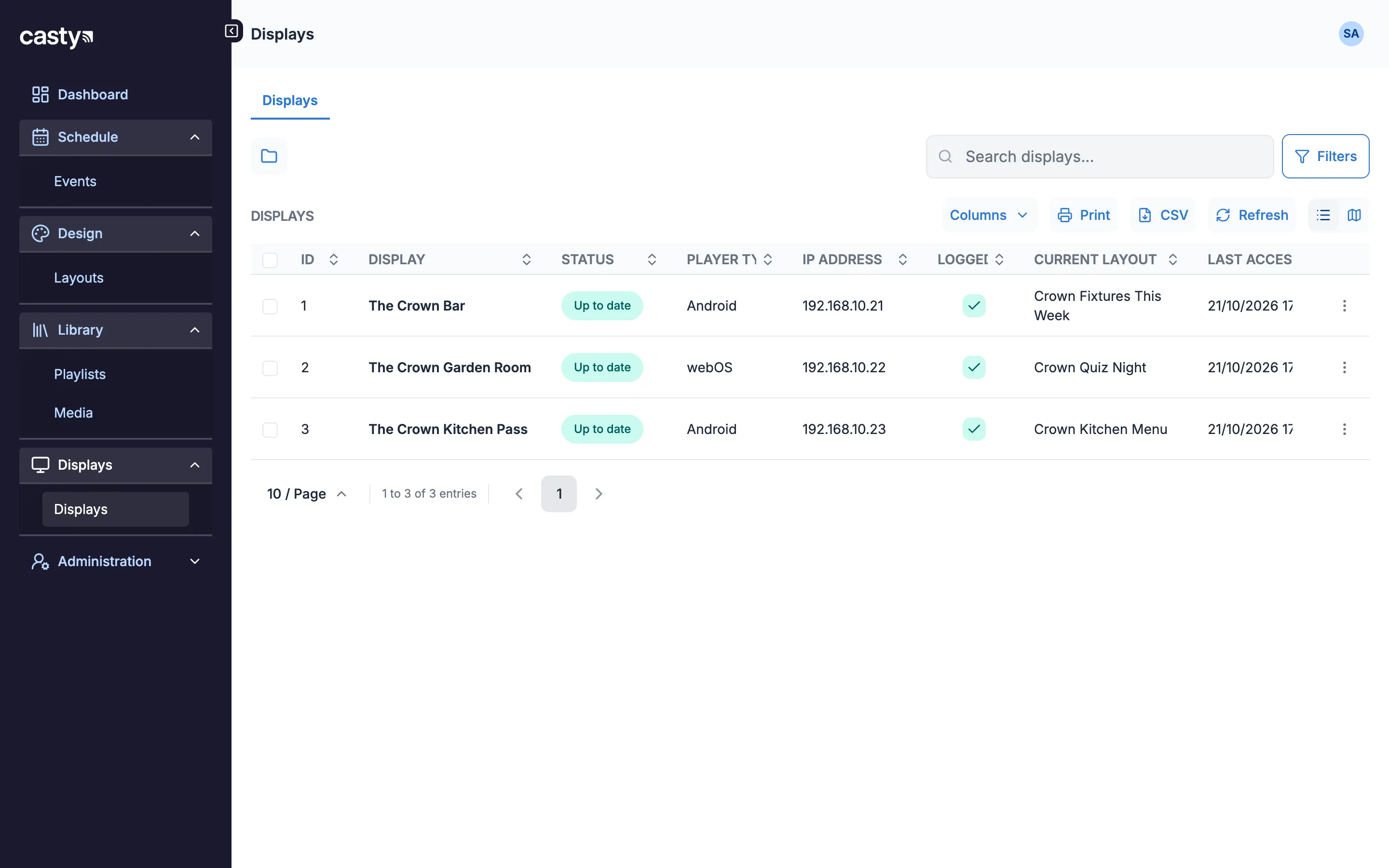
Section titled “What a venue manager sees”Here is The Crown’s bar manager, Sam, logged in. The menu on the left is shorter than yours: under Schedule there is only Events, under Design only Layouts, and under Library only Playlists and Media. The displays list shows The Crown’s three screens and none of the other venues’. Sam can see each screen’s status but there is no Add Display button and no edit icon, because Sam has view access only.
What a one-playlist user sees
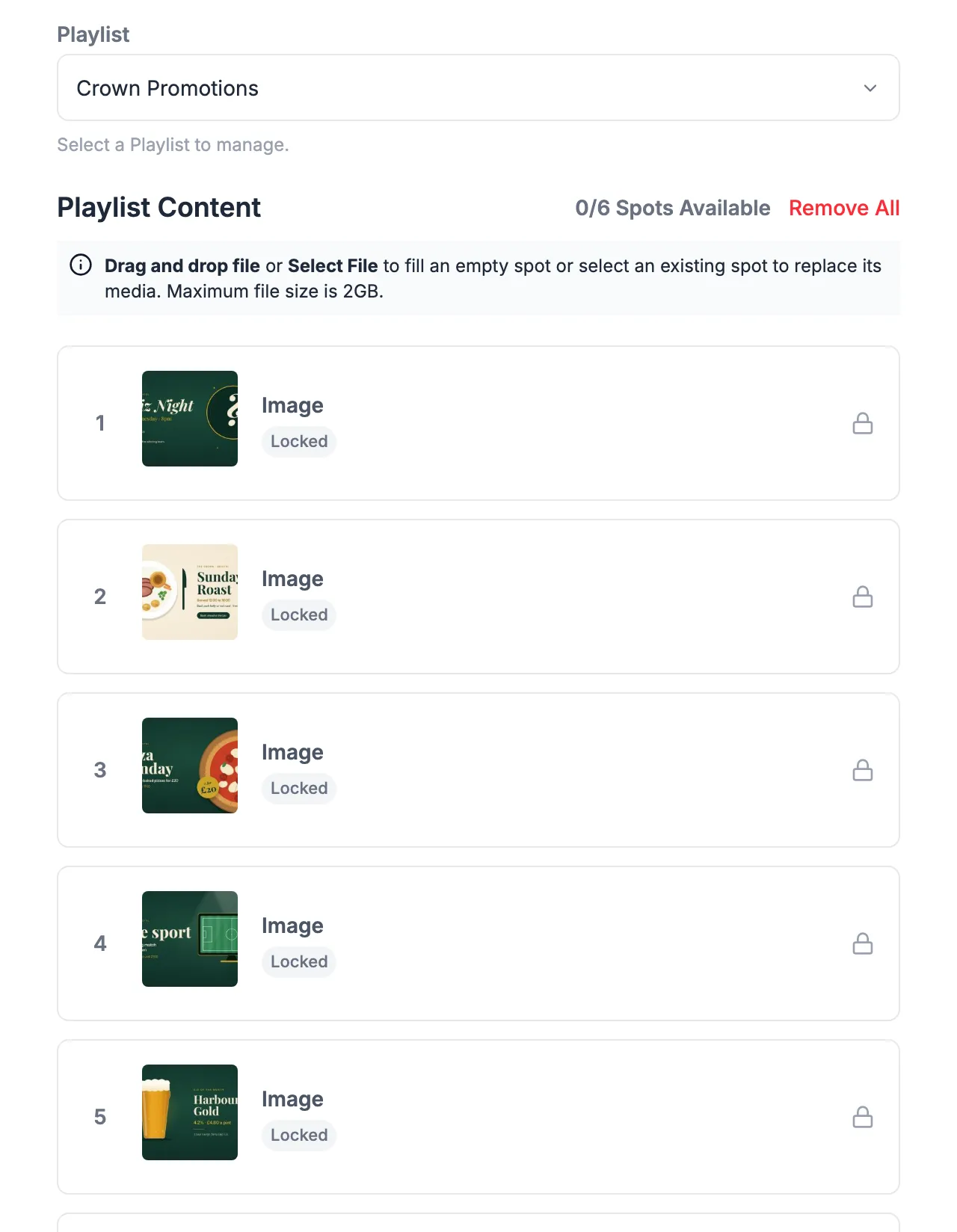
Section titled “What a one-playlist user sees”A person with one-playlist access lands on the playlist page when they log in. They choose the playlist at the top and see each numbered spot in it with what’s in the spot now. The note at the top of the page says what they can do: drag and drop a file, or use Select File, to fill an empty spot, or select an existing spot to replace its media. A spot marked Locked holds media they don’t have permission to change.
Passwords and security
Section titled “Passwords and security”Each person logs in with their own username and password. If someone forgets their password, email us and we’ll reset it. Ask your team to turn on two-factor authentication: see Keep your account secure.