

Keep your account secure
Anyone who logs in as you can change what’s on your screens. This page covers the three things that keep your account safe: a strong password, two-factor authentication, and signing out when you’ve finished.
Change your password
Section titled “Change your password”Your password must be at least 14 characters long and include an upper case letter, a lower case letter and a number. A short phrase you can remember, with a number in it, works well.
-
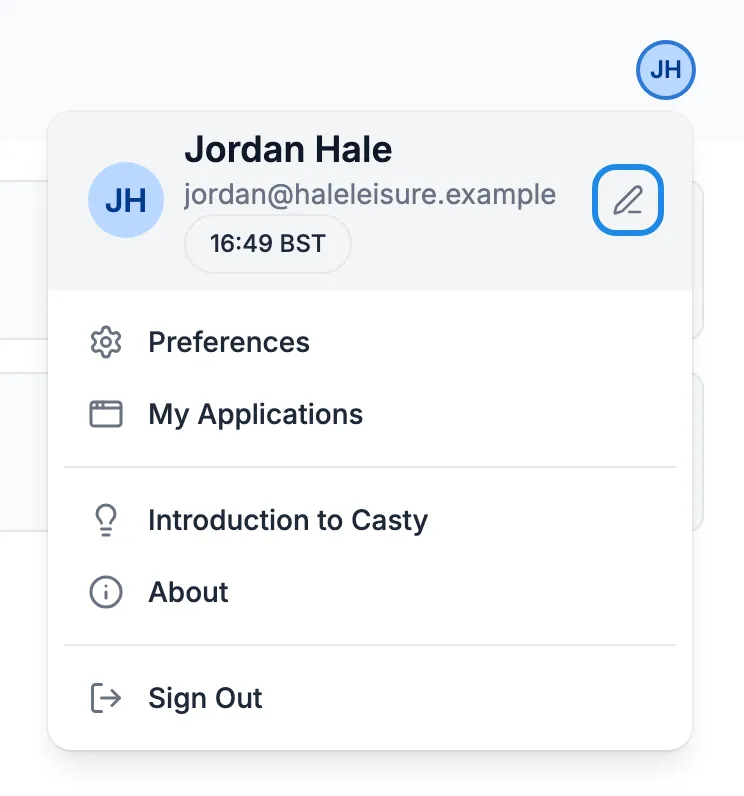
Click your initials in the top right corner, then the pencil icon next to your name.
-
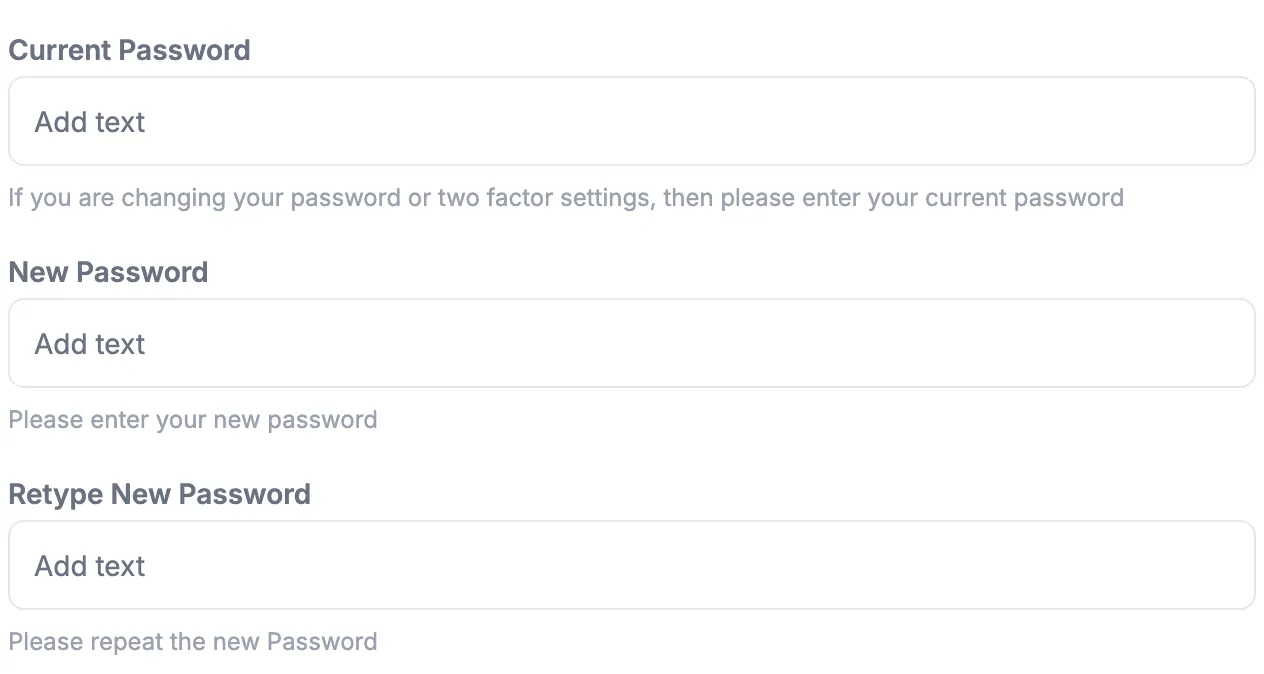
In Edit User Profile, type your Current Password. Type the new one in New Password and again in Retype New Password.
-
Click Save. Use the new password next time you log in.
If you share a login with your team, think about asking us for a login each instead. Email hello@casty.co.uk (see Add people to your account).
Turn on two-factor authentication
Section titled “Turn on two-factor authentication”With two-factor authentication on, logging in needs your password and a six-digit code from an app on your phone. Someone who learns your password still can’t get in without your phone.
Before you start
Section titled “Before you start”Install an authenticator app on your phone, such as Google Authenticator or another app that scans QR codes to set up a login.
-
Click your initials in the top right corner, then the pencil icon next to your name.
-
Click the Two Factor Authentication box and choose Google Authenticator. This works with any authenticator app.
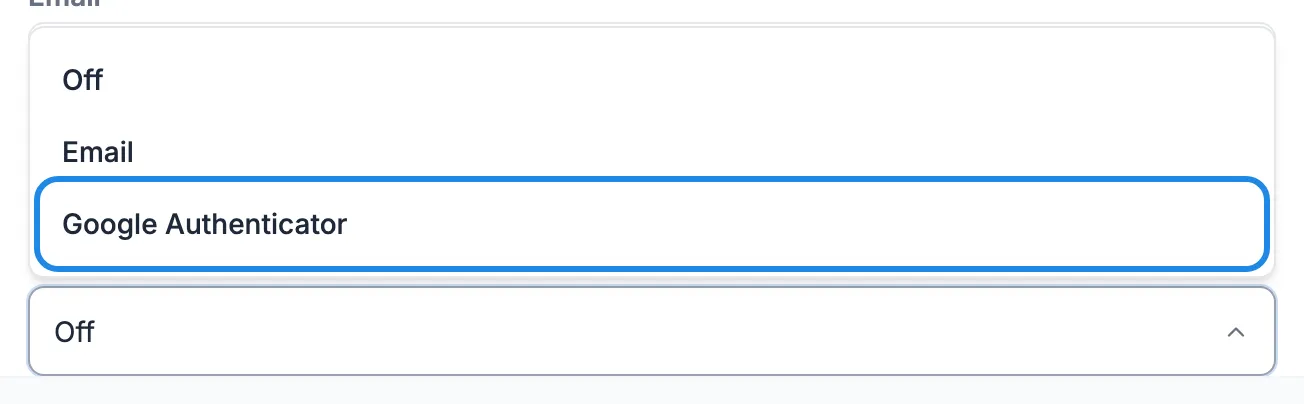
Don’t choose Email. The Casty CMS doesn’t send email, so the codes would never arrive.
-
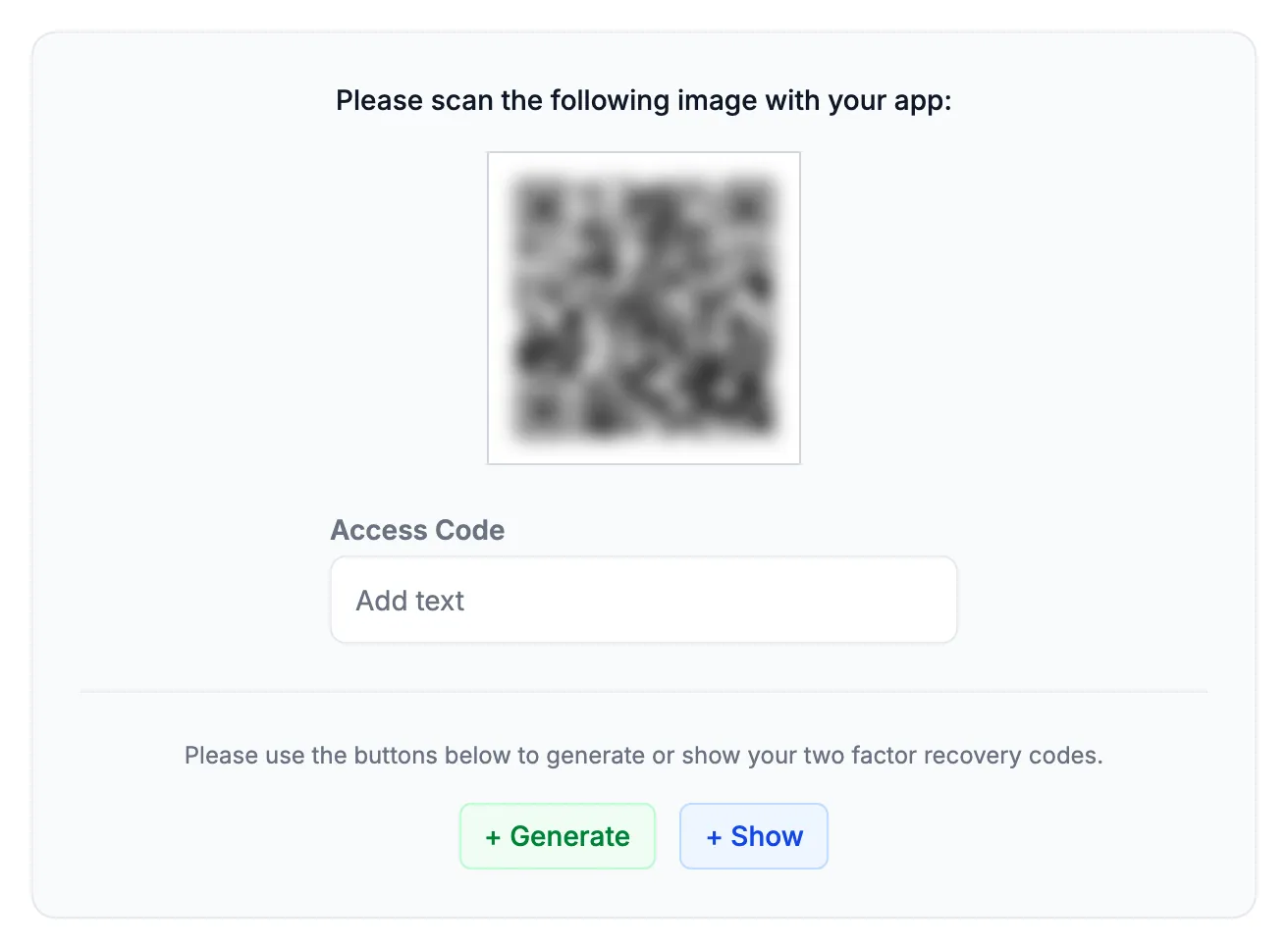
A QR code appears under Please scan the following image with your app. Open your authenticator app, add a new account and scan the code. The app starts showing a six-digit code that changes every 30 seconds.
-
Type the code your app shows into Access Code.
-
Click Generate to create recovery codes. Copy them somewhere safe away from your phone, such as a password manager. Each one lets you log in once if you lose your phone.
-
Scroll back to the top and type your Current Password. Click Save.
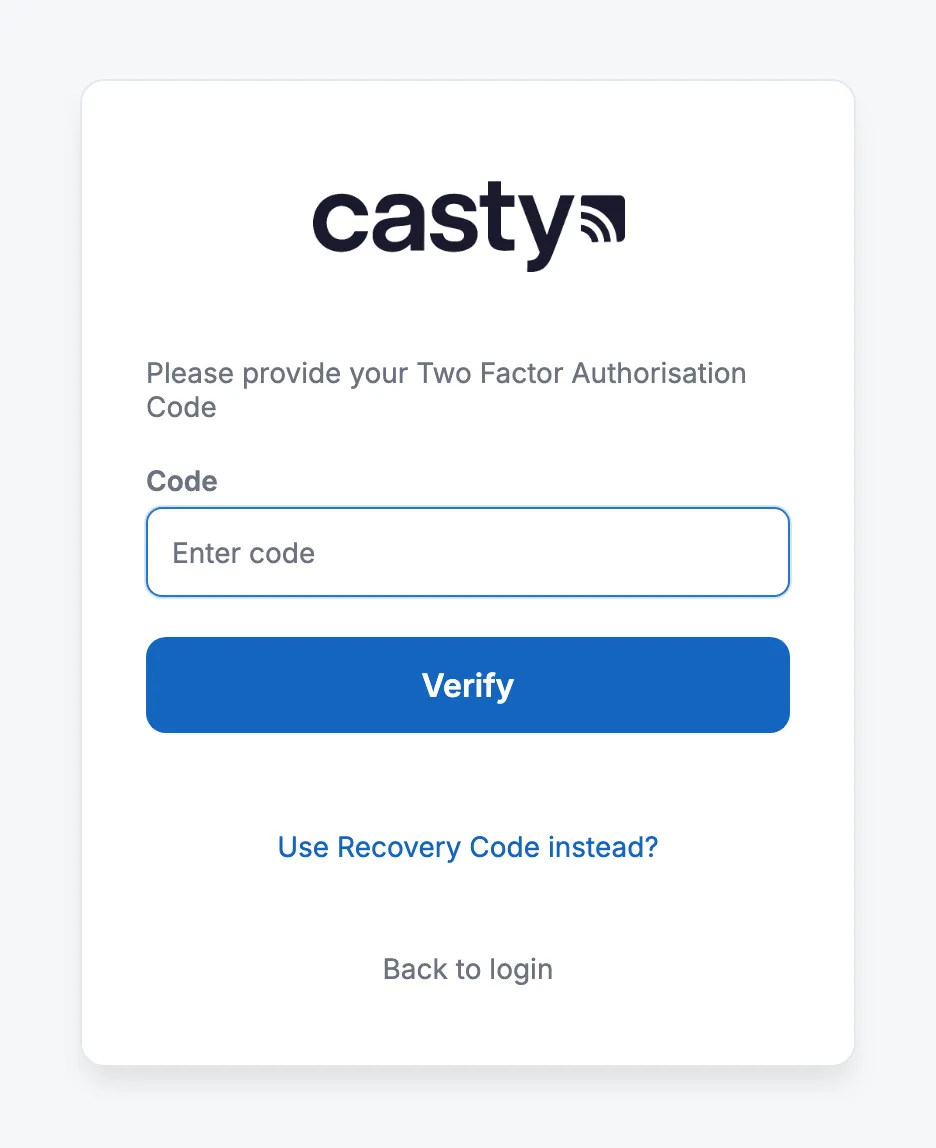
From now on, after your username and password, the login page asks for a code. Open your app, type the code it shows and click Verify.
Sign out on shared computers
Section titled “Sign out on shared computers”On a computer that other people use, such as a laptop behind the bar, sign out every time you finish.
-
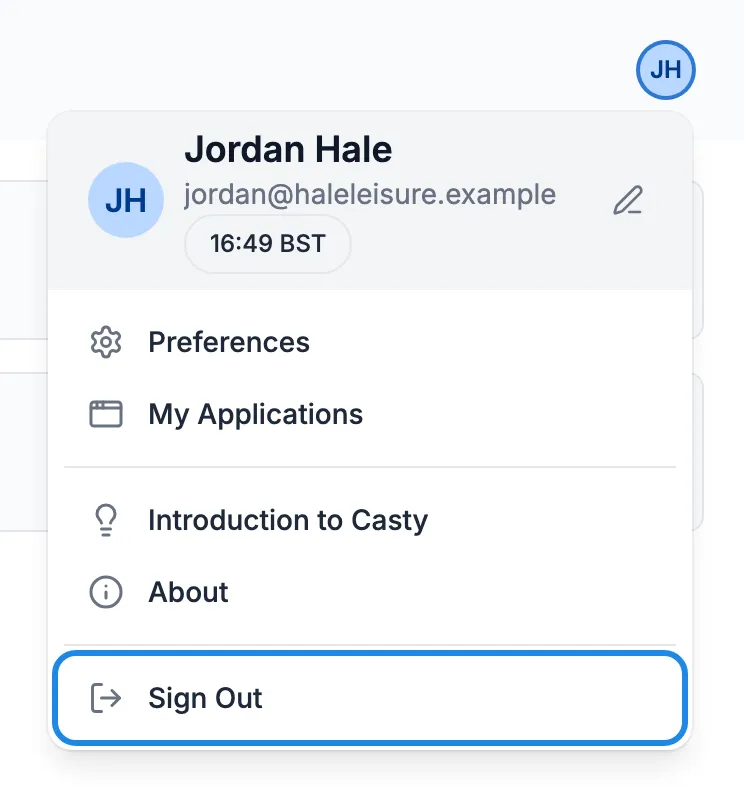
Click your initials in the top right corner.
-
Click Sign Out.
If you forget your password
Section titled “If you forget your password”There’s no reset link on the login page. Email hello@casty.co.uk from the address we have for you and we’ll set a new password. Change it to one of your own as soon as you log in.