

Priority, interrupts and overlays
When two everyday events overlap on a screen, the screen plays both, in turn. Three tools change that. A priority event takes over the screen while it runs. An interrupt layout gets a set number of seconds in every hour. An overlay layout plays on top of whatever else is on the screen.
All three are set up from Schedule > Events > Add Event. If you haven’t used the event form before, read Schedule content on your screens first.
Priority: take over the screens for a big match
Section titled “Priority: take over the screens for a big match”Priority is a number on the Optional step of the event form. Everyday events have a priority of 0. Events with the highest priority play in preference to lower priority events, so a priority 1 event replaces everything at priority 0 for as long as it runs.
In this example The Crown shows its fixtures board on every screen, including the kitchen pass, during Sunday’s match.
-
Click Add Event. Choose Layout and the layout you want, then click Next.
-
Pick the screens or the venue’s display group and click Next.
-
Choose Custom in Dayparting and set the Start Time and End Time to cover the match. Click Next.
-
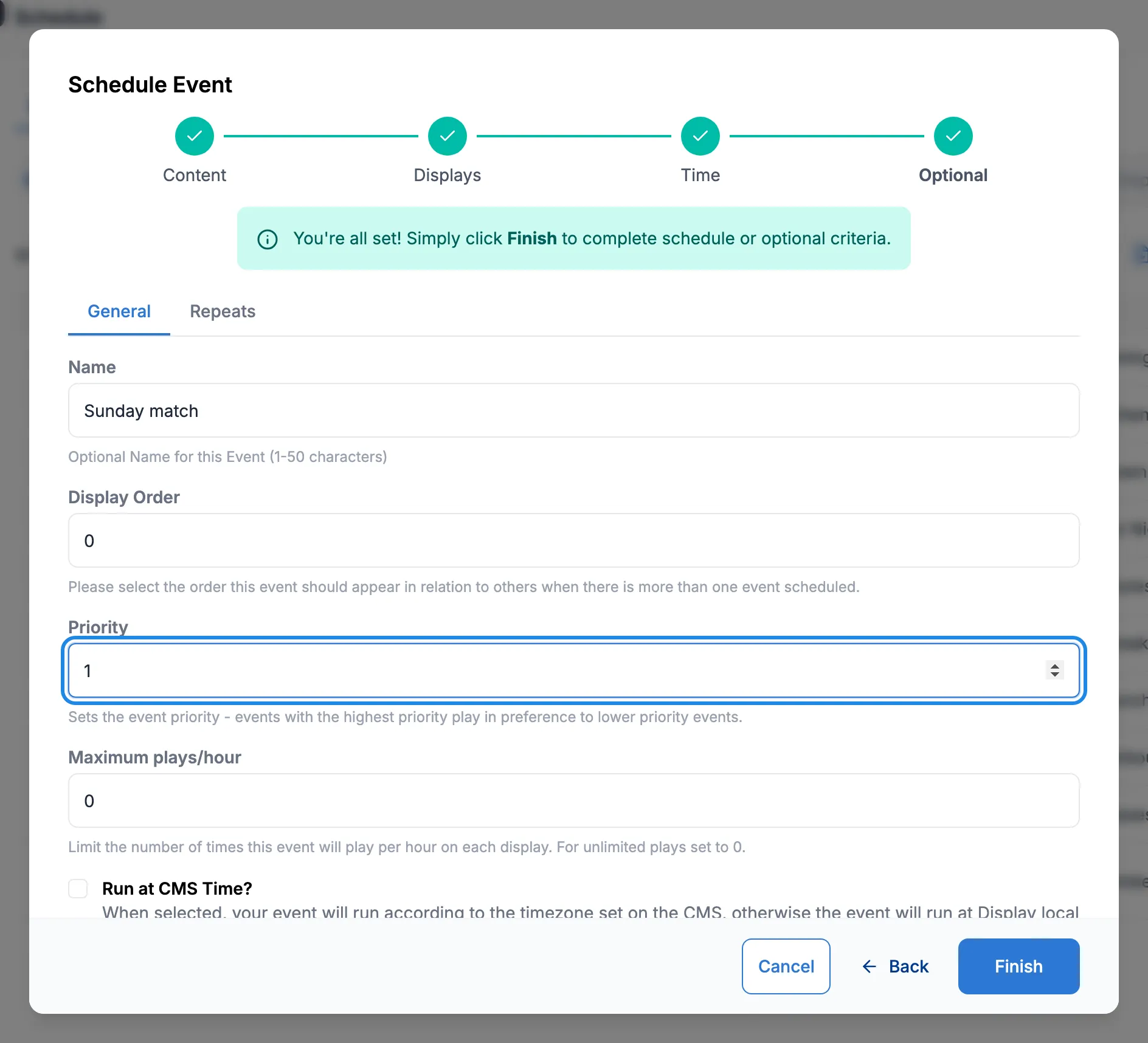
Type a Name, then set Priority to 1. Click Finish.
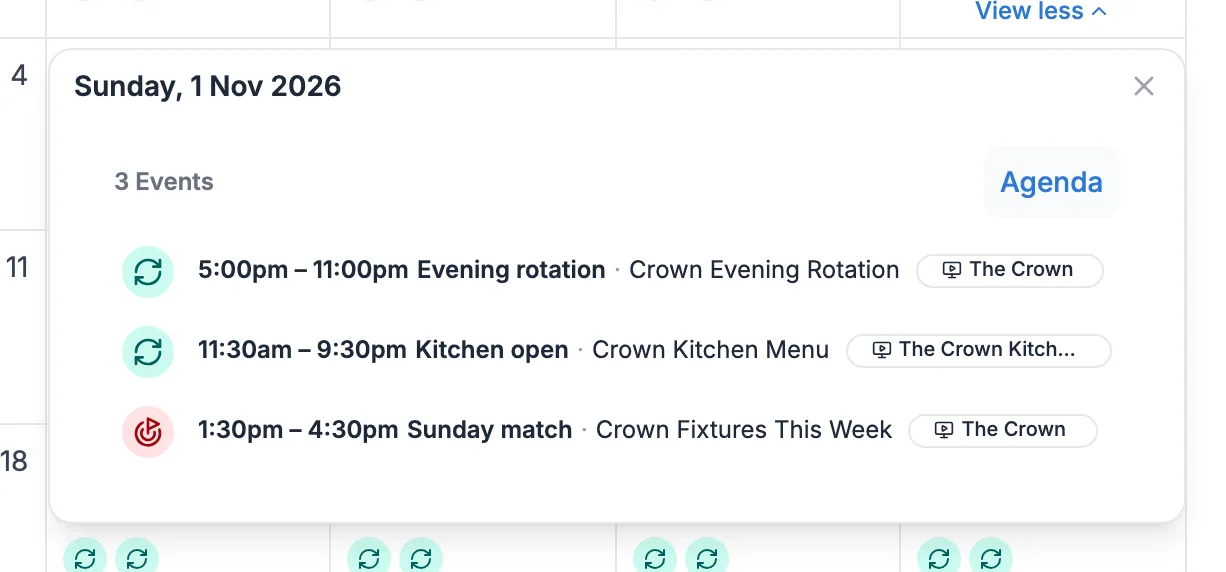
Priority events show with a red icon in the event list and the calendar.
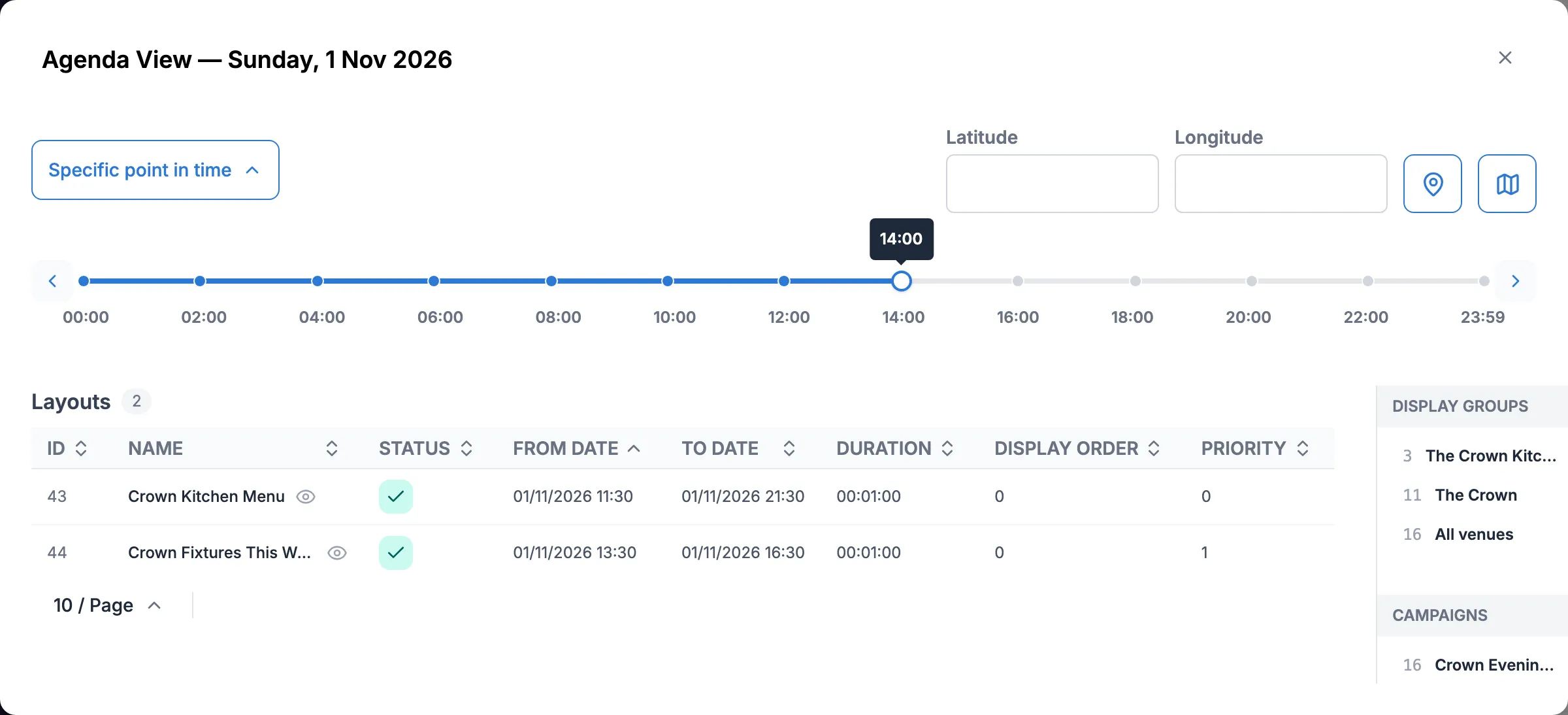
The agenda shows what wins. Here the kitchen pass screen has its everyday menu at priority 0 and the match layout at priority 1, so the match layout plays from 13:30 to 16:30. After 16:30 the screen goes back to its usual events.
Interrupts: a few minutes every hour
Section titled “Interrupts: a few minutes every hour”An interrupt layout gets a share of each hour on top of the screen’s normal content. You set the share in Share of Voice, in seconds per hour. This example gives The Crown’s quiz night promotion 5 minutes an hour on the bar screen on Mondays and Tuesdays.
-
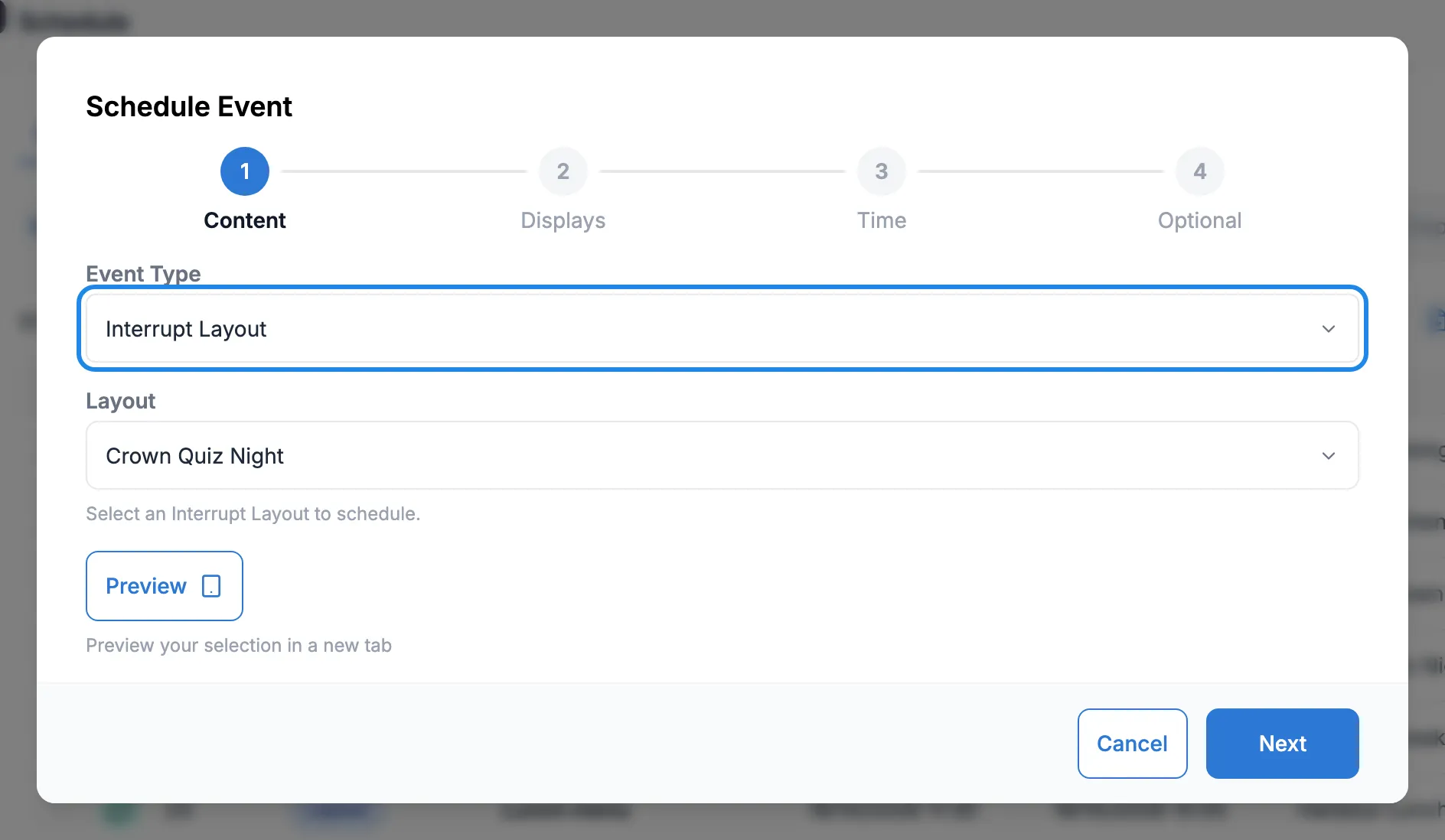
Click Add Event. Set Event Type to Interrupt Layout, choose the layout and click Next.
-
Pick the screens and click Next.
-
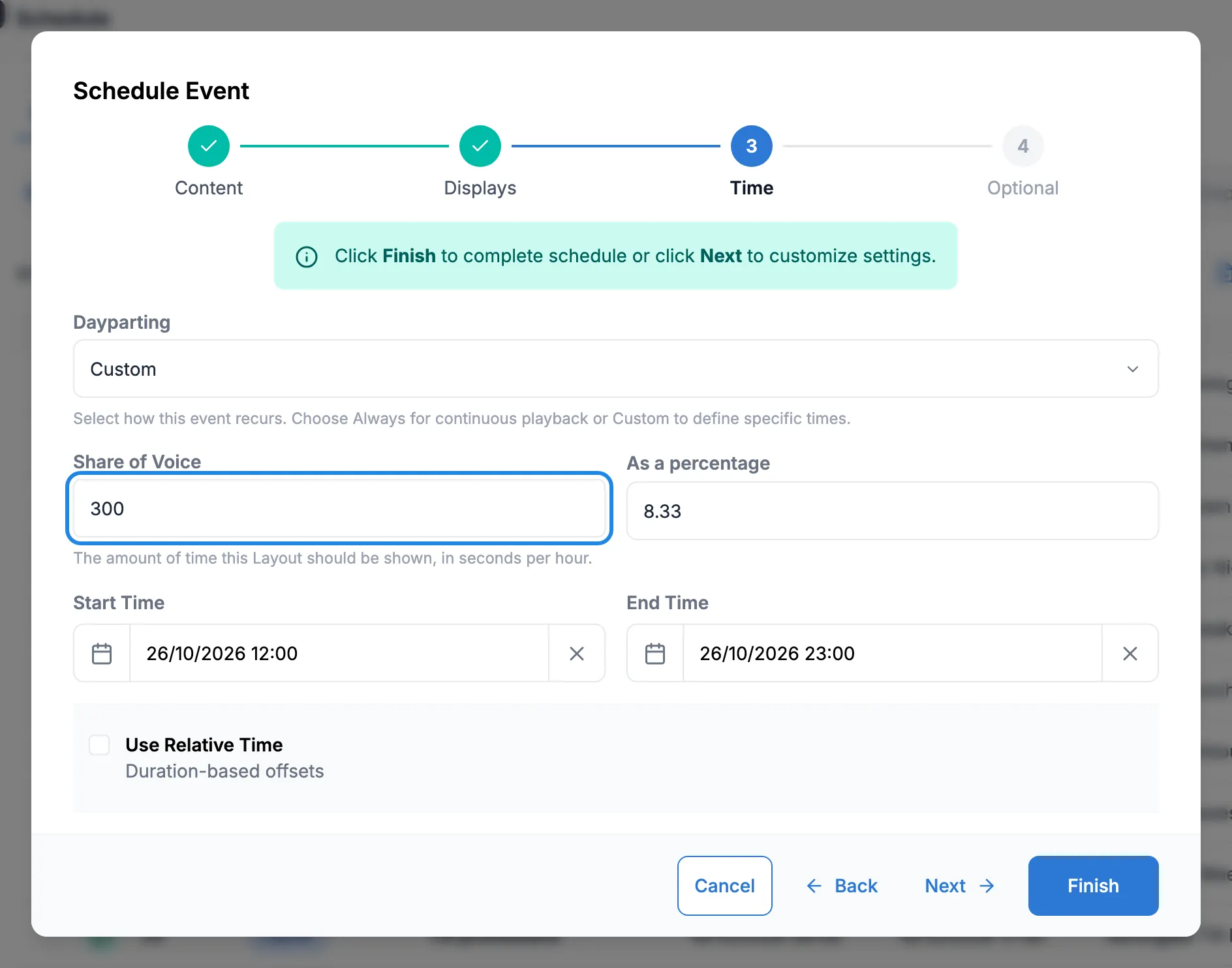
Choose Custom in Dayparting. Type the number of seconds per hour in Share of Voice. The As a percentage box works out the share of the hour for you: 300 seconds is 8.33%. Set the Start Time and End Time for the first day and click Next.
-
Type a Name. On the Repeats tab choose Week, click Mon and Tue and set Until. Click Finish.
Interrupt events show with a red pause icon and the Interrupt Layout label in the event list.
Overlays: content on top of the screen
Section titled “Overlays: content on top of the screen”An overlay layout plays over the top of the layout that is already on the screen. It suits a small item that should stay visible whatever else is playing, such as a strip along the bottom with tonight’s kick-off time.
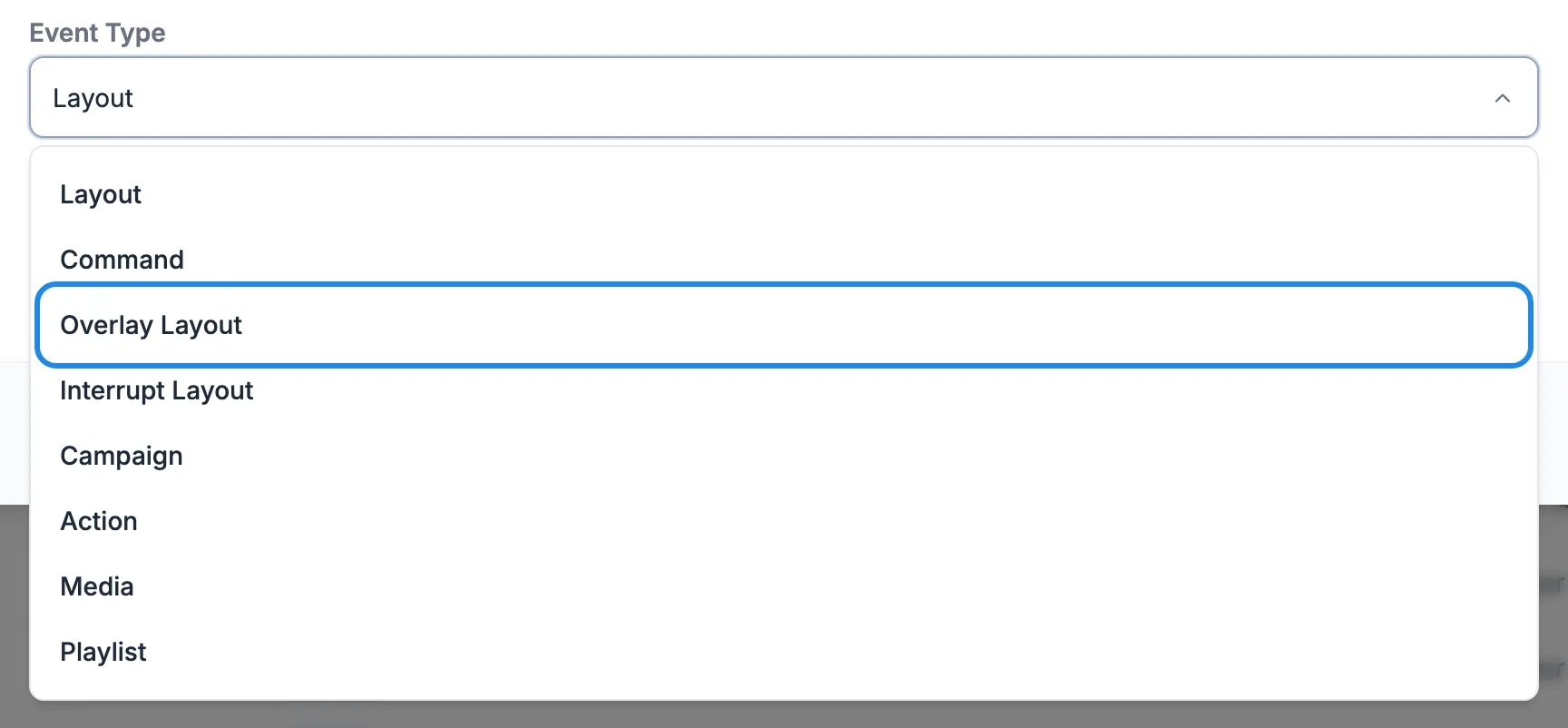
To schedule one, click Add Event and set Event Type to Overlay Layout. The rest of the form is the same as for a layout: choose the layout, the screens and the times, then click Finish.
Build the overlay as its own layout, with content only where it should appear, and check it with Preview on the Content step before you schedule it. See Design a layout.
Other settings that decide what plays
Section titled “Other settings that decide what plays”Two more settings on the General tab of the Optional step affect overlapping events. Display Order sets the order events play in when more than one is scheduled at the same time. Maximum plays/hour limits how many times an event plays per hour on each screen, and 0 means no limit.