

New content isn't showing
You’ve made a change or scheduled something new, and the screen is still showing the old content. Work through these checks in order.
If the screen has a cross in Logged In on the Displays page, it isn’t checking in at all. Start with A screen shows as offline instead.
1. Is the layout published?
Section titled “1. Is the layout published?”Screens only play published layouts. A new layout, or a layout you’ve opened to change, is a draft until you publish it. While it’s a draft, screens keep playing the last version you published, or nothing new at all if it has never been published.
Click Design in the menu, then Layouts, and look at the Status column. Draft means there are changes waiting.
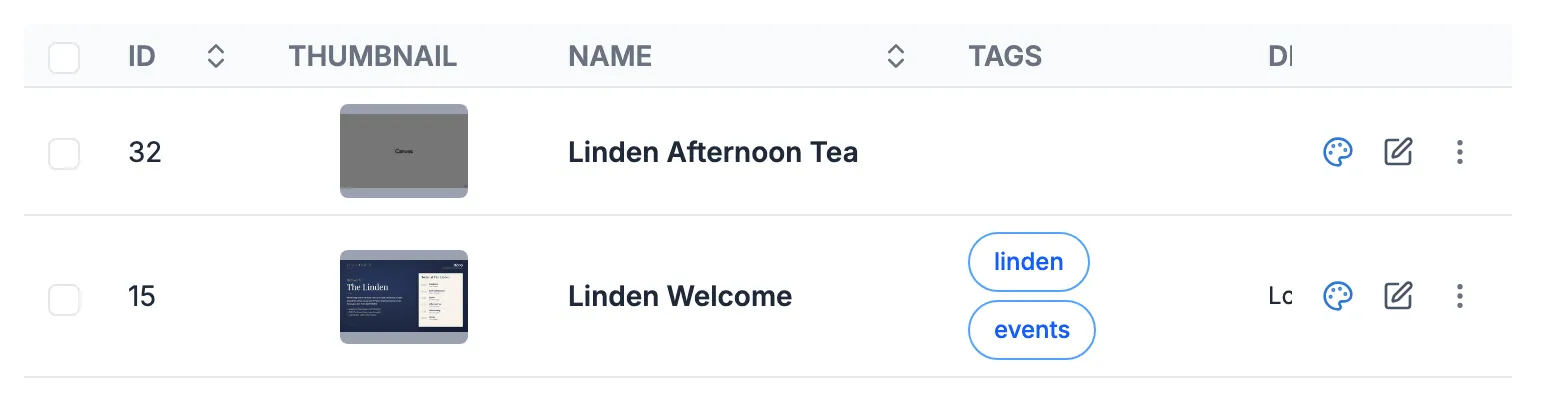
To publish, open the layout, click the menu icon (three lines) in the top right of the editor, click Publish and confirm. See Design a layout.
2. Is the event right?
Section titled “2. Is the event right?”Click Schedule in the menu, then Events, and find the event. Check:
- Has the event started yet, and has it already ended? An event with an end date in the past won’t play.
- Is it scheduled to this screen, or to a group the screen belongs to?
- Is it the layout you changed? Check it isn’t a copy with a similar name.
- If the event repeats or uses a daypart, does the time now fall inside it?
See Schedule content on your screens for how to change an event.
3. Is something else taking priority?
Section titled “3. Is something else taking priority?”If two events cover the same time, the one with the higher Priority plays and the other waits. A priority event for a match, or an overlay or interrupt layout, can hide your new content for as long as it runs. Look for other events on the same screens at the same time. See Priority, interrupts and overlays.
If nothing is scheduled at all, the screen plays its default layout (see The default layout).
4. Has the screen checked in since your change?
Section titled “4. Has the screen checked in since your change?”Screens pick up changes when they check in, not the moment you click Save. On the Displays page, compare the screen’s Last Accessed time with the time you made the change.
To skip the wait, click the three dots on the screen’s row and click Collect Now (see Send a command to a screen). Then check Current Layout to see what the screen says it’s playing.
5. Has the screen finished downloading?
Section titled “5. Has the screen finished downloading?”The Status column on the Displays page shows whether the player has everything it needs. Downloading means it’s still fetching files. Out of date means it hasn’t got everything for its latest content yet. Large videos take longer, especially on a slow connection. Give it time, then click Refresh above the list.
If a screen stays on Out of date or Downloading for hours, email us.
6. Has a media item expired?
Section titled “6. Has a media item expired?”Media items in the library can have an expiry date. When it passes, the item is removed from every layout it’s in, so a picture can disappear from a layout on its own. Click Library, then Media, open the item’s menu and click Edit to see its Expiry Date. Never Expire means it has none. See Upload media to the library.
7. Is the screen’s time zone right?
Section titled “7. Is the screen’s time zone right?”Events run at the screen’s local time unless they’re set to Run at CMS Time?. If a screen’s time zone is wrong, everything on it starts at the wrong hour. Check Timezone on the screen’s Details tab (see Change a screen’s settings).
Still stuck?
Section titled “Still stuck?”Request a screenshot so you can see exactly what the screen is showing (see Send a command to a screen). Then email hello@casty.co.uk with the screen’s name, the layout and event you expected to see, and the screenshot.