Folders and sharing
Folders keep your layouts, media, playlists, datasets, campaigns and screens organised. In the examples here, each venue has its own folder, plus a Shared folder for content every venue uses. Folders also decide what your team can see: when we give someone access to a folder, they see what’s in it and nothing else.
Open the folder list
Section titled “Open the folder list”The Layouts, Media, Playlists, Datasets, Campaigns, Displays and Display Groups pages all have the same folder button above the list. Click it to open the Select Folder panel.
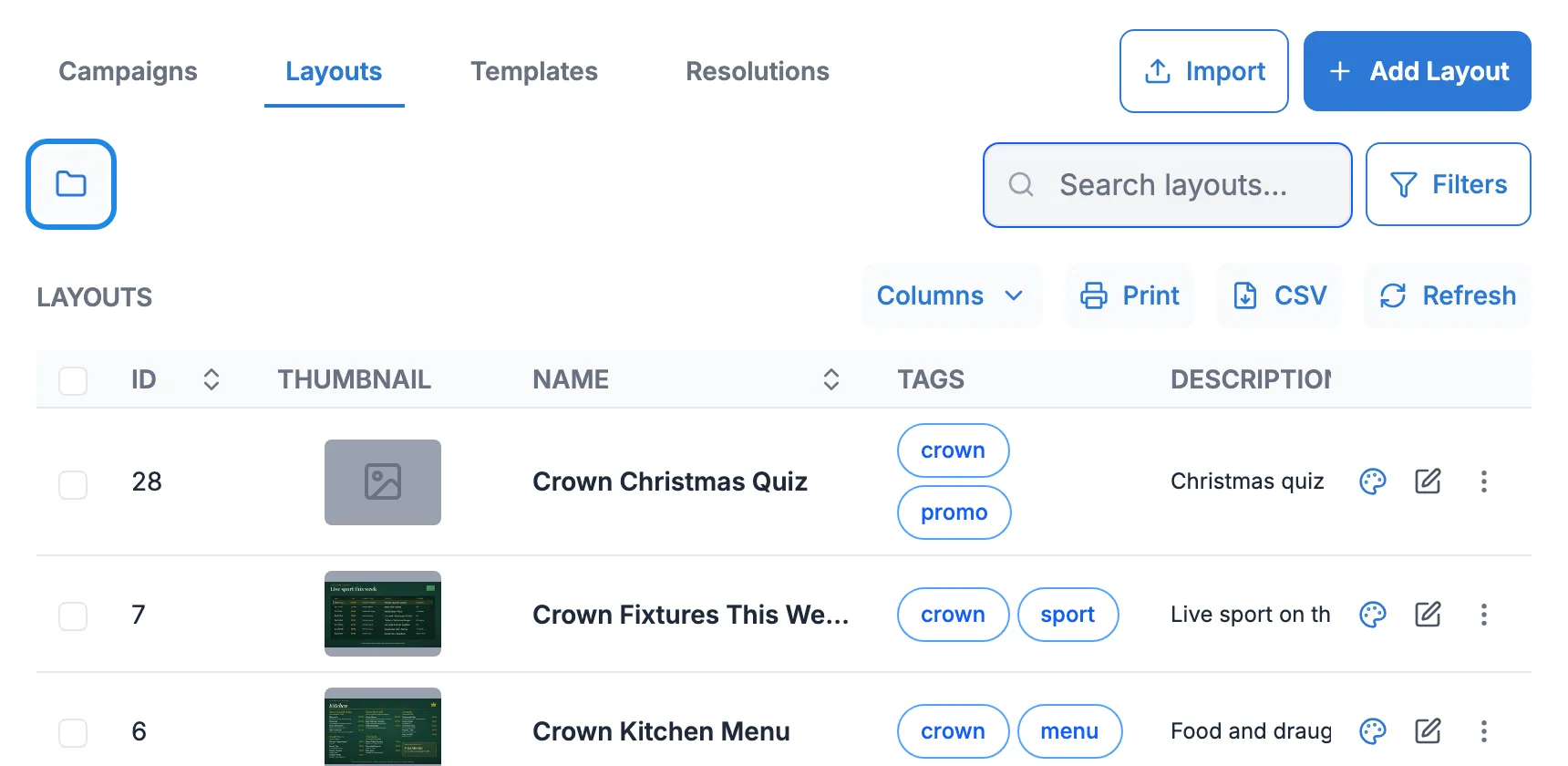
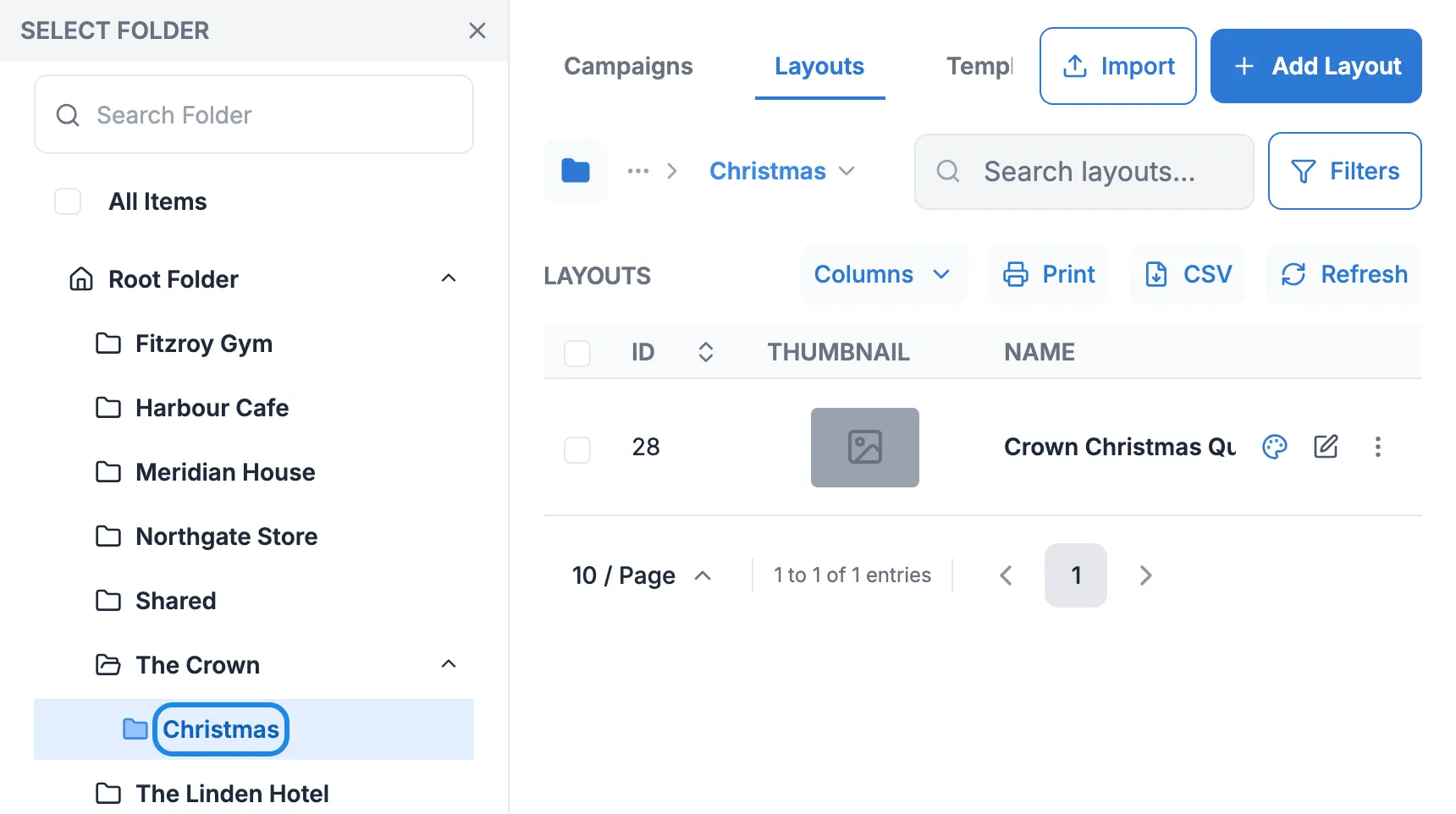
Click a folder to see only what’s in it. Tick All Items to see everything again. The path above the list, for example Root Folder > The Crown > Christmas, shows where you are.
Make a new folder
Section titled “Make a new folder”-
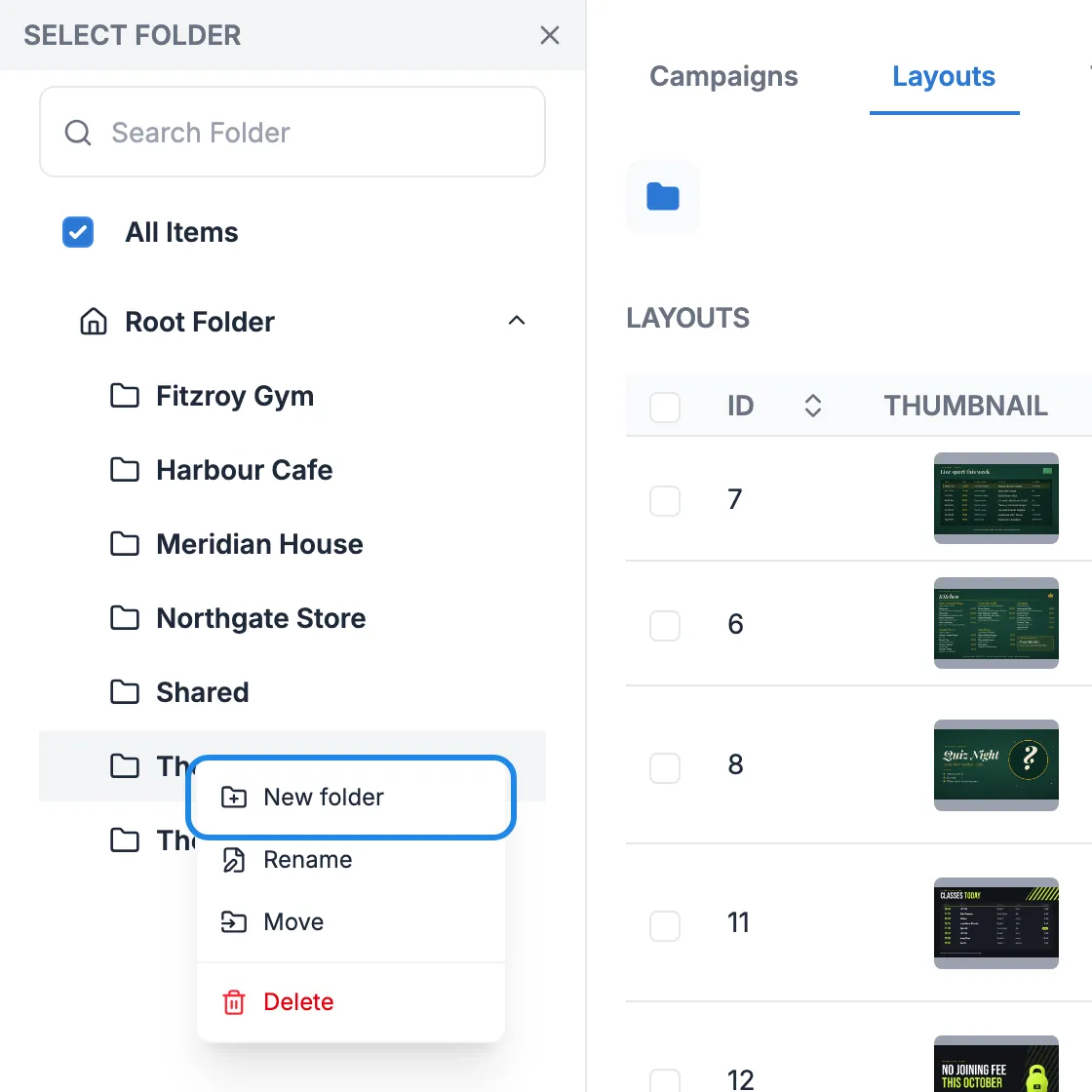
In the Select Folder panel, right-click the folder you want the new one to go in, then click New folder.
-
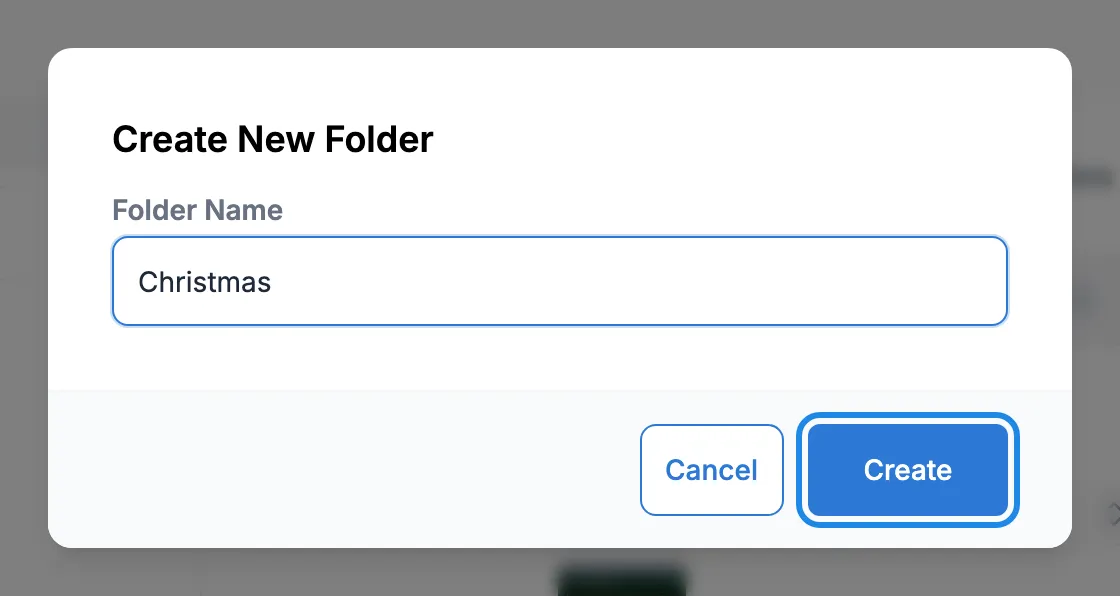
Type a Folder Name and click Create.
The same right-click menu has Rename, Move and Delete for the folder.
Move an item into a folder
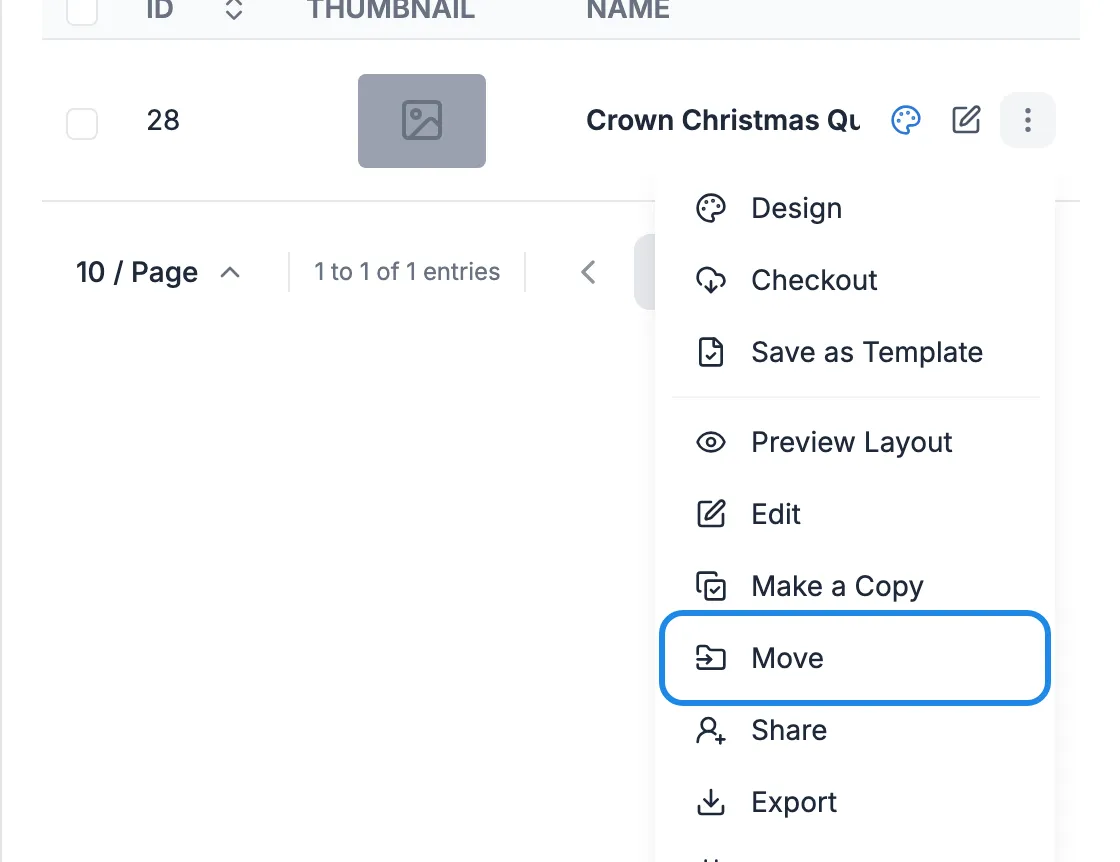
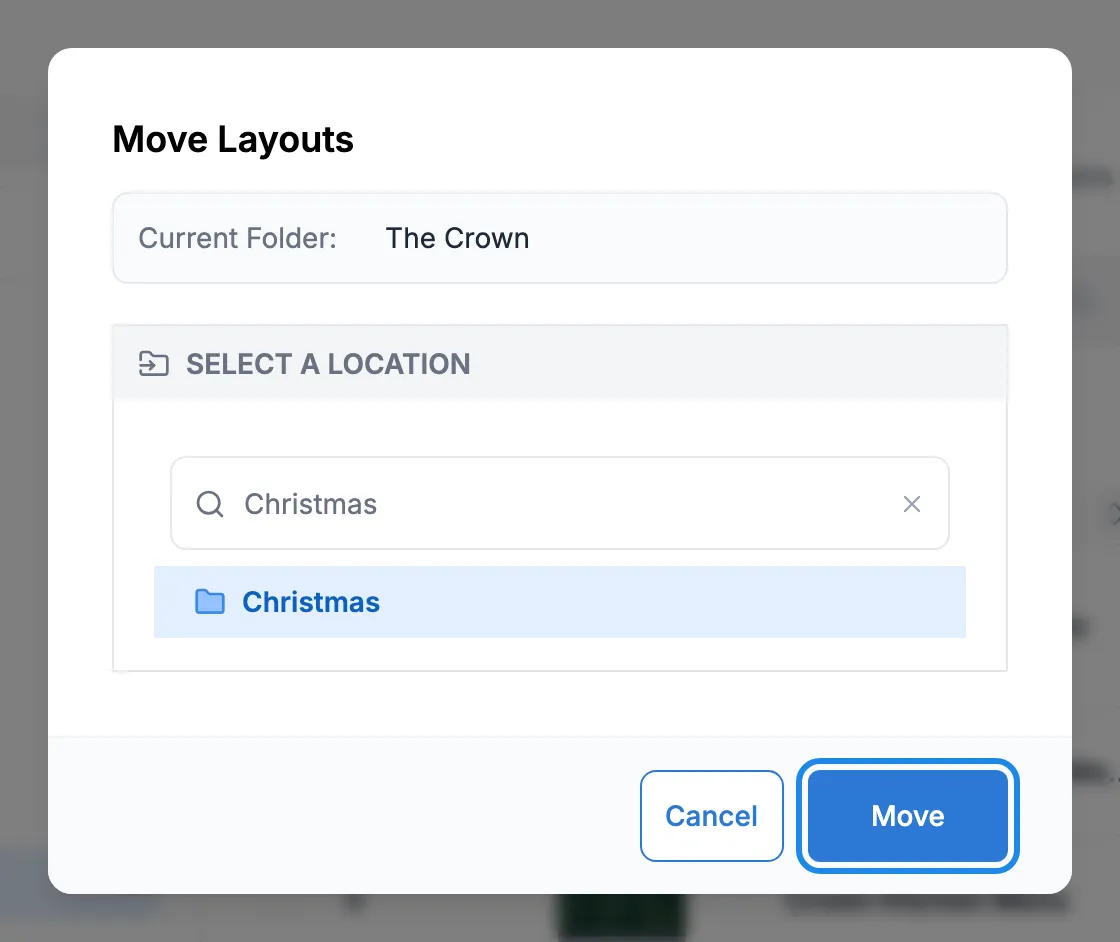
Section titled “Move an item into a folder”Here a Christmas quiz layout moves into the new folder.
-
Open the item’s menu (the three dots at the end of its row) and click Move.
-
The window shows the Current Folder. Under Select a location, click the folder to move the item to. Type in Search to find it quickly. Click Move.
Click the folder in the panel to check the item is there. A folder inside another folder appears when you click the arrow next to its parent.
When you create something new, such as a campaign or a layout, choose its folder in Select folder location on the form, so it starts in the right place.
Sharing with your team
Section titled “Sharing with your team”Your team members’ access is set up by us. For each folder or item, a person can have view access (they can see and preview it), edit access (they can change it) and delete access (they can delete it).
Access to a folder covers everything in it, including folders inside it.
To give someone access, or to change or remove it, email hello@casty.co.uk with their name and the folders or items they should see, and say whether they should be able to edit or delete. See Add people to your account for the kinds of access we set up.
What a team member sees
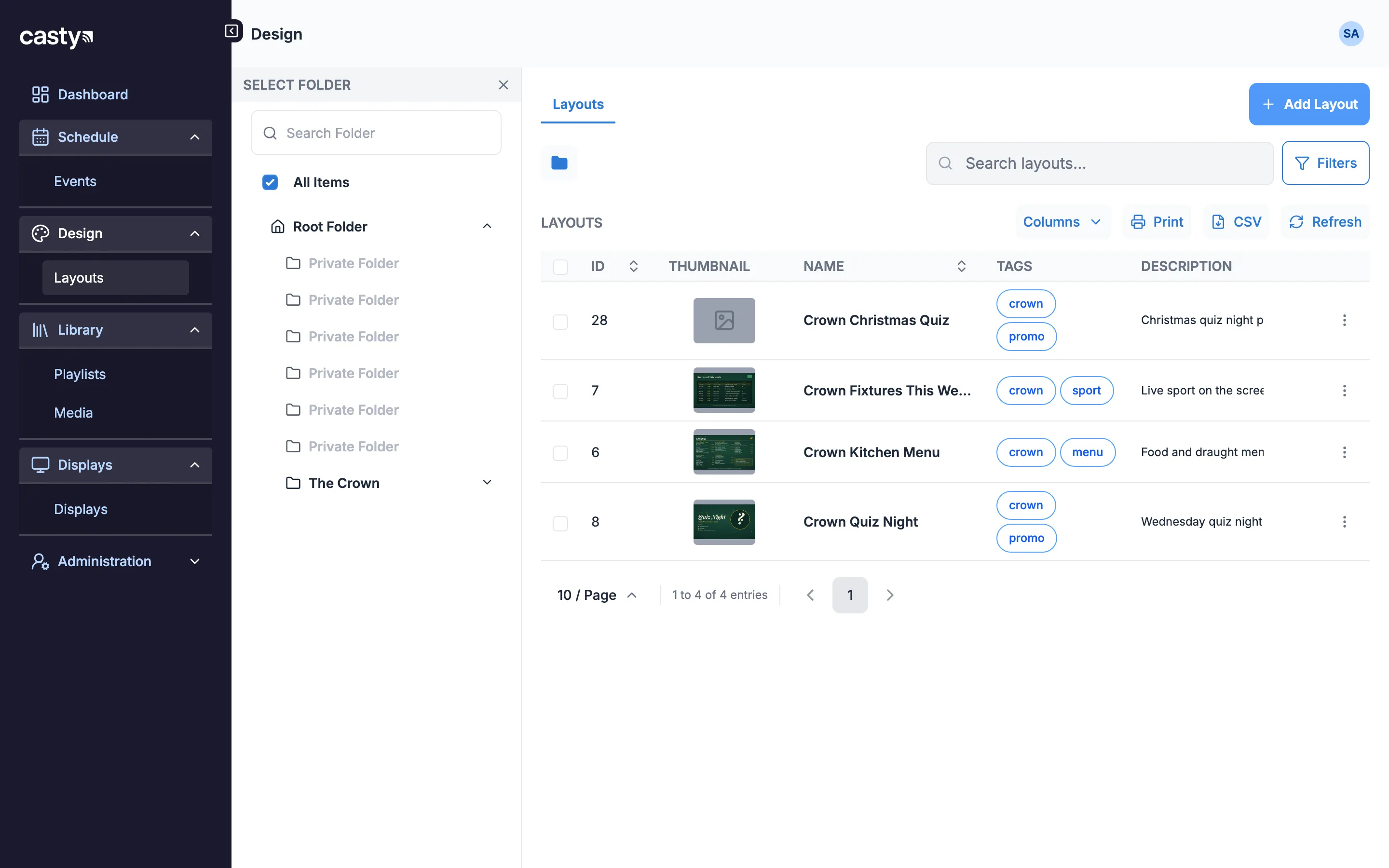
Section titled “What a team member sees”A team member only sees the folders shared with them. Other folders show as Private Folder and can’t be opened. In this example the bar manager at The Crown can view The Crown’s folder, including the new Christmas folder inside it. With view access, the menu on each layout only offers Preview Layout, Details and the Jump to links, and Add Layout is greyed out.